References
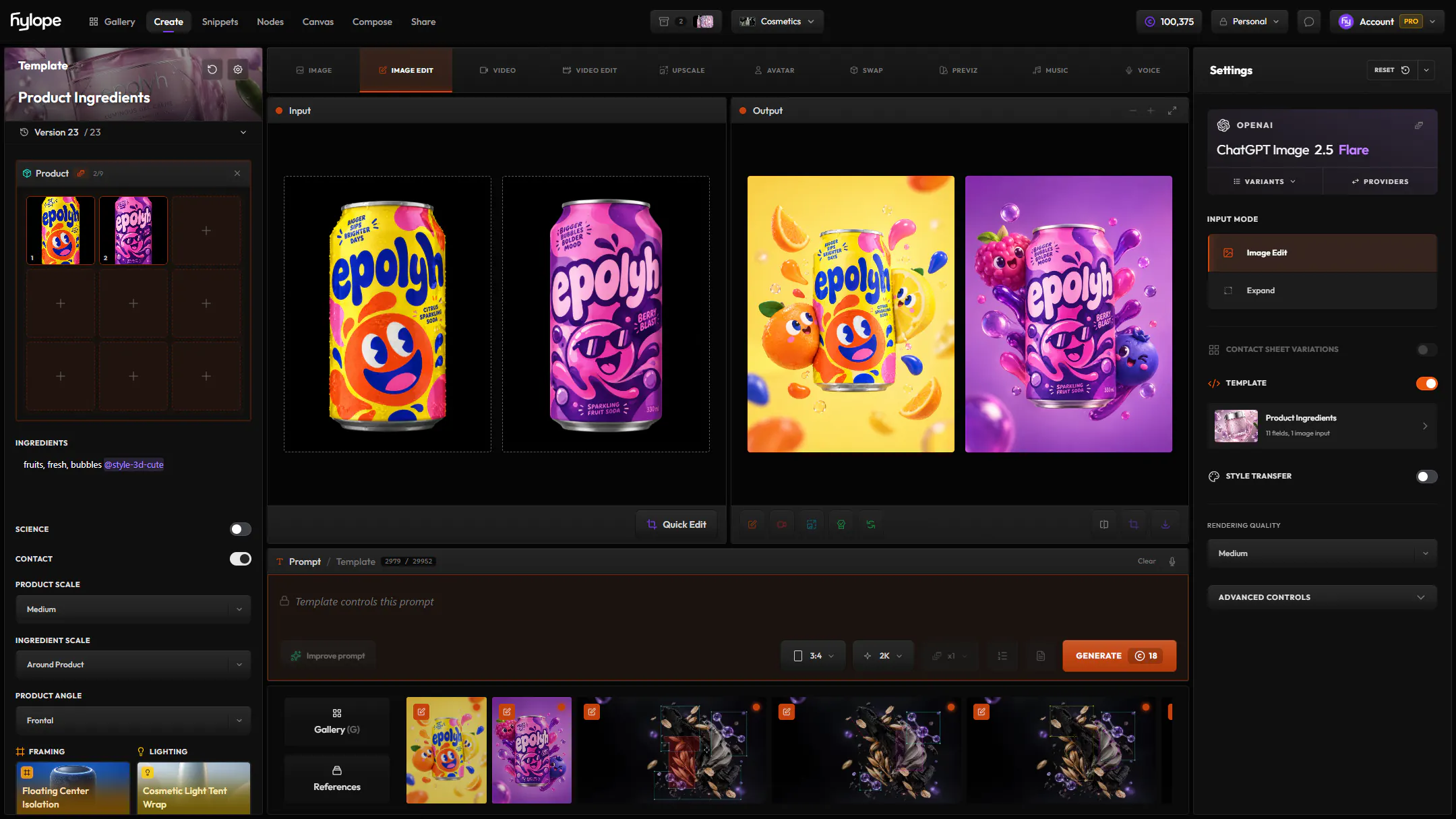
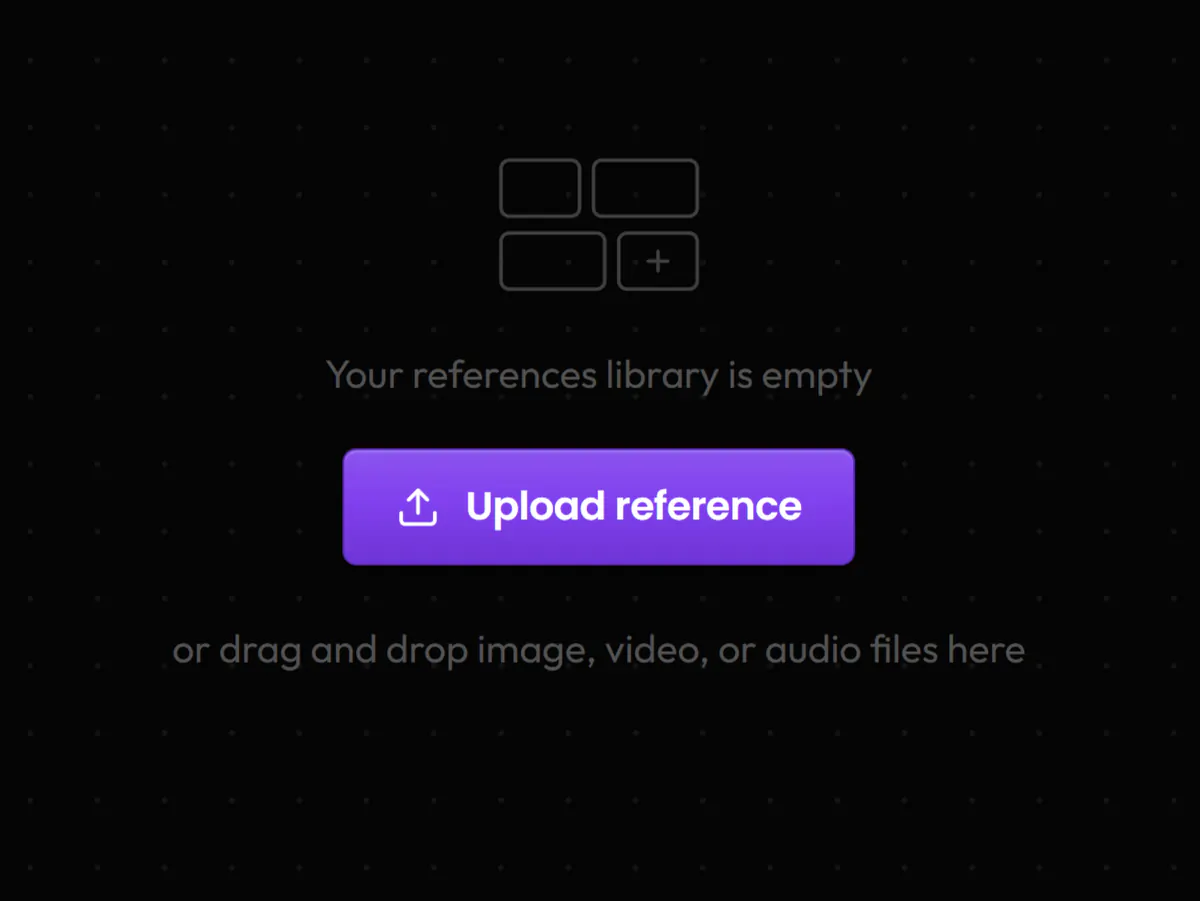
Your uploads live in their own library, filtered by type: character, outfit, style, product and more.
AppsGallery
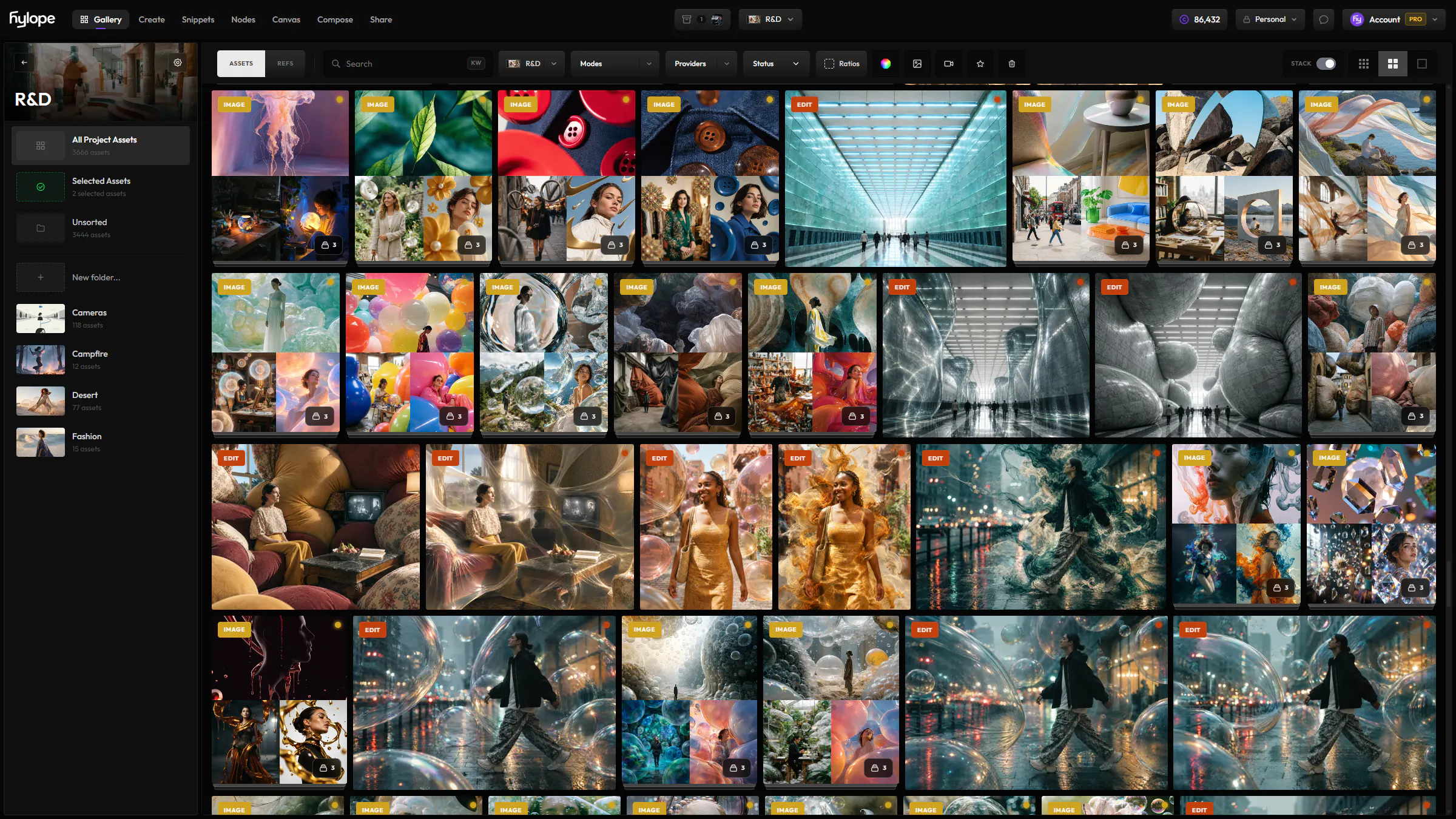
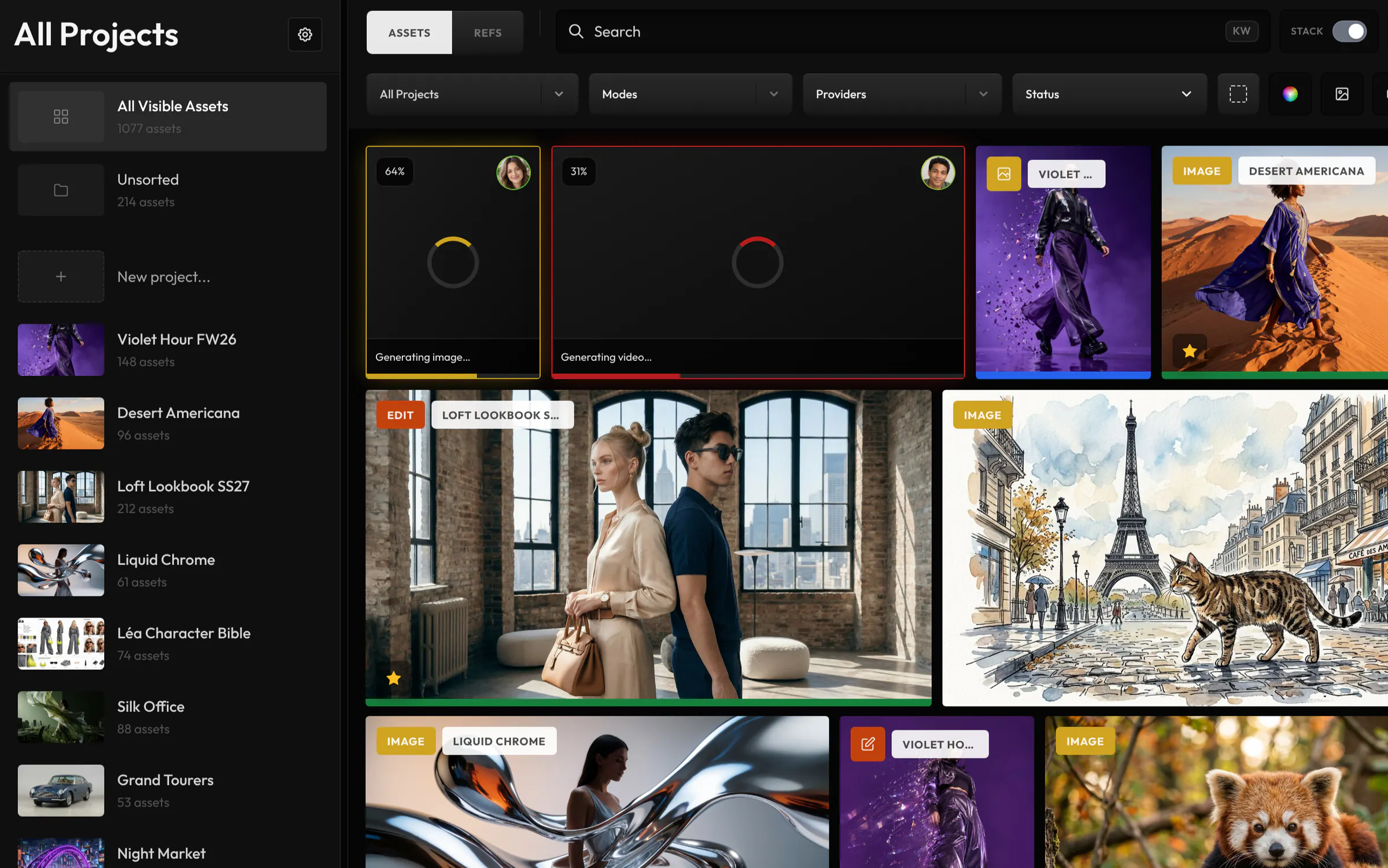
The Gallery holds every asset in your workspace: results from every Create mode, Compose scenes and the references you upload. Find the one you need, sort the good ones from the rest, and organize them into projects and folders.
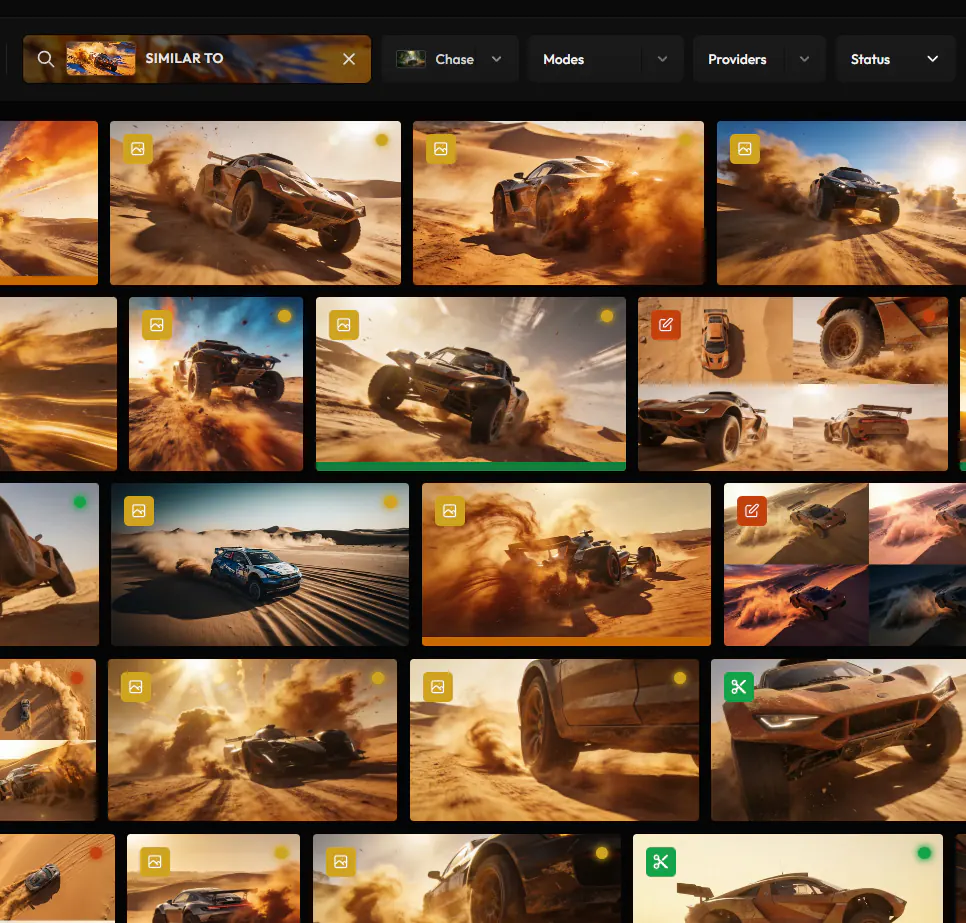
Keyword search looks for your words in prompts, file names and the descriptions Hylope writes for each asset. Switch to semantic search to find assets that match the meaning of your words, even when the prompt used other ones. Type @ to show only the assets made with a snippet, or use Search Similar on an asset.
Hover an asset to mark it Good or Maybe, or Rejected and Archive to hide it from the grid. Hylope sets Approved on its own, on the versions of a Key Asset, and a Shared badge marks what is in a shared folder.
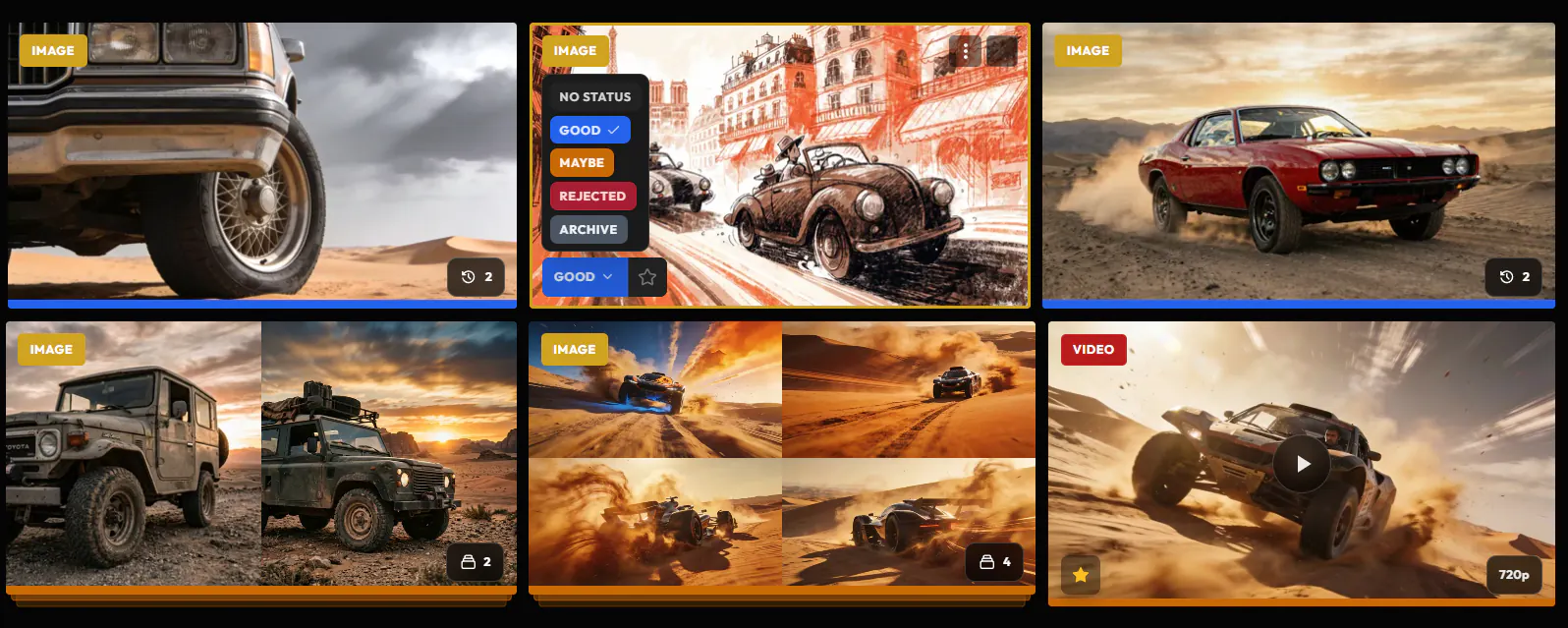
Star an asset to find it again with one filter.
Select several assets to set their status, move them, compare them, download or delete them at once.
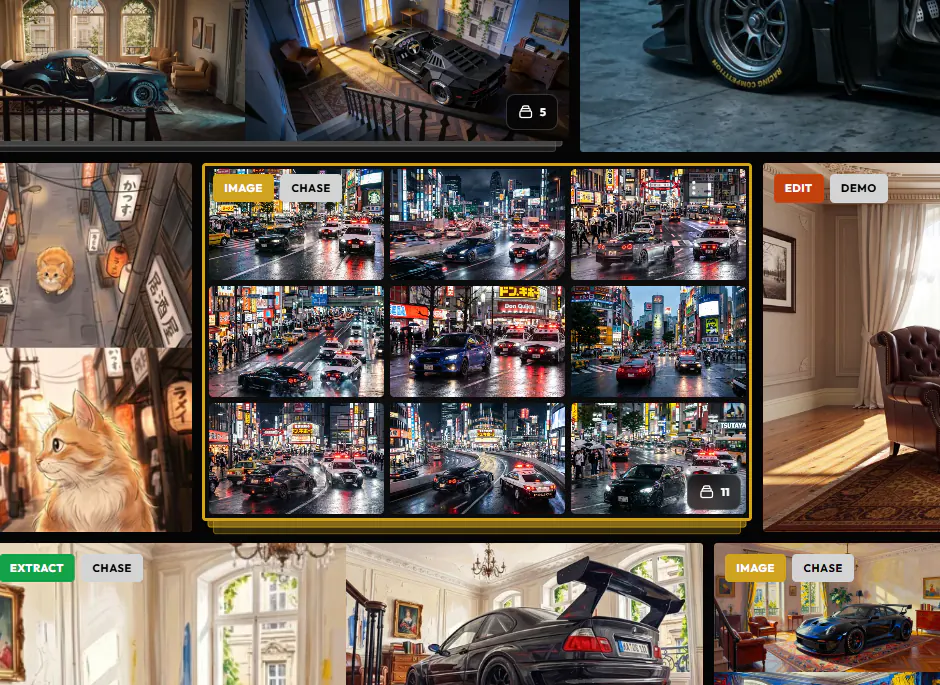
With Stack on, results made from the same inputs or prompt group into one card with a count. Frames extracted from one video, and the versions of an asset, also show as one card. Open a stack in place, and fold it back when you are done.
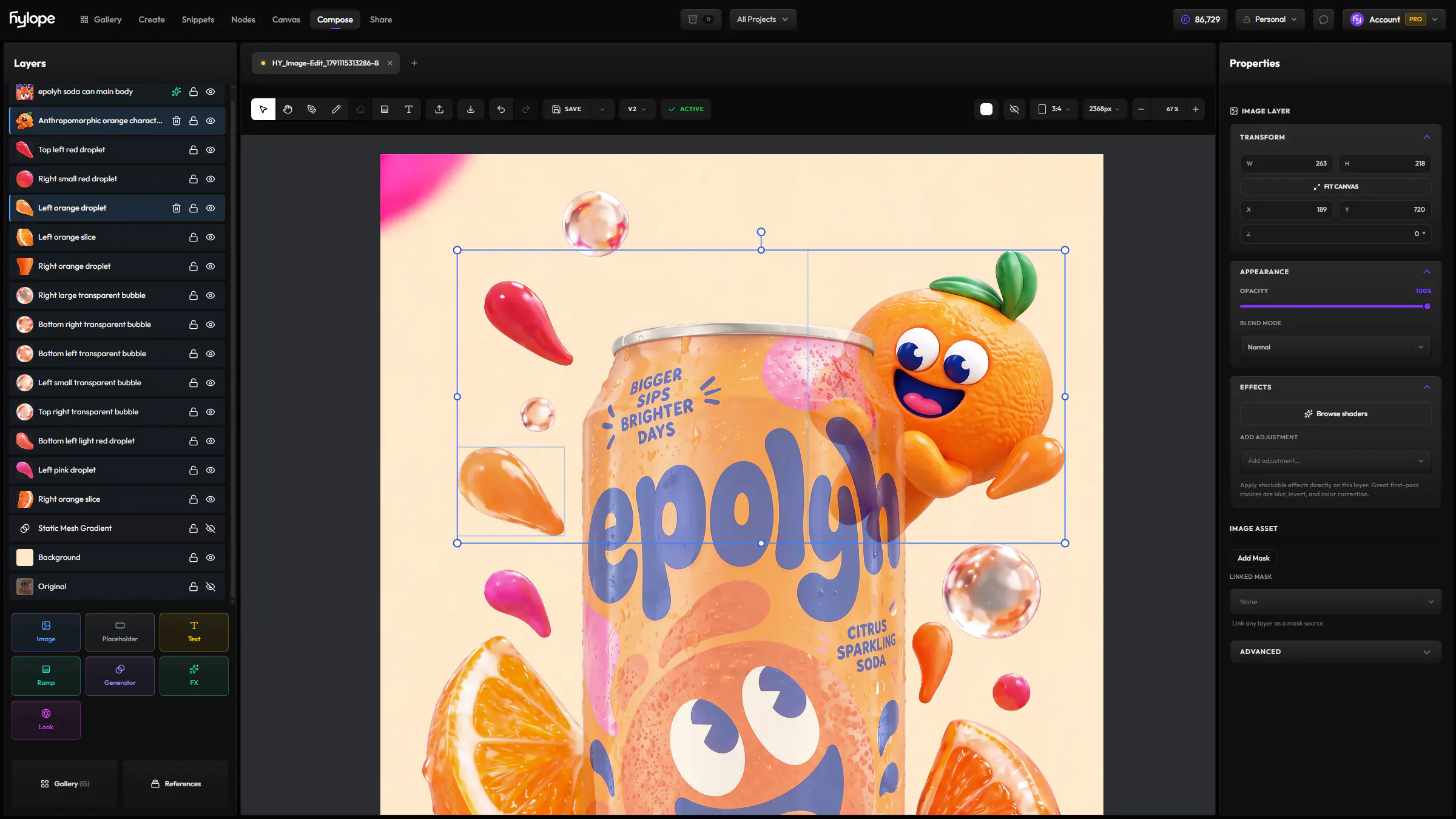
Organize by project, keep track of versions, fix a detail, and turn a selection into a collage.
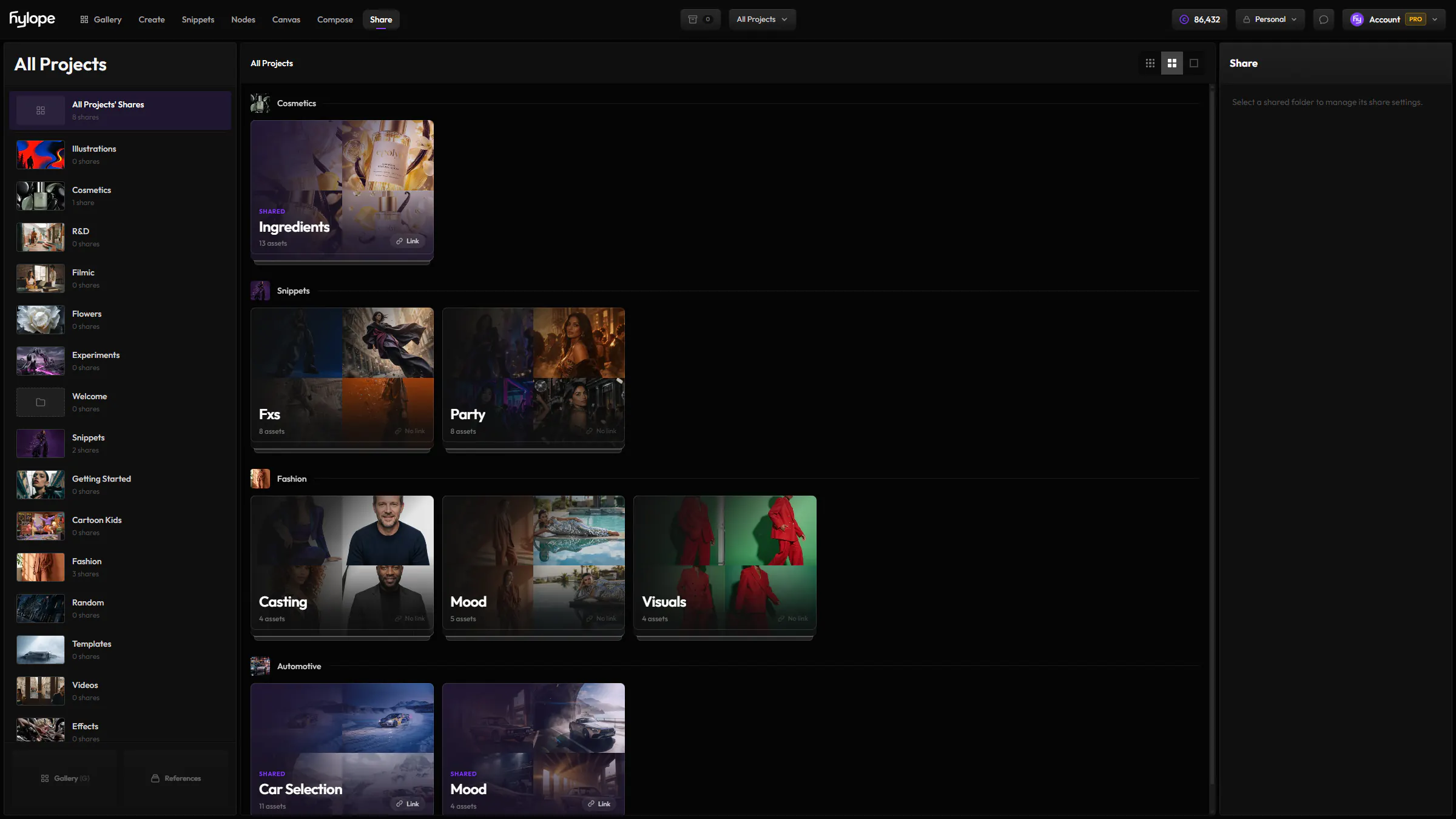
Open a project to see its folders and the assets in none. Each teammate sees only the projects they are in.
Open any asset to see how it was made and what came from it.
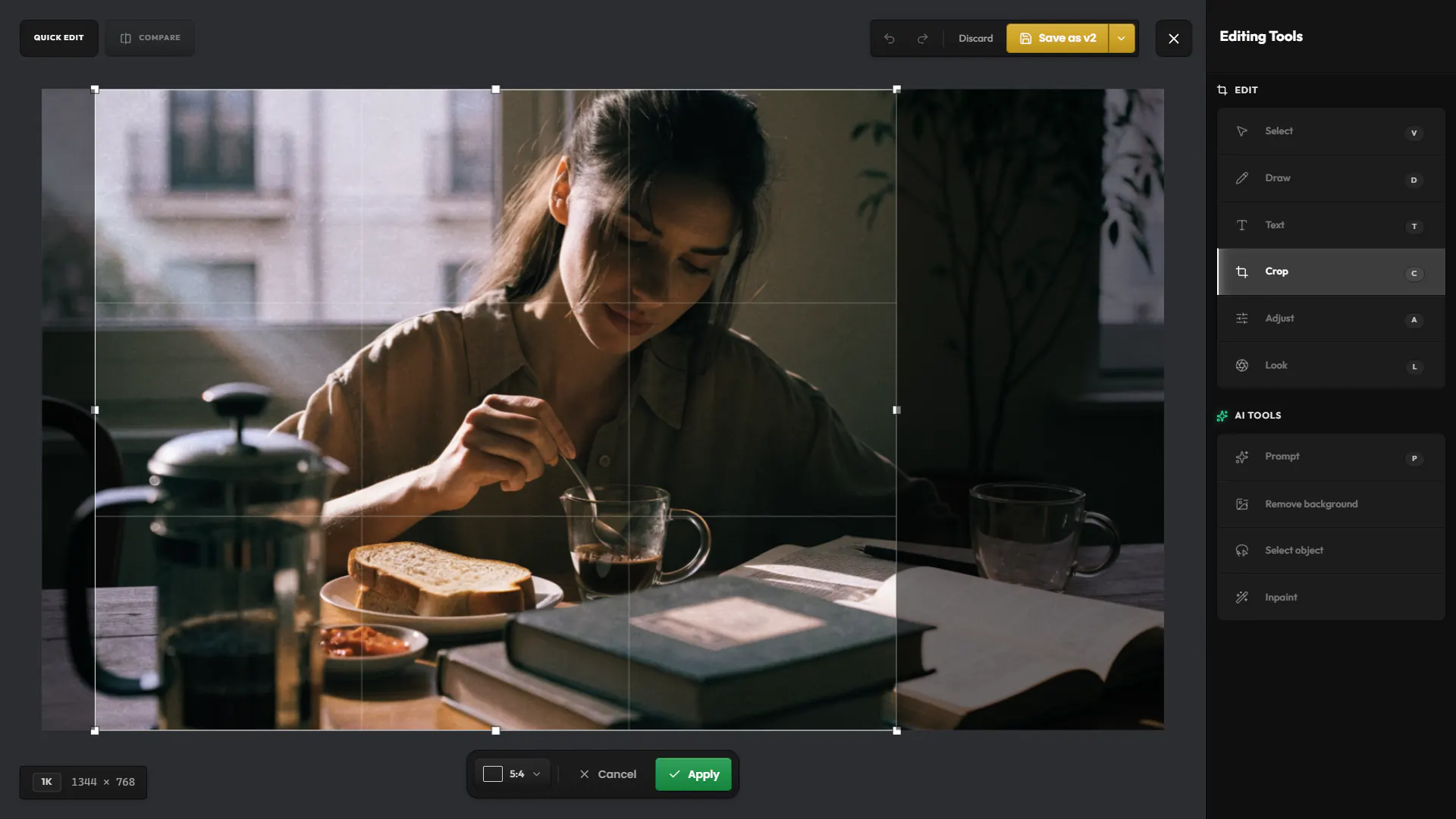
Fix a detail from the gallery and save it as a version, in the same card.
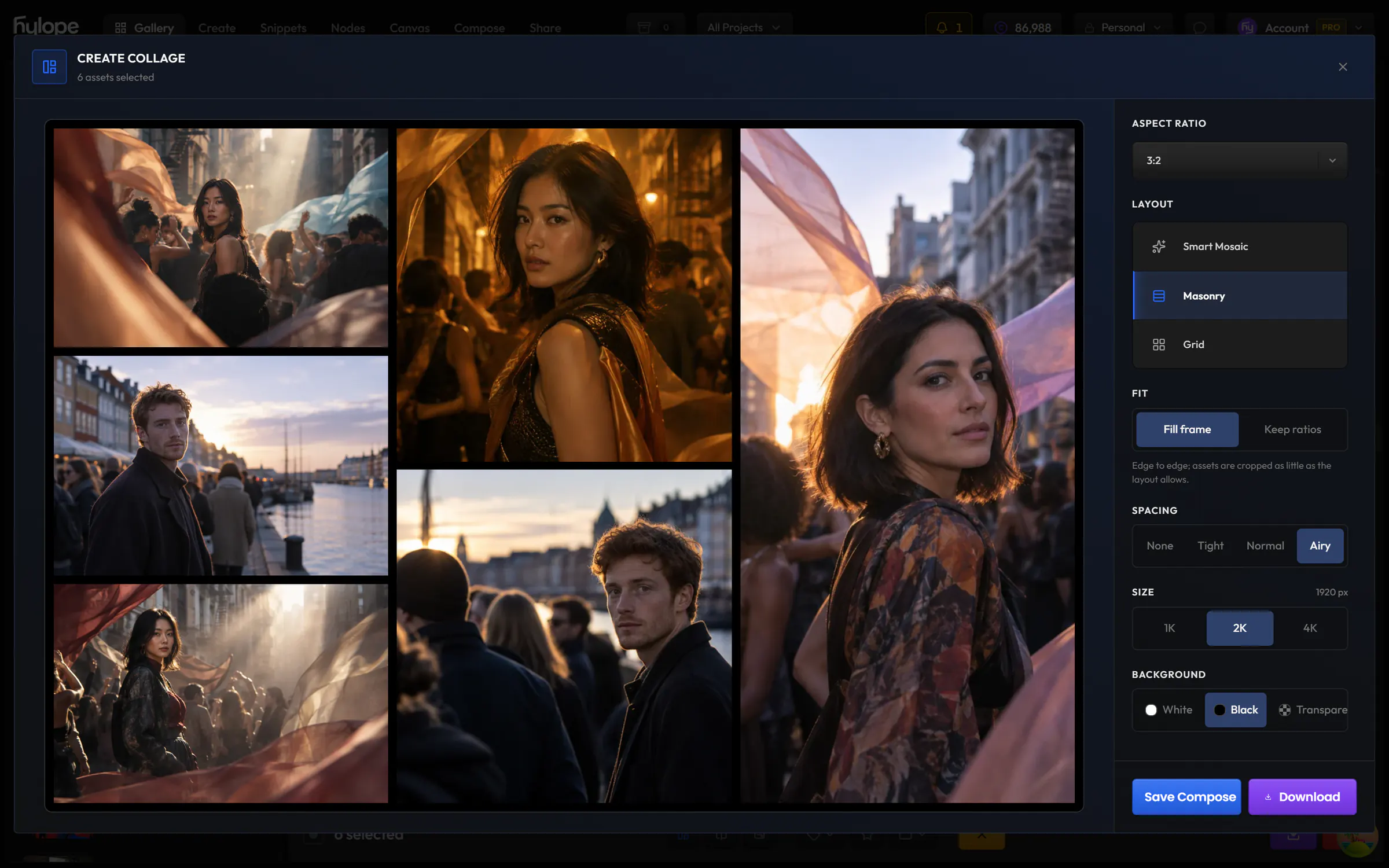
Select 2 to 20 assets and lay them out in one frame, as a mosaic, masonry or grid, then keep editing it in Compose.
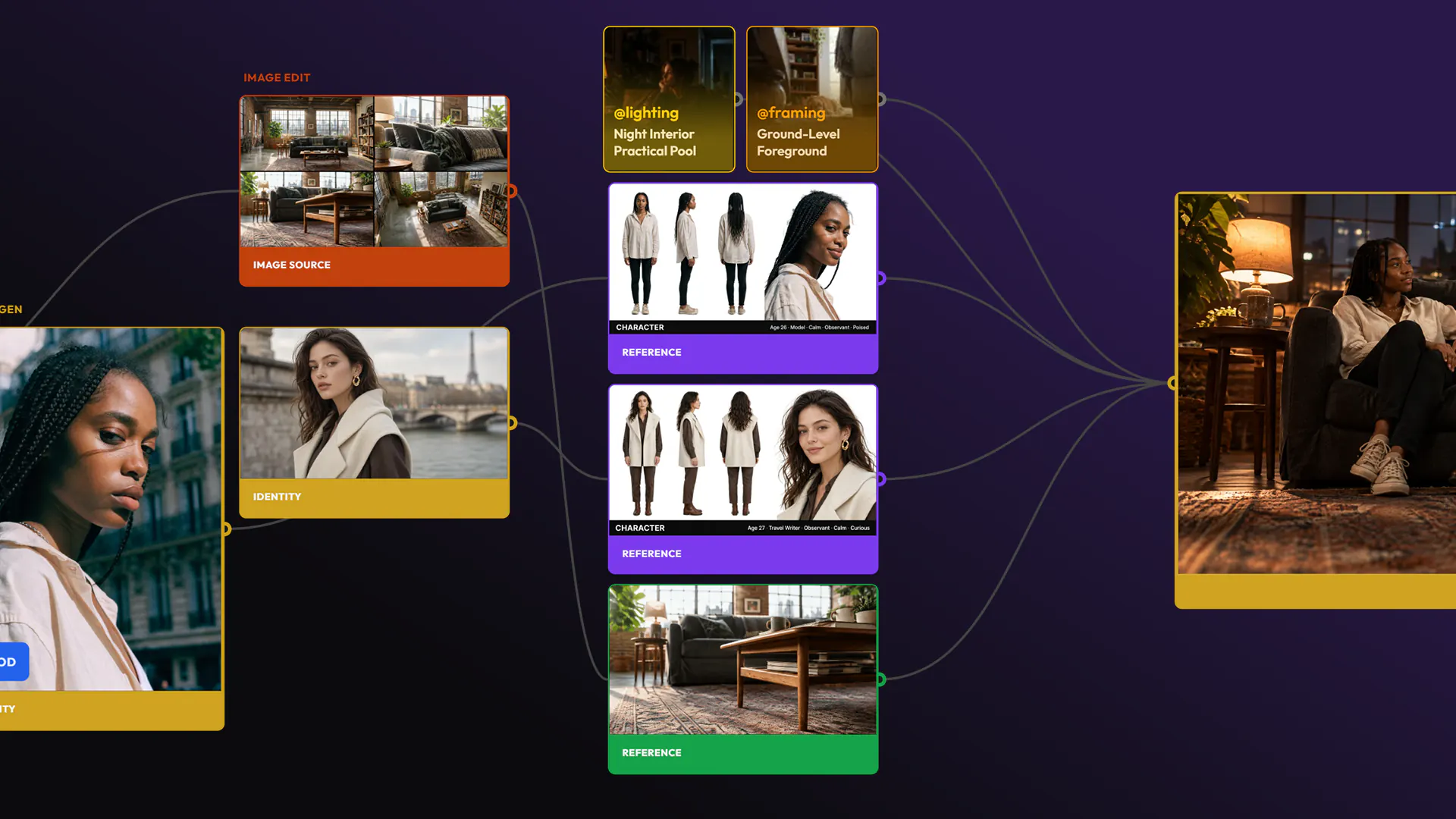
Your uploads live in their own library, filtered by type: character, outfit, style, product and more.
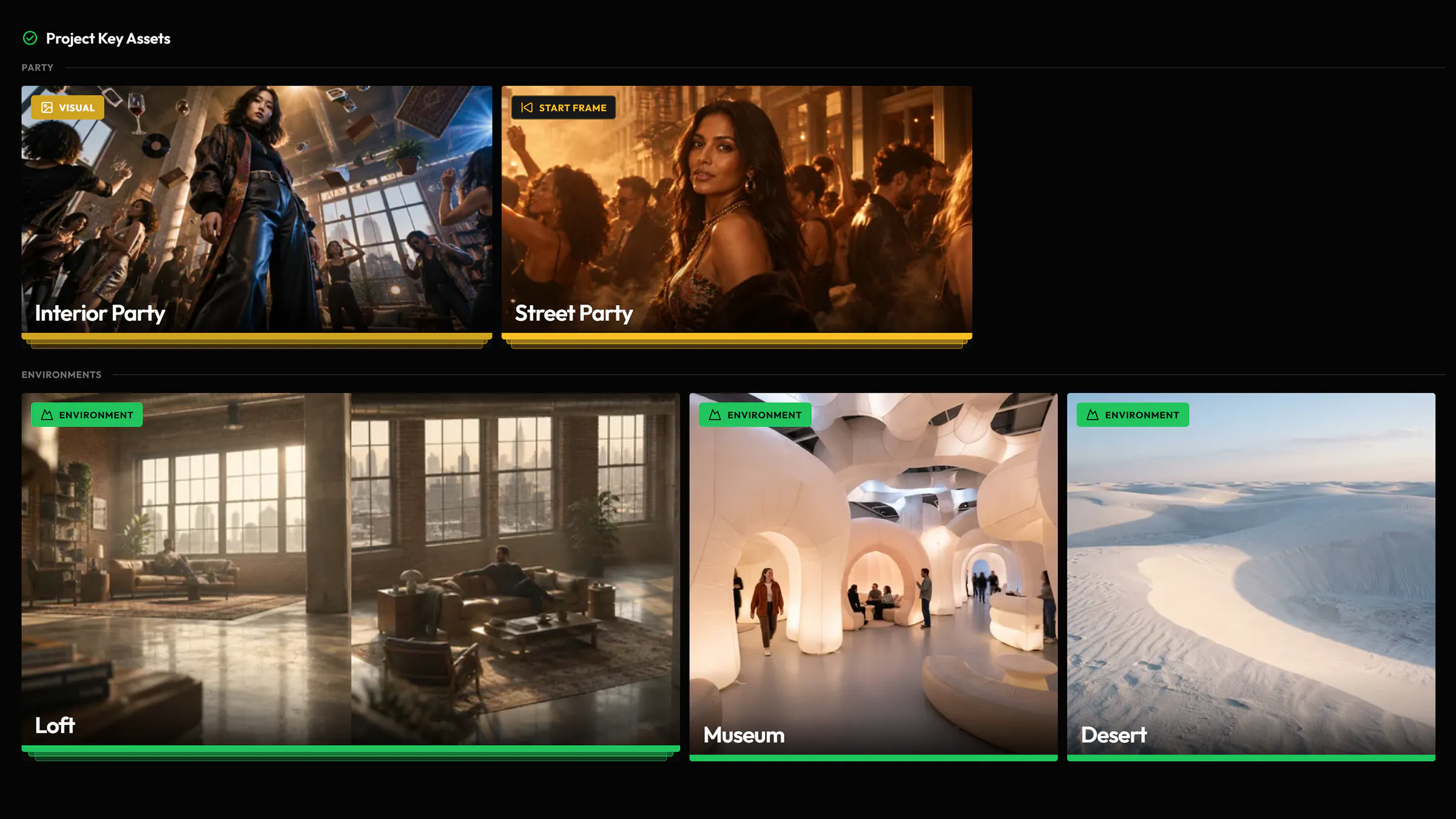
Selected Assets lists a project’s Key Assets, grouped by folder.
Every generated image, video and audio file stays in your library, with no cap, until you delete it, even after a subscription ends. Only uploaded source files have a storage limit.
Keyword search looks for your words in prompts, file names and the descriptions Hylope writes for each asset. Semantic search finds assets that match the meaning of your words, even when the prompt used other ones.
Yes. Type @ in the search field and pick the snippet: the gallery shows only the assets generated with it.
No. Delete moves them to the trash, where you can restore them. Deleting forever, from the trash or with Permanent Delete, cannot be undone.
Hylope 1.7 is open to everyone. New accounts start with 100 free credits.