Key Assets
The approved visuals your project relies on, one click away in every generation.
A character, a product, a location: save it once as a Key Asset, load it into any generation in one click, and keep its versions and variants together.
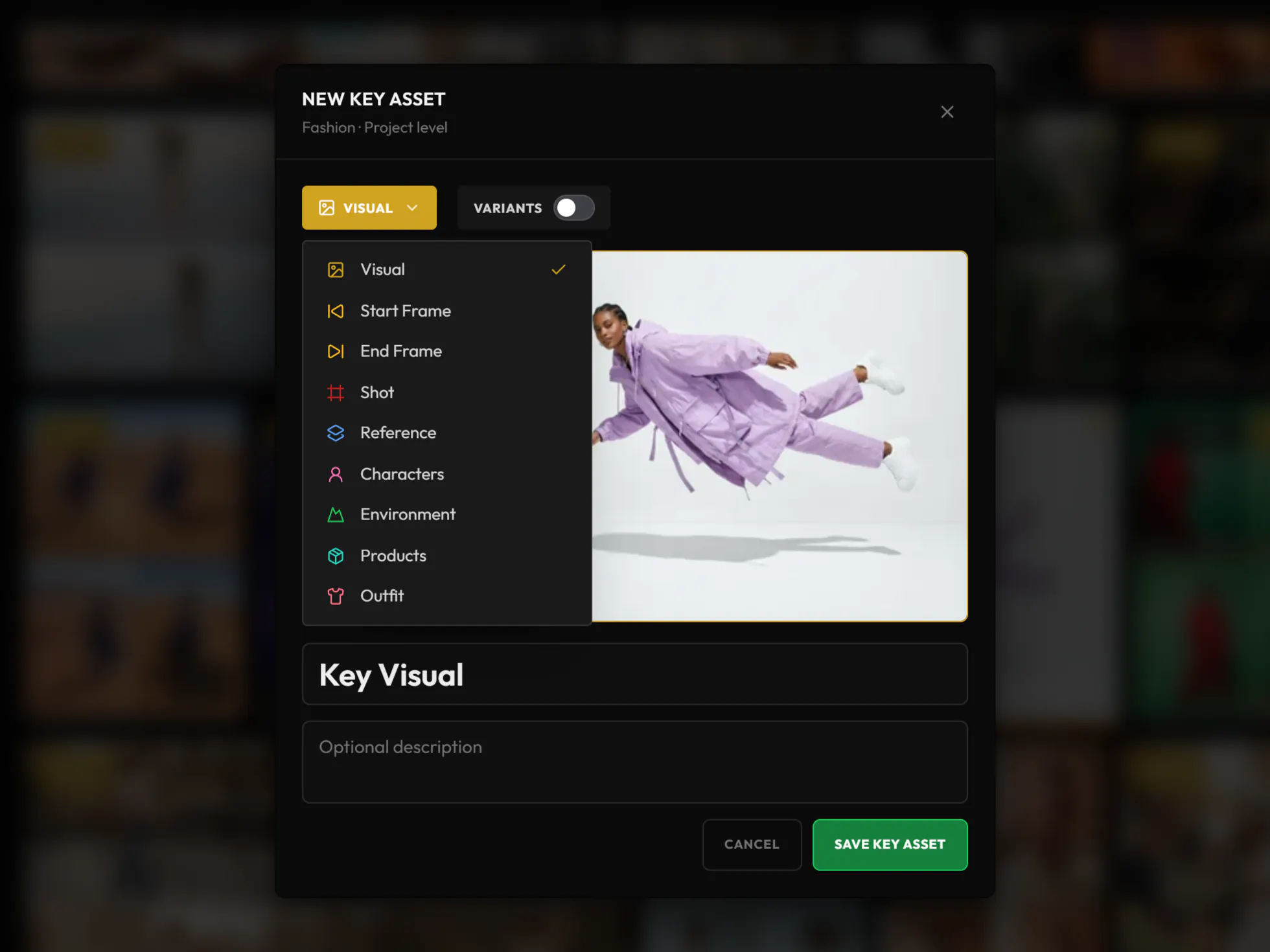
Make any image or video a Key Asset.
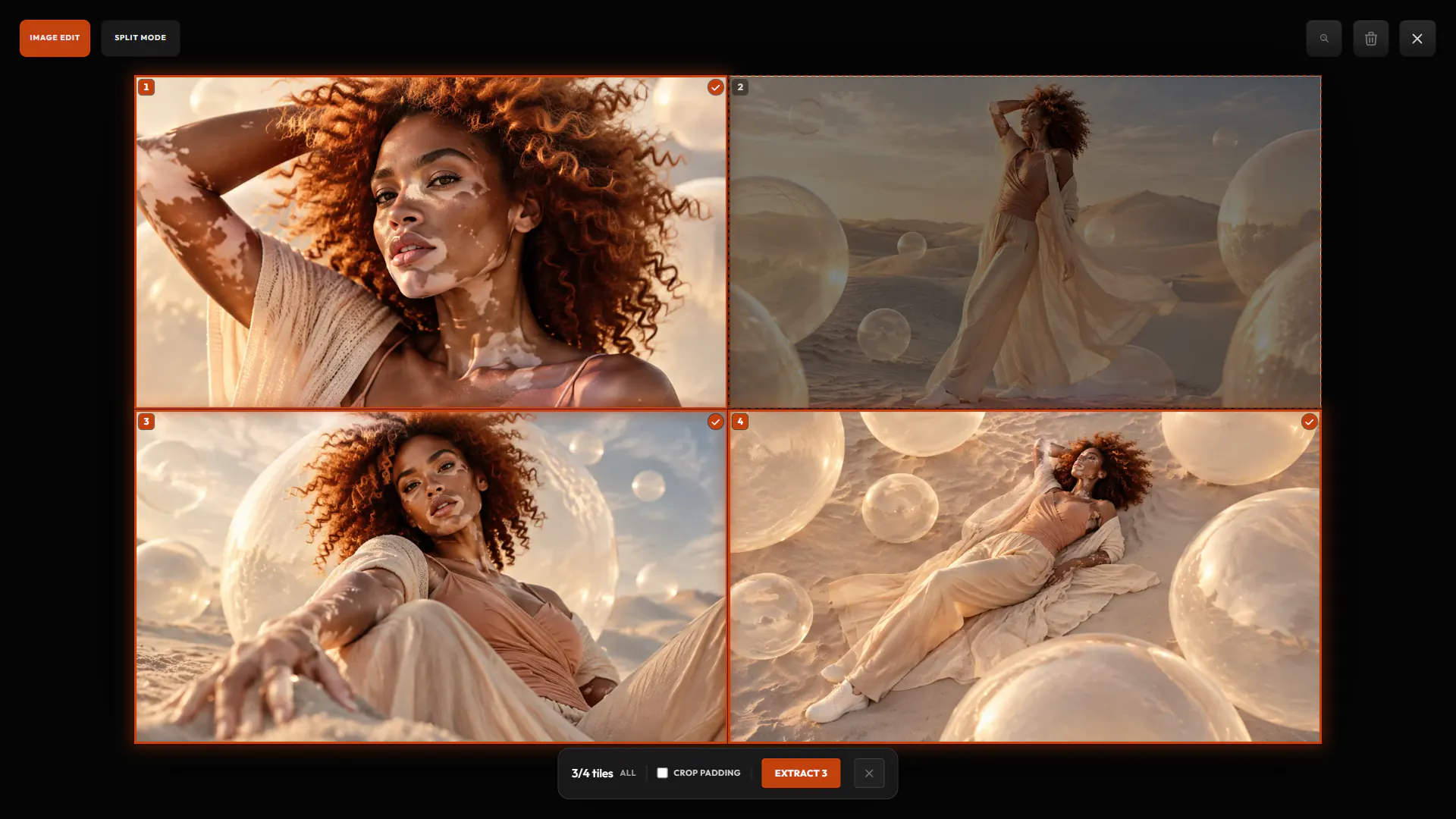
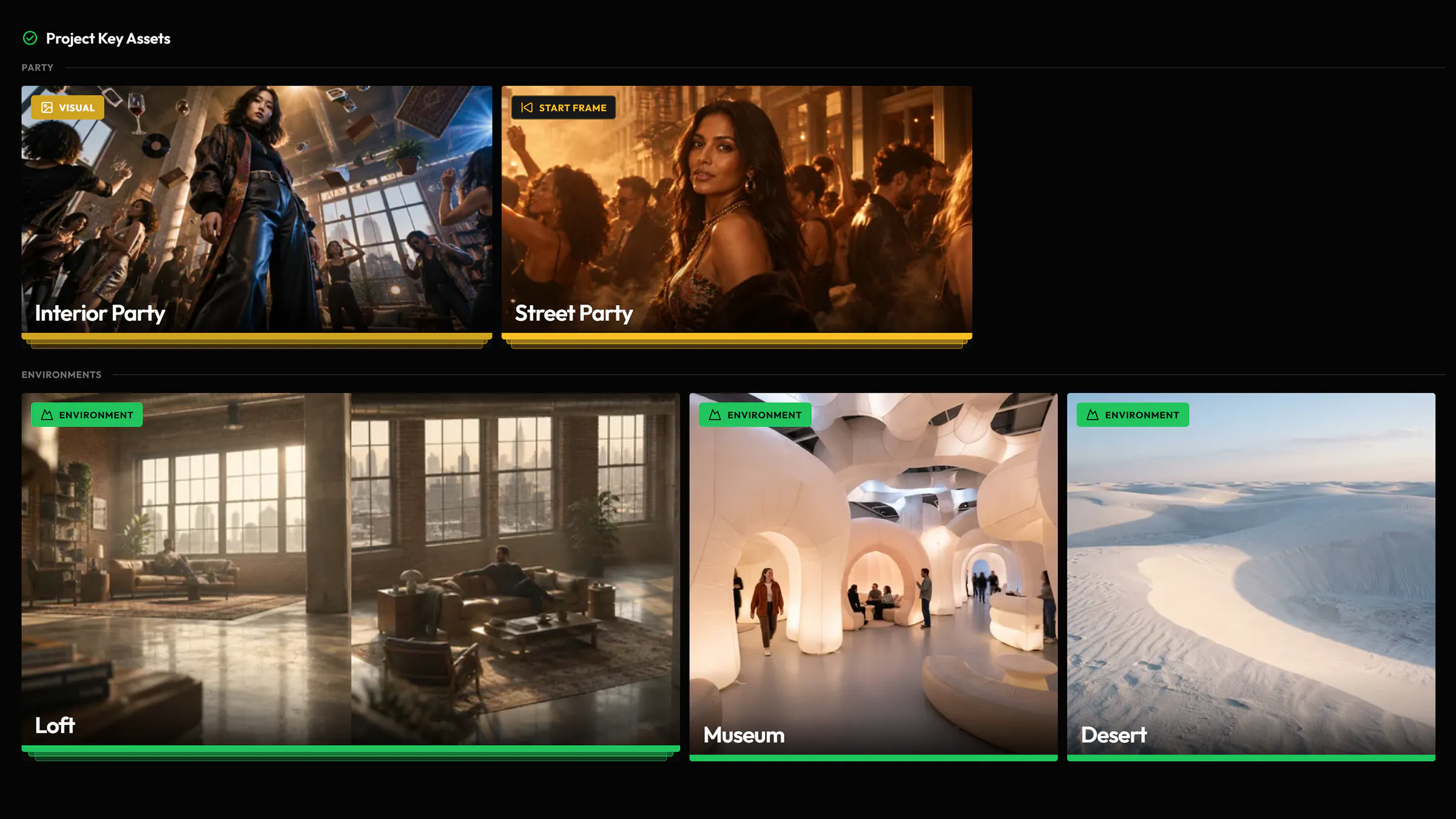
Any image or video in a project can become a Key Asset: choose its category, give it a name, and it belongs to the project or to one of its folders.
Nine categories
- Visual
- Start Frame
- End Frame
- Shot
- Reference
- Characters
- Environment
- Products
- Outfit
- From anywhere in the project
- Create one from the lightbox, from a right-click in the Gallery, or by dropping an asset on the Key Assets shelf.
- Videos too
- A video starts in the Shot category. Start Frame and End Frame hold the images a video starts or ends on.
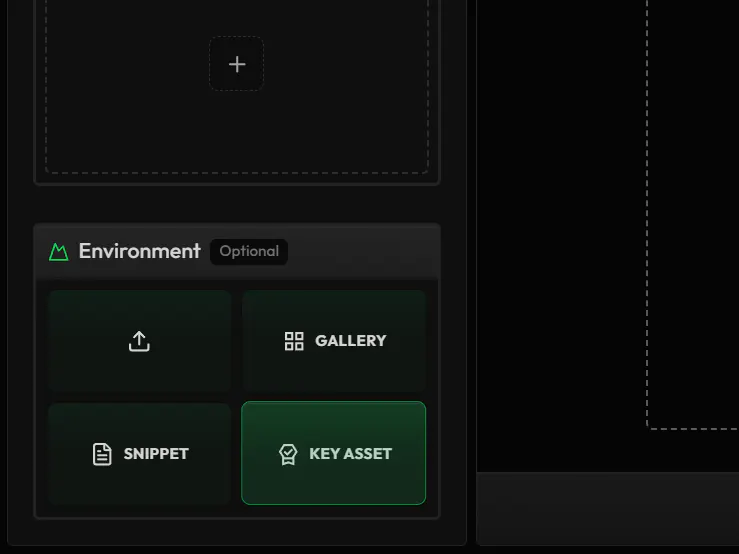
Load it into any input.
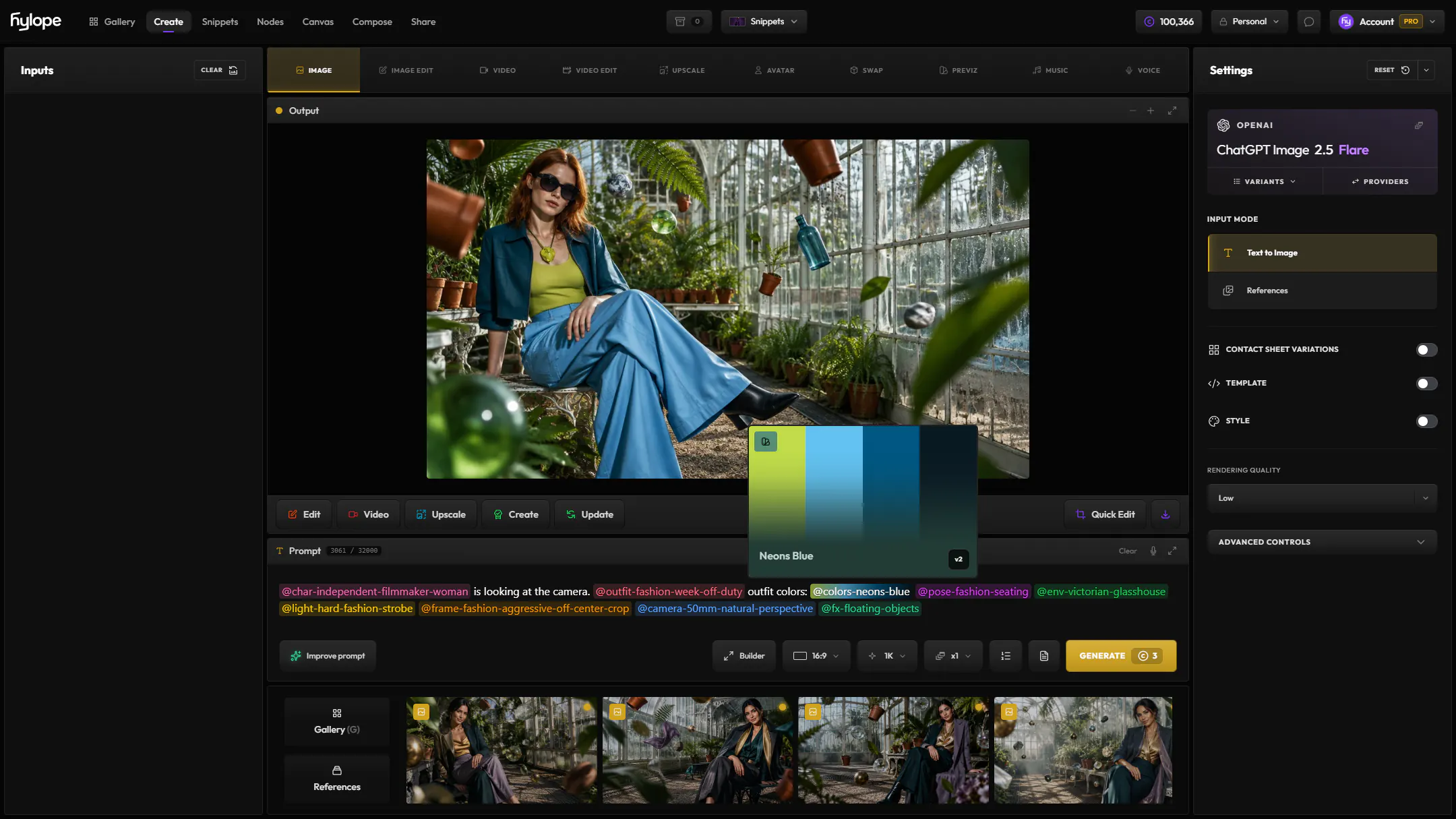
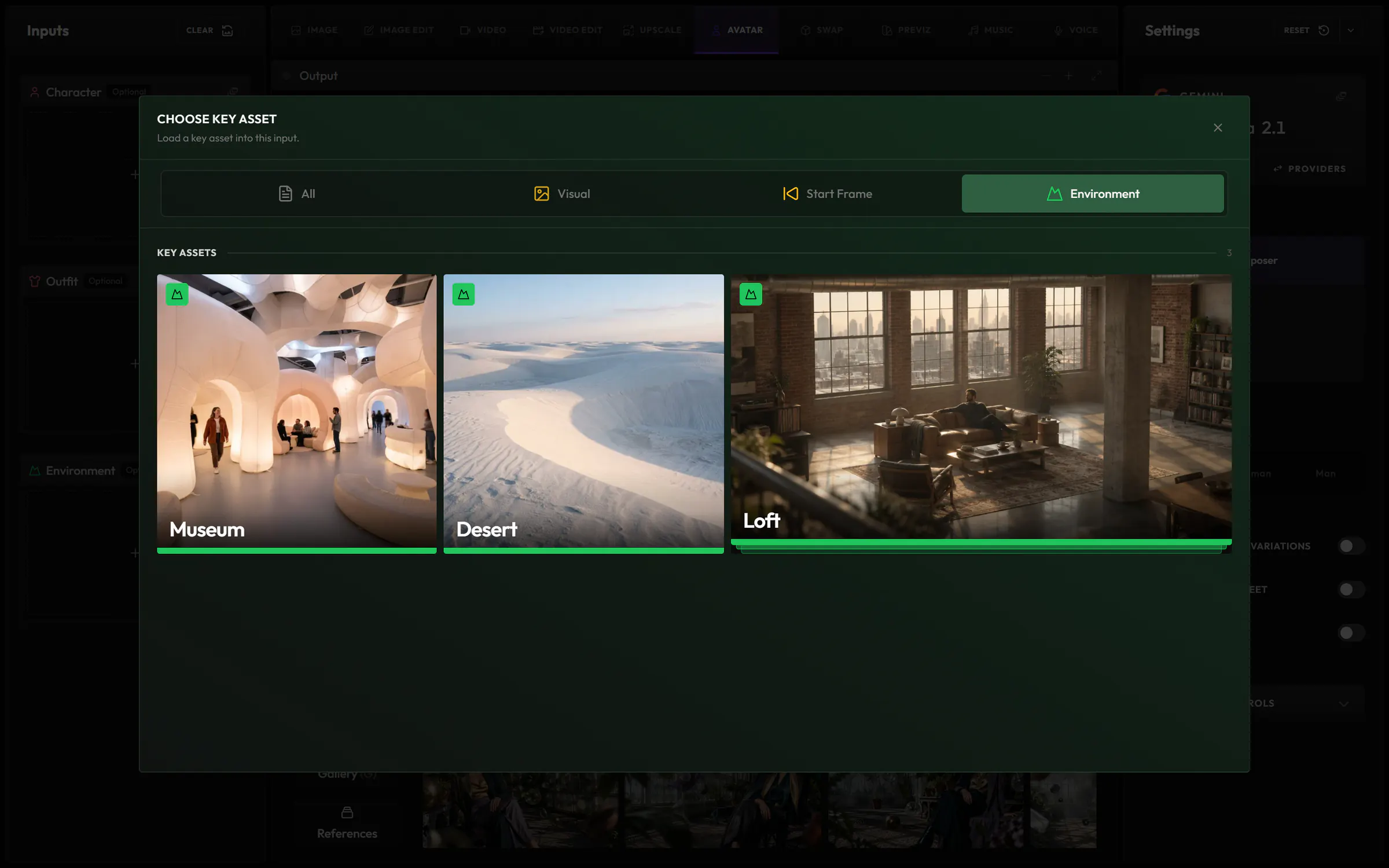
Every image and video input in Create has a Key Asset tile. It opens the project’s Key Assets on their own, sorted by category and filtered to what the input takes, so nobody scrolls through last week’s generations looking for the right file.
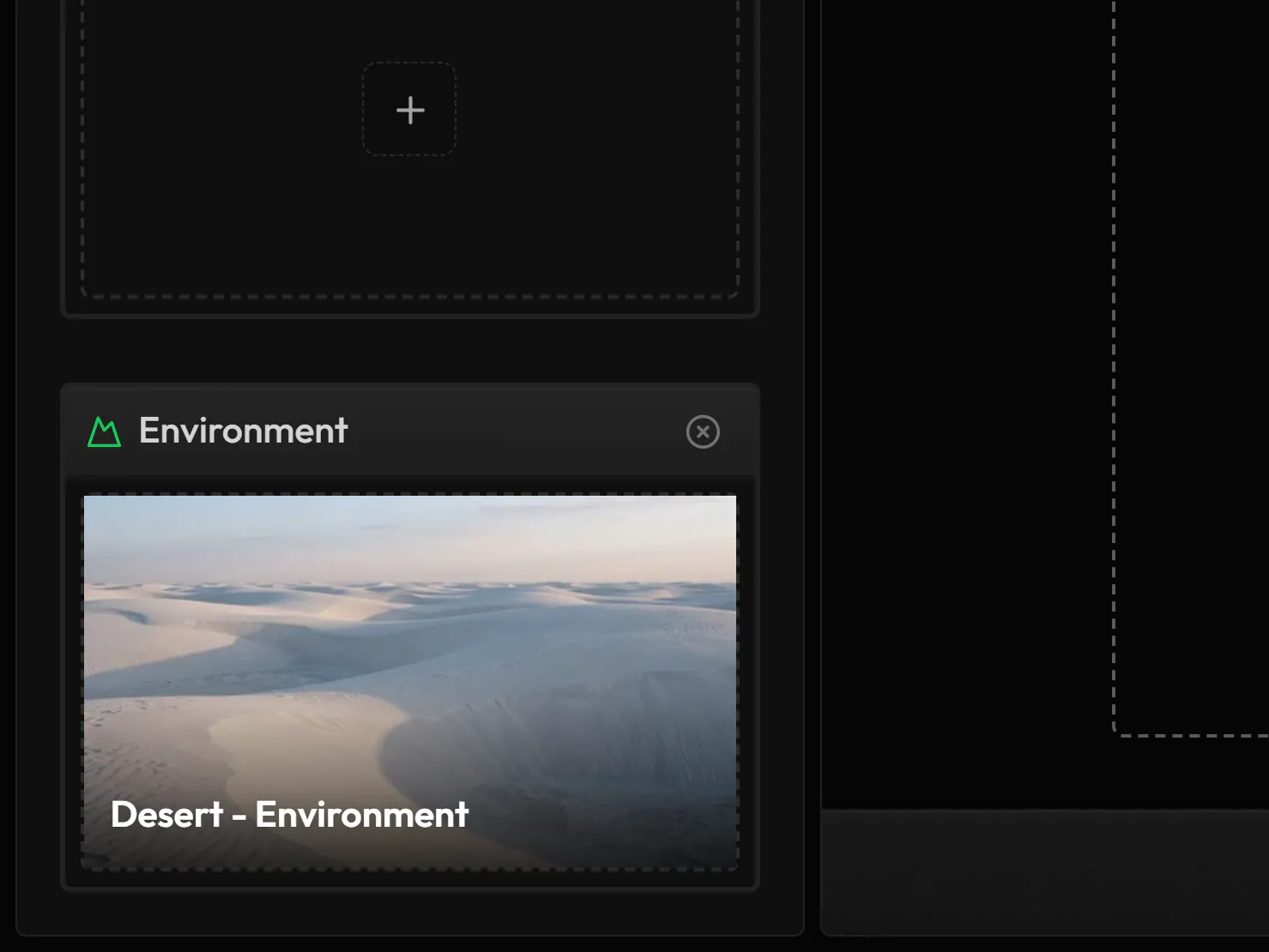
The Key Asset tile, in every input.
The picker opens on the input’s category.
Loaded, under its name.
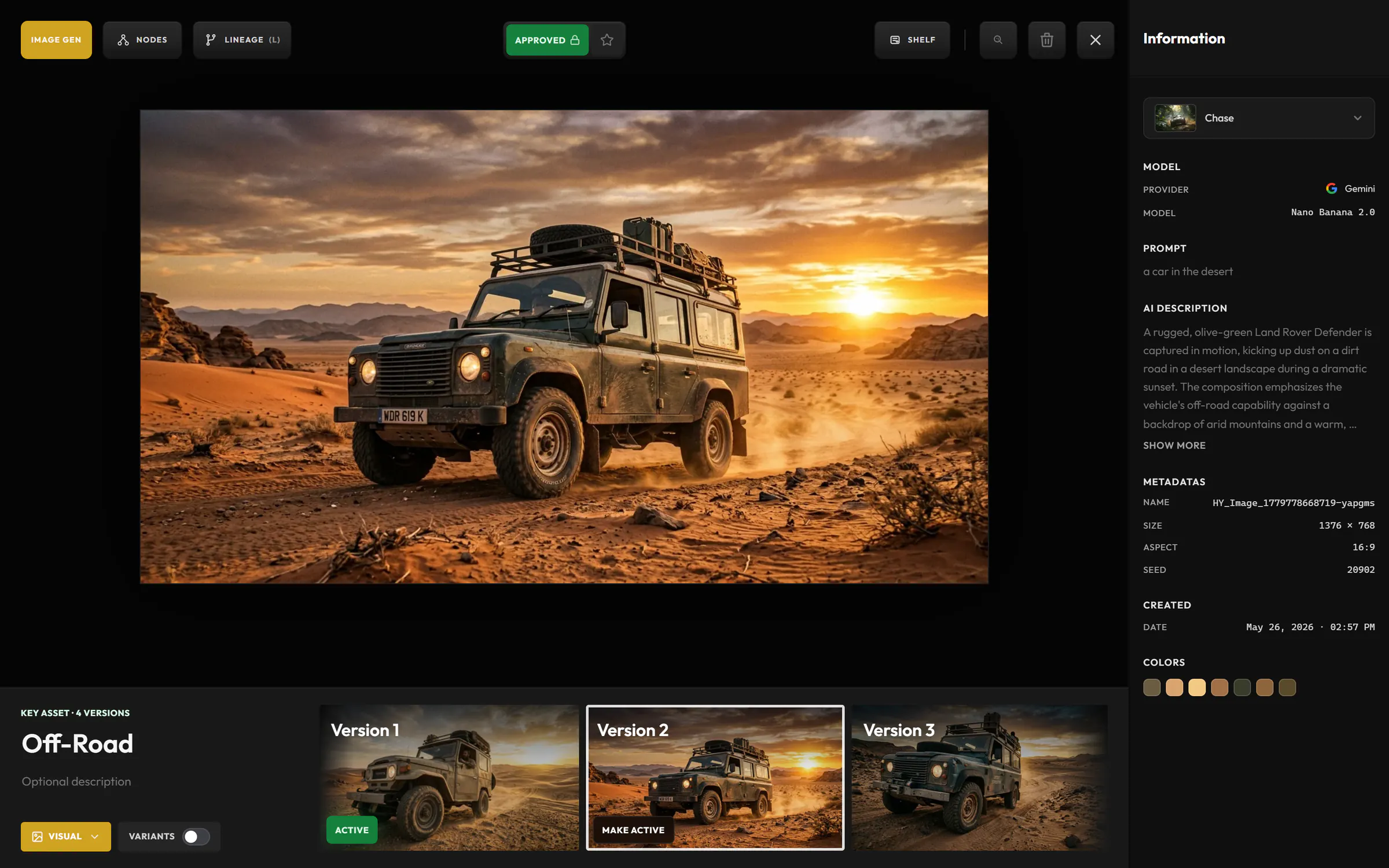
Version history.
If a client changes their mind, make an earlier version active again. Reload anything made with the Key Asset: its input shows Update, and one click brings it to the active version, ready to generate again. No need to look for the file.
- Every version kept
- Each version you add becomes the active one, and the earlier ones stay in the list.
- Approved automatically
- Everything that belongs to a Key Asset shows Approved in the Gallery, so the team sees what the project is built on.
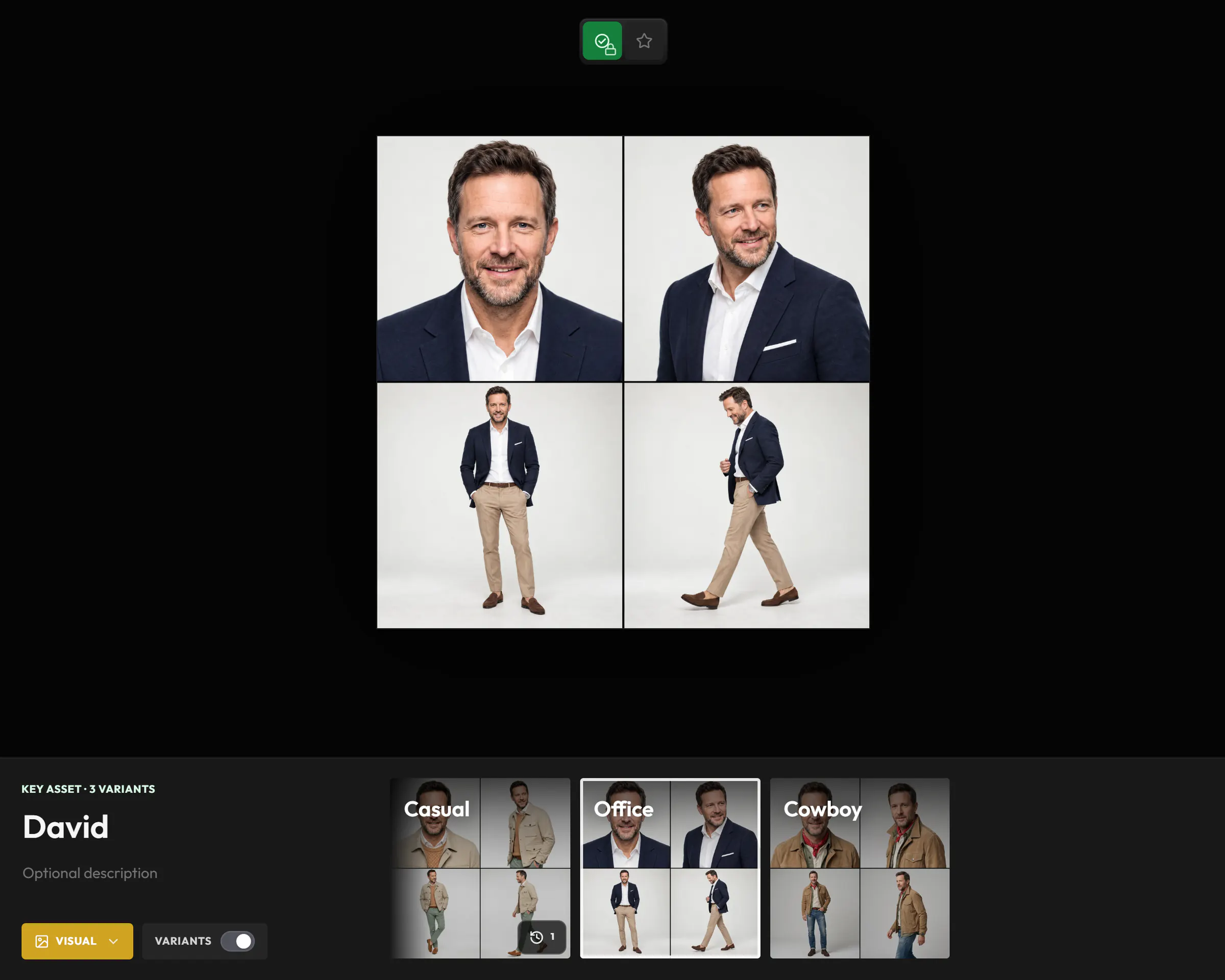
One Key Asset, multiple variants.
A character with every outfit of the film, a room seen from every angle: switch a Key Asset to Variants and it holds them all in one asset, each under its own name. In the input, go from one to the next in one click, without loading another asset.
David, in three outfits: Casual, Office and Cowboy.
In the input, from one to the next.
Named options
Each variant has its own name, and none of them is the active one.
Switched in the input
Pick a variant from the input’s menu, or step through them with its arrows. The preview follows.
Versions of each
Edit a variant and it keeps its own versions, so each outfit or angle has its own history.
Works with
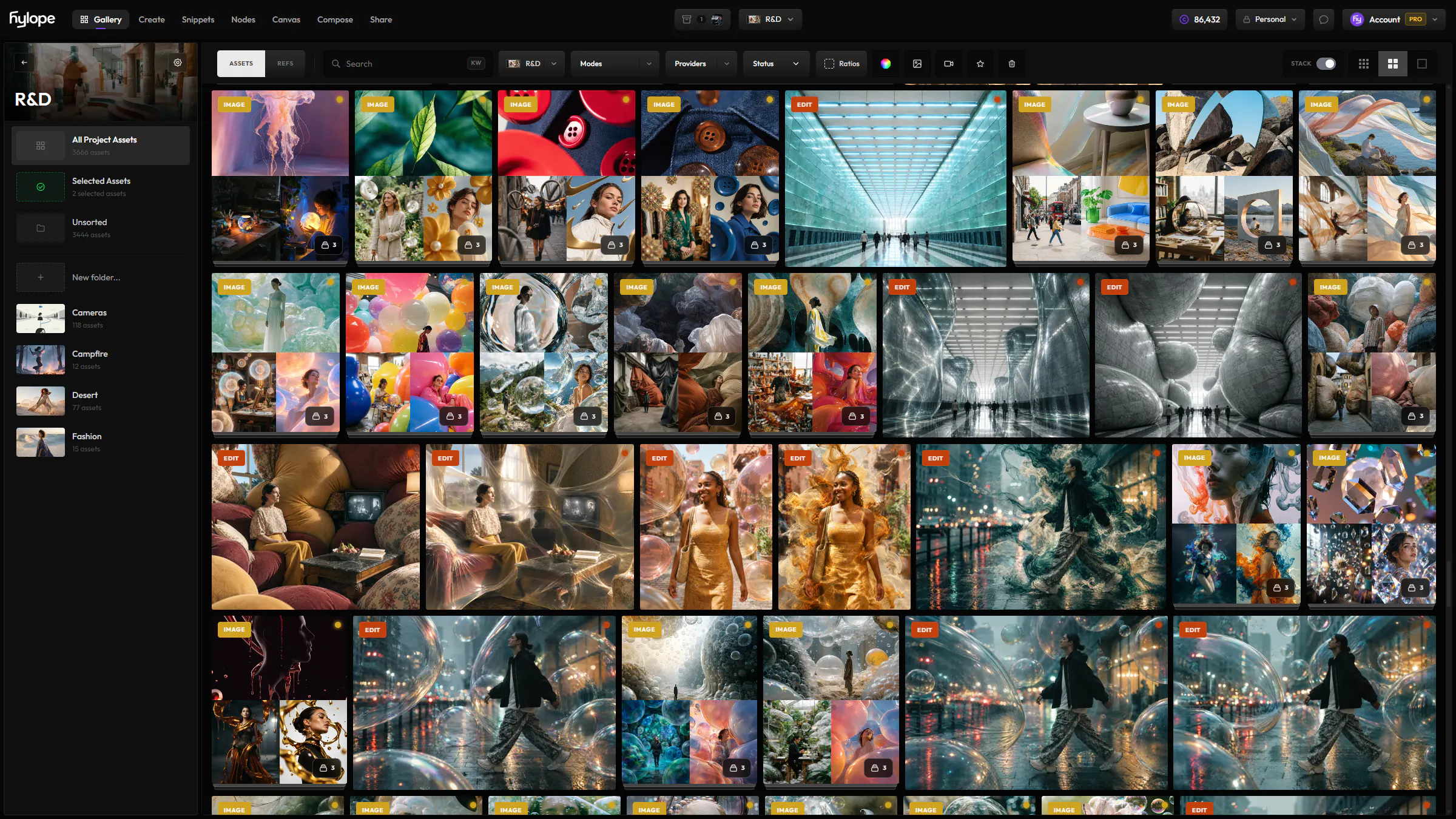
Gallery
Selected Assets lists a project’s Key Assets, grouped by folder.
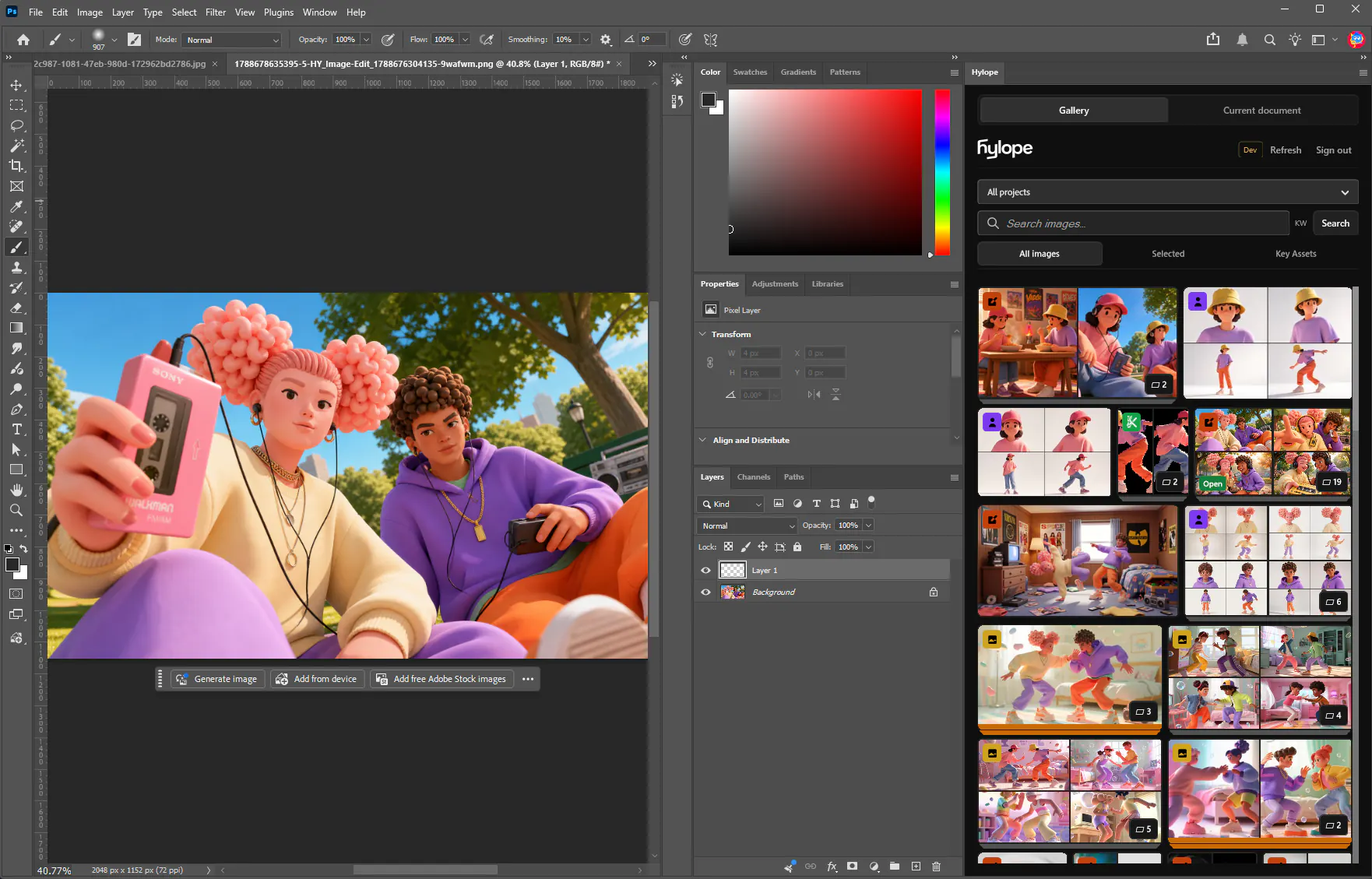
Photoshop plugin
Open a Key Asset in Photoshop and save your edit back as a new version.
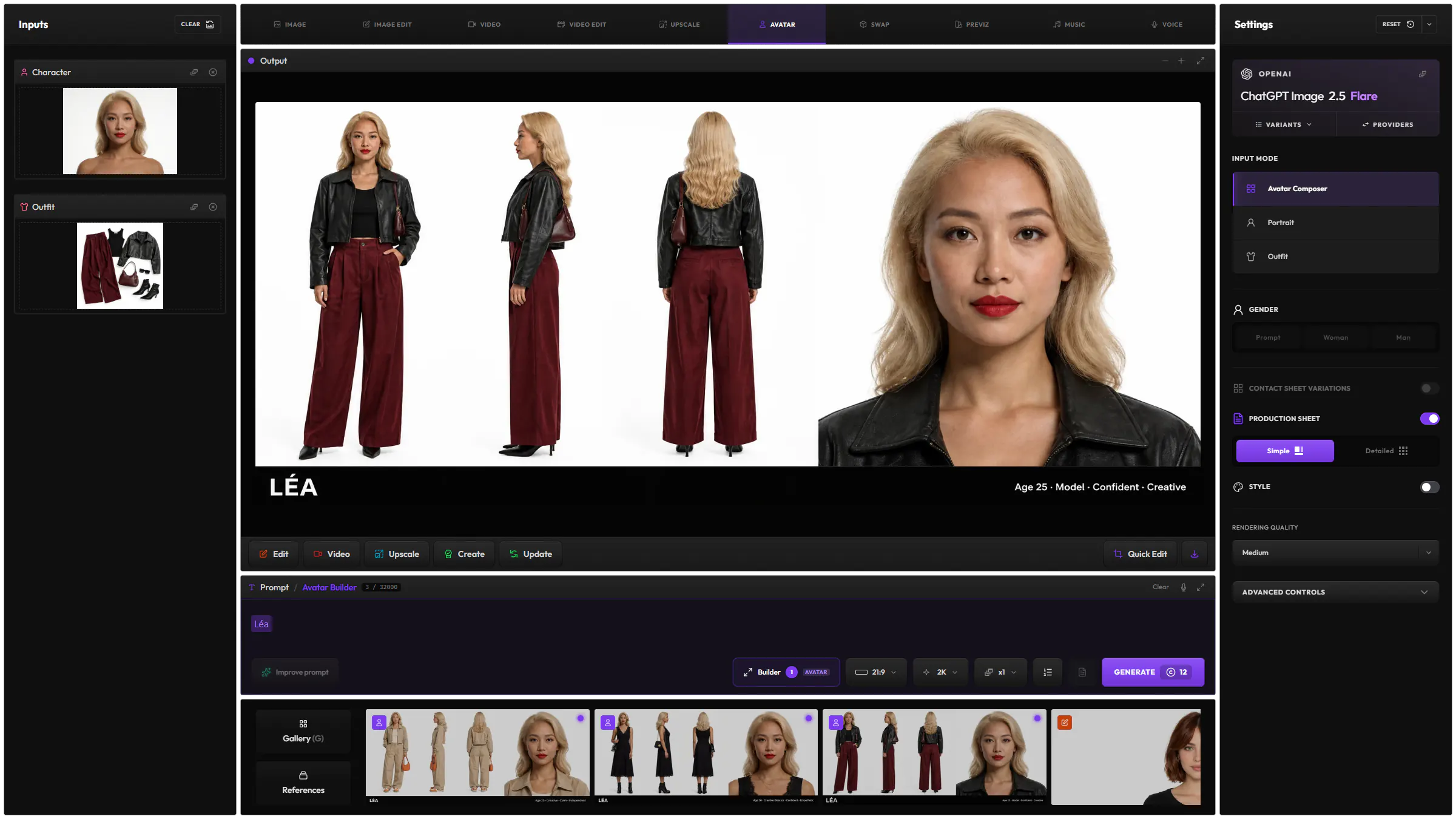
Avatar
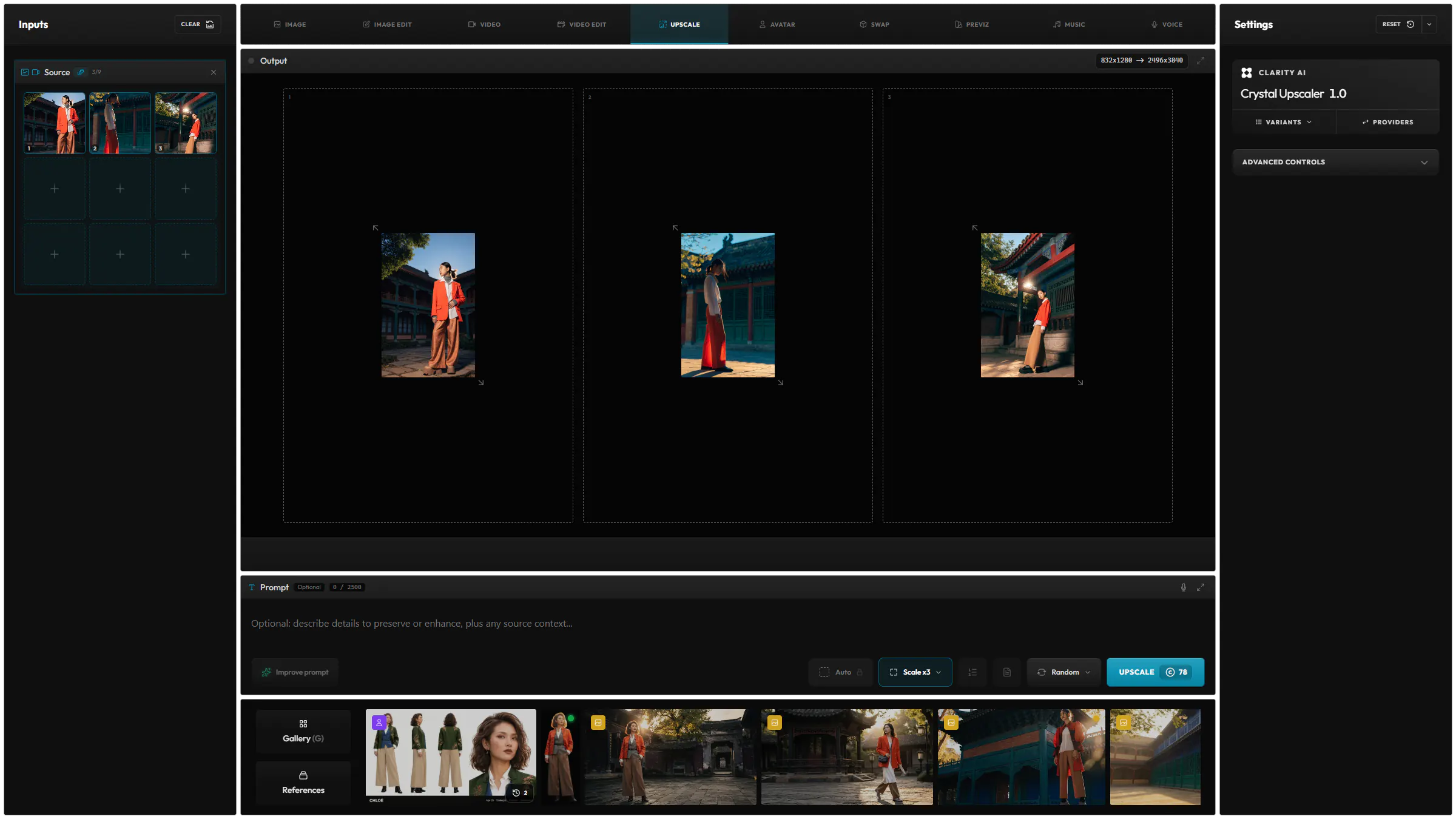
Build a character and its outfits, then keep them as Key Assets for the rest of the project.
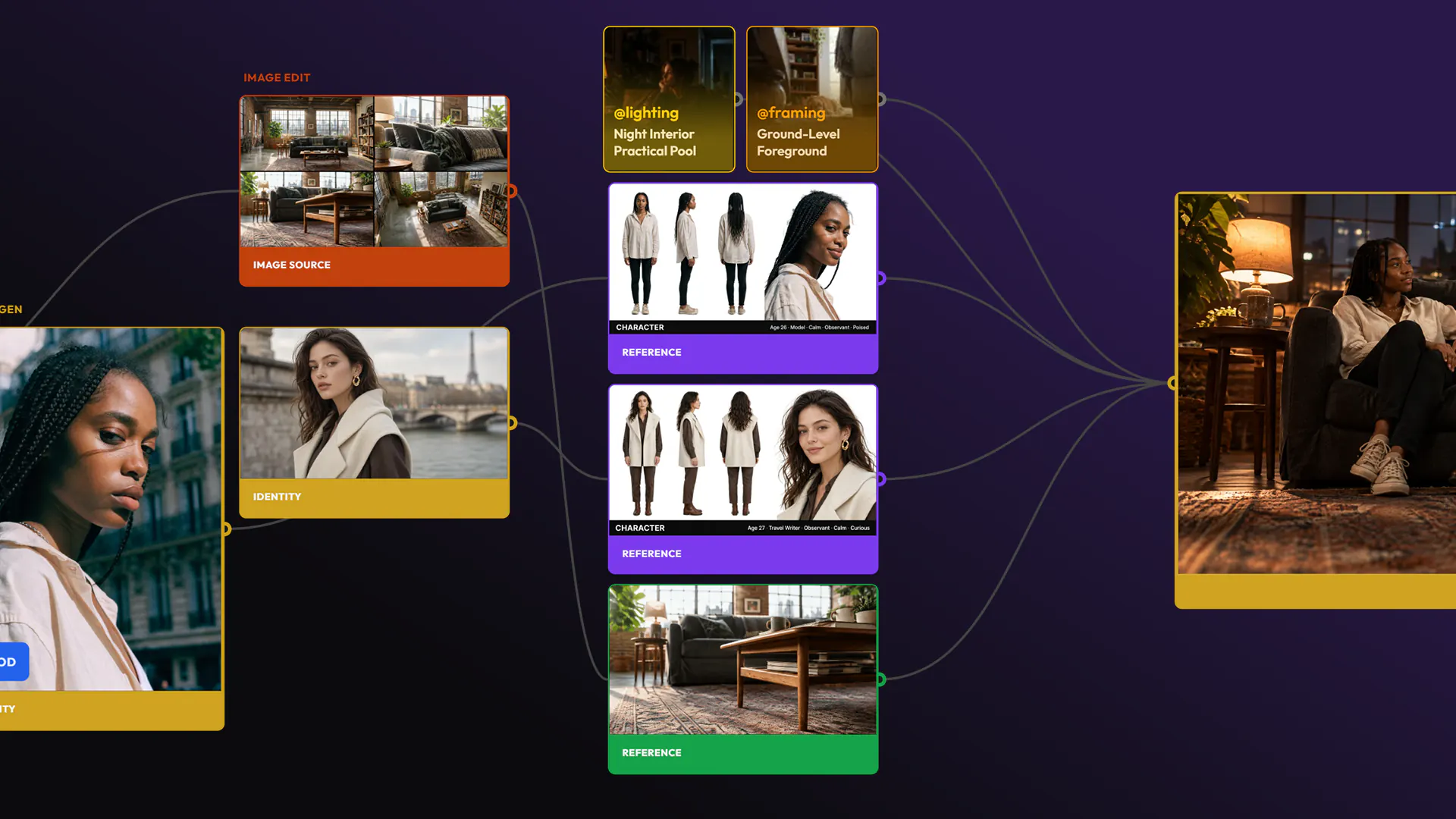
Lineage
Everything you make with a Key Asset links back to the version it used.
Questions
Does a Key Asset make a character look the same in every image?
It makes sure every generation starts from the same approved reference. How closely the result follows it depends on the model and the prompt.
Can a video be a Key Asset?
Yes. Any image or video can become one, and a video starts in the Shot category.
What is the difference between versions and variants?
Versions are successive states of one Key Asset, with one active. Variants are parallel options, such as outfits or angles, with none active.
Where do I see all of a project’s Key Assets?
In the Gallery, open the project and choose Selected Assets in the sidebar: they are listed by folder. A folder also shows its own Key Assets on top.
Ready to create?
Hylope 1.7 is open to everyone. New accounts start with 100 free credits.