P
Parents at a glance.
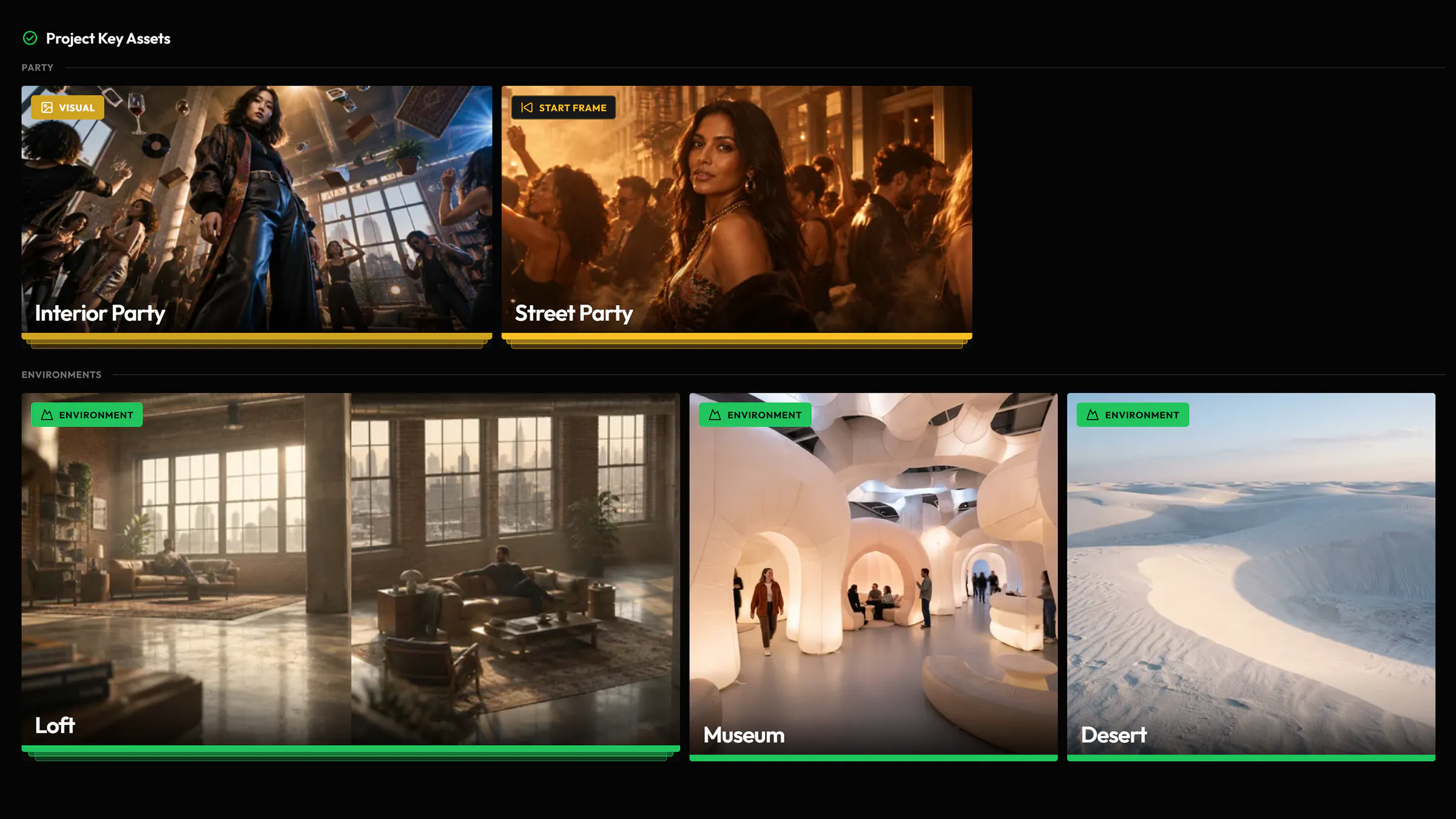
Hover any asset and press P: the assets it was made from open over your work, without leaving the page. Press P again to close them.

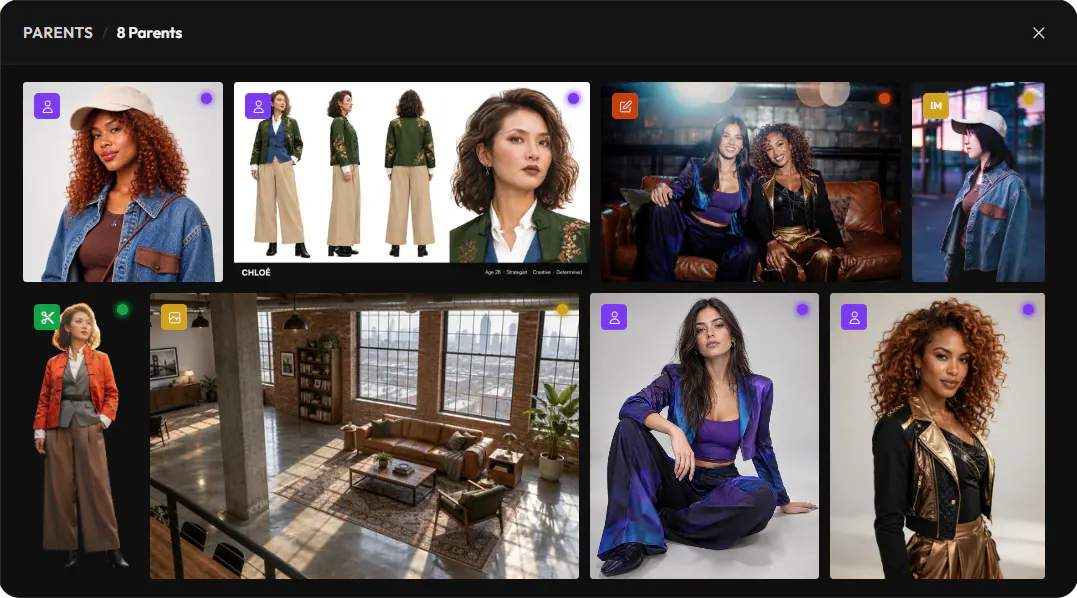
Every result linked to what it was made from.
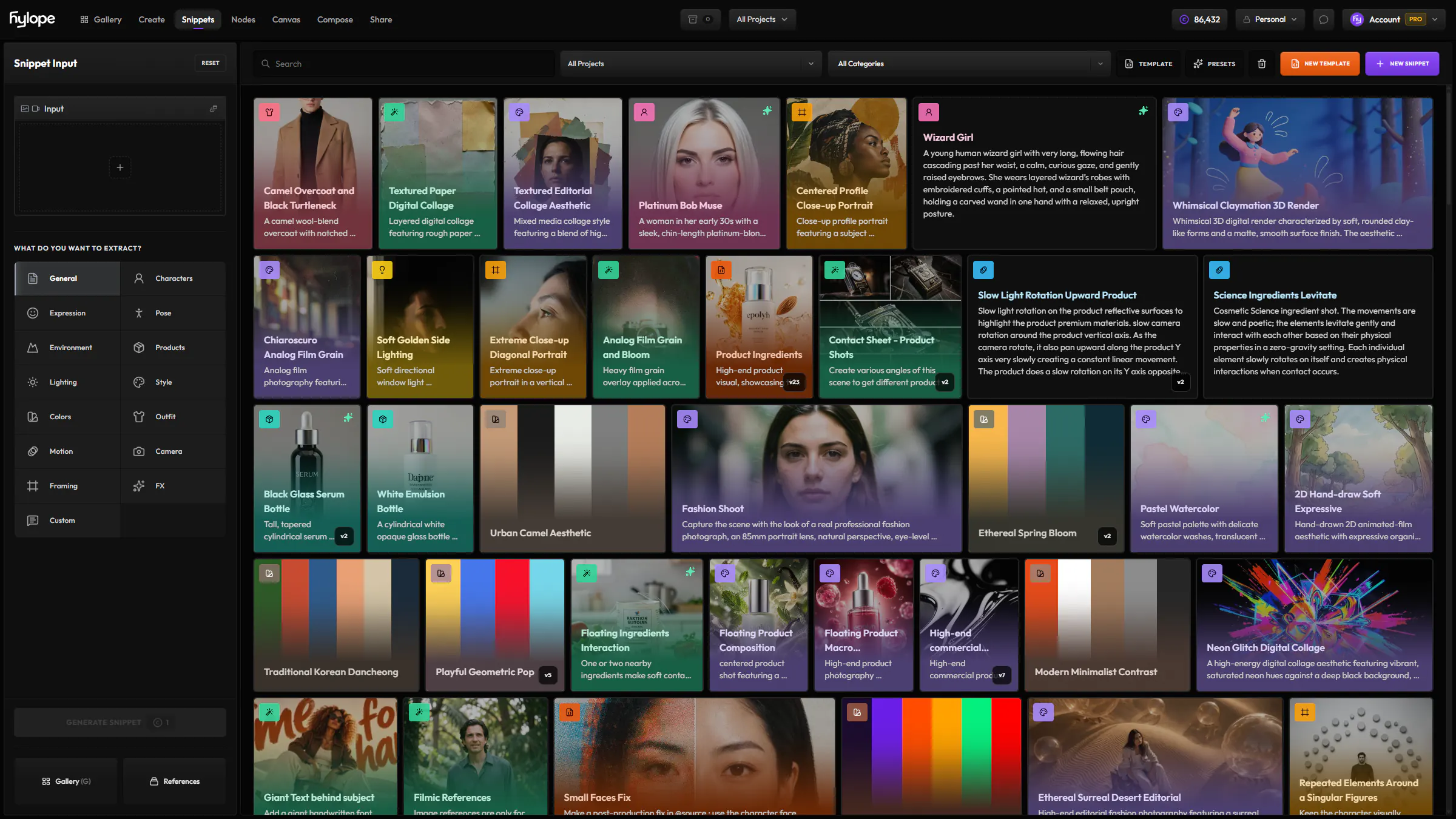
Hylope links each result to the assets it came from, with the model, prompt, settings, inputs and snippets that made it. Trace any piece back, and start again from any point.
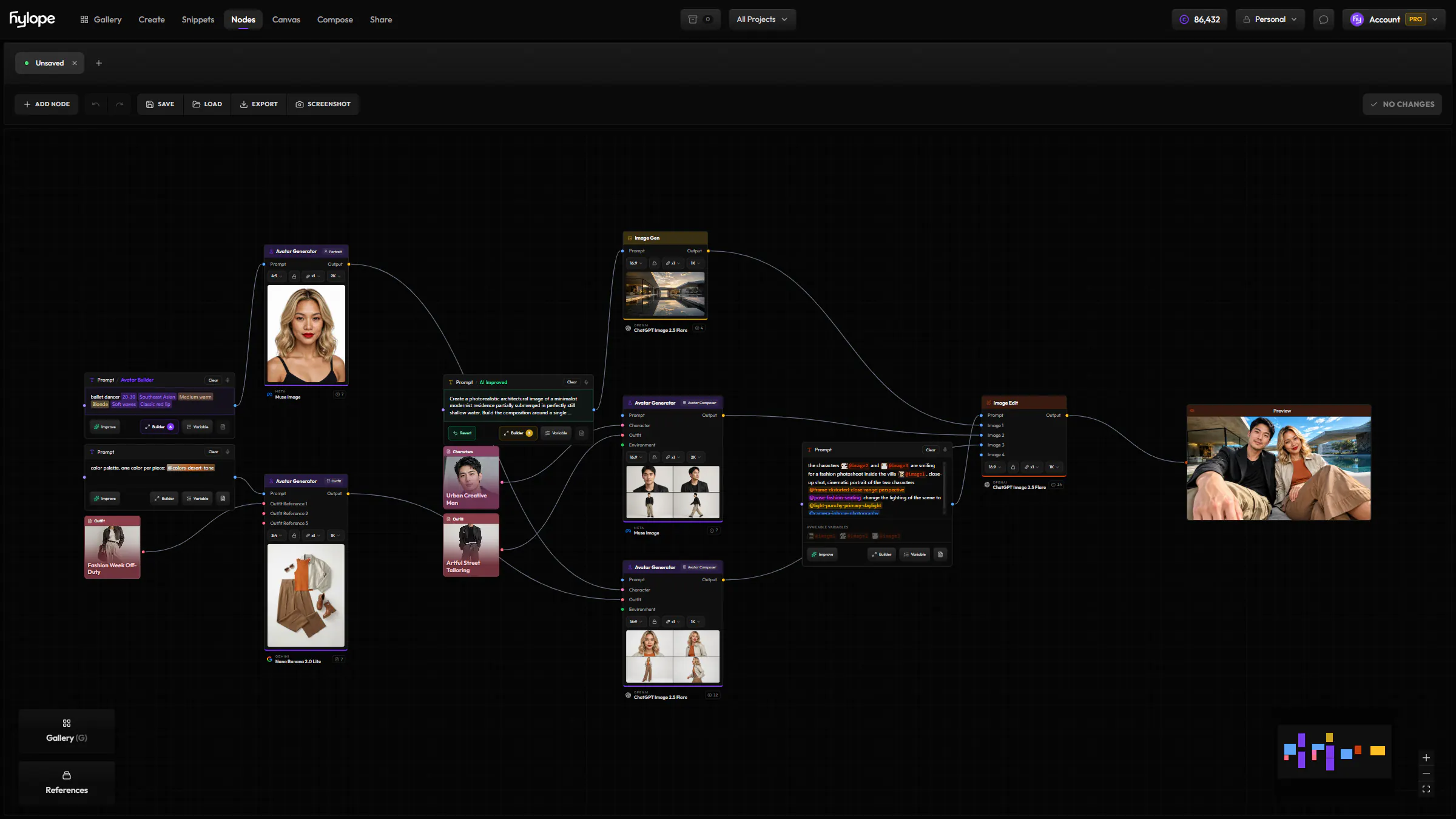
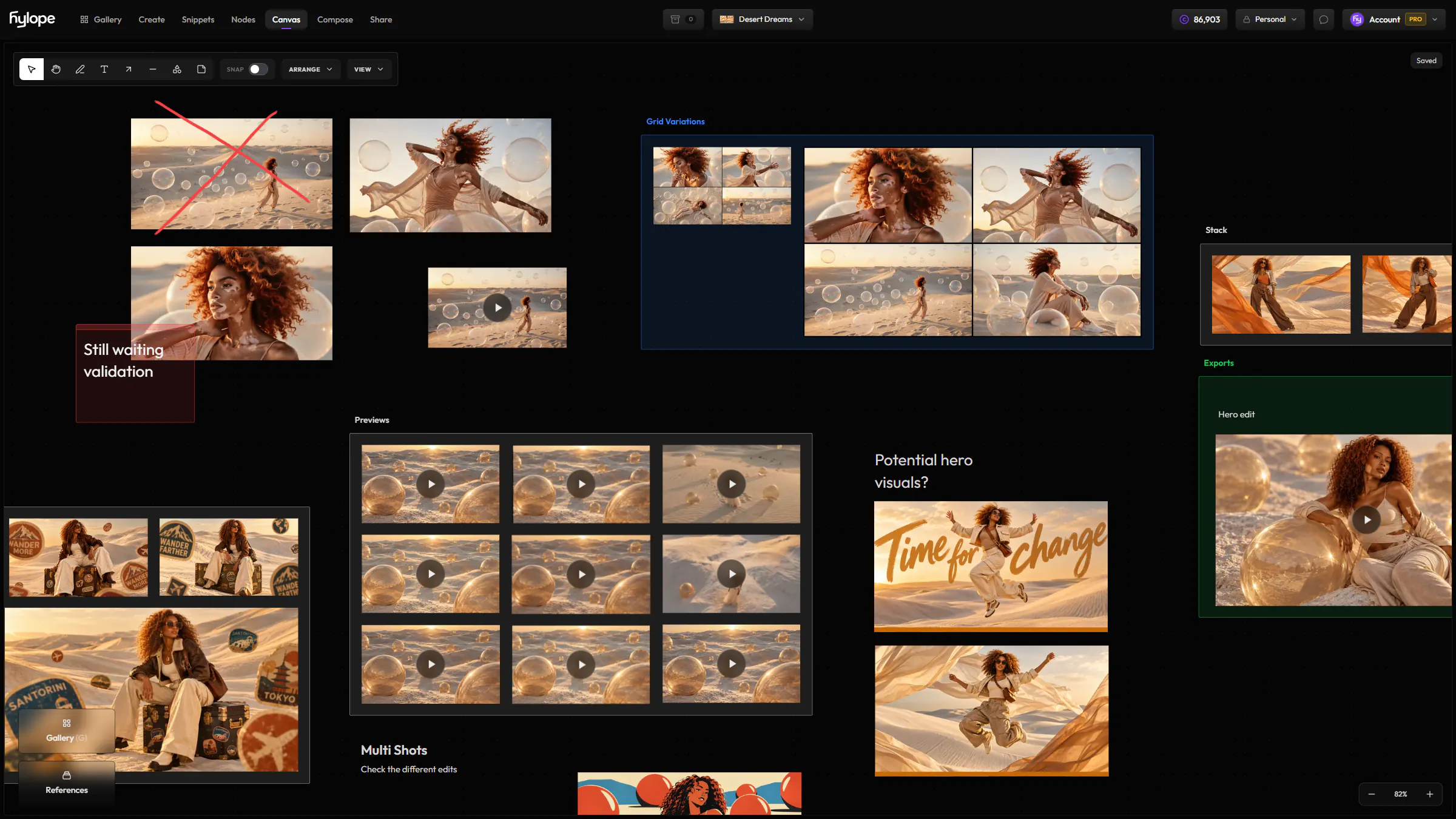
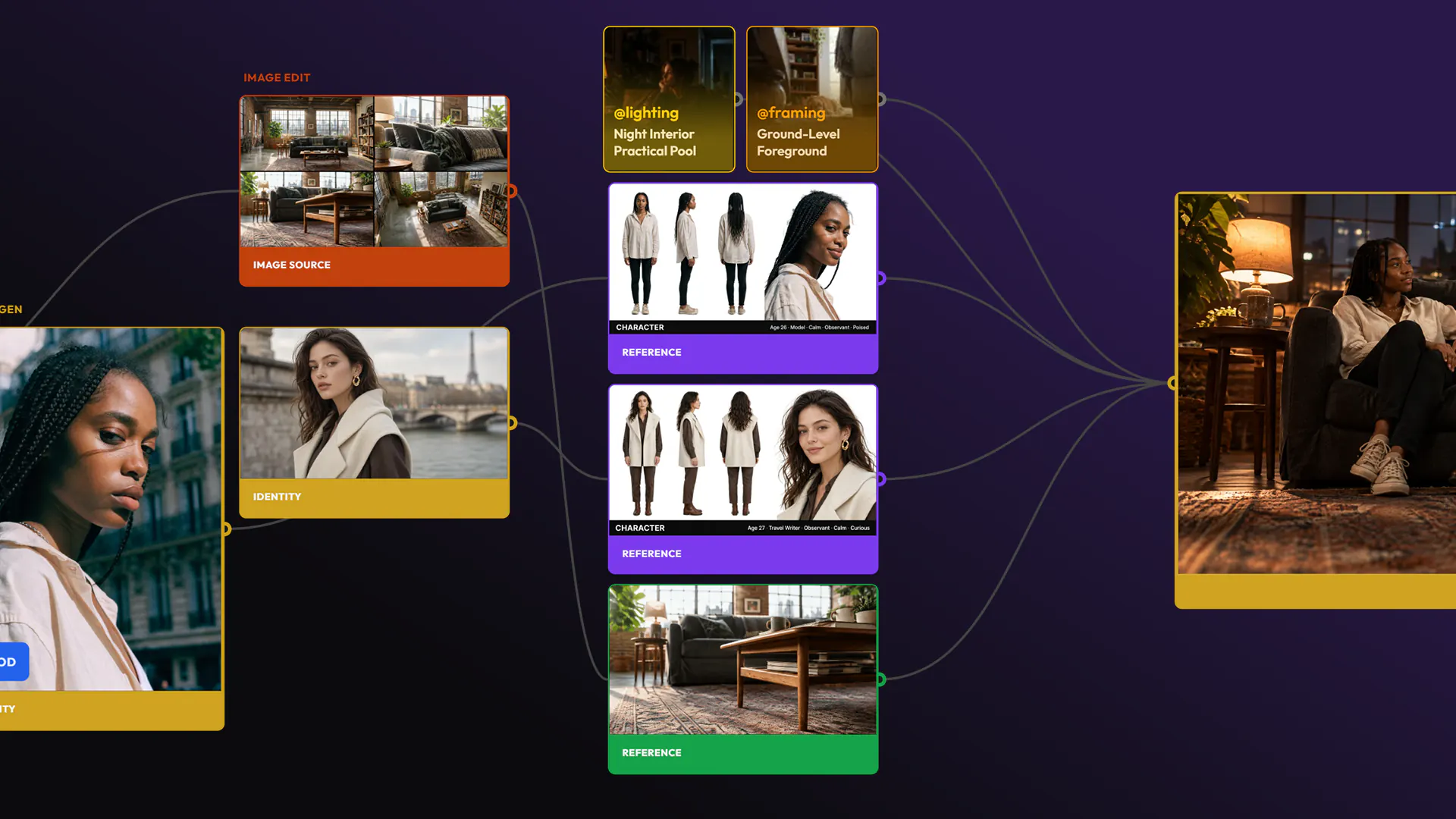
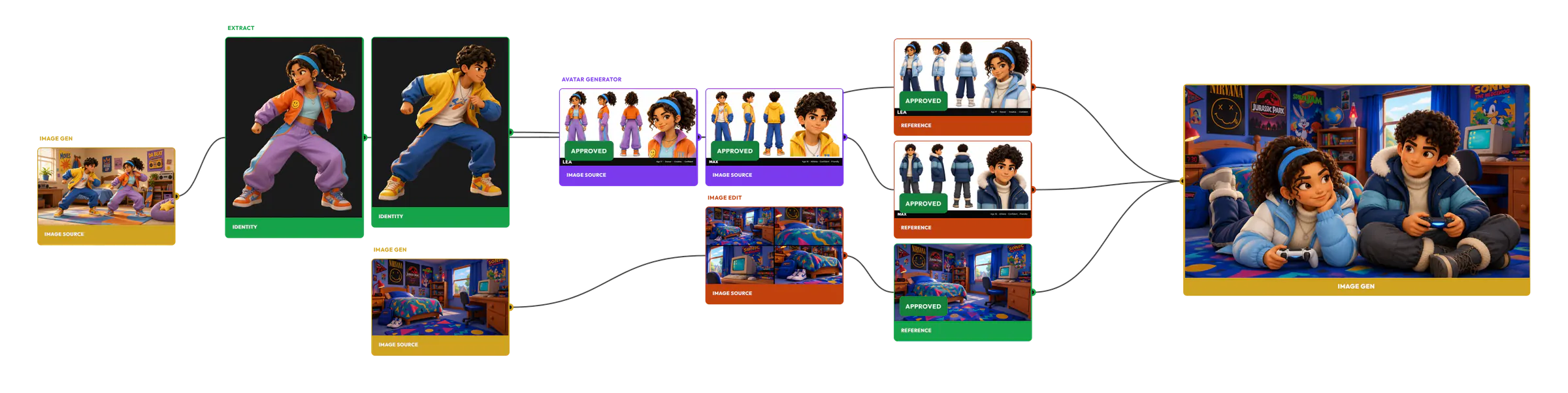
Open an asset and press L. The lineage view shows where it came from and what was made from it, generation after generation, with the snippets used in its prompt. Click an asset to move there, or press F to fit the whole graph in view.
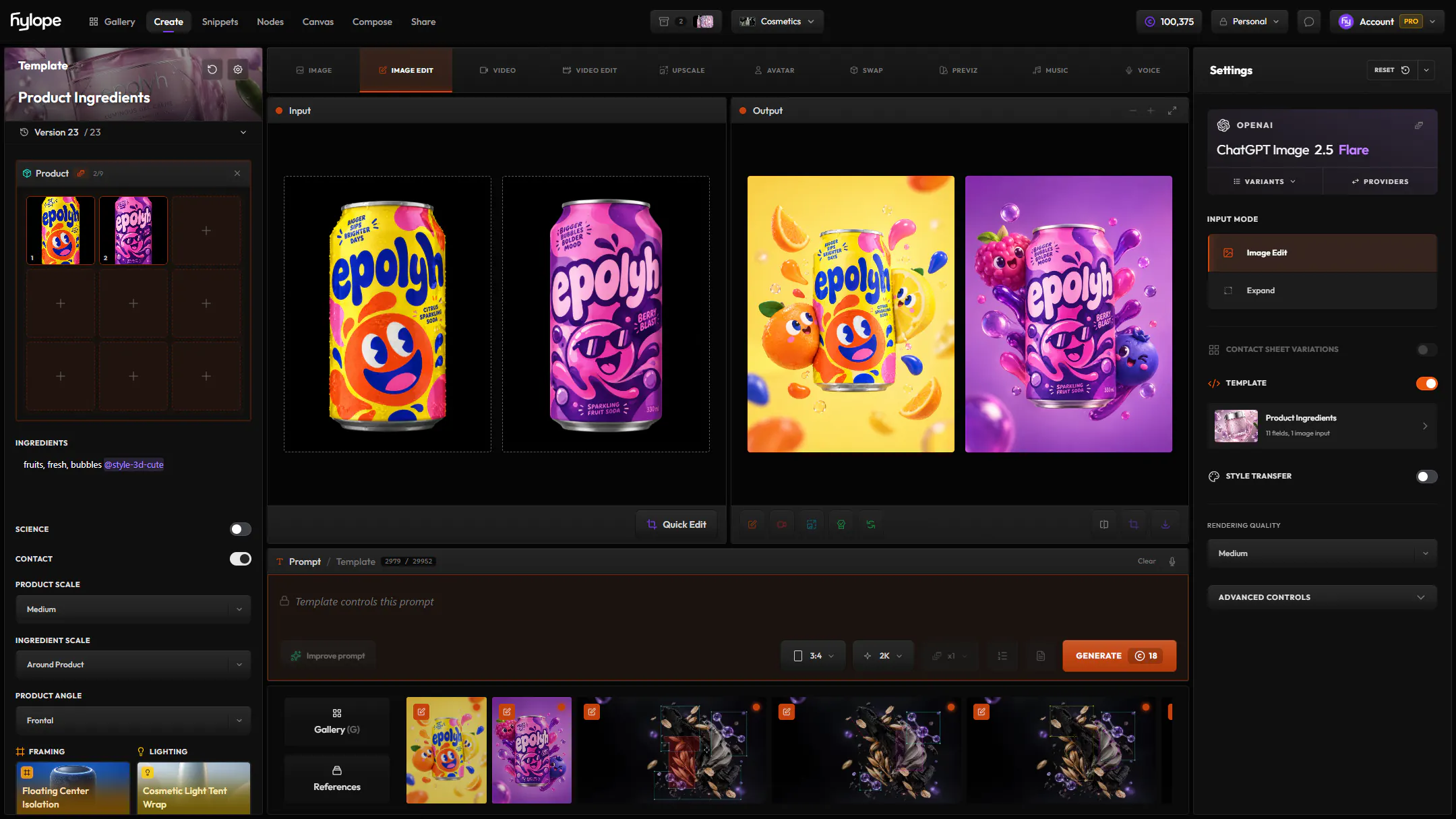
A product shot made into a contact sheet, split into four tiles, each one animated

Two characters extracted from an image, made into character sheets, then placed in a new scene
P
Hover any asset and press P: the assets it was made from open over your work, without leaving the page. Press P again to close them.
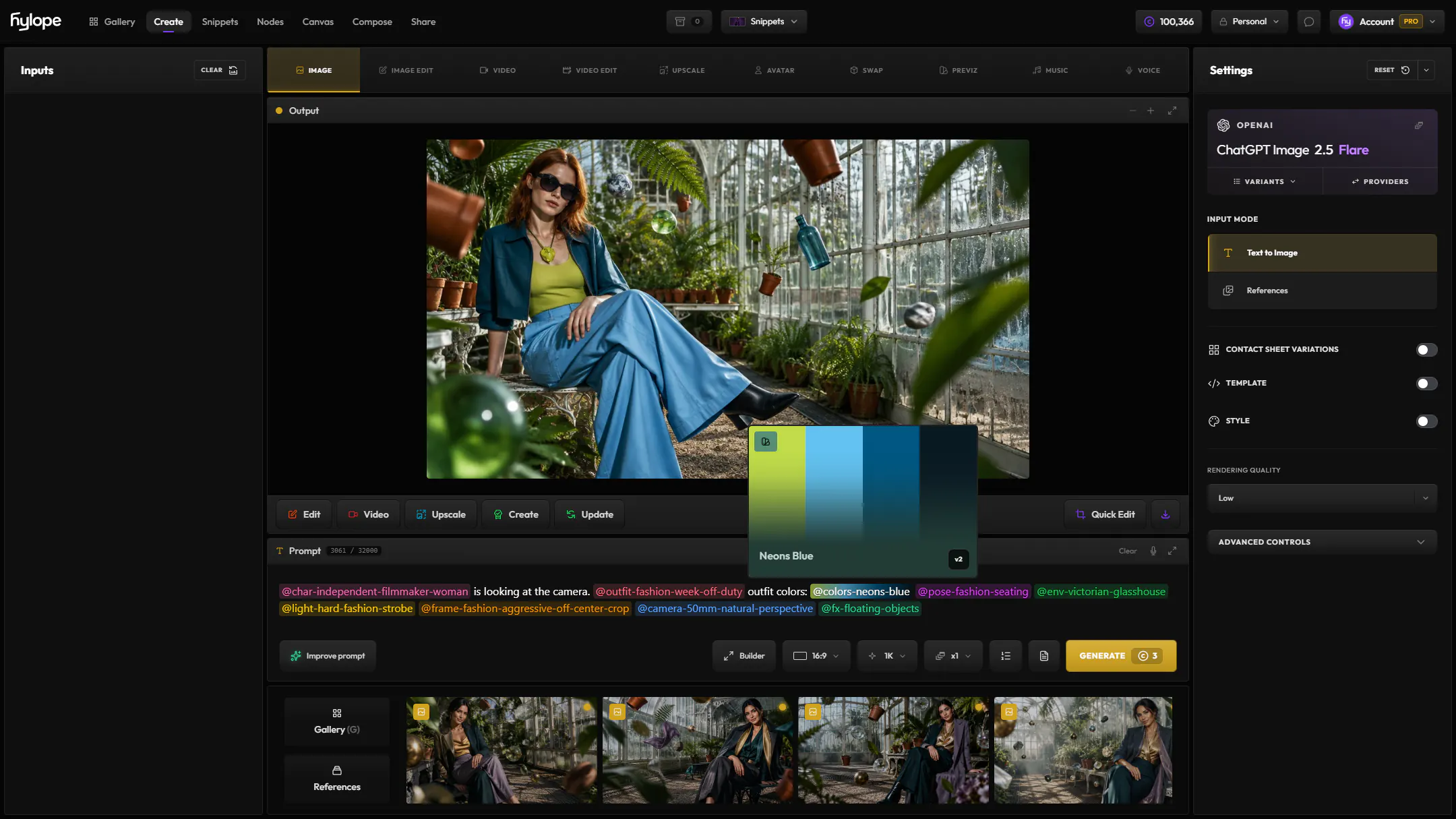
Reload puts everything an asset was made with back into Create: the mode, the model, the prompt, the inputs and the settings. Change one thing and generate again.
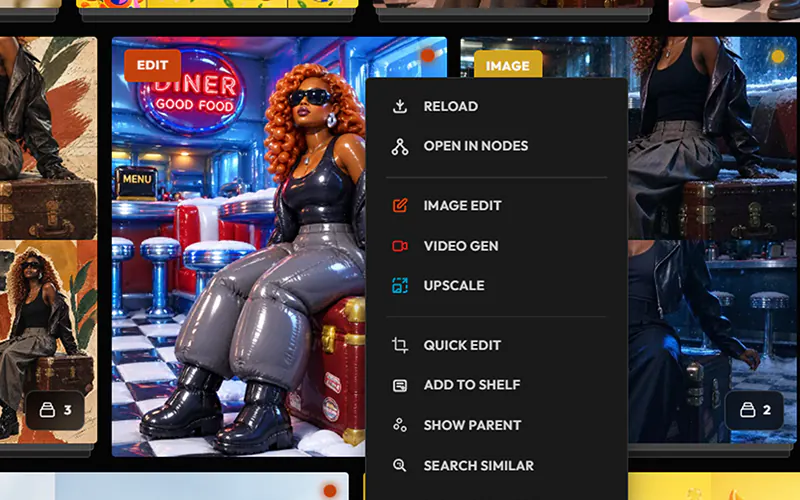
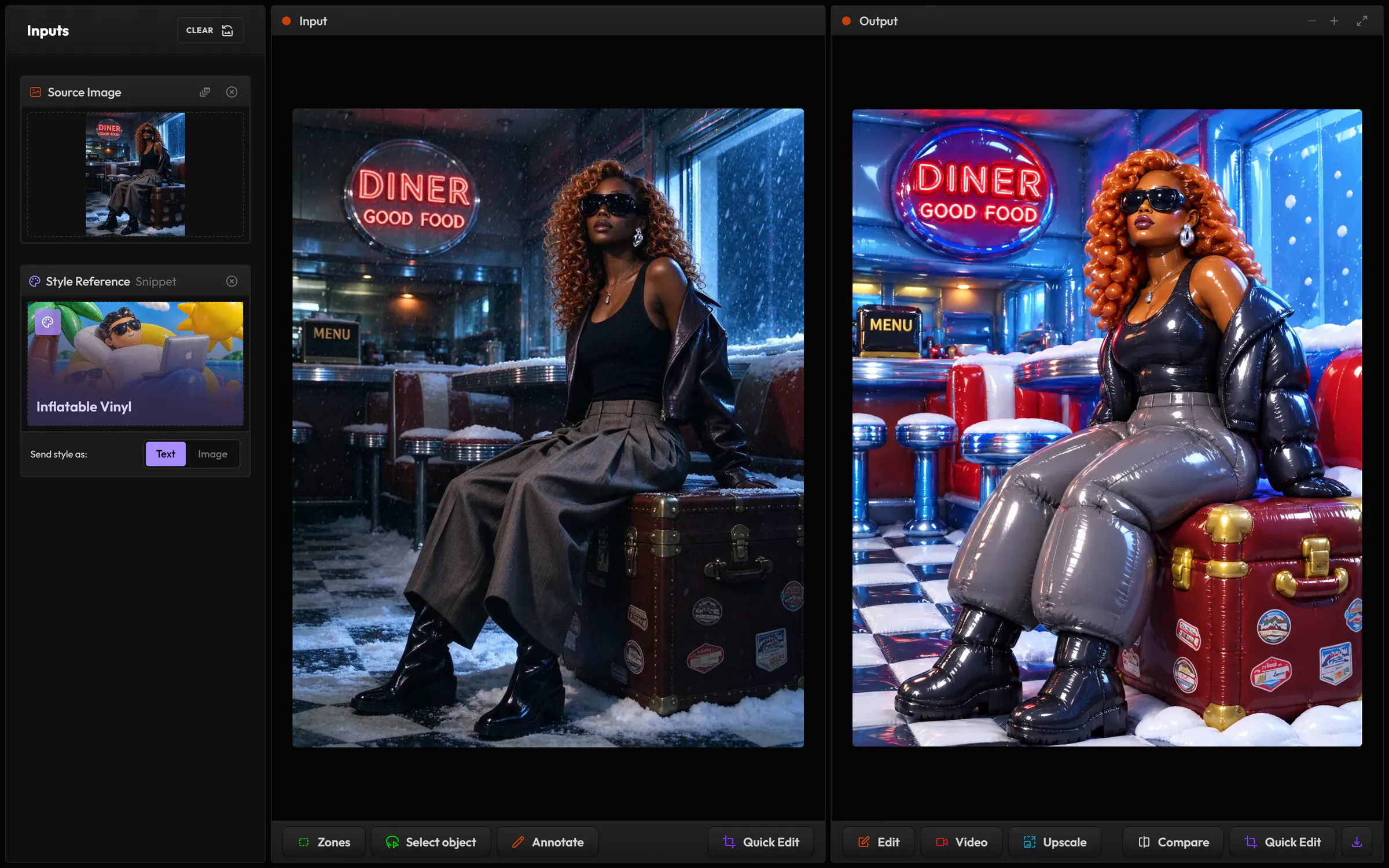
Press R in the lightbox, or use the right-click menu.
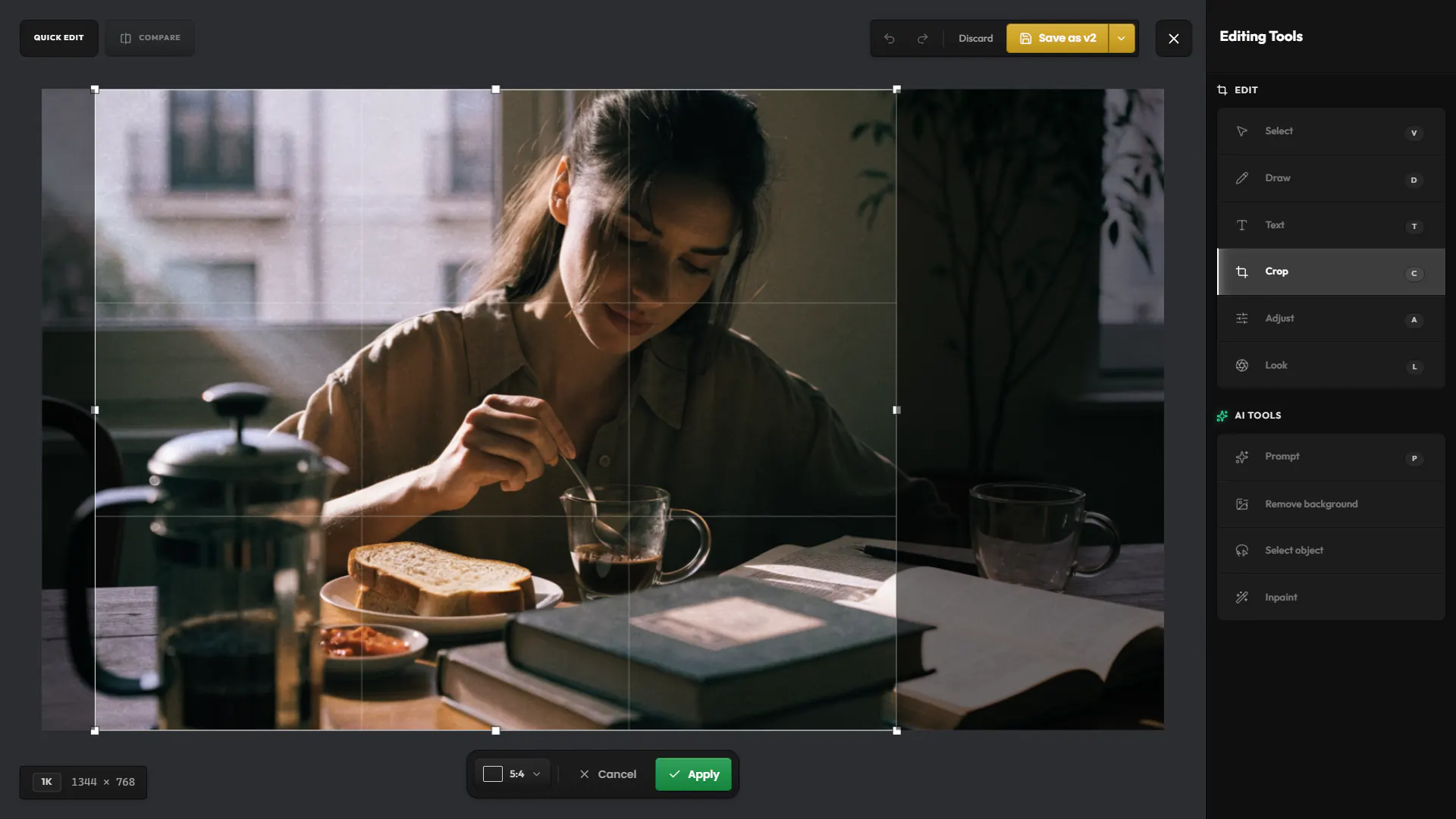
On a result saved from Quick Edit, Reload Parent reloads the generation it came from.
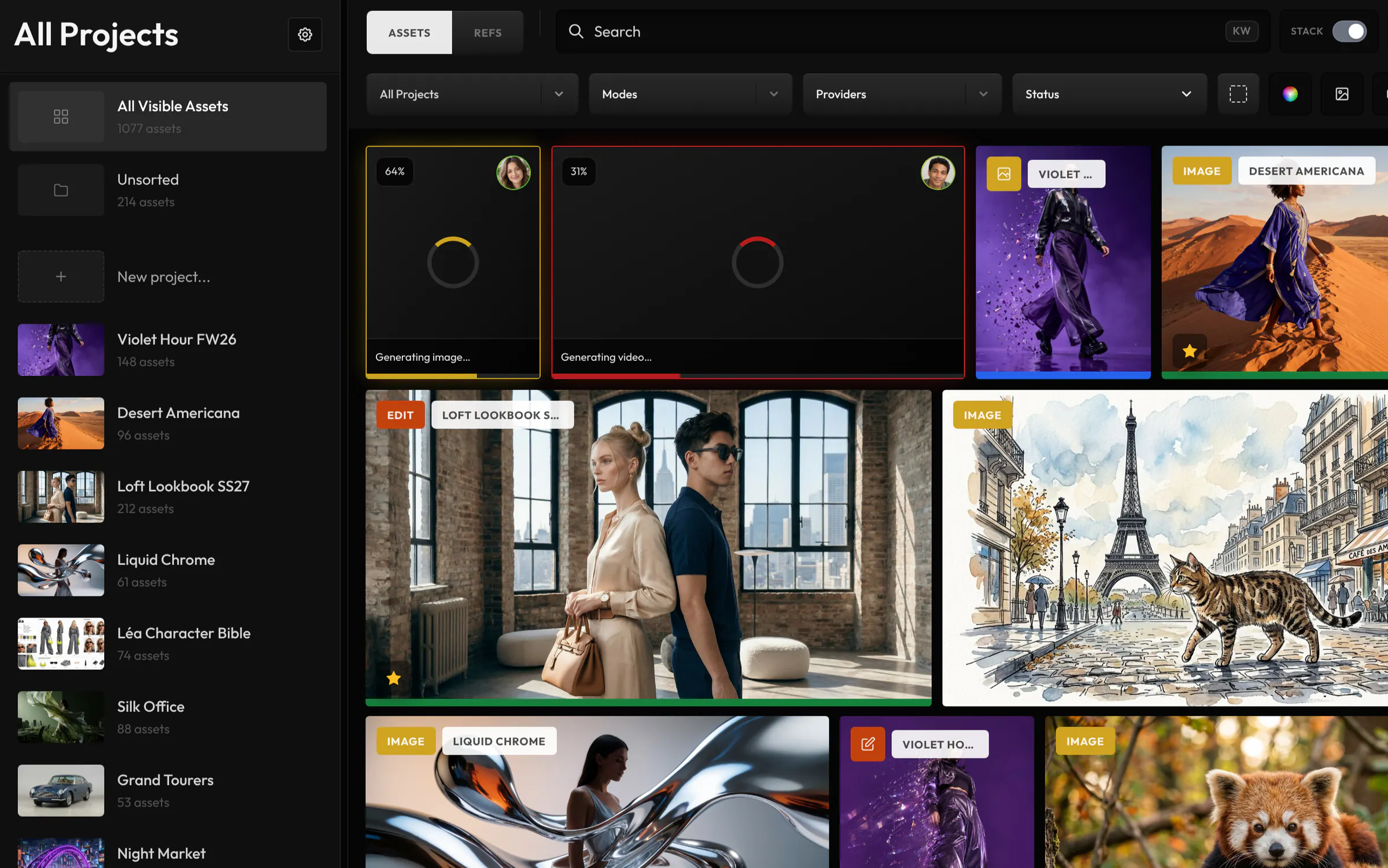
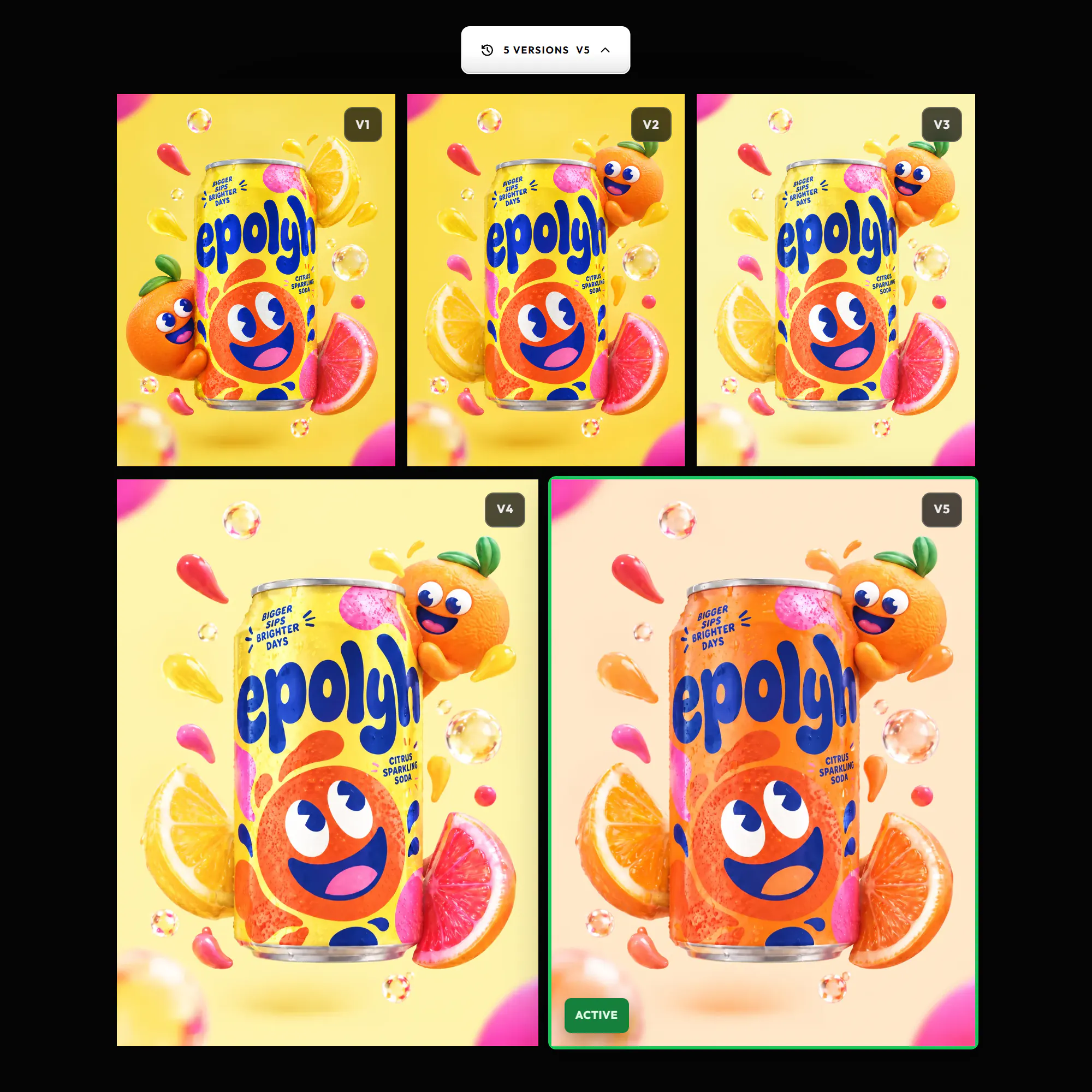
A version is a new state of the same asset: an edit saved from Quick Edit, or a new version saved from Photoshop. The gallery shows one card with the number of versions, and you choose which one is active.
The model, the prompt, the settings, the inputs and the snippets it used, and the assets it was made from.
Lineage links different assets: an image, the edit made from it, the video made from the edit. Versions are successive states of one asset, such as a retouch saved back to it, and share one card in the gallery.
Yes. Reload puts its mode, model, prompt, inputs and settings back into Create. Change what you need and generate again.
Hylope 1.7 is open to everyone. New accounts start with 100 free credits.