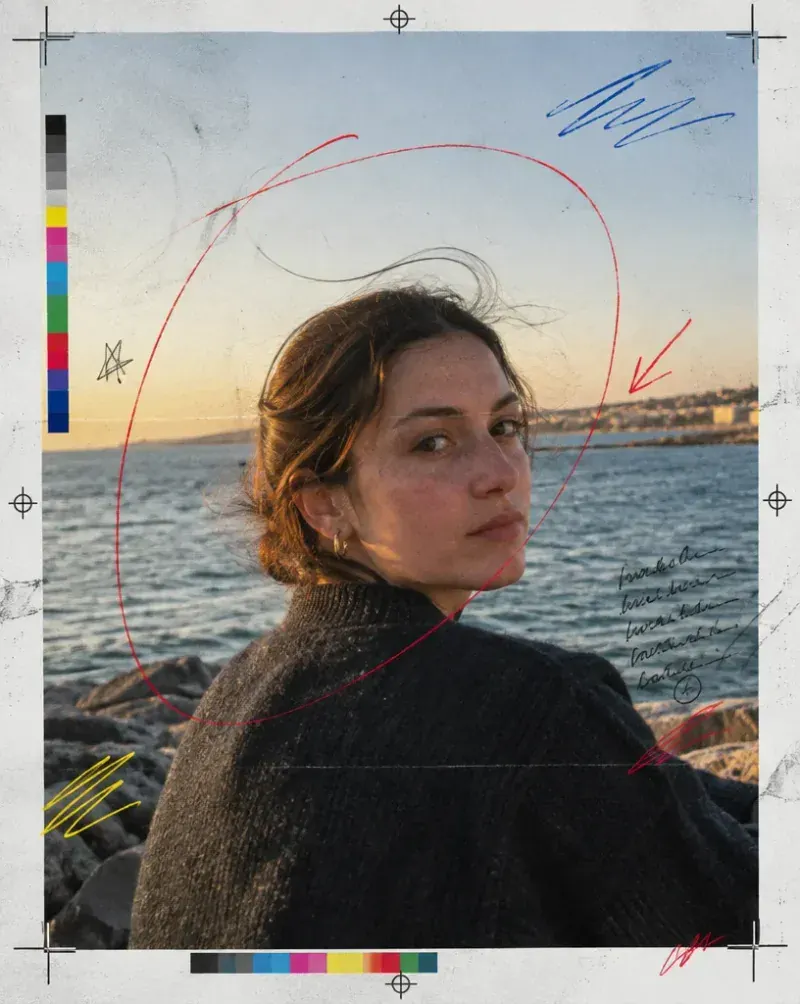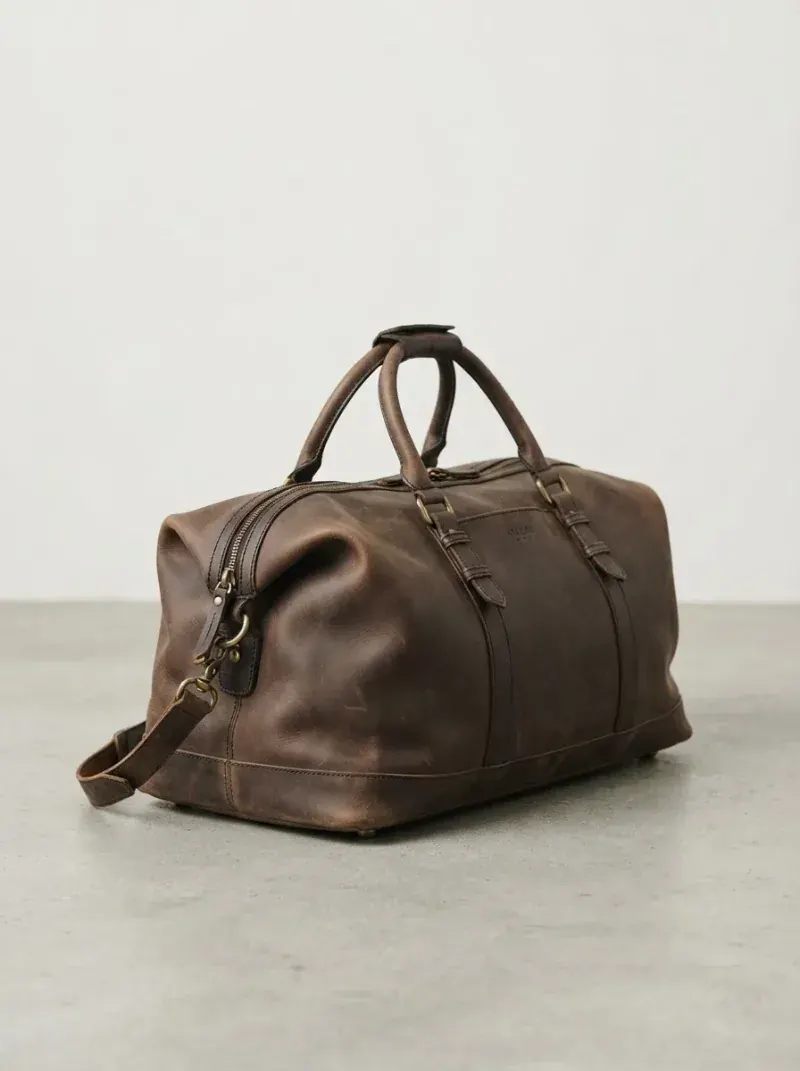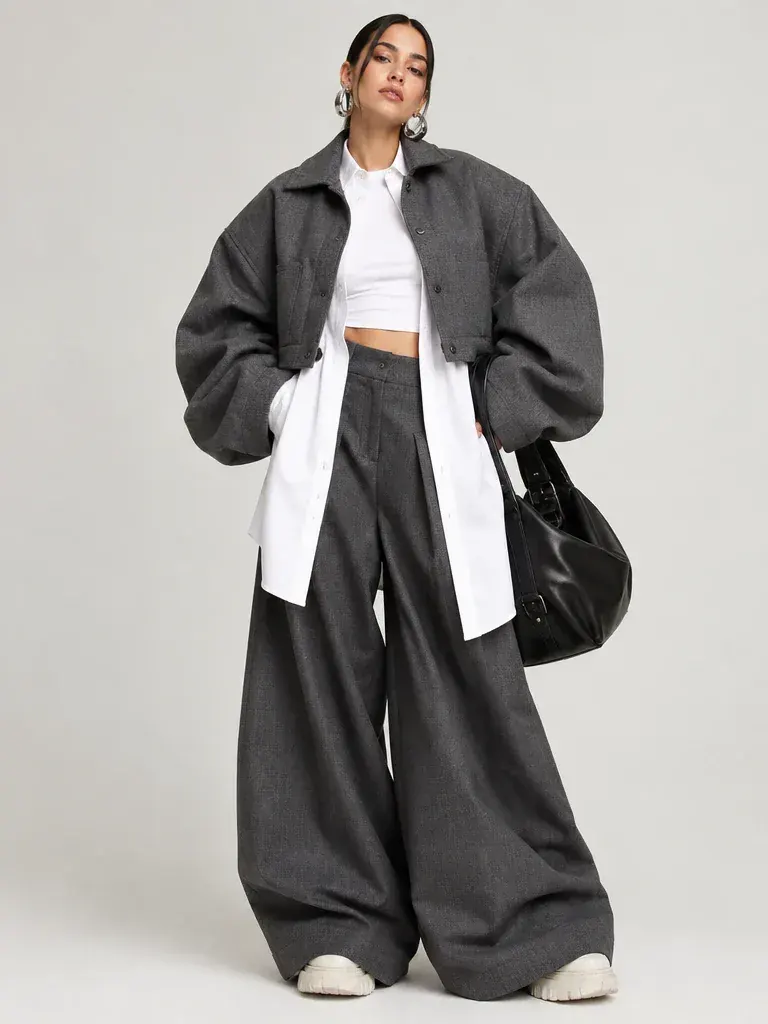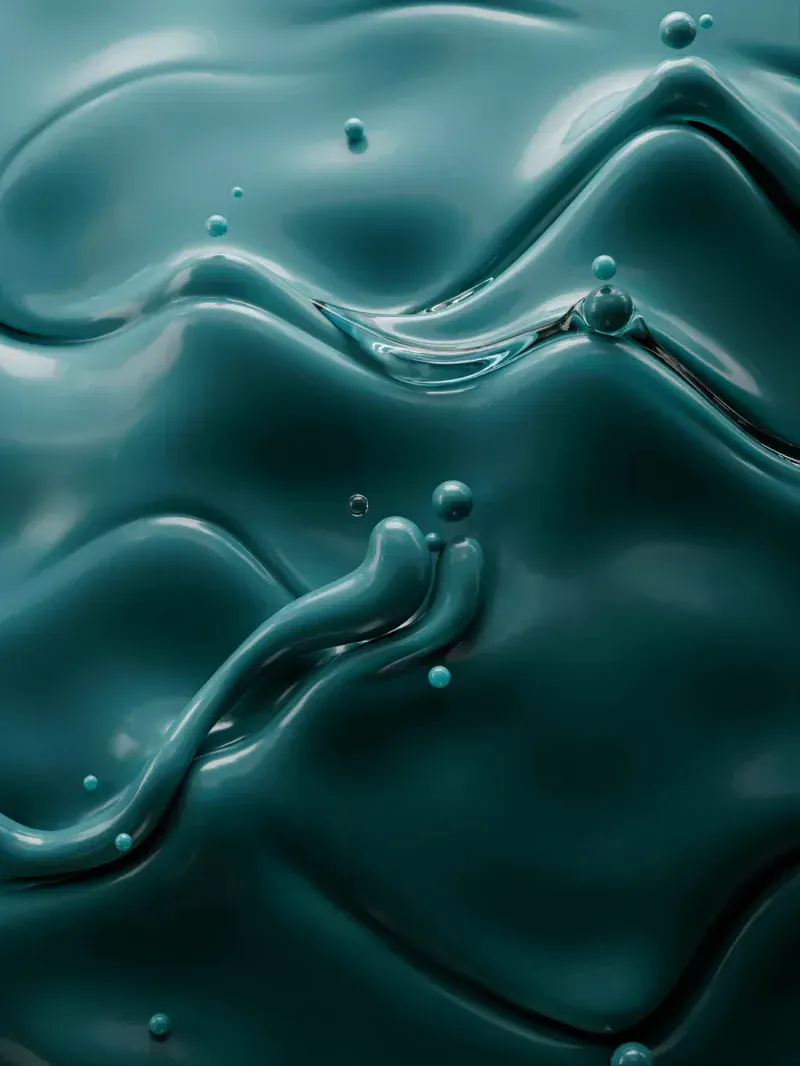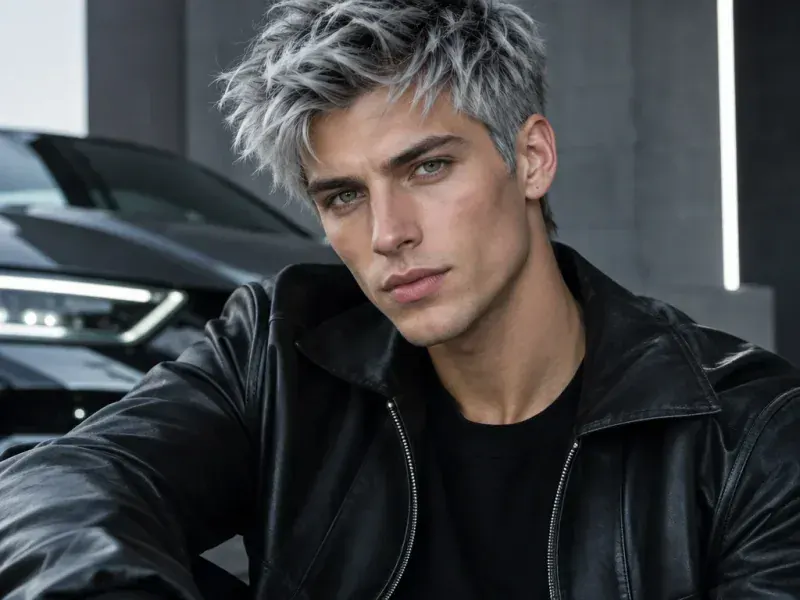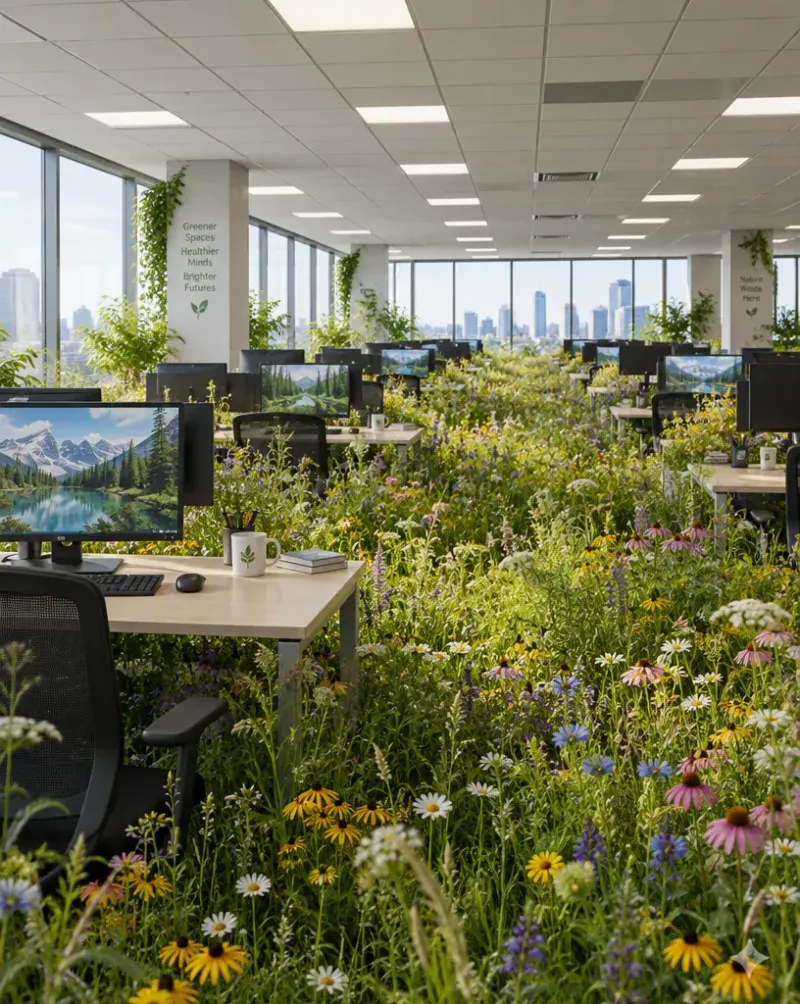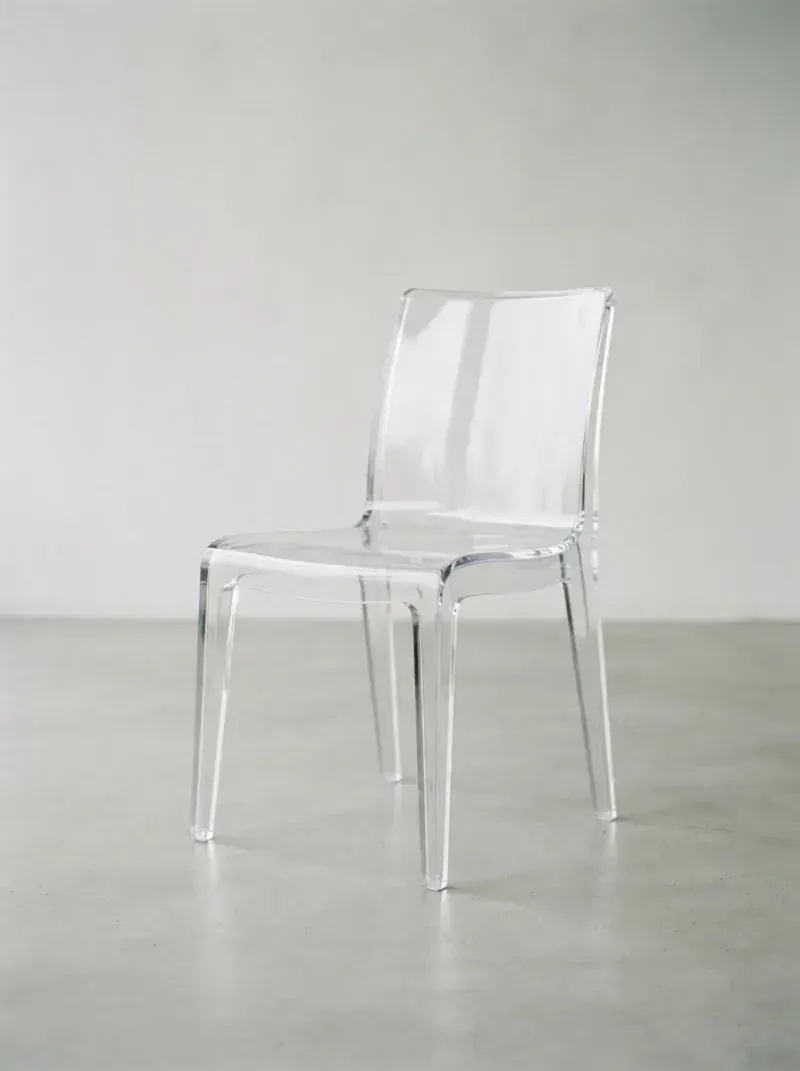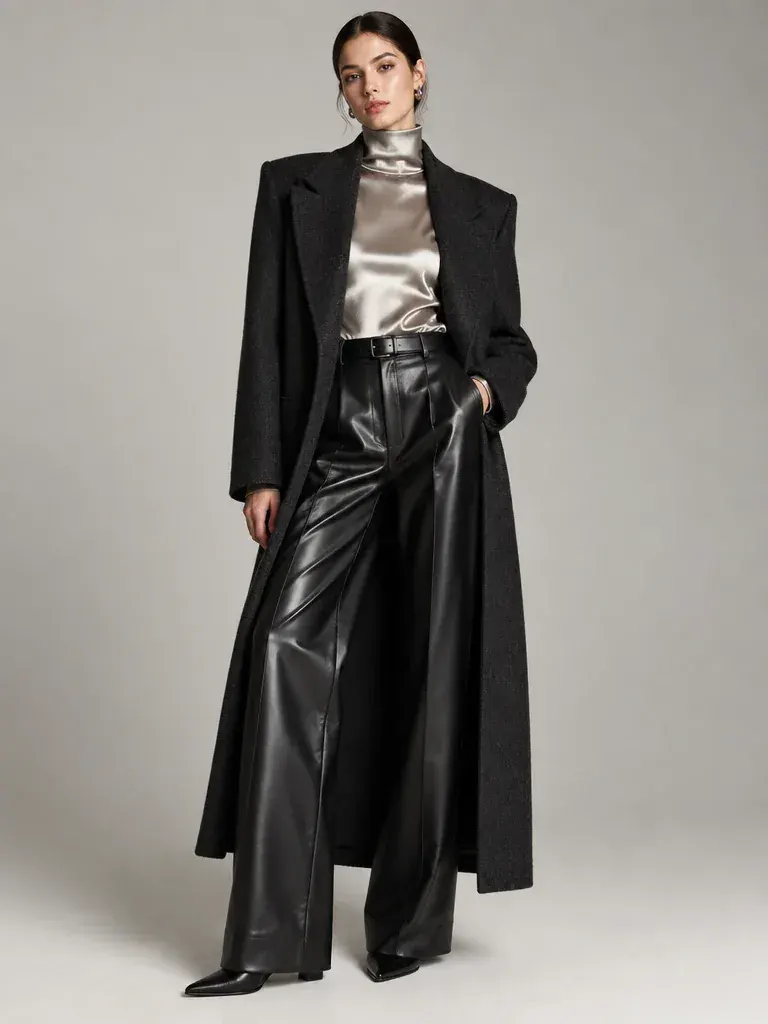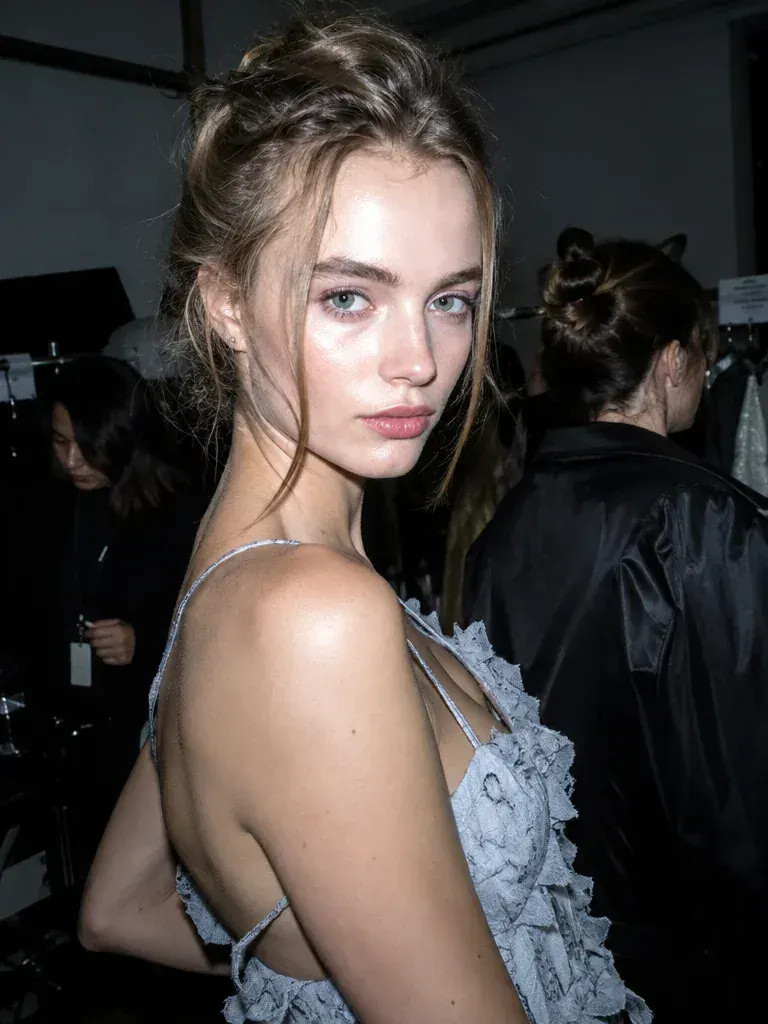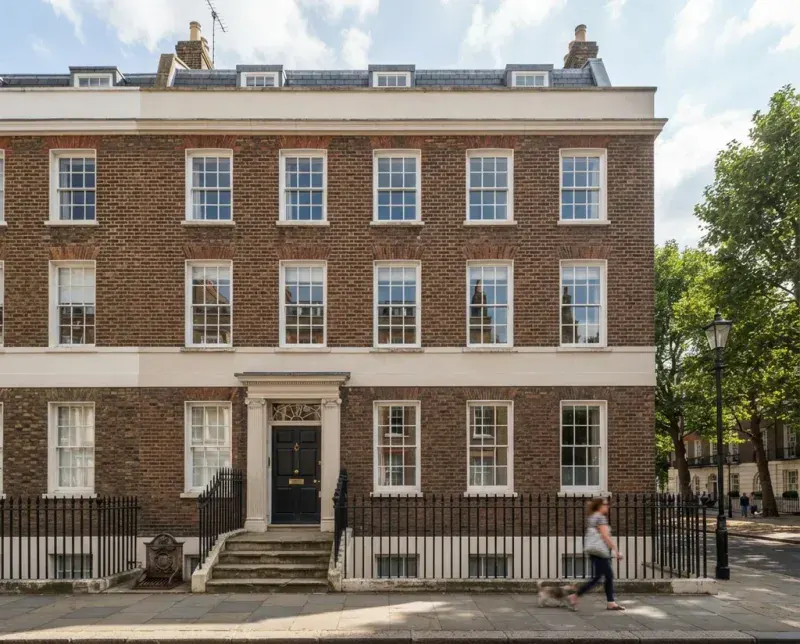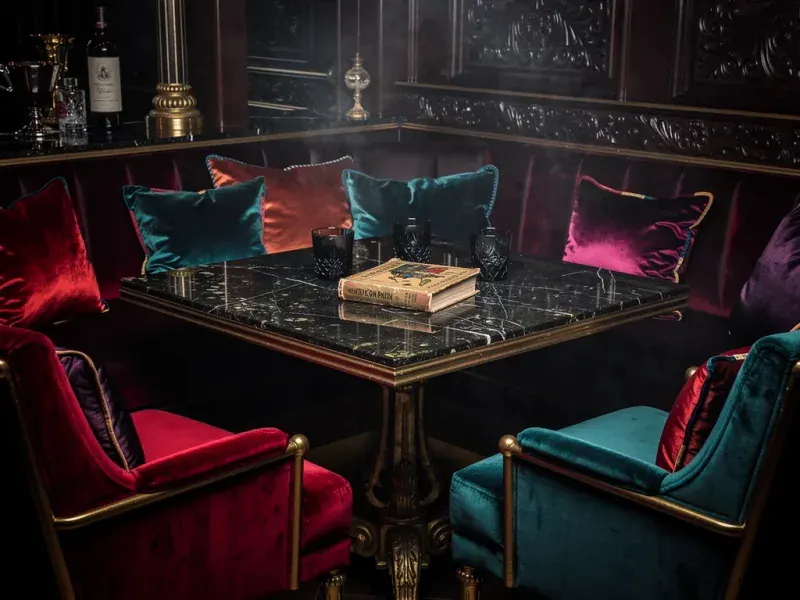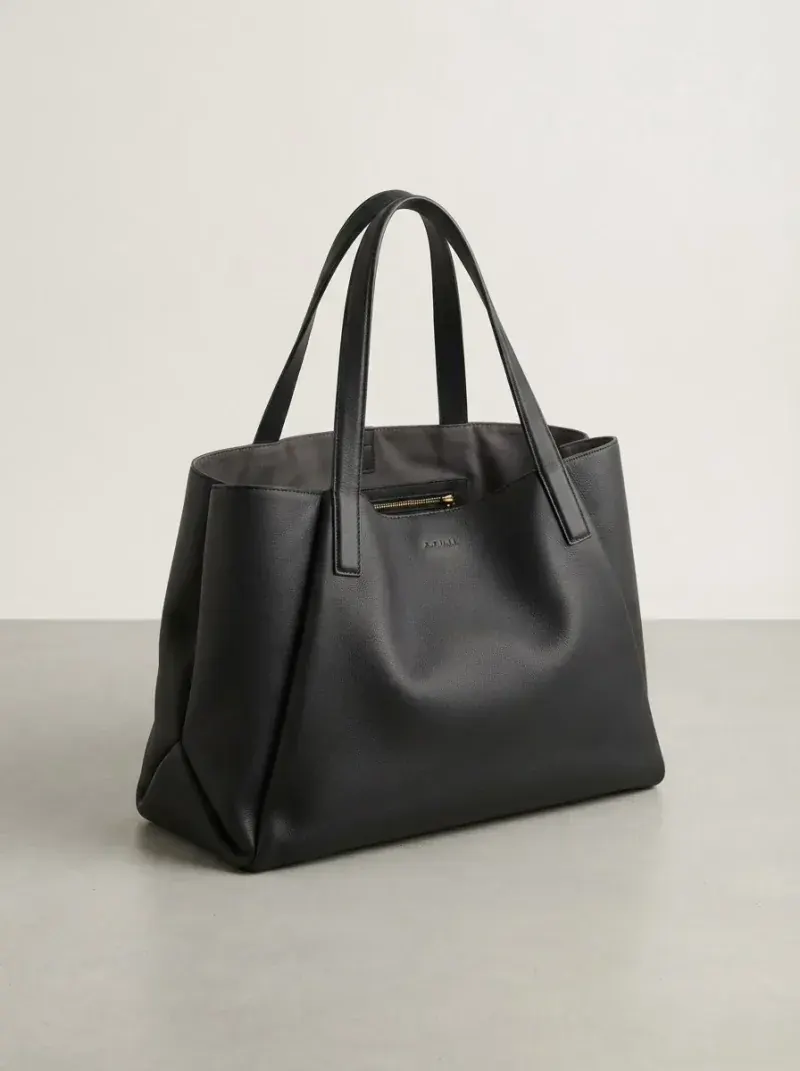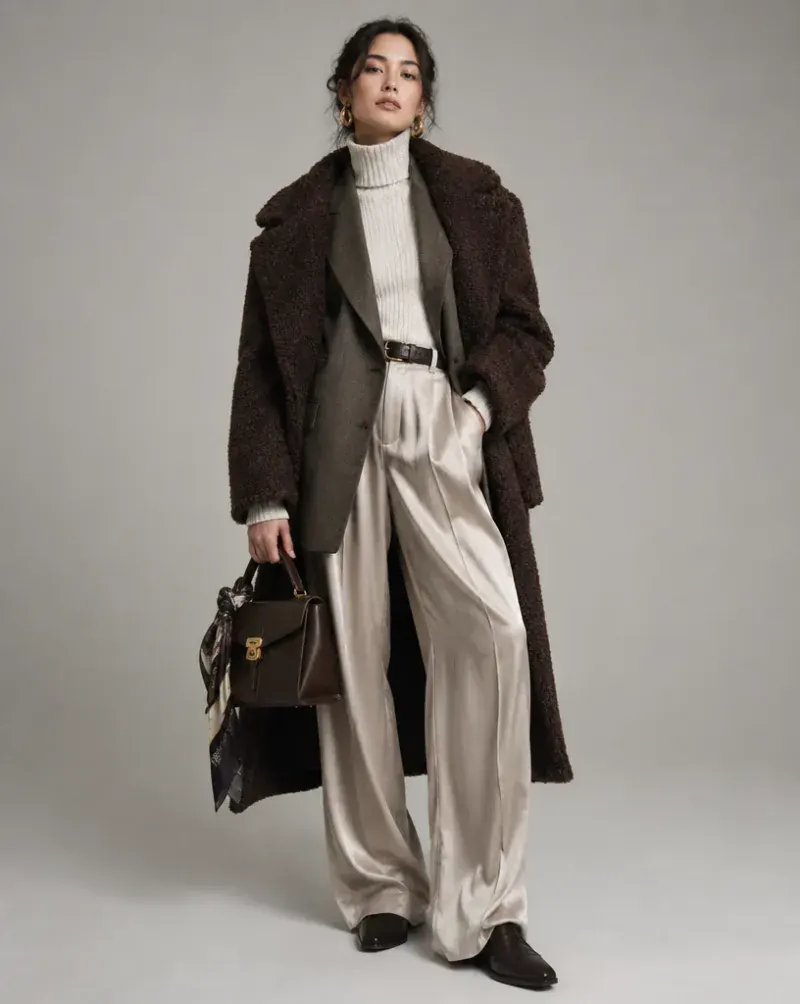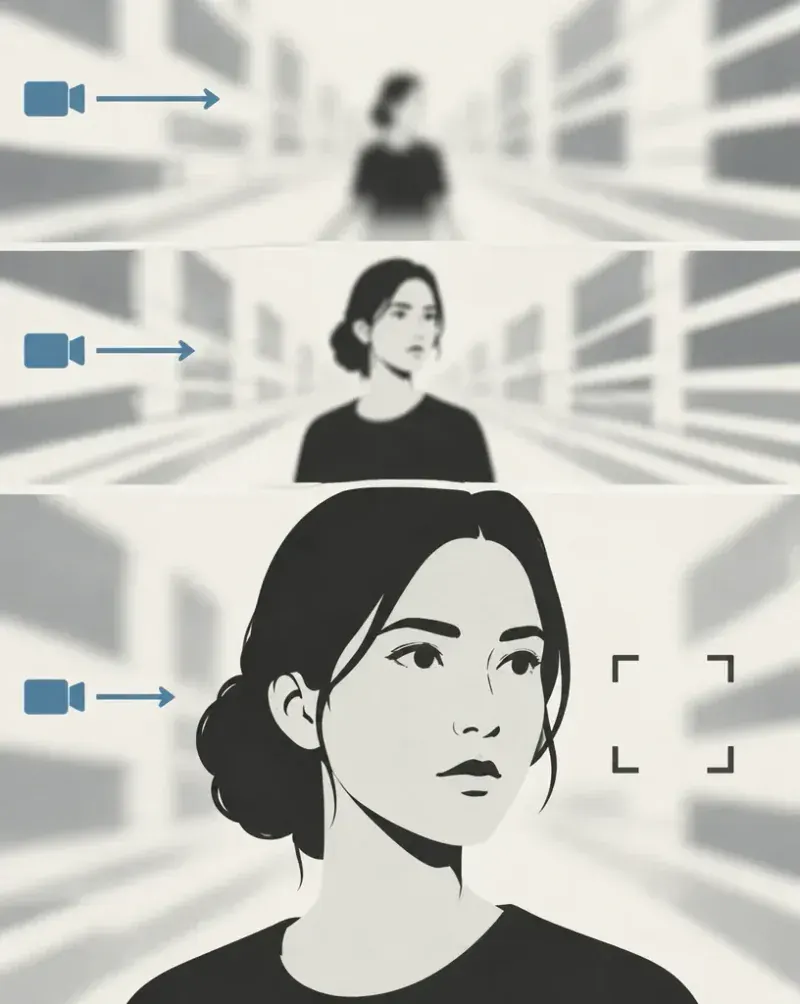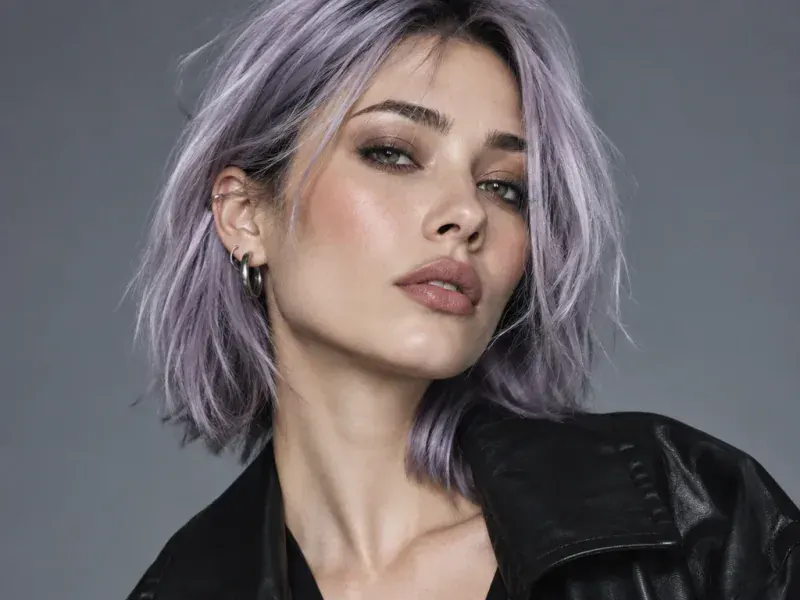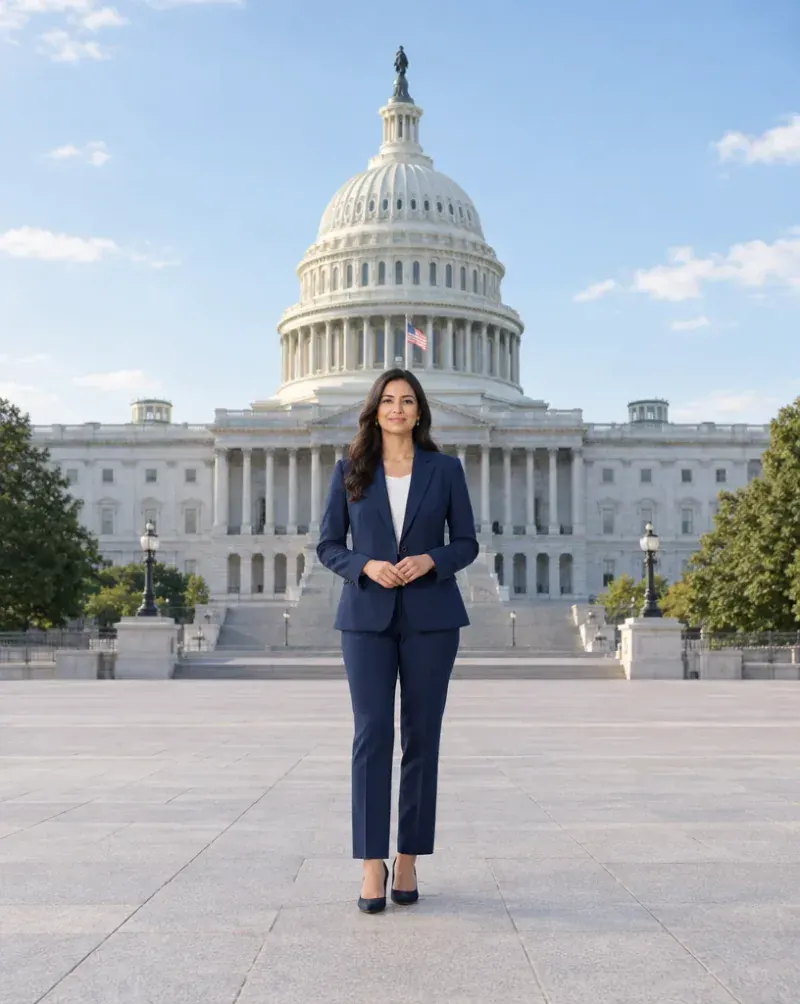

Write one yourself.
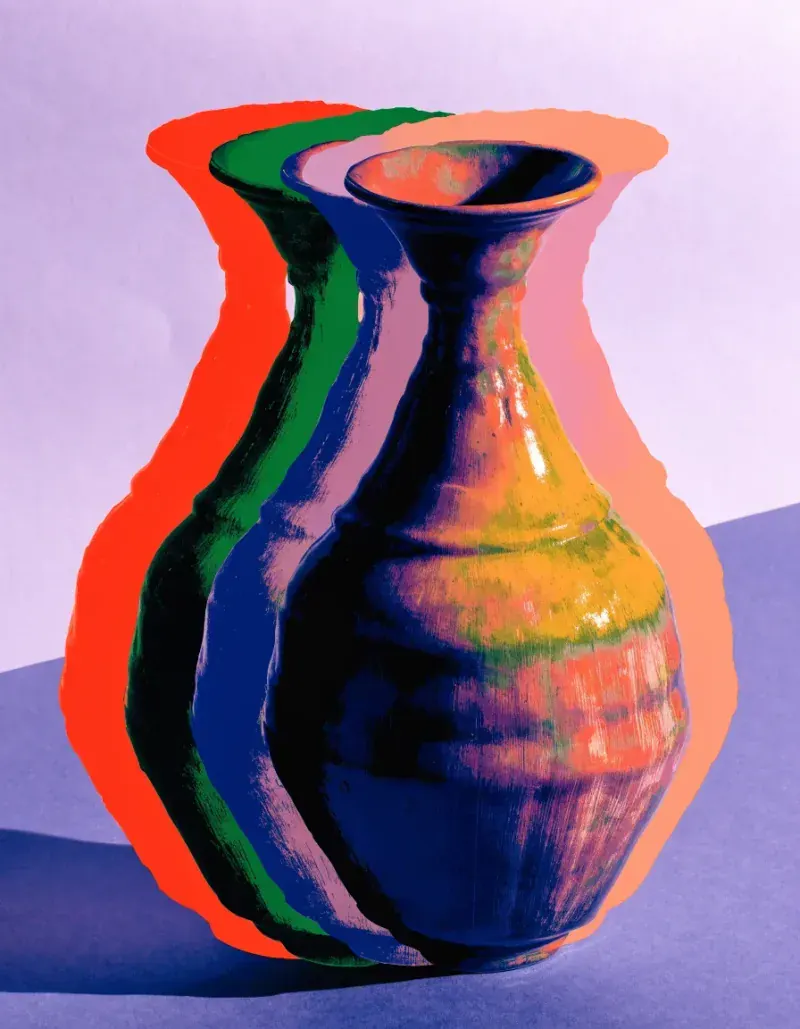
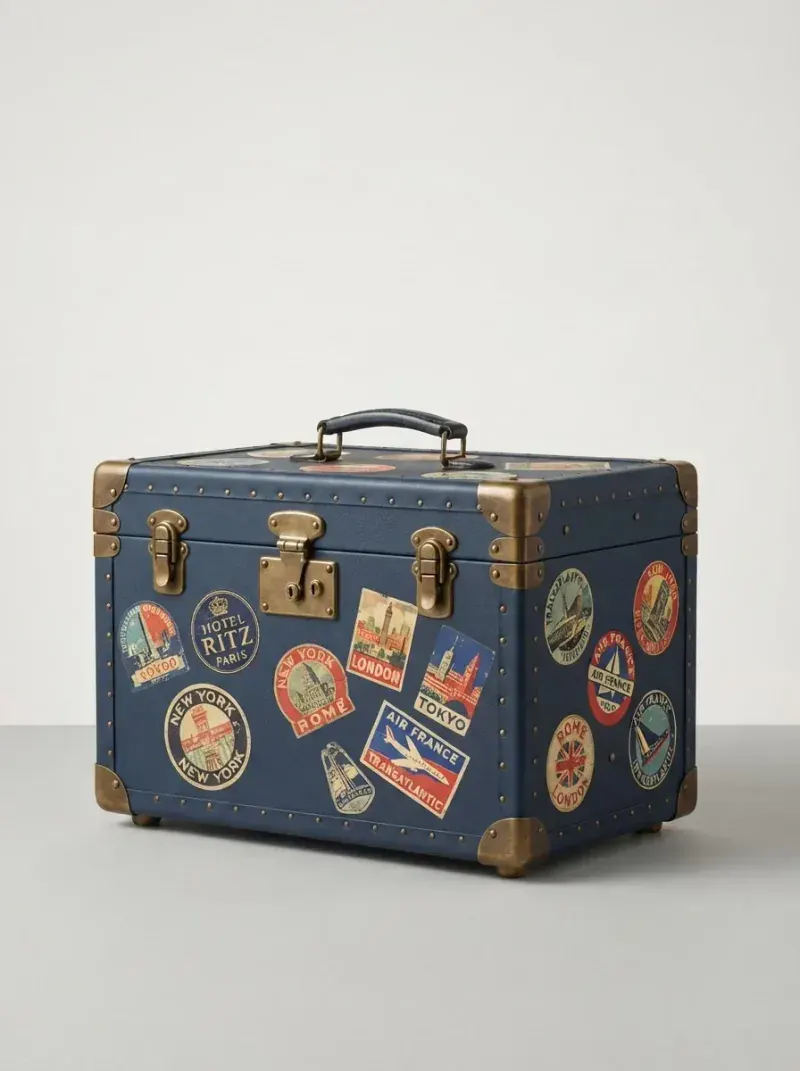
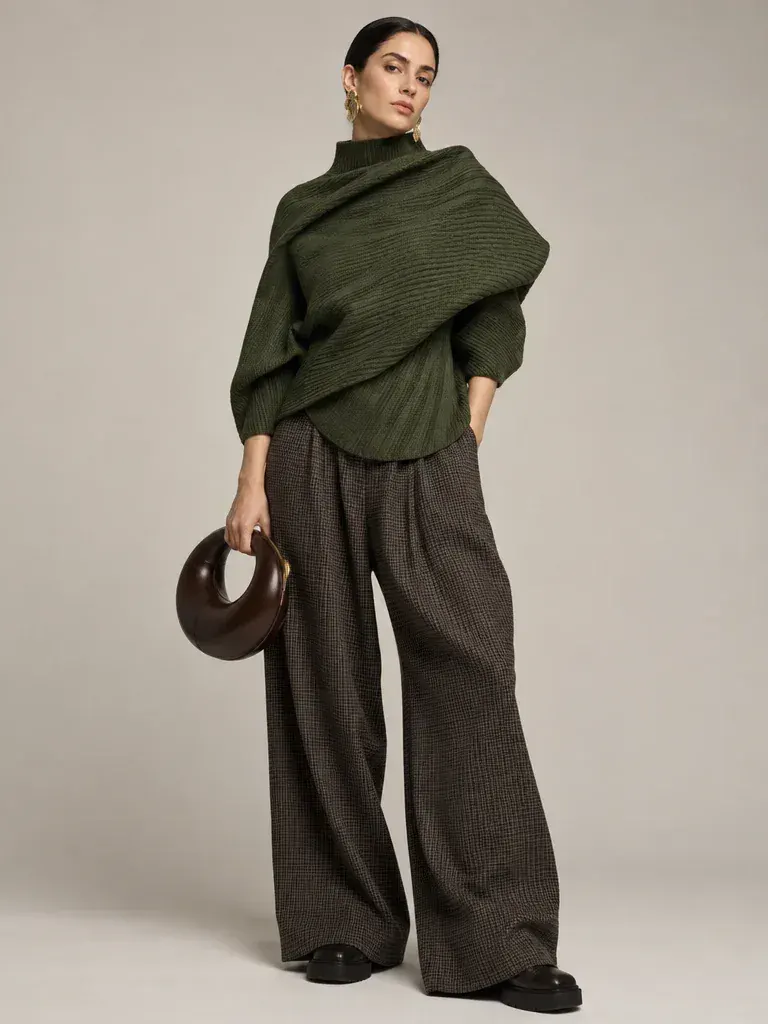
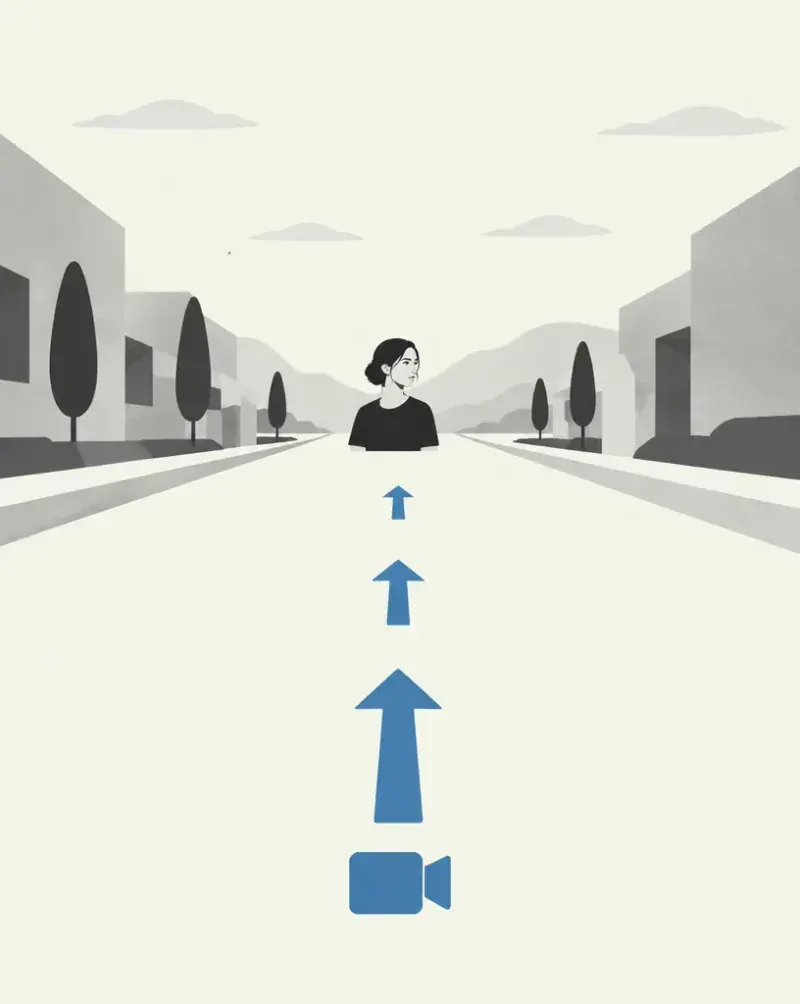
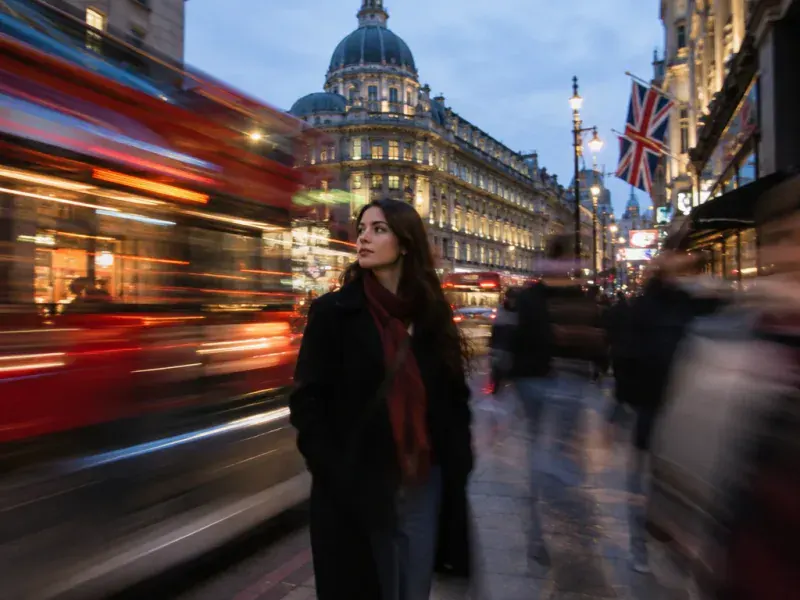
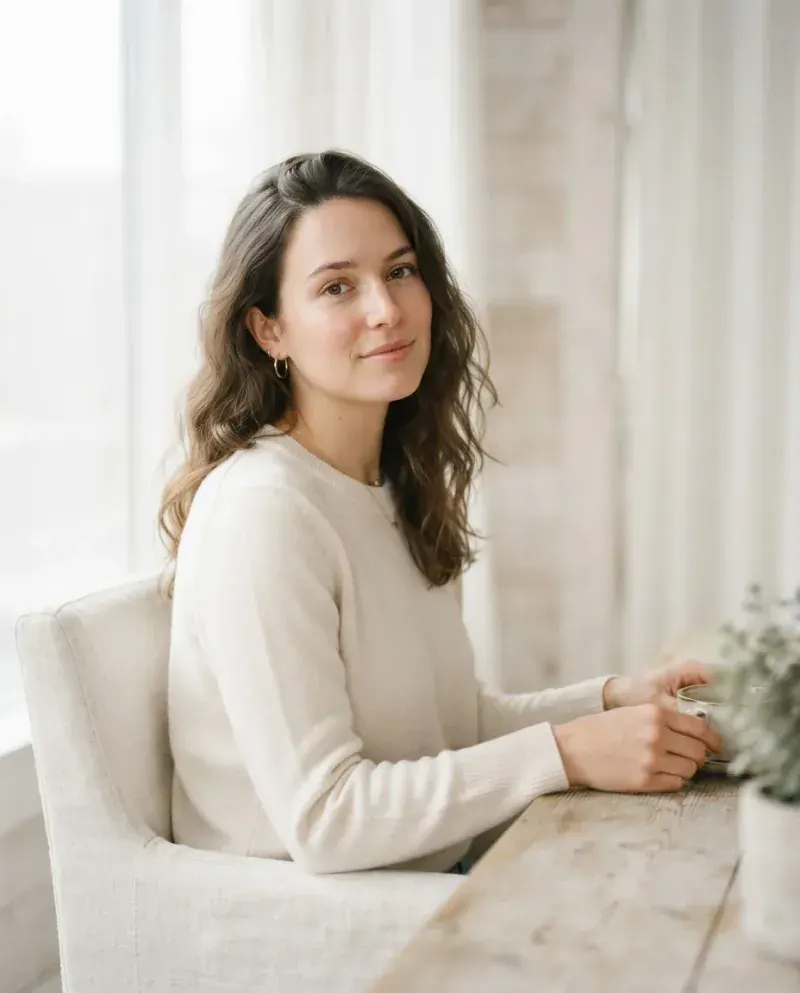
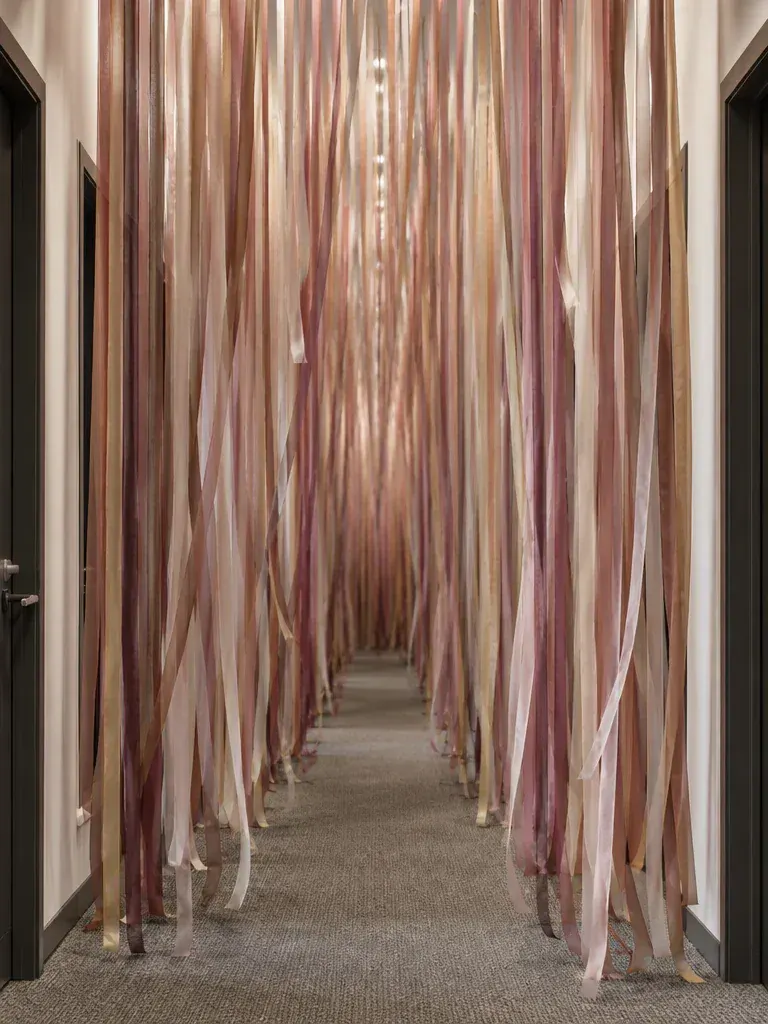
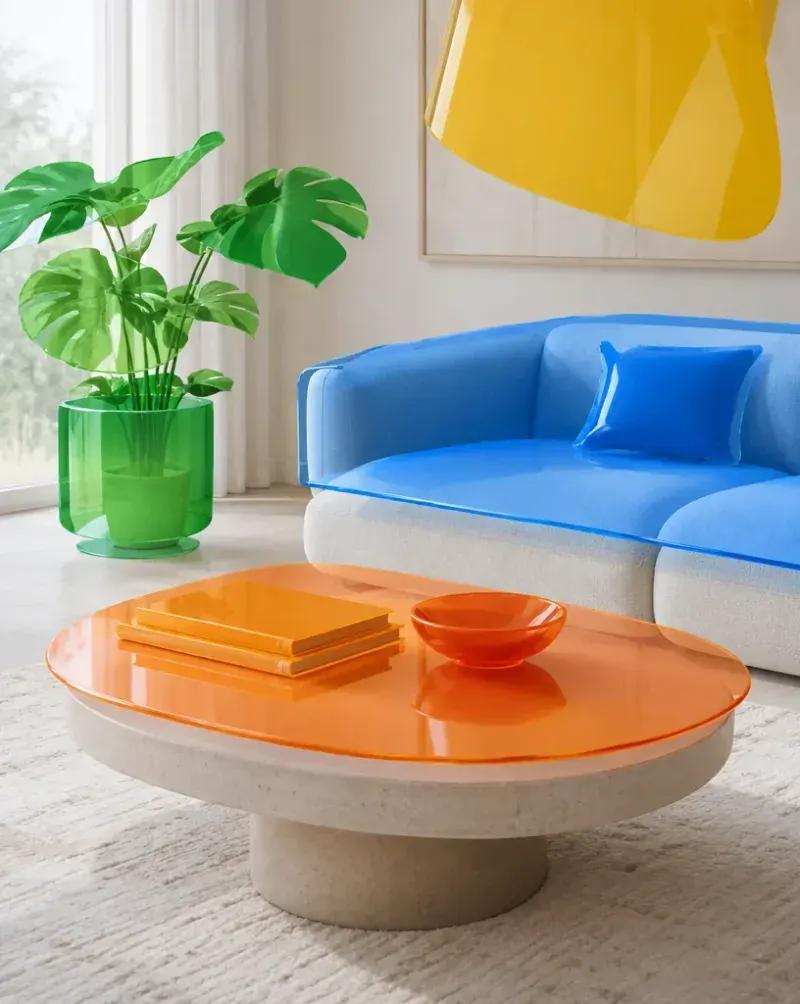
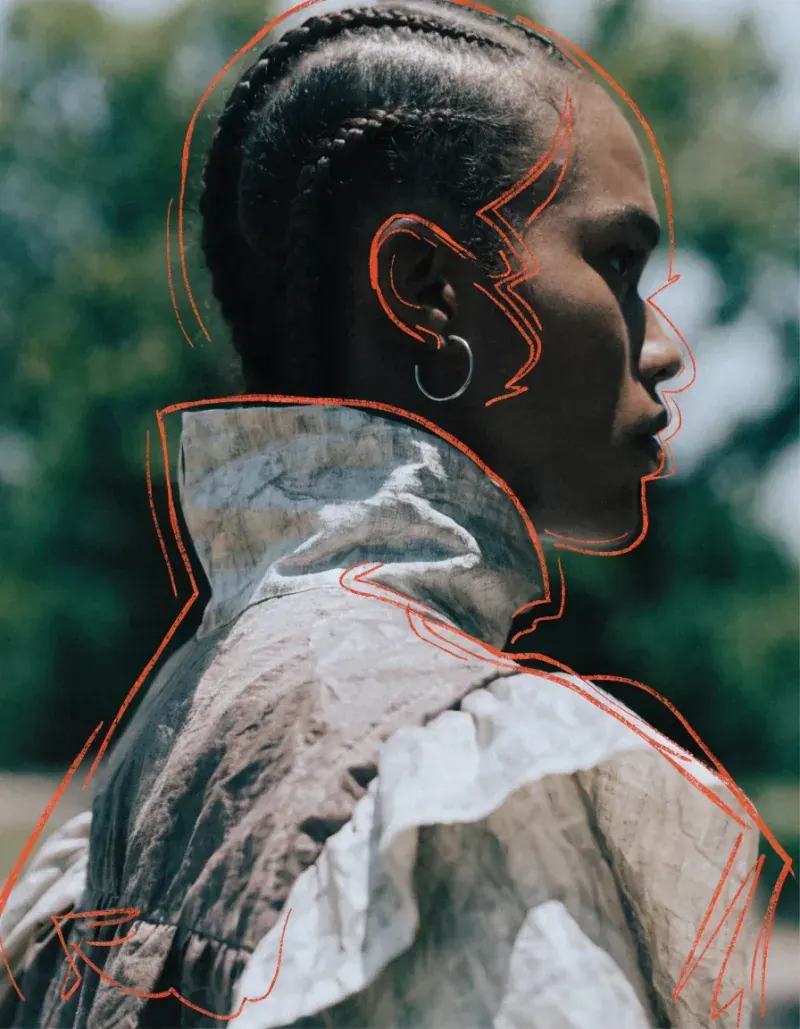
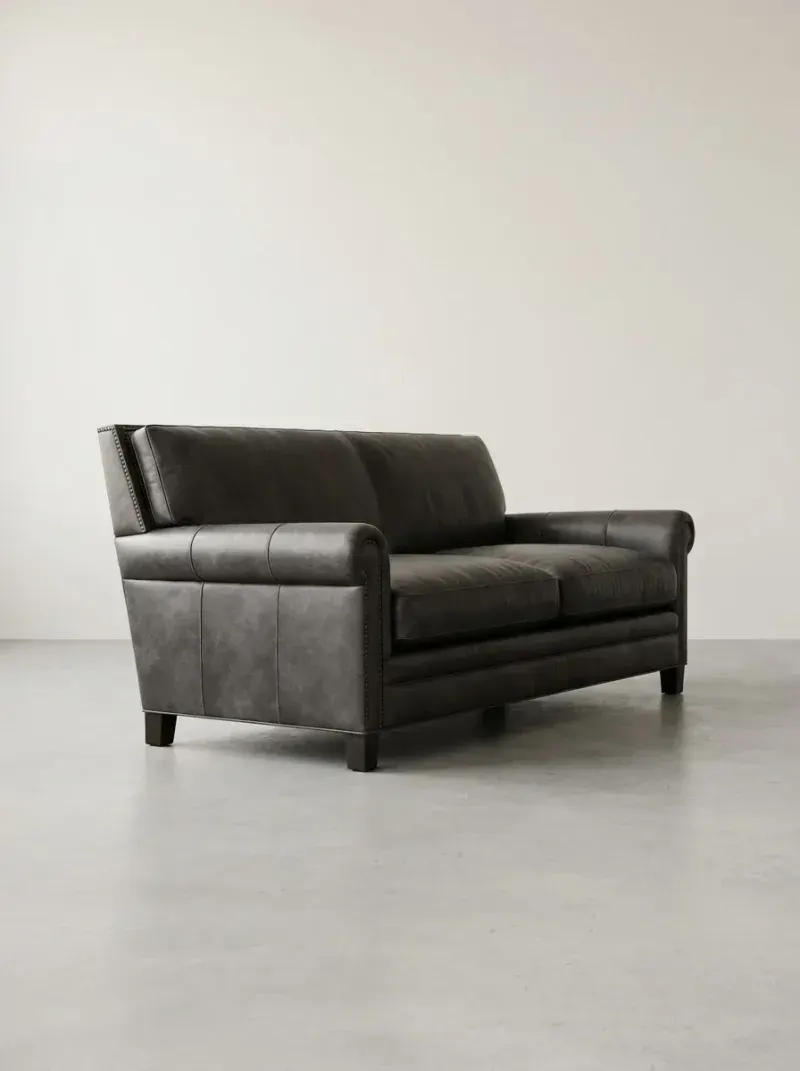
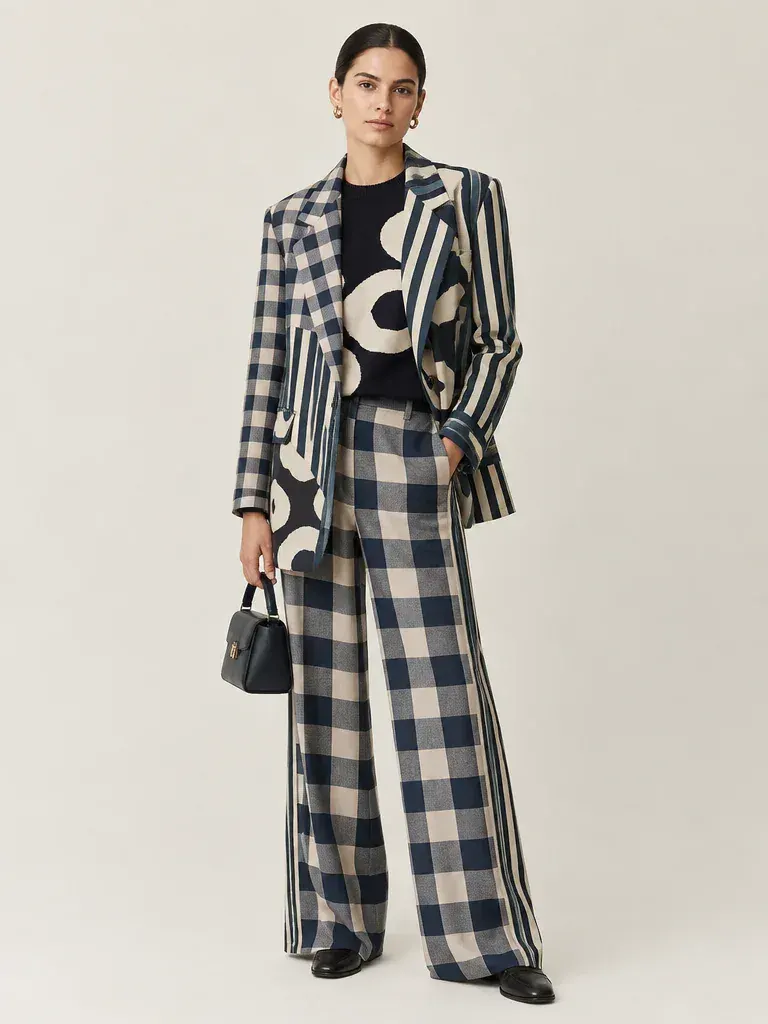
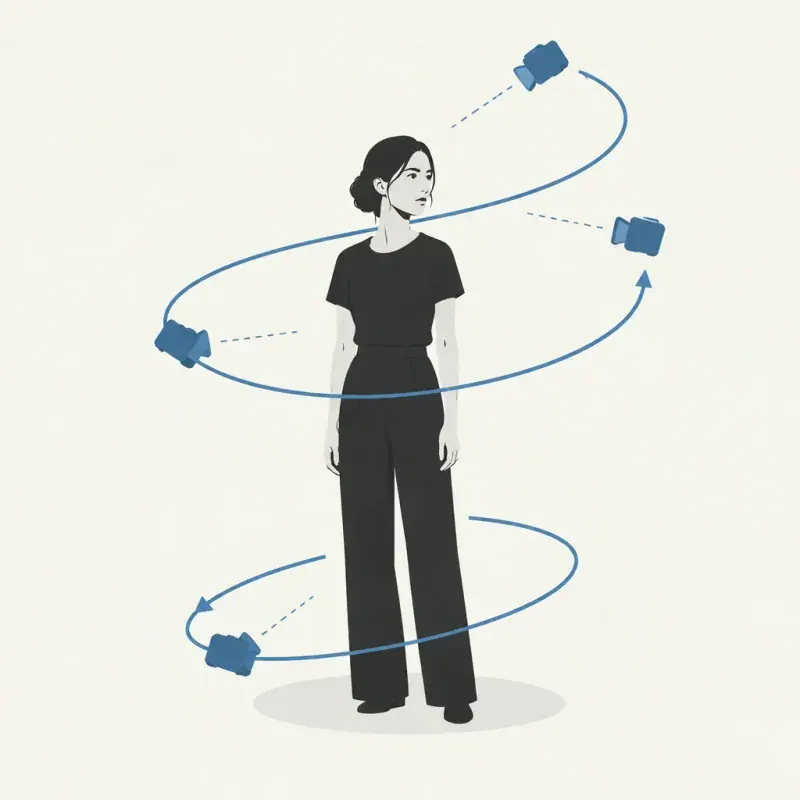
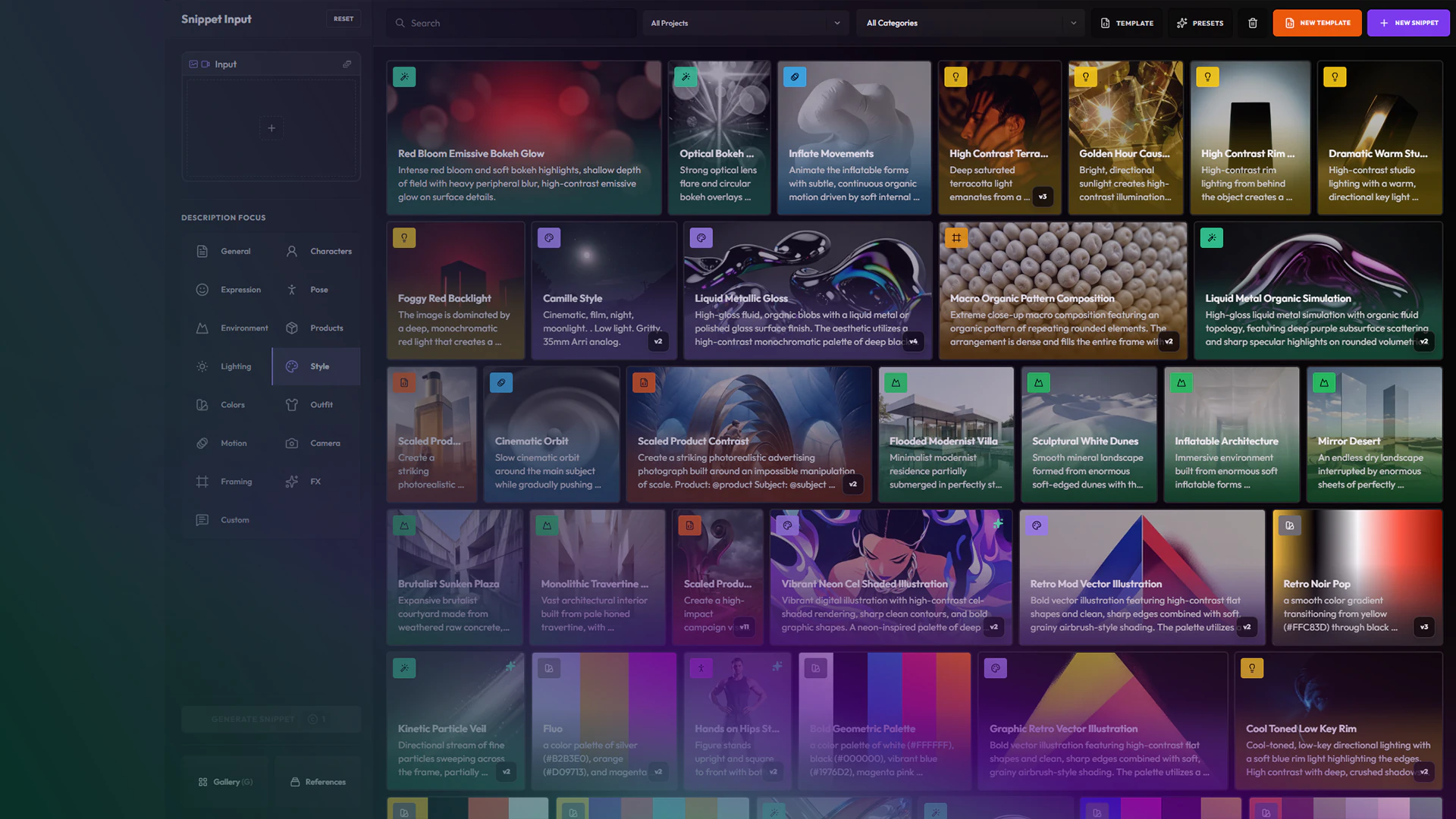
Type a short prompt and choose its category. Hylope can generate its poster in one click, or you can upload your own.
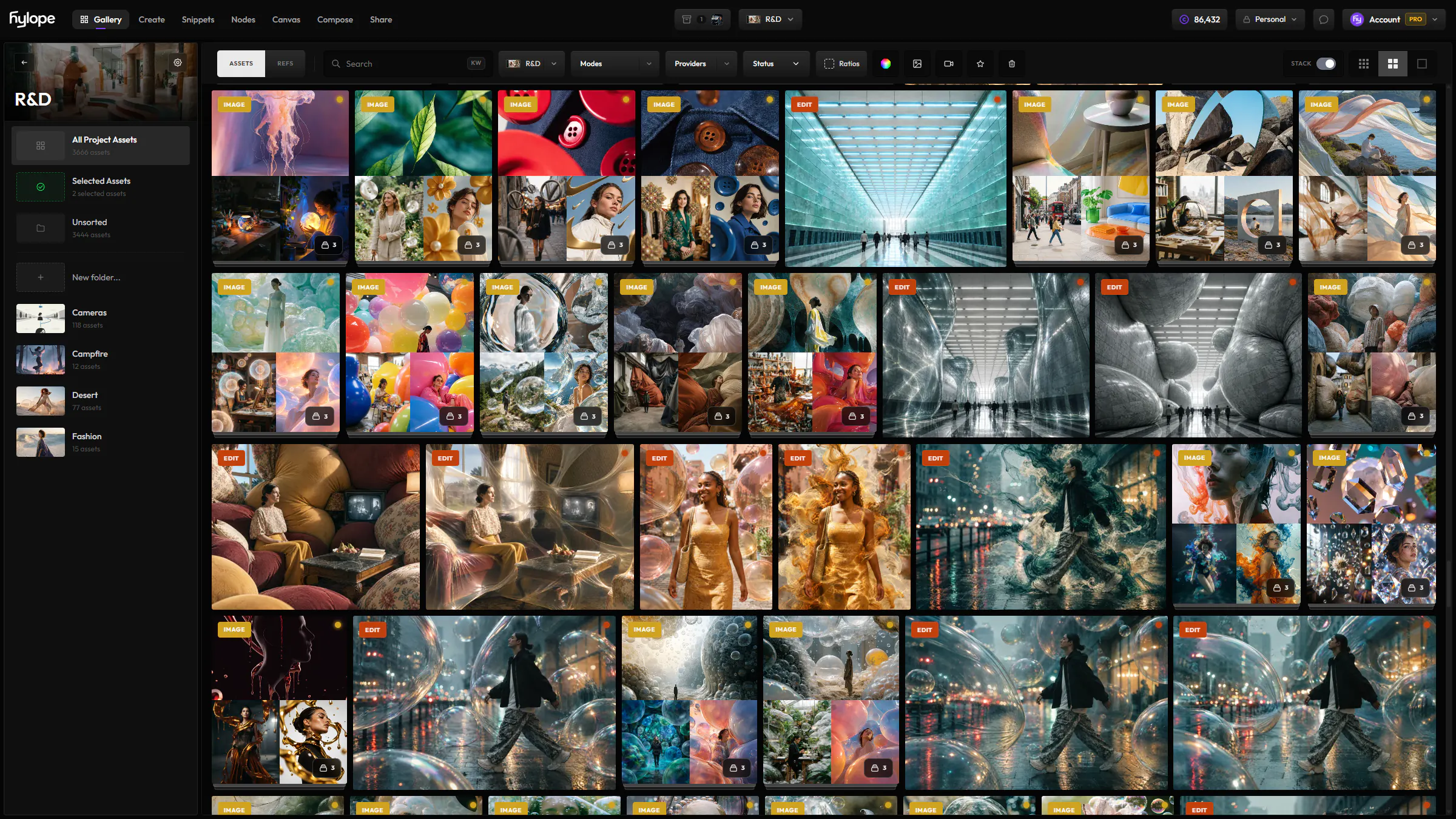
AppsSnippets
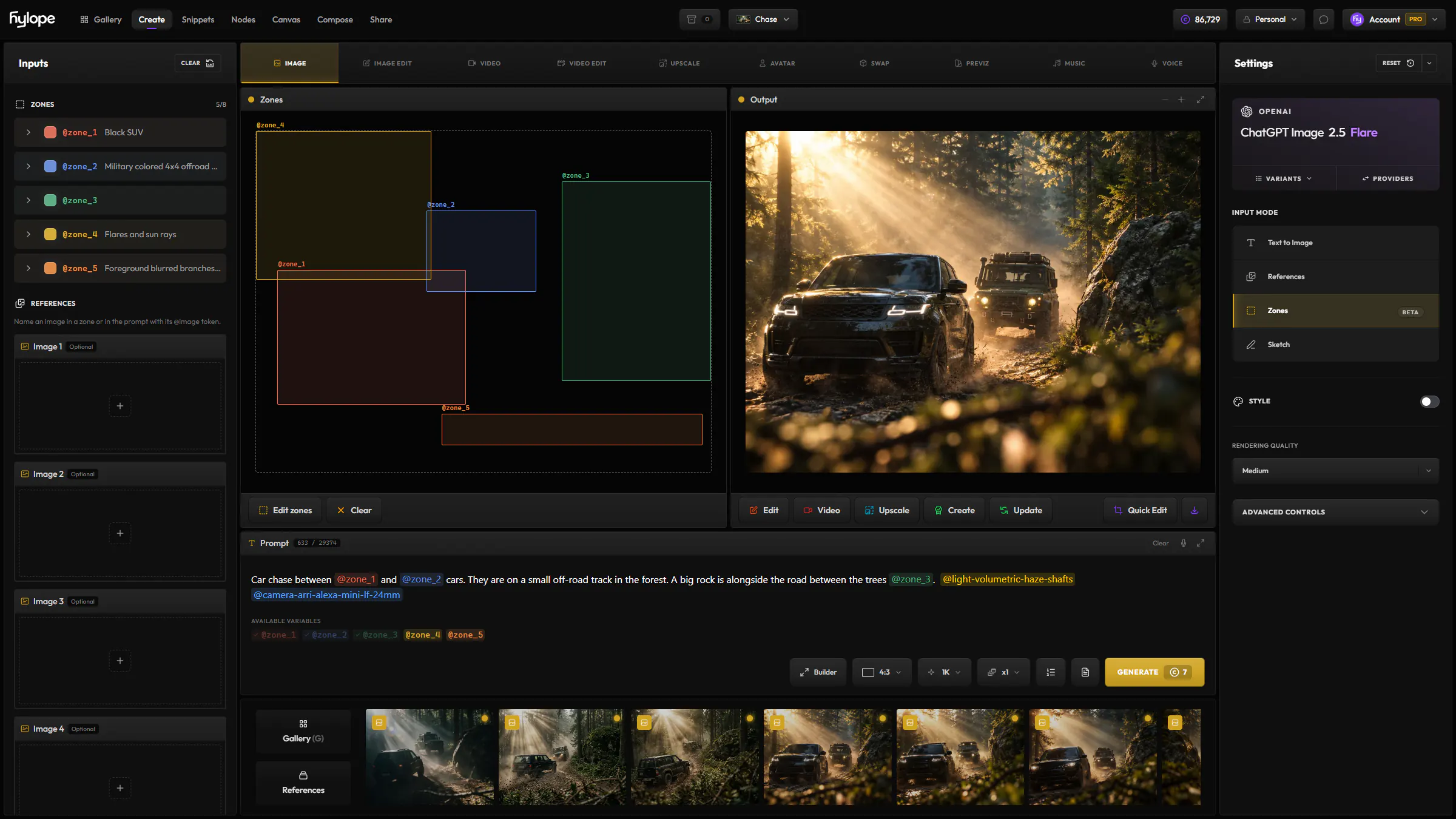
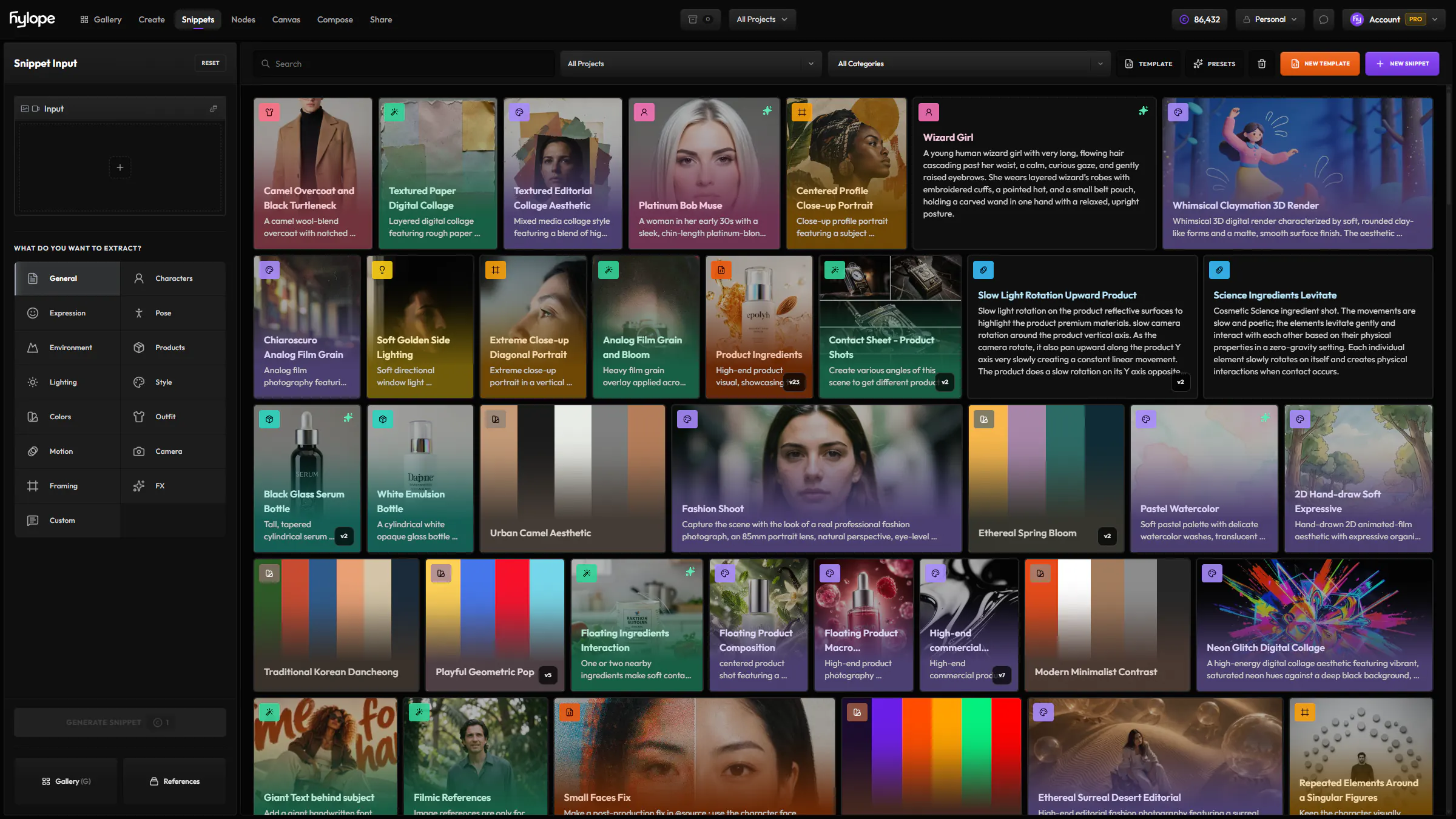
A snippet is a piece of a prompt you keep: a character, a room, a lens, a way light falls. Save it once, then drop it into any prompt in any app with an @token. Every workspace starts with built-in presets.
As models get better, prompts get longer. A good one ends up a paragraph nobody can edit without breaking something else by accident. Snippets cut that paragraph into named pieces: one decision each, coloured by category, changeable on their own.
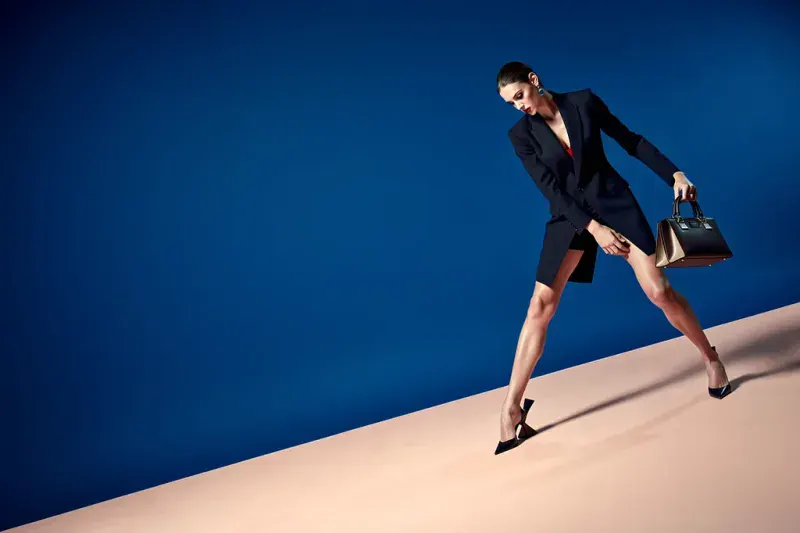
@pose-seated-fashion
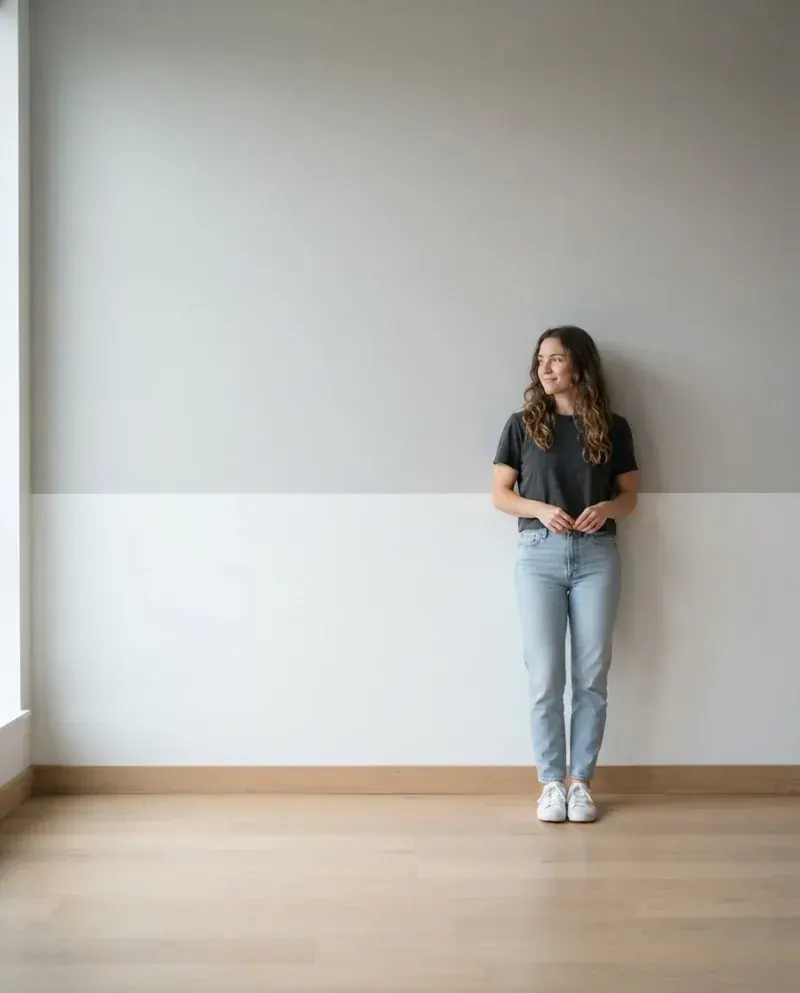
 Effortless Cool WomanYoung adult woman in her mid-20s with a light olive skin tone, softly angular face, defined cheekbones, slightly hooded…
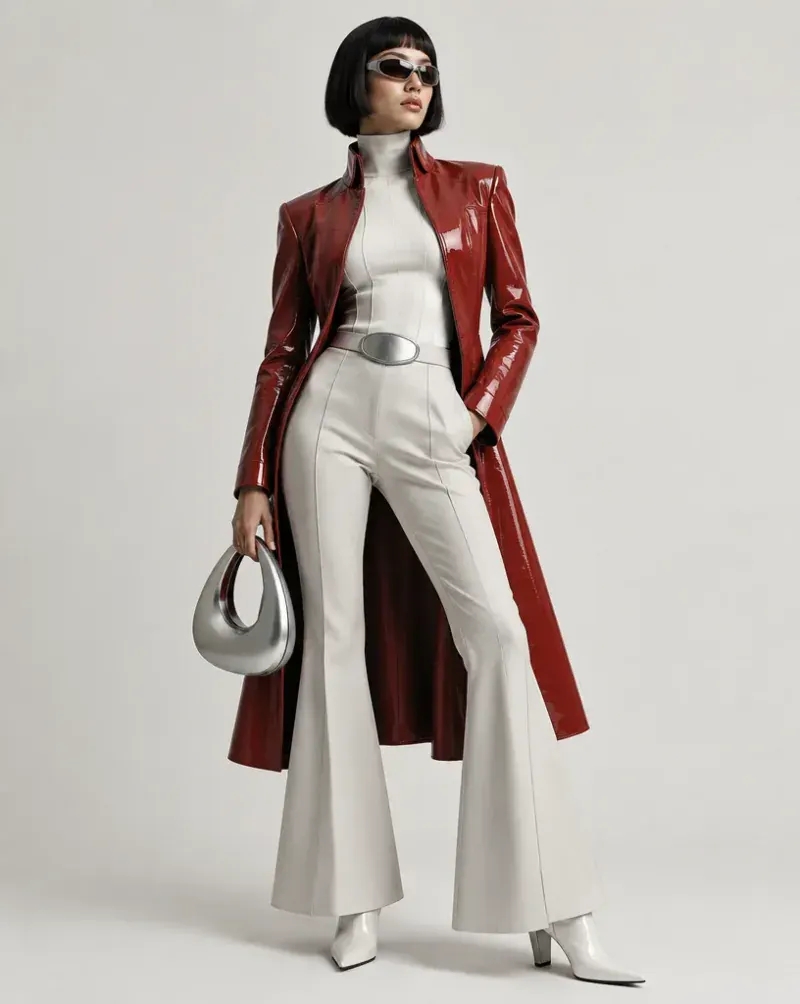
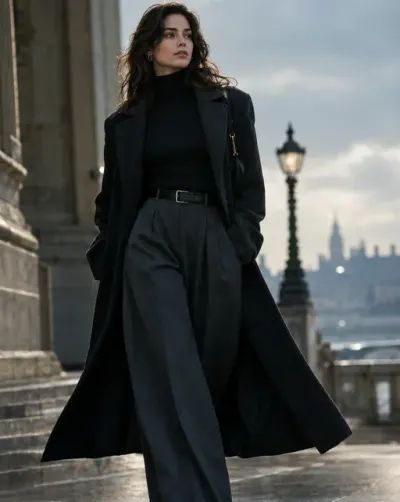 Cinematic Pop ProtagonistNarrative-driven lead-character wardrobe combining fashionable everyday clothing with one memorable signature piece: a…
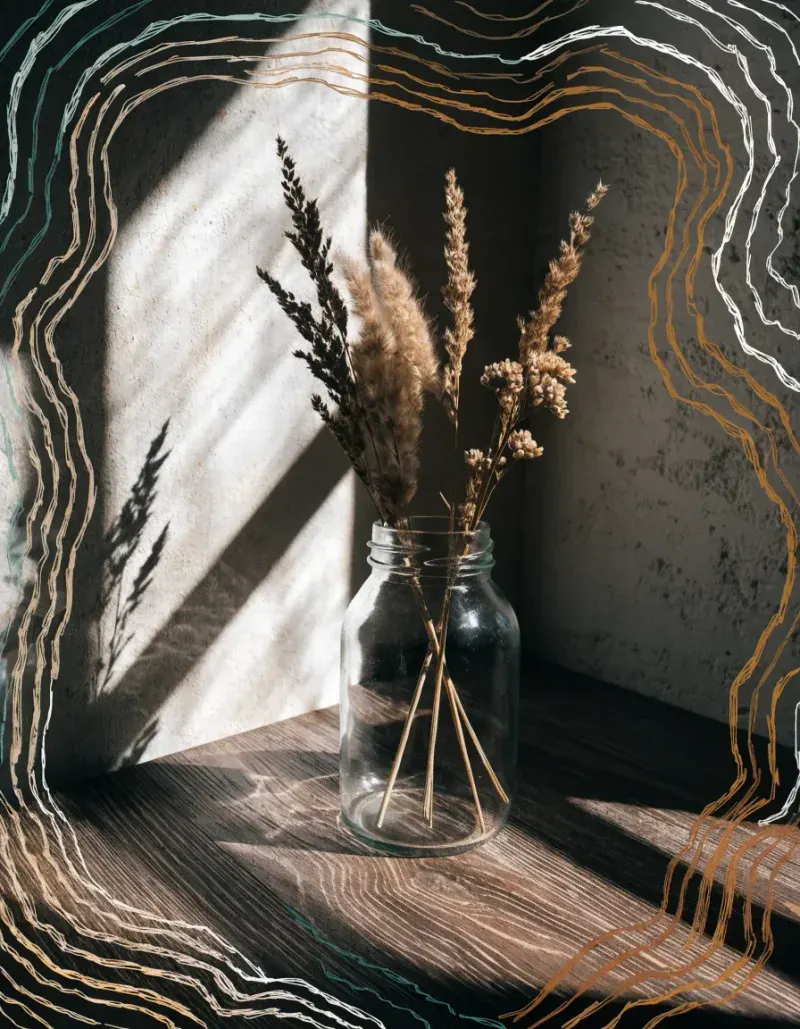
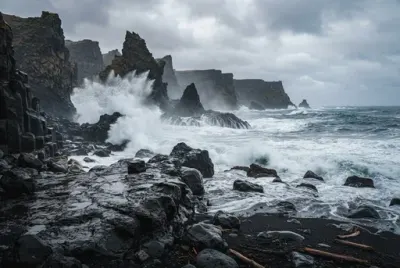 Black Volcanic CoastRemote shoreline composed entirely of dark volcanic rock, sharp cliffs, wet stone, and coarse mineral sand. Powerful…
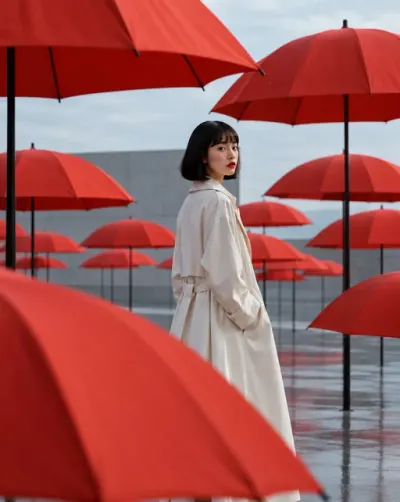 Repeated Elements Around SubjectKeep the subject visually distinct while repeating one scene element around them in a controlled rhythm. Arrange the…
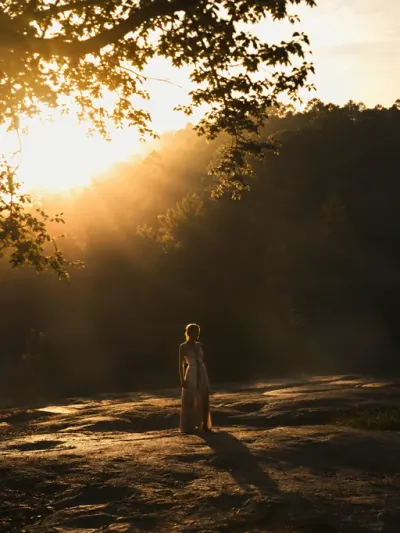 Golden Hour Backlit ContrastStrong golden hour backlighting creates a dramatic rim light effect on the subject. High-contrast atmosphere with soft…
 Floating ObjectsFloating objects related to the environment of various size and materials are floating around the subject. The floating…
Start from a few words, a few colours or an image. Each snippet you make goes into your library, ready to use with @ in any prompt.
Type a short prompt and choose its category. Hylope can generate its poster in one click, or you can upload your own.
A solid colour, a palette or a gradient. Pick the colours yourself, or extract the palette of an image or a video.
Load an image or a video and choose what to describe: the character, the pose, the lighting, the style, or your own instruction. Hylope writes a snippet about that part only, with the image as its poster.
Written and photographed in-house, grouped the way the app groups them. Use them as they are, edit a copy into something of your own, or ignore them and build your own library from scratch.
Browse all 723 presetsChange a snippet whenever you like, from the library or from the prompt you are writing. Each saved change is a new version, so nothing you wrote is lost.
Saving a change makes a new version. The Version Manager lists them all, and any earlier one can be made active again.
Click one of your snippets in a prompt and edit it right there. The change is saved as a new version.
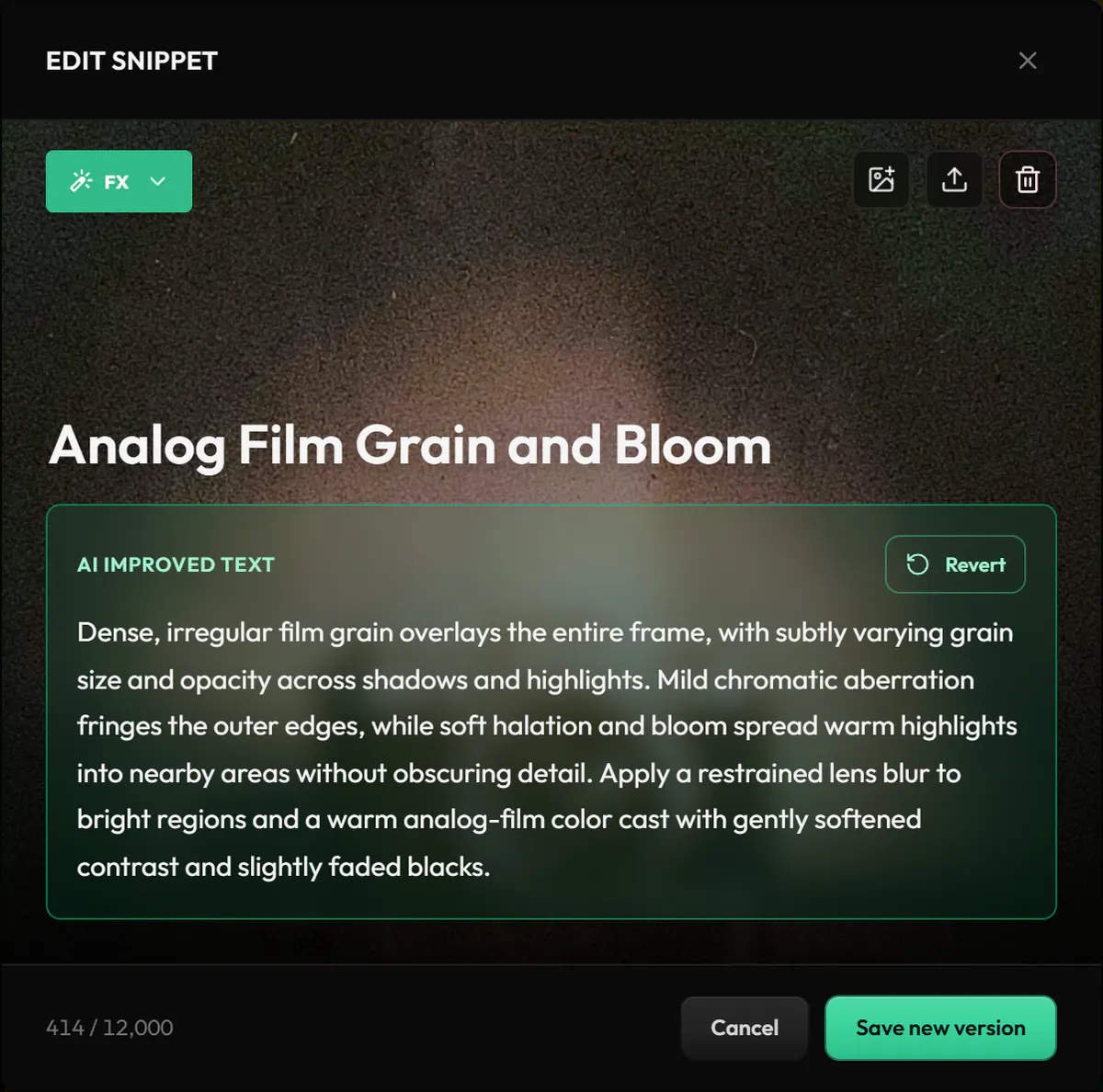
Write a short snippet and Hylope rewrites it to work better for its category. Revert brings your own text back.
A snippet belongs to one project or to the whole workspace, so each project keeps its own palettes, looks and effects. In Create, you see the project’s snippets and the workspace’s.
TutorialGetting Started26 min
Trade paragraph prompts for a color-coded library of character, wardrobe, framing, lighting, and FX snippets, then reuse it across Create, Image Edit, templates, and nodes.
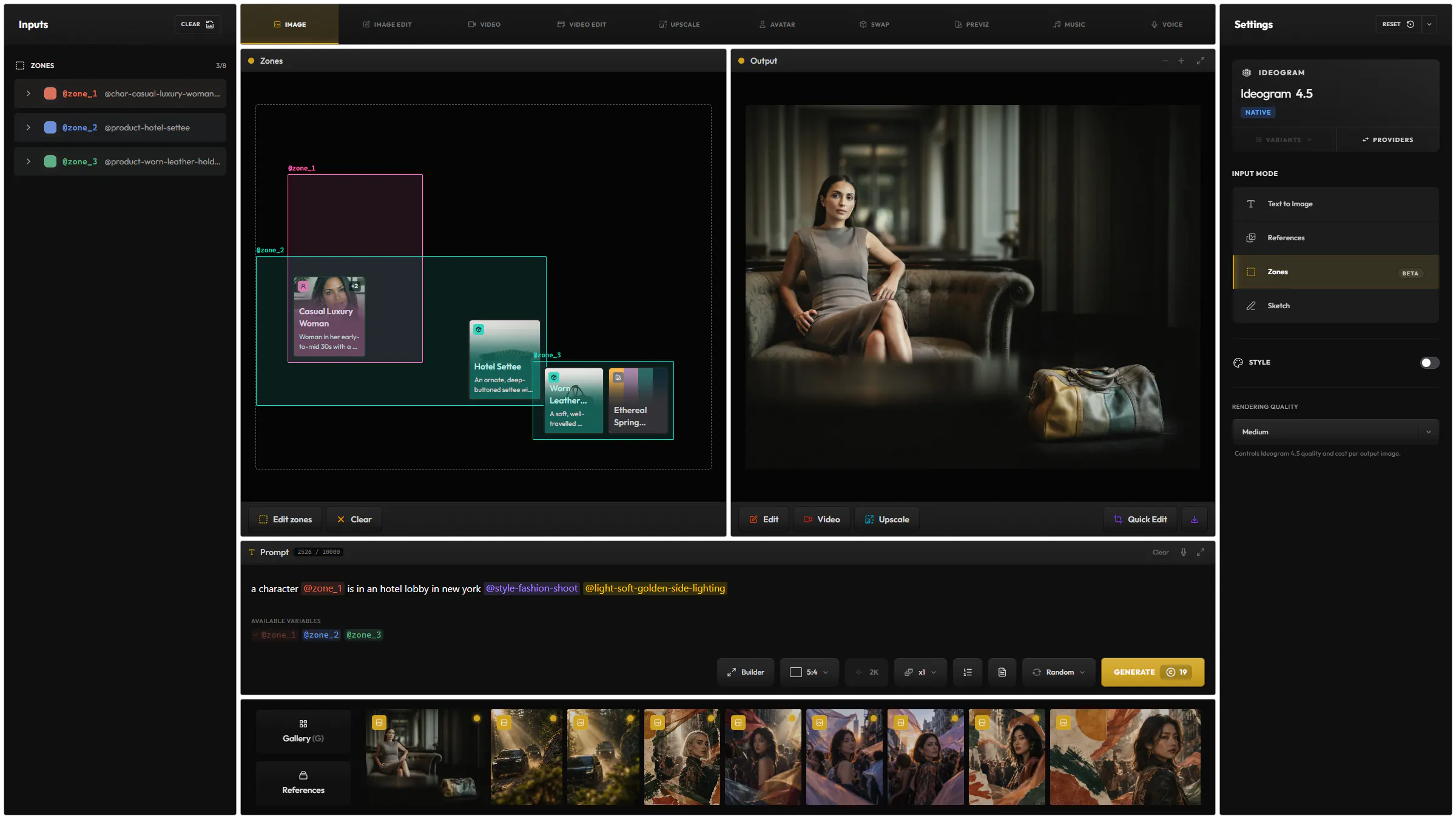
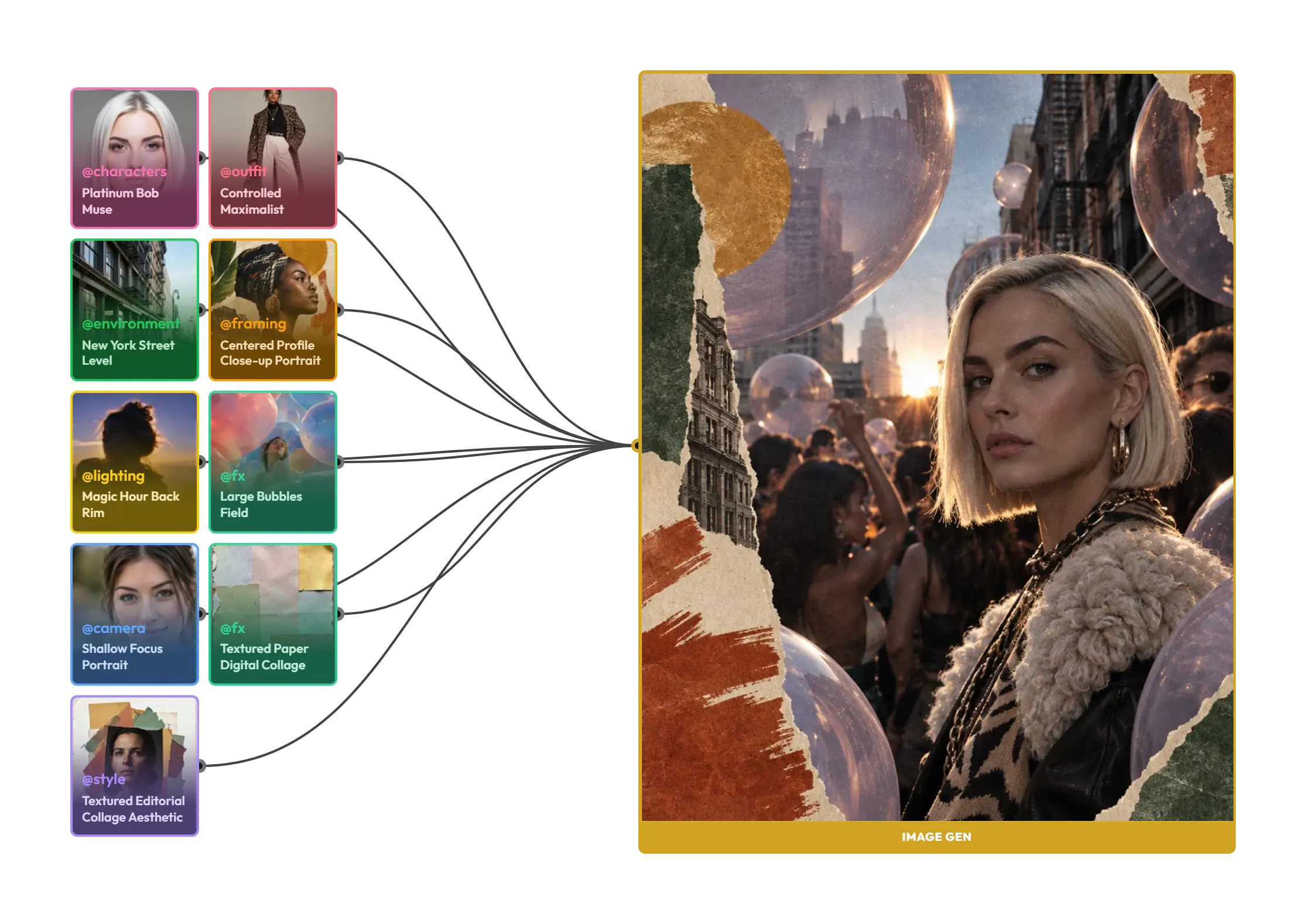
Swap a tag for another snippet from the tag itself, or delete it and type @ for a new one. The rest of the prompt does not move, so the image changes only where you asked.
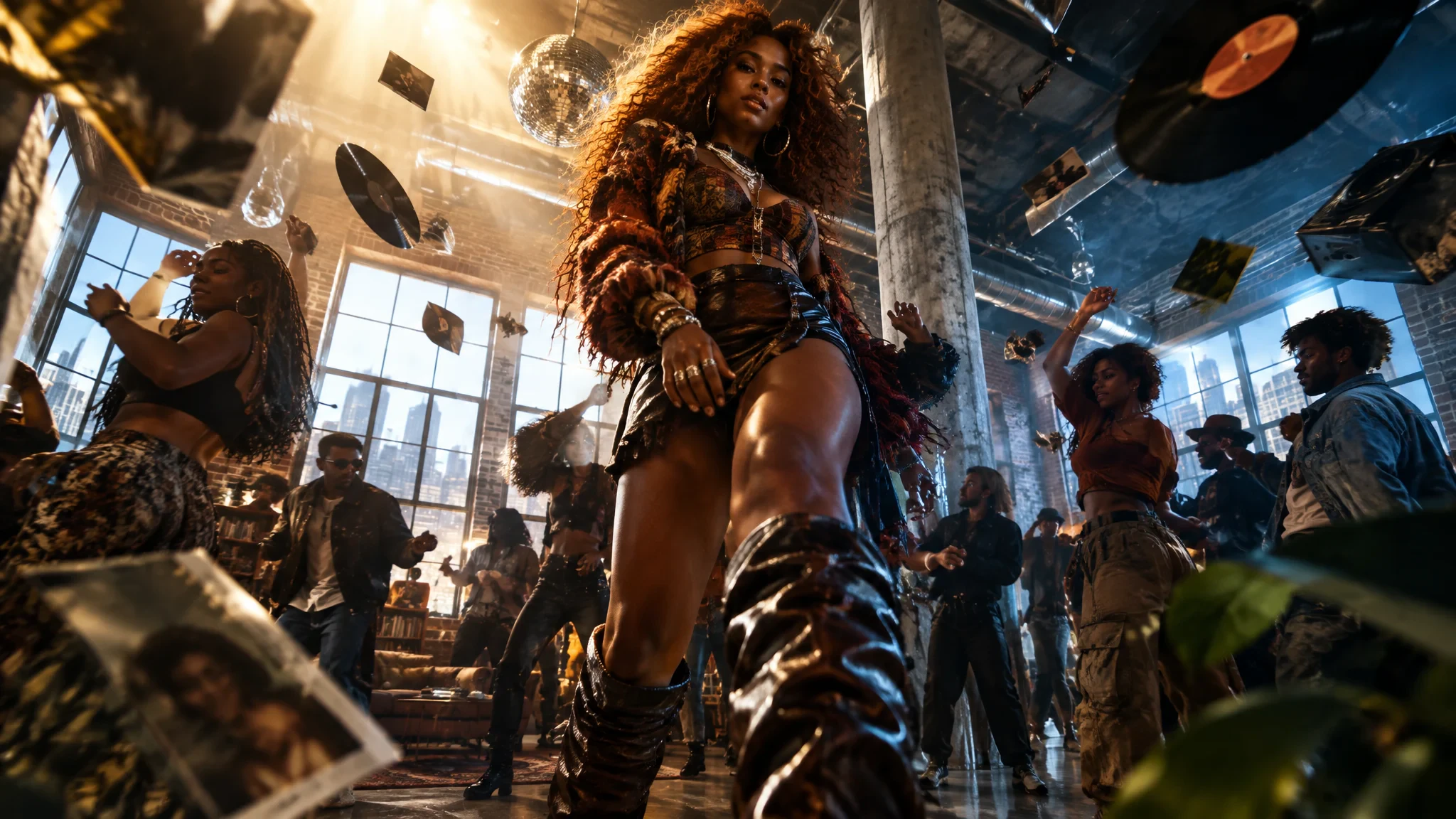
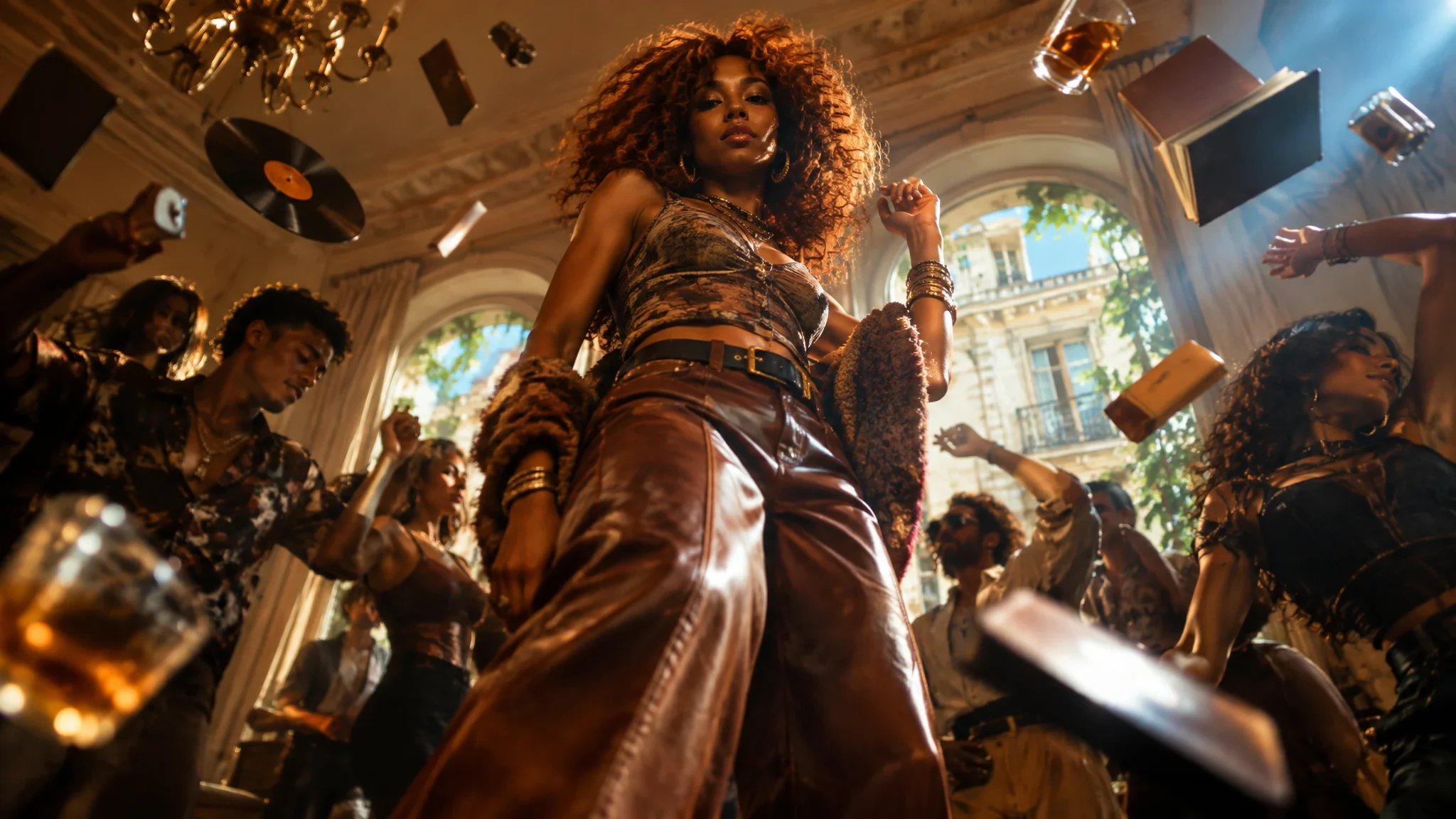
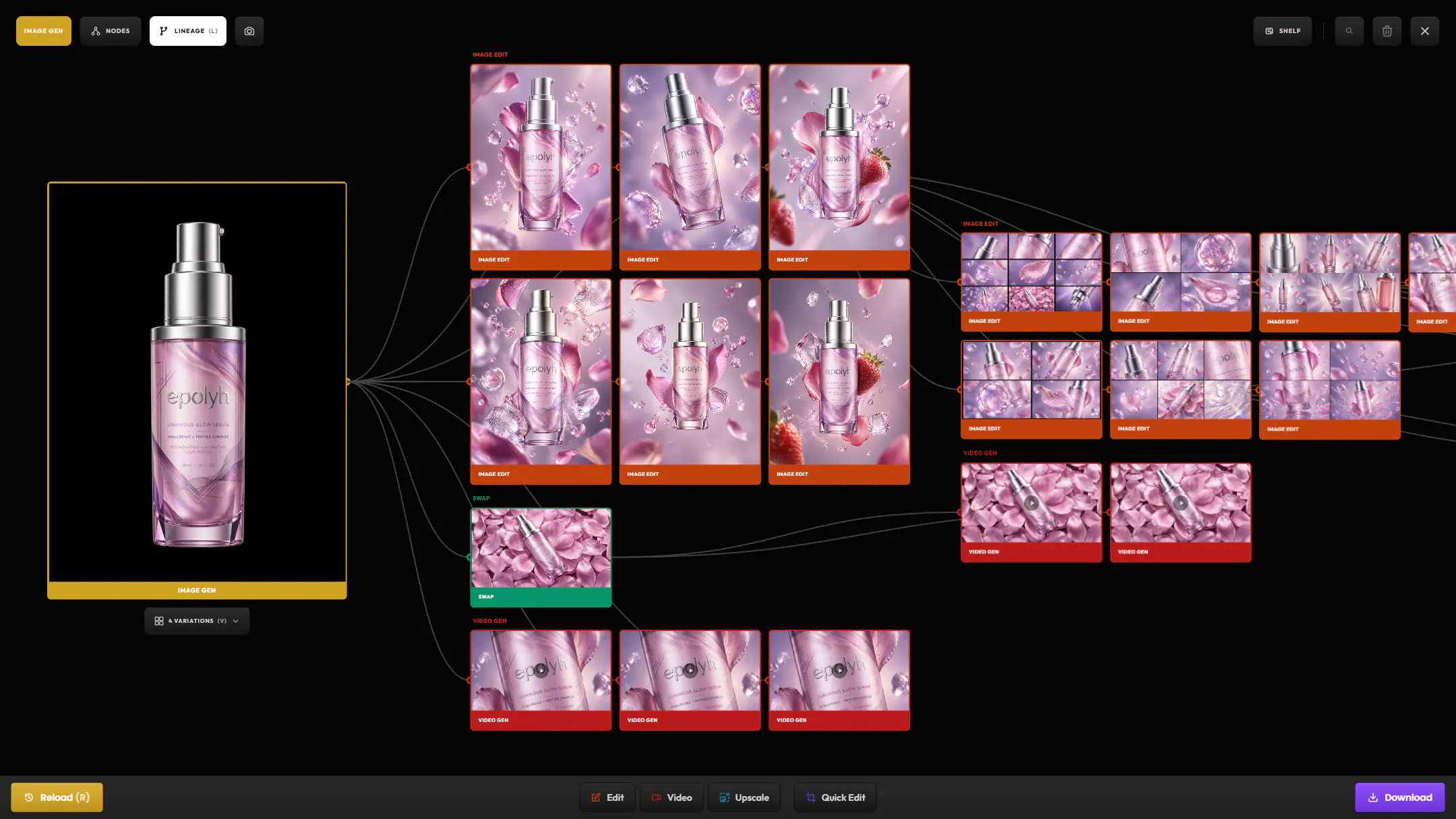
Open an image’s lineage and every snippet its prompt used is there, as a parent in its category’s colour. More on Lineage
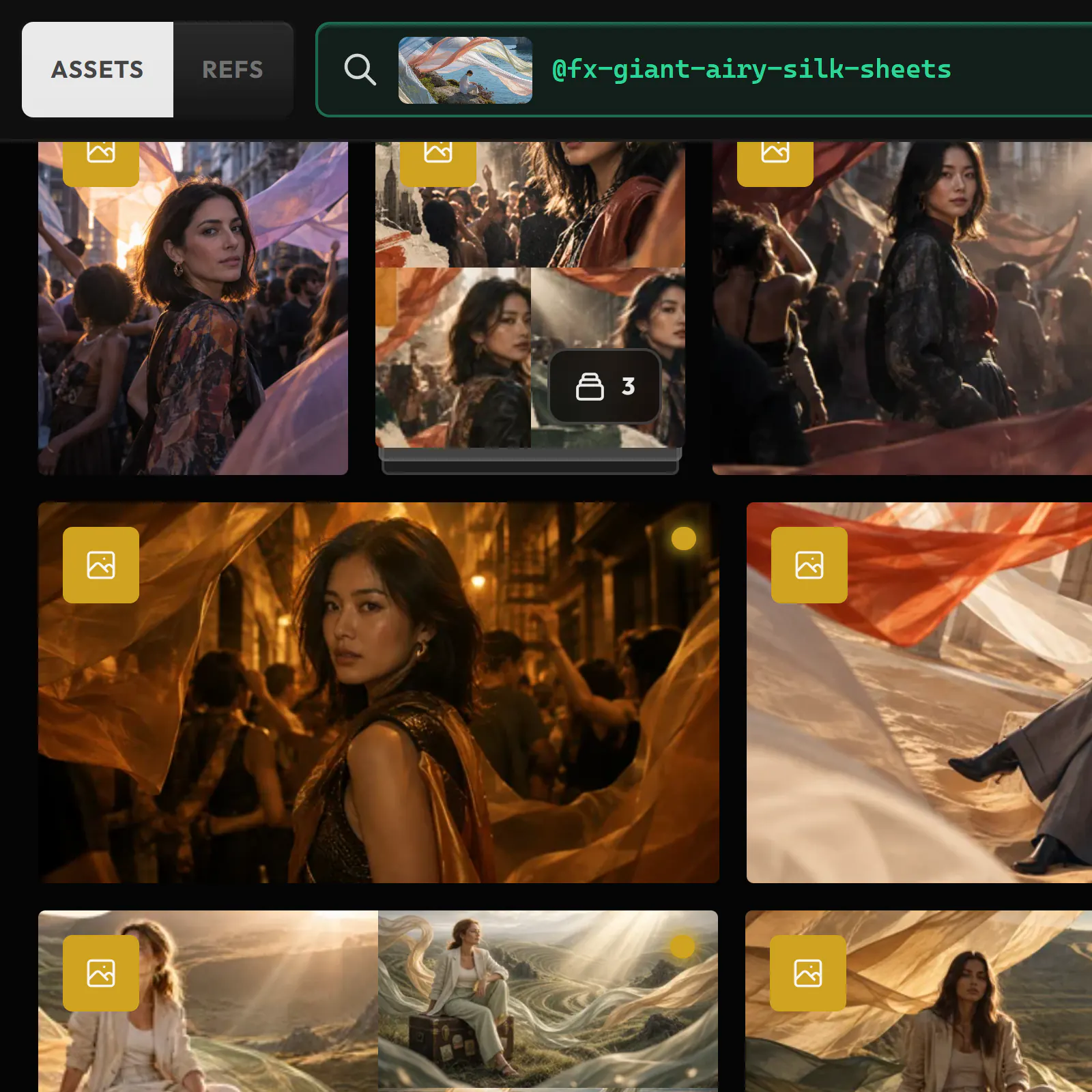
Type @ in the Gallery search and choose a snippet. The Gallery then shows everything whose prompt used it, whatever else the prompt said.
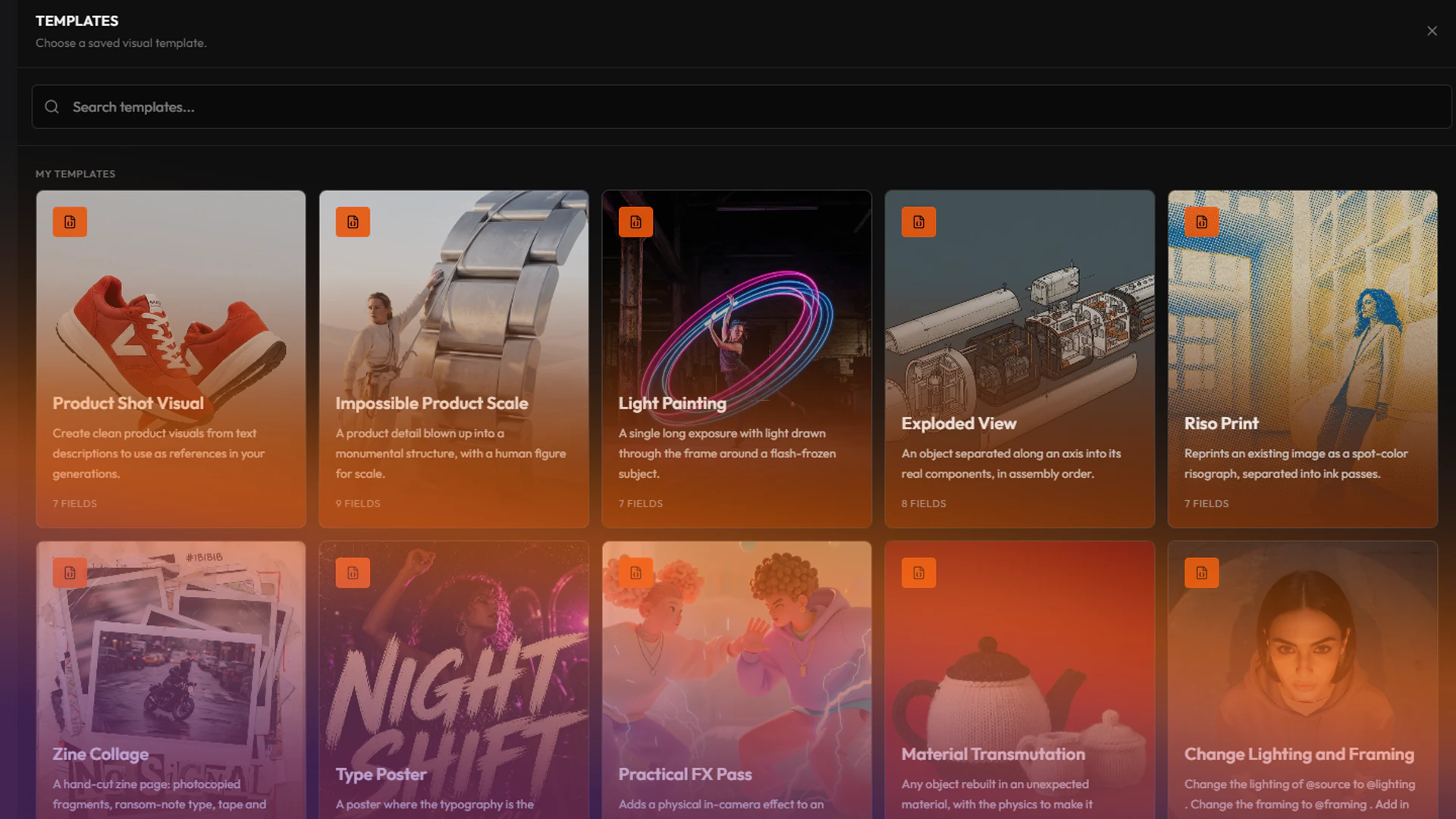
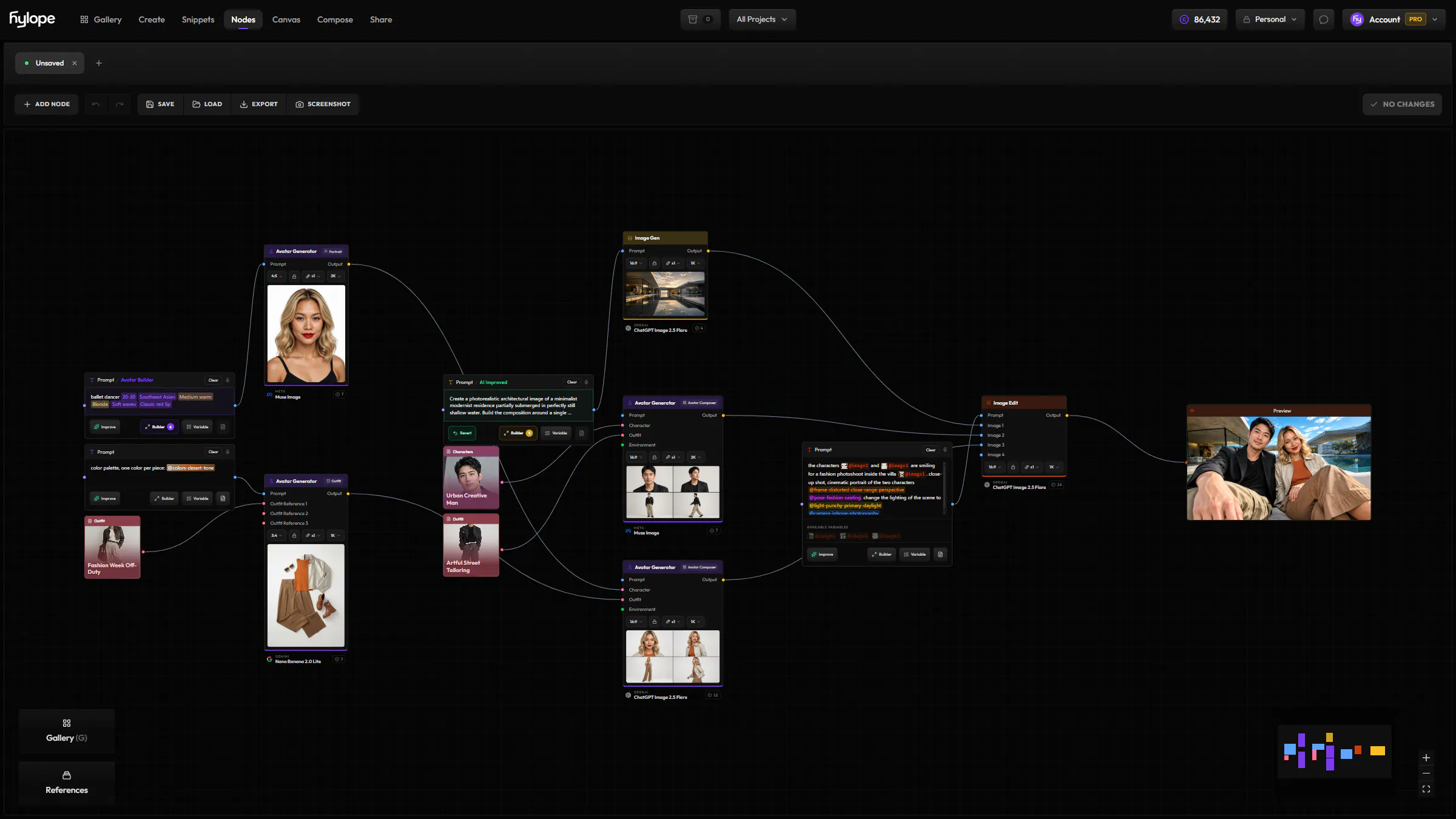
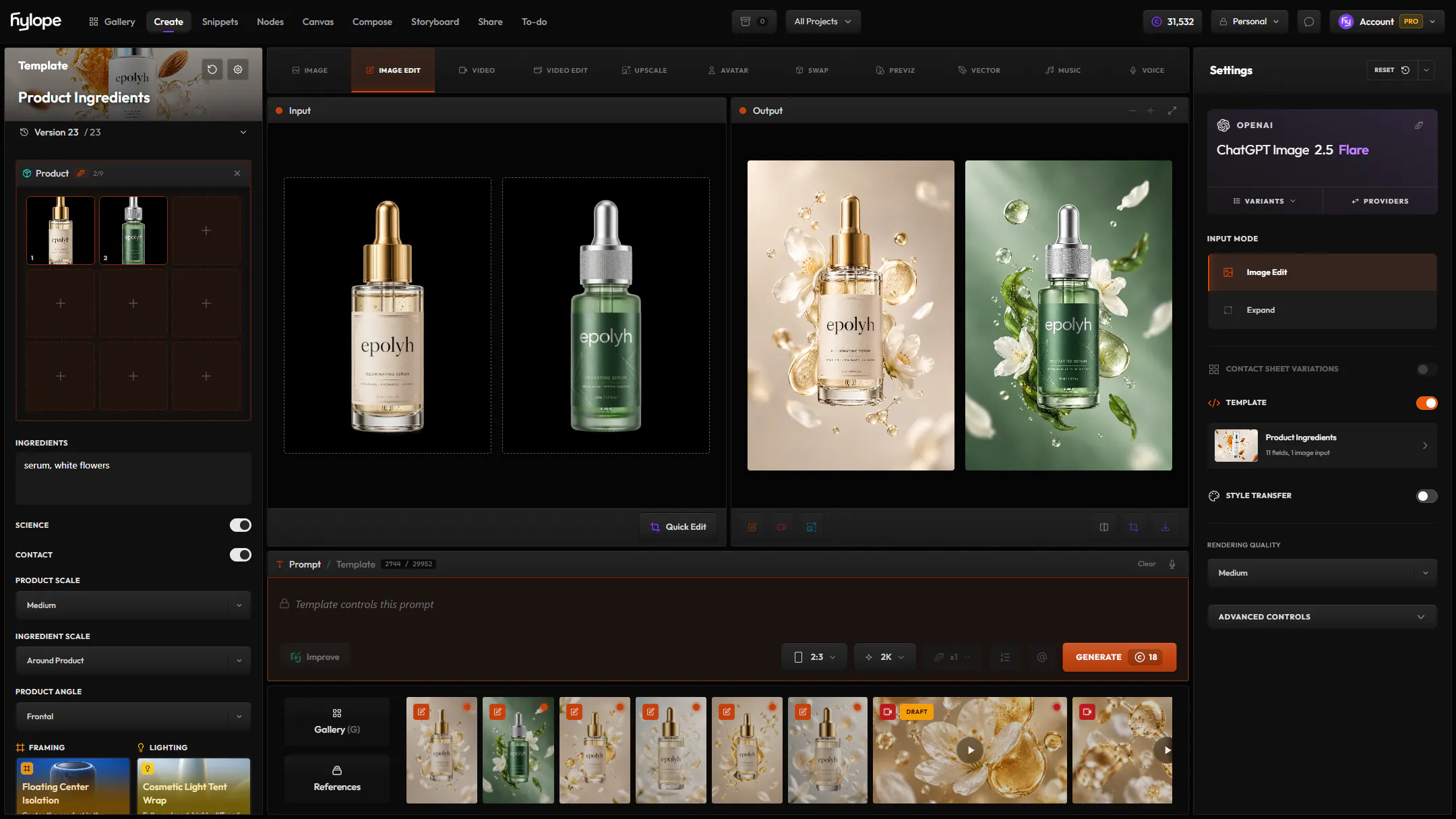
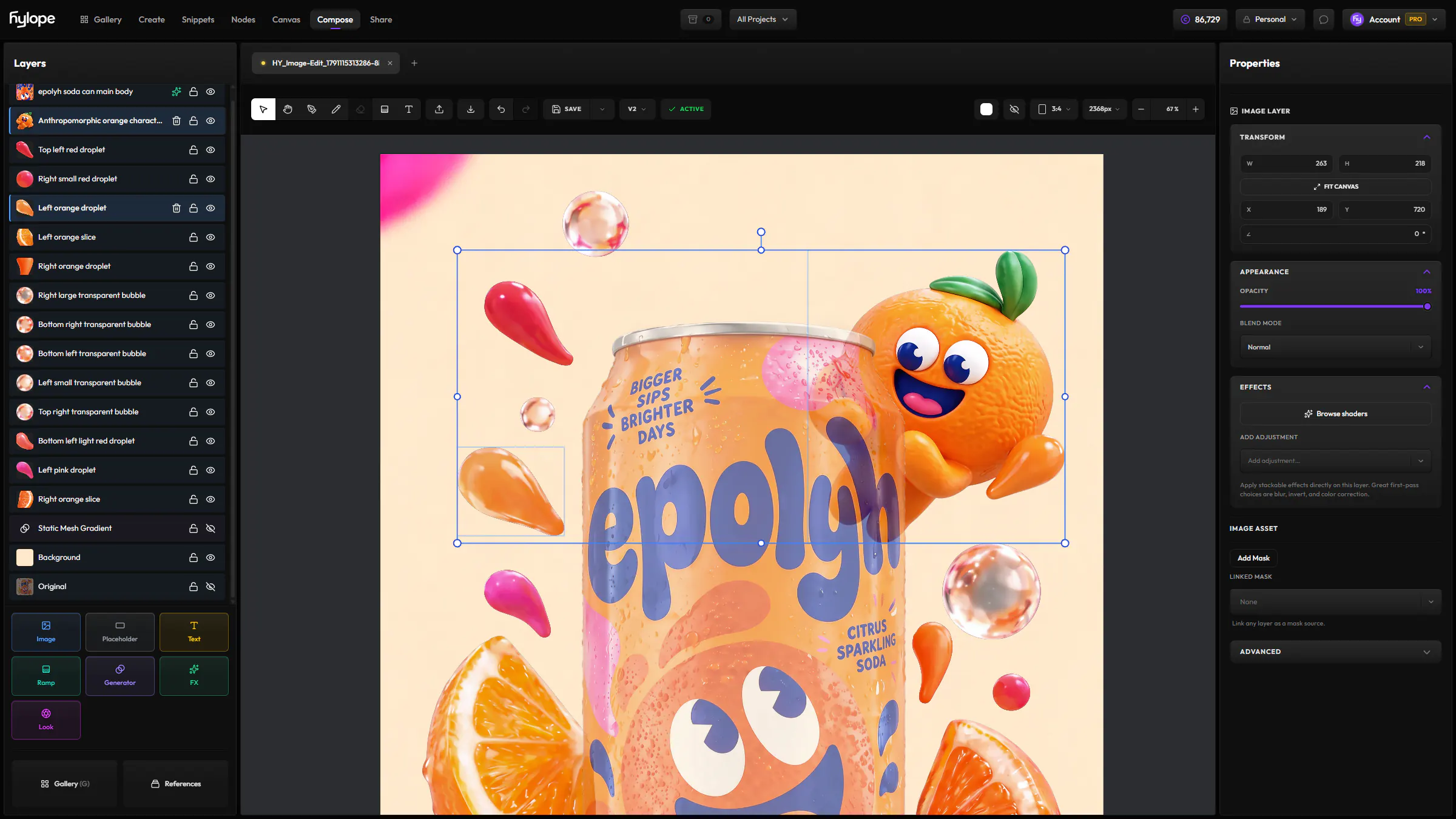
A template is a prompt with fields. The wording stays fixed and people fill in the fields: a product image, a color, a choice from a list, a snippet, a line of text. Use templates in the Image and Image Edit modes of Create, or as a node in Nodes. Share one with another workspace as JSON.
The template: its wording, and the fields people fill in.
The same template in Create, its fields filled in.
TutorialCreative Workflow18 min
Turn a prompt that works into a template: the art direction stays locked, and a few fields stay open for you or your team to change.
ArticleSnippets
As models get better, prompts get longer and harder to edit. Snippets split them into colour-coded tags you can read, swap and change one at a time.
Start with these, then build a library of your own prompt components.