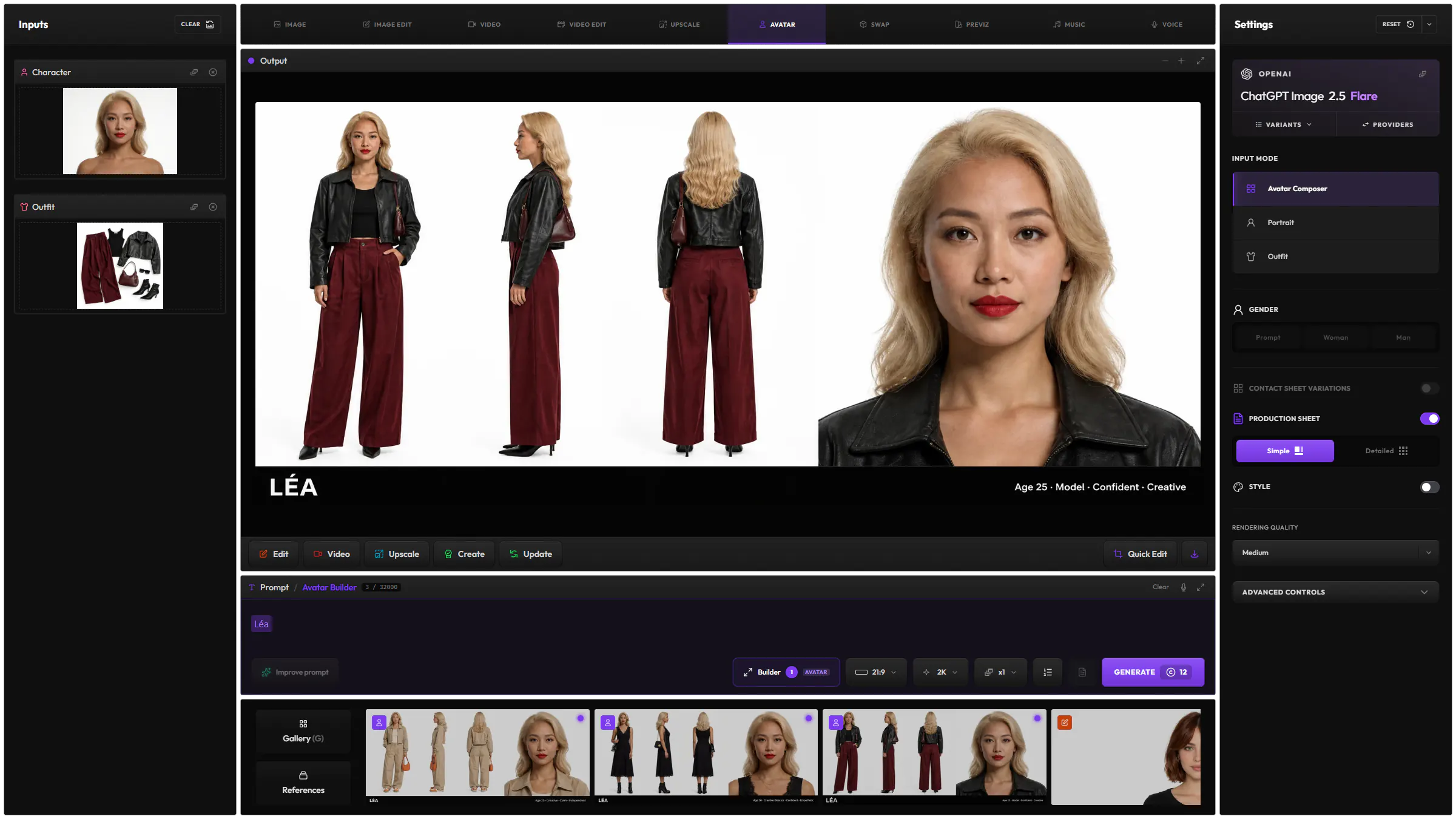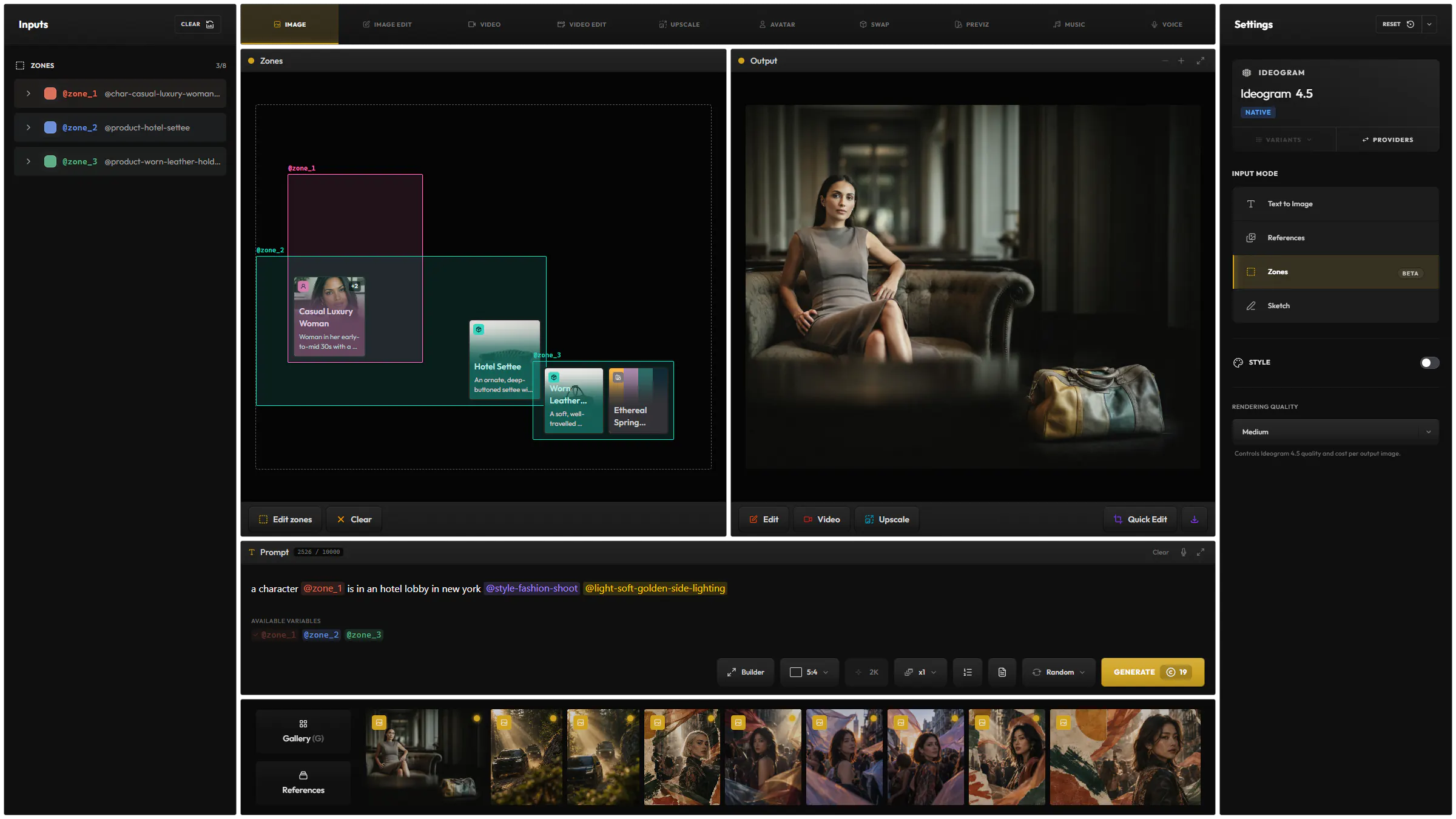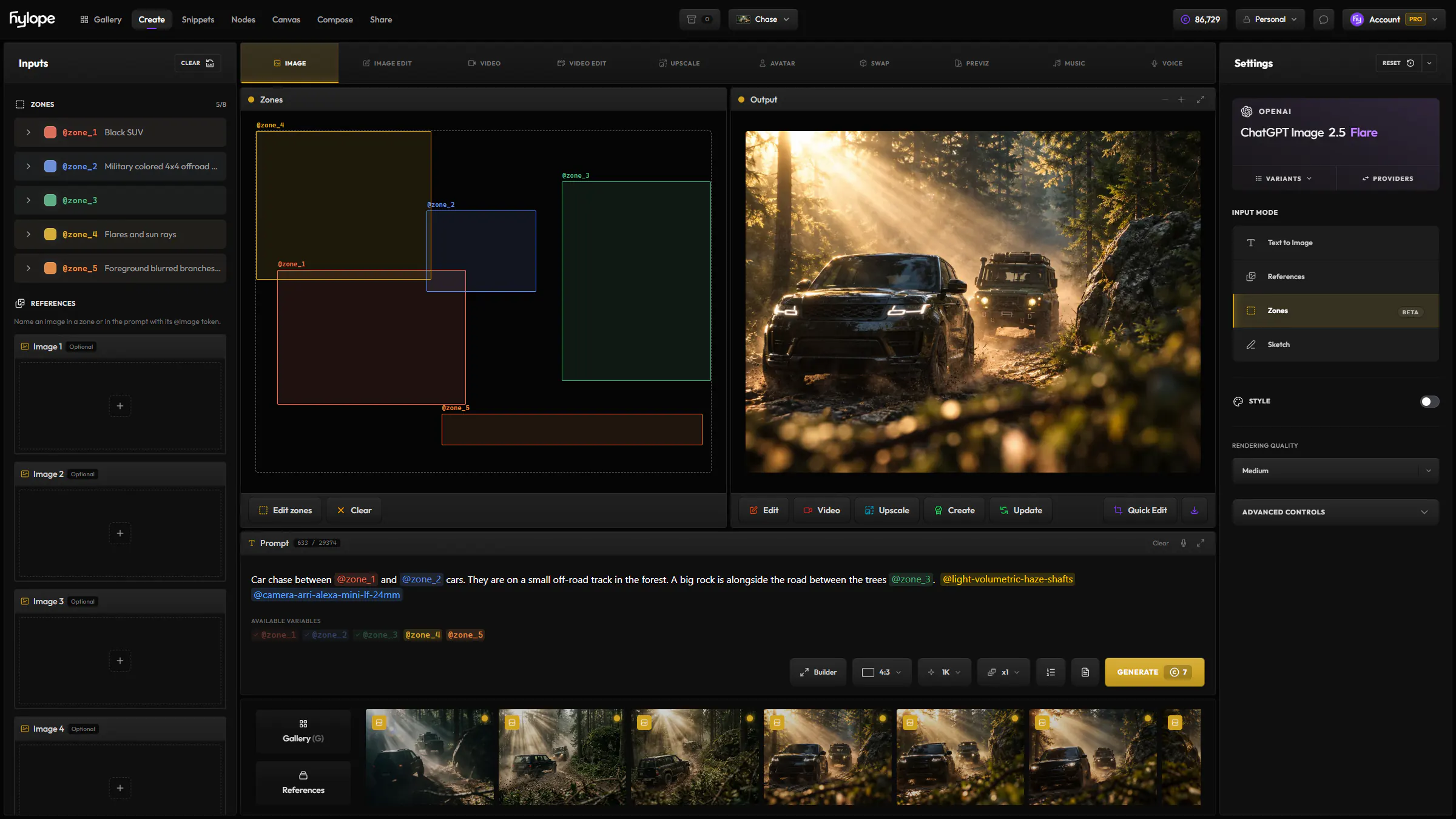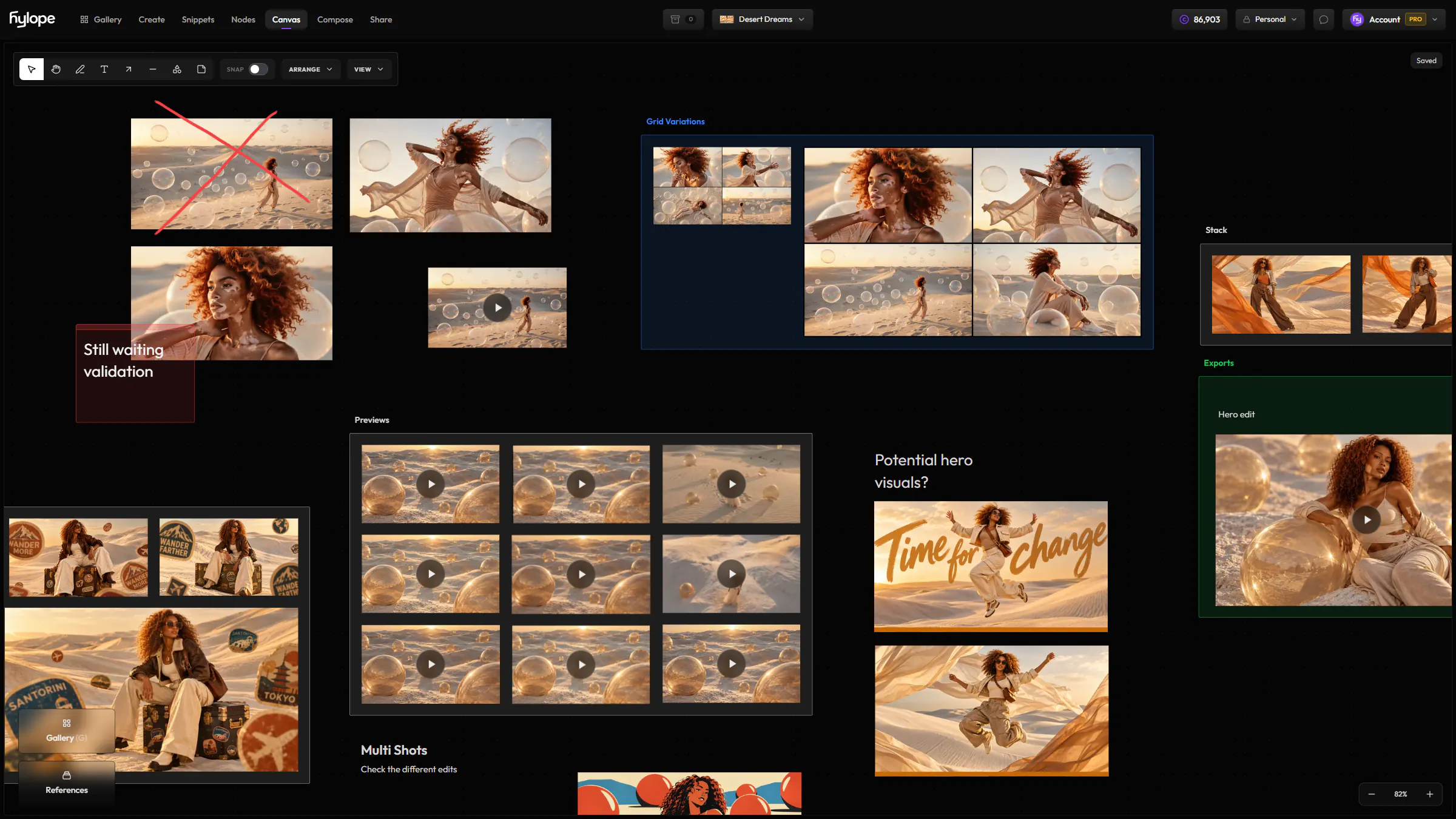
A4 pages
Lay out 1 to 20 frames on each page, in 16:9, 9:16, 4:3 or 1:1. Change either one at any time, and the frames follow.
AppsStoryboardBeta
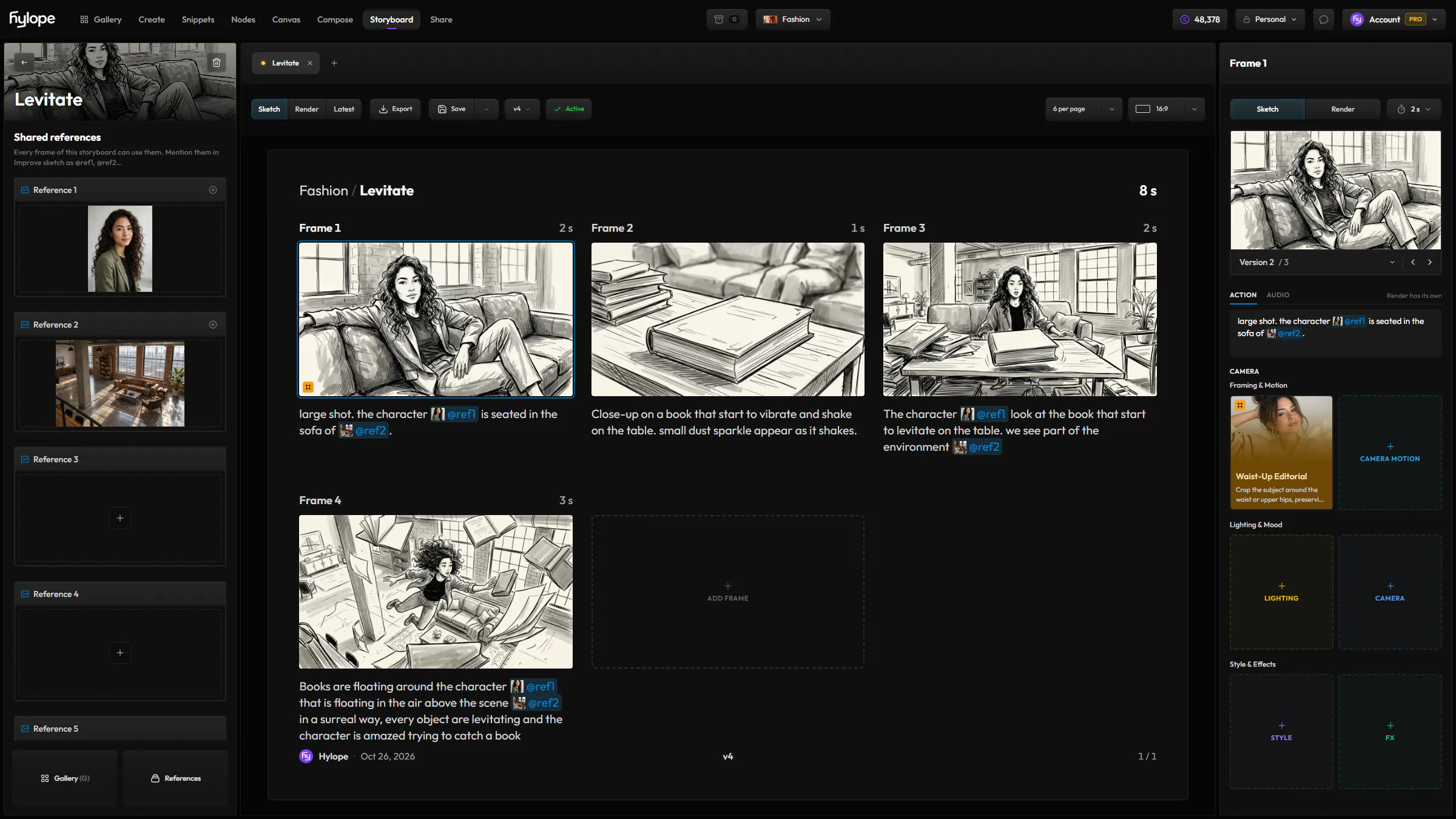
Sketch a scene frame by frame, then render and animate it in Create. The prompts and references you set in the storyboard come with its frames, so you never type them twice.
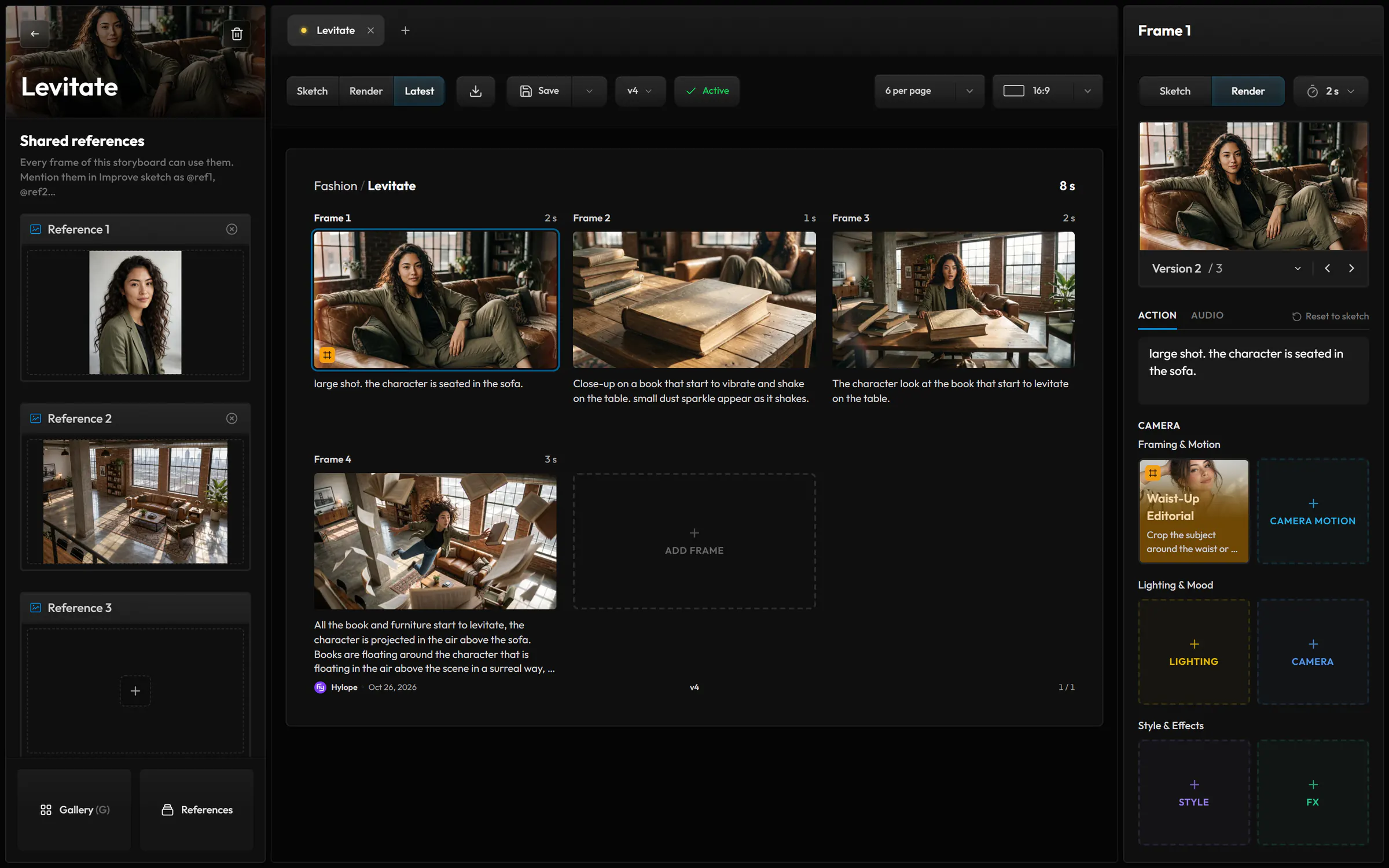
Each frame keeps its sketches and its renders, with all their versions. Show the whole board as sketches or as renders, in one click.
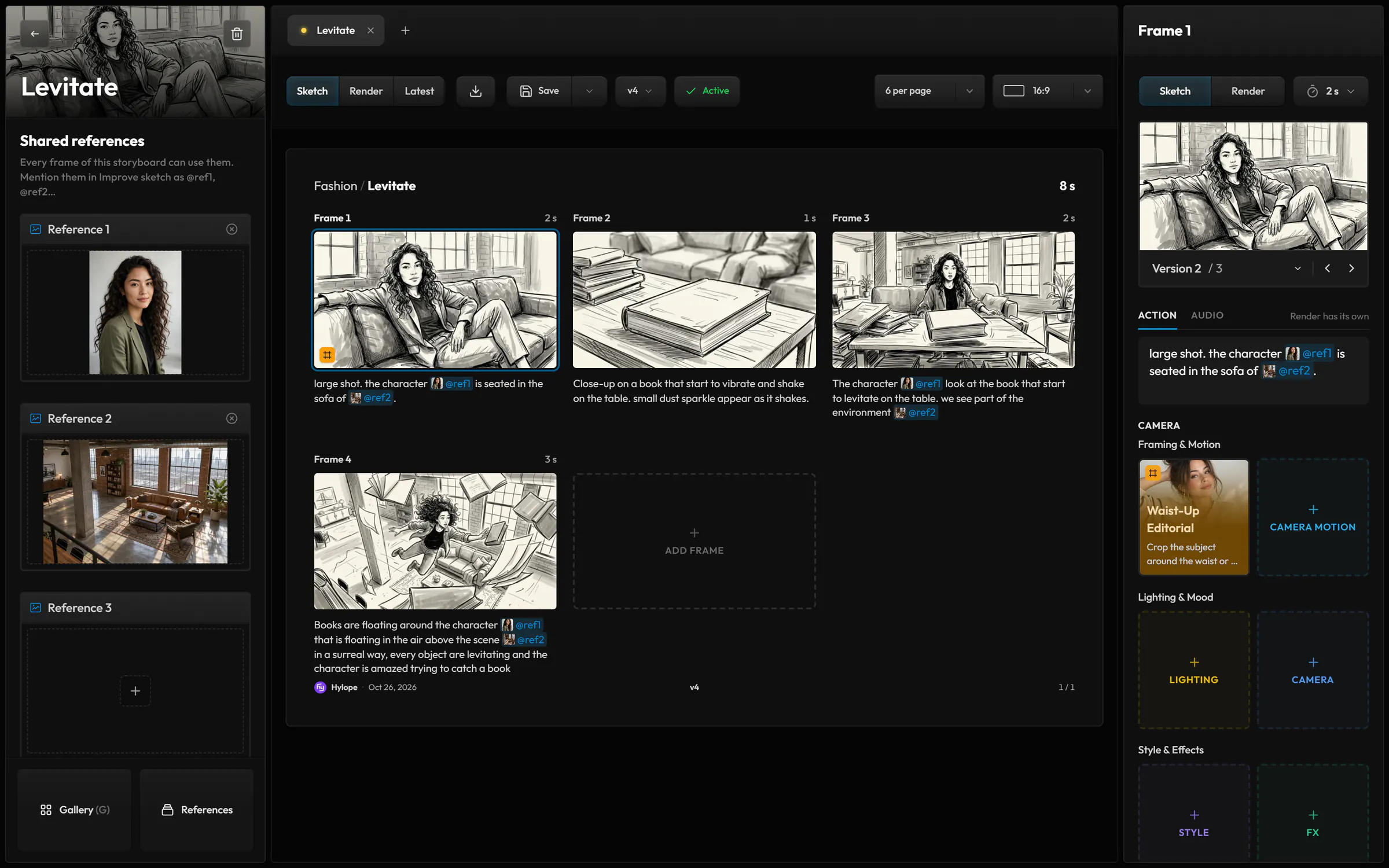
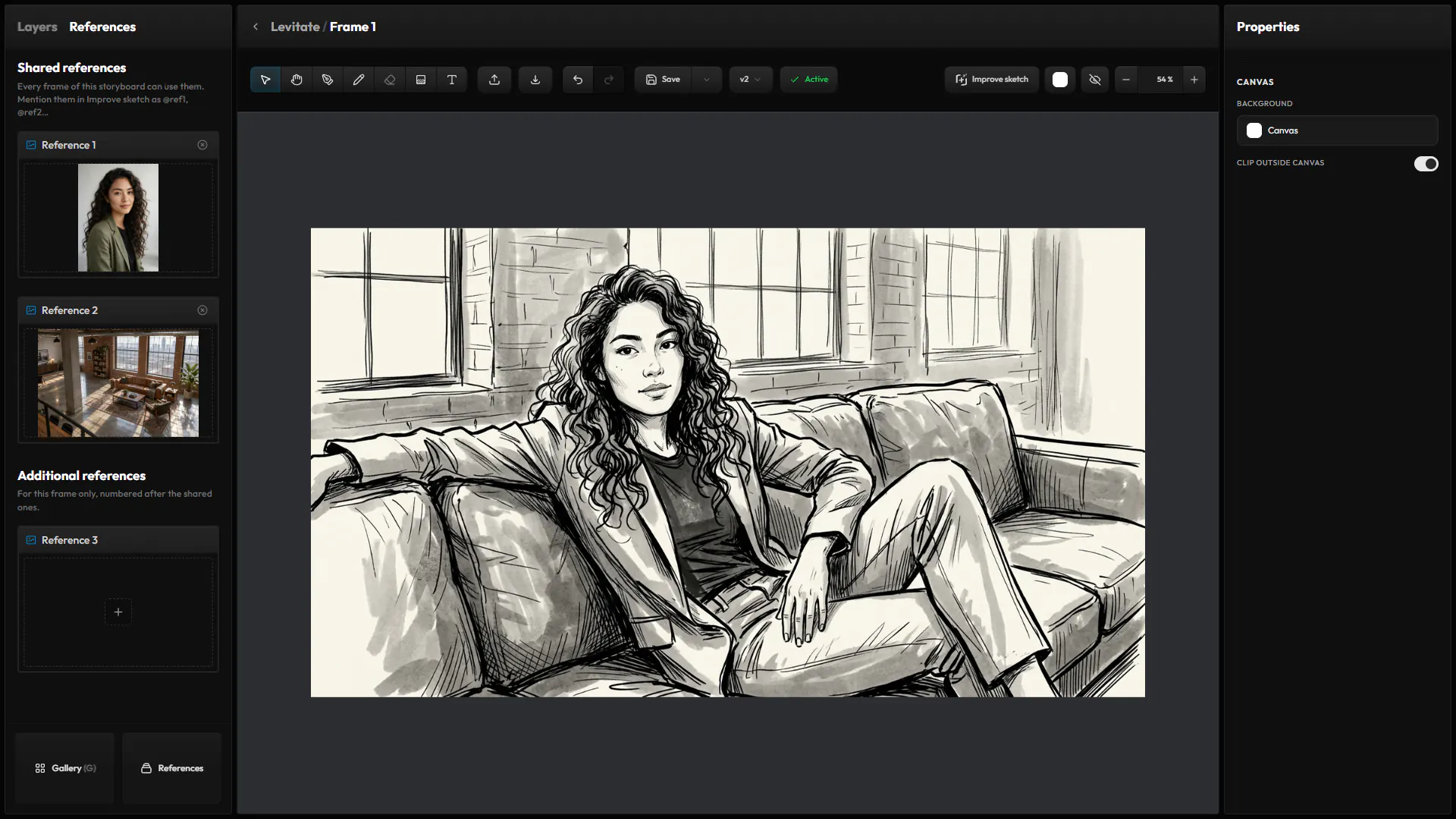
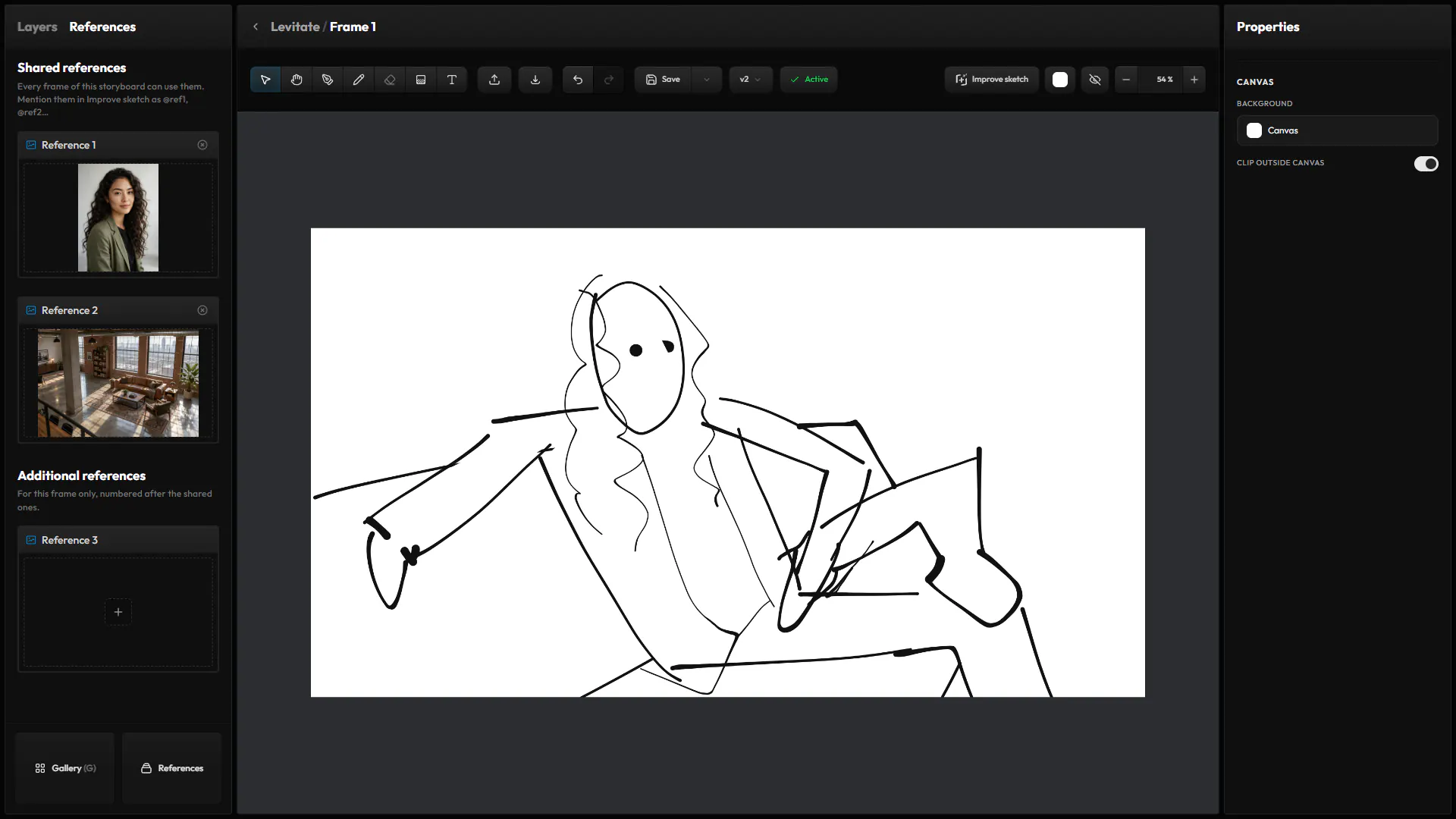
Draw each frame with the pen and layers of Compose. A few rough lines are enough: Improve sketch redraws them as a finished storyboard frame, with the characters, products and places of your references.
You focus on the composition of each shot, and AI takes care of the details. Discover Compose
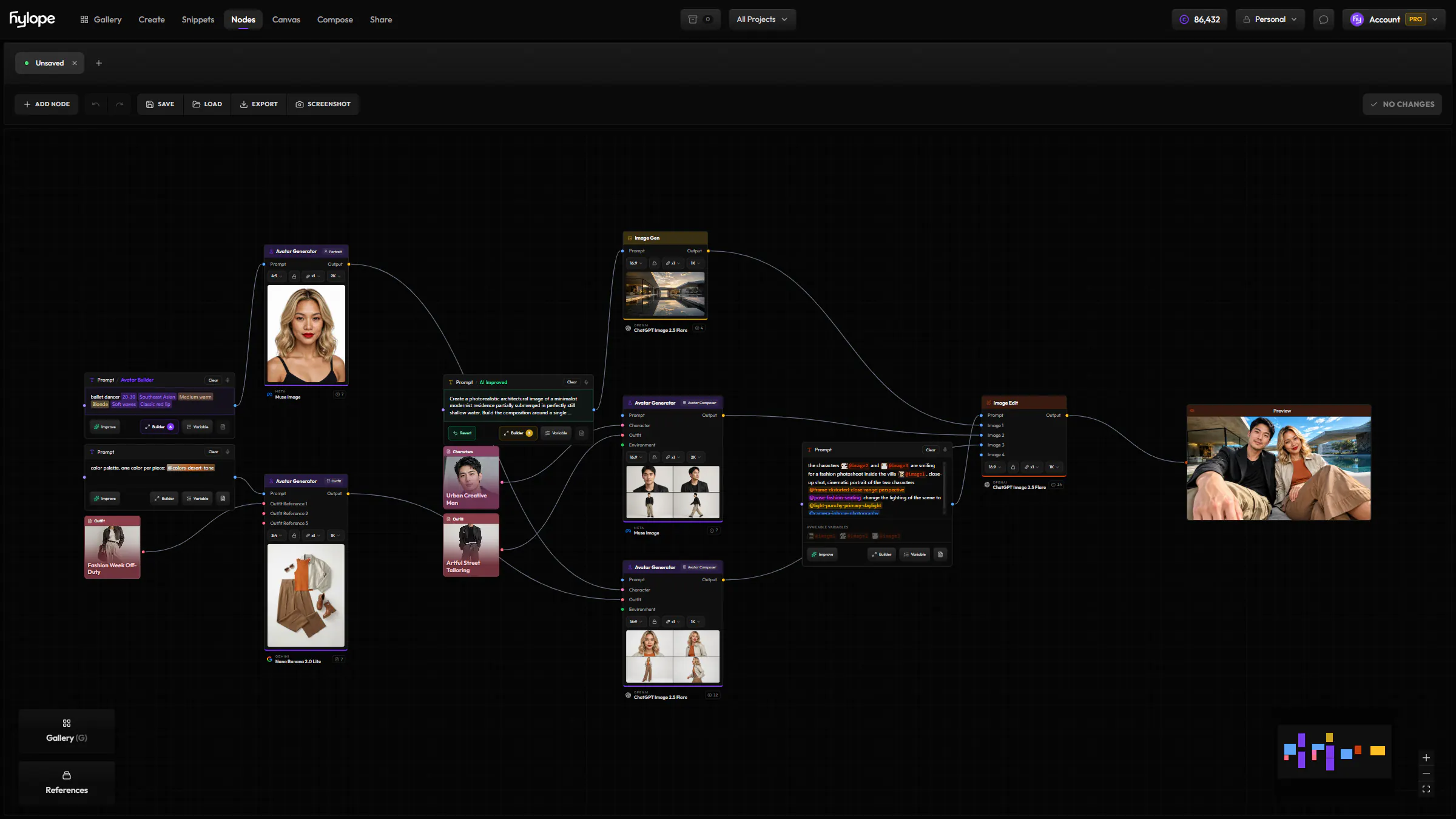
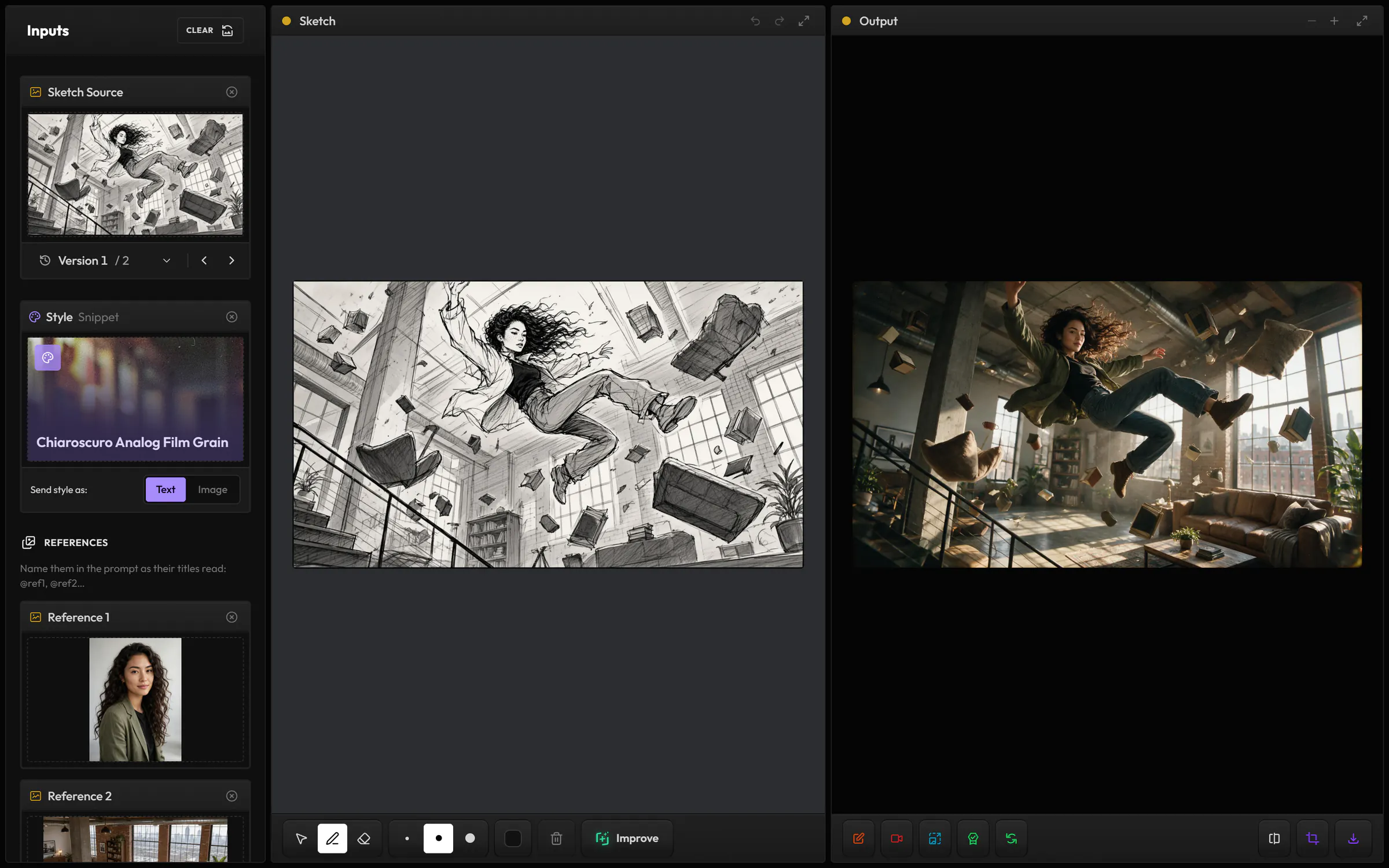
Open your storyboard directly in Create's Image > Sketch mode, and turn your sketches into finished images in the style you choose.
Each frame comes with its prompt and the storyboard's references already filled in. Render up to nine frames at once, and every render is added to its frame in the storyboard automatically. Discover Image
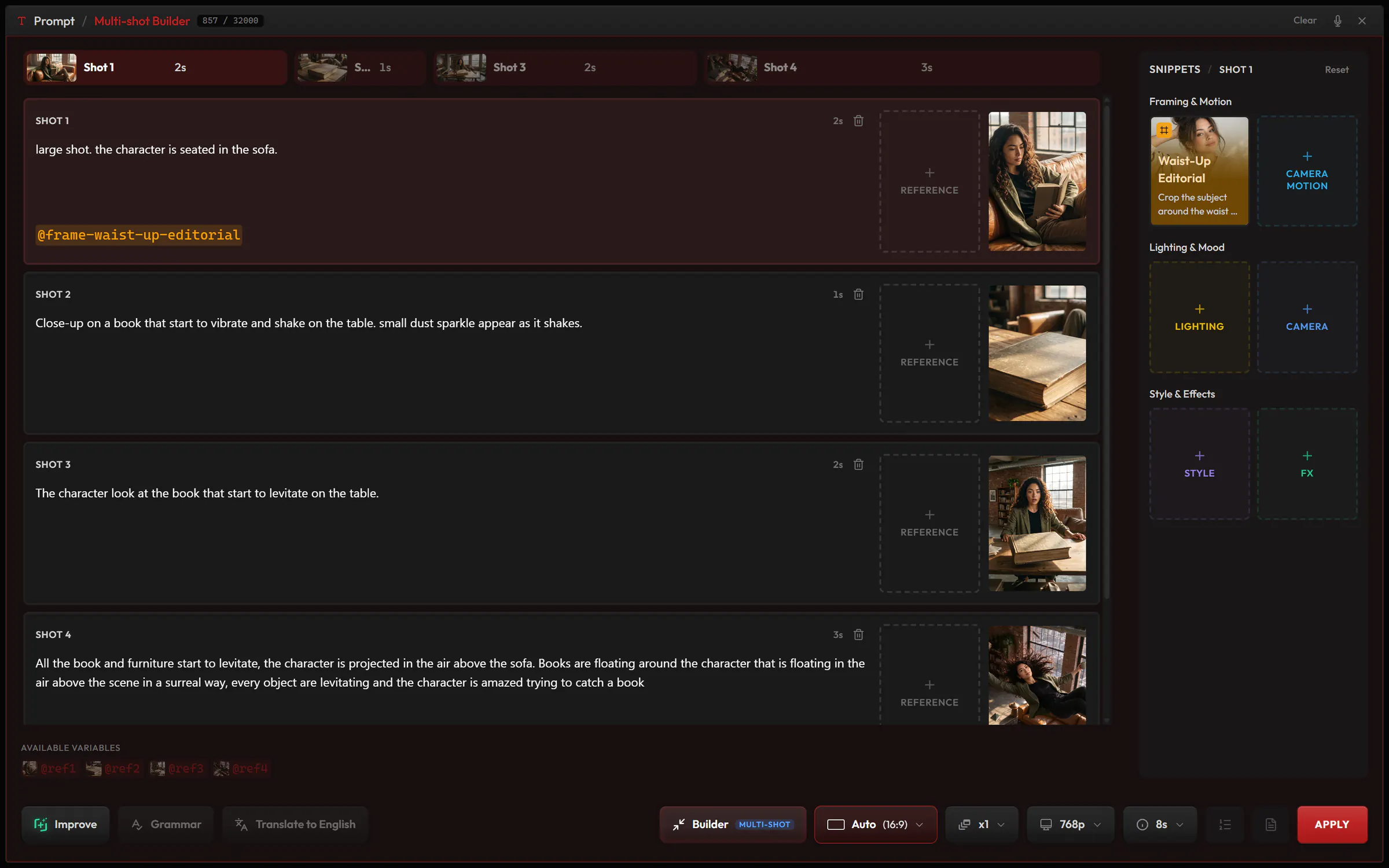
Load your storyboard directly in Video: each shot of a multi-shot clip is filled in with its frame's render, prompt and duration, up to six shots per clip.
You can also start a clip from a single frame. Discover Video
Download the pages as a PDF in print colors, to send to your team or a client.
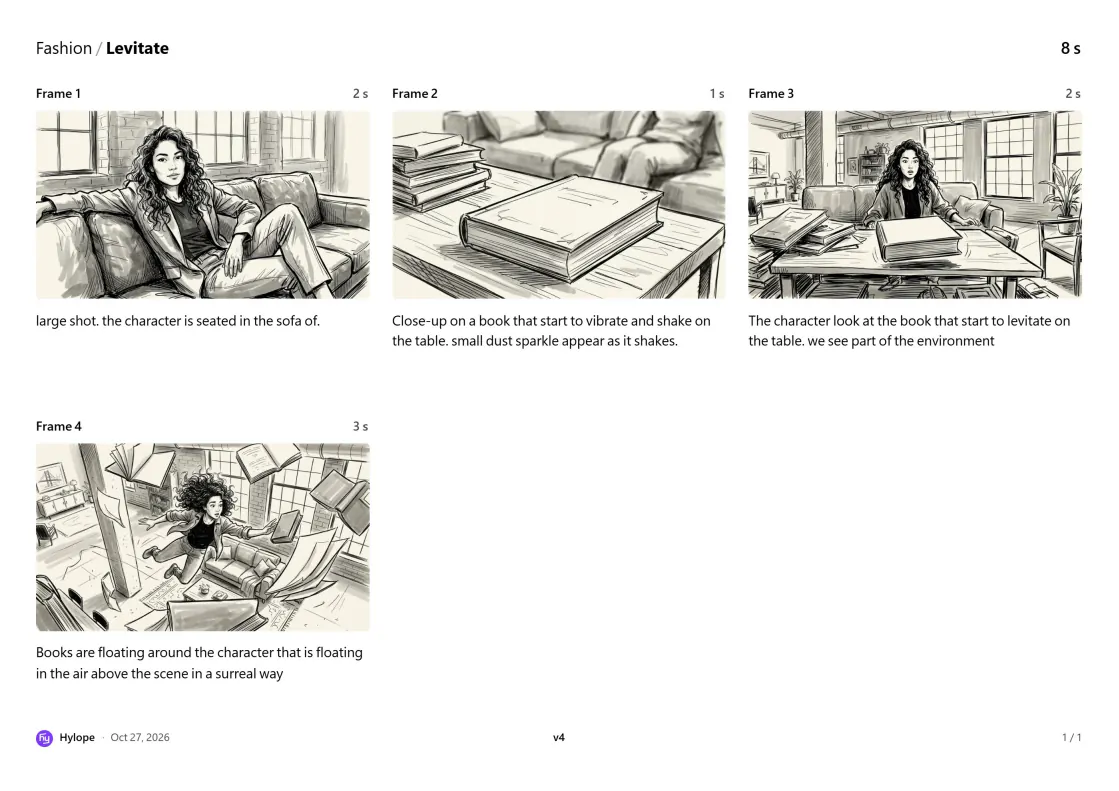
Lay out 1 to 20 frames on each page, in 16:9, 9:16, 4:3 or 1:1. Change either one at any time, and the frames follow.
Write the action, dialogue and sound of each frame, set its camera with snippets and give it a duration. Create and Video start from them, so you never type a prompt twice.
Add your characters, places and products once, and every frame can use them, in Improve sketch, in Create and in Video. A frame can also have references of its own.
Save the board as a new version at any step, and open an earlier one when you need it.
A board saves as you edit, and everyone on the project sees the changes. Viewers can open it without editing it.
No. Fill frames with images from your Gallery or your computer, several at once if you like, and draw only where you want to.
Laying out frames, drawing, writing prompts and exporting are free. Improve sketch, renders and clips use AI models and cost credits, shown before you run them.
They stay in your Gallery. Each storyboard's sketches and renders also show there as two key assets of its project.
The owners and creators of its project. Viewers can open it and read it.
Yes. It works today, and it is still improving.
Hylope 1.8 is open to everyone. New accounts start with 100 free credits.