TutorialCreative Workflow11 min
Edit images in place with Quick Edit
Edit an AI image without generating it again: change it with a prompt, inpaint inside a mask, remove or extract objects, and keep every edit as a version.
Precise edits on your images and videos, saved as versions.
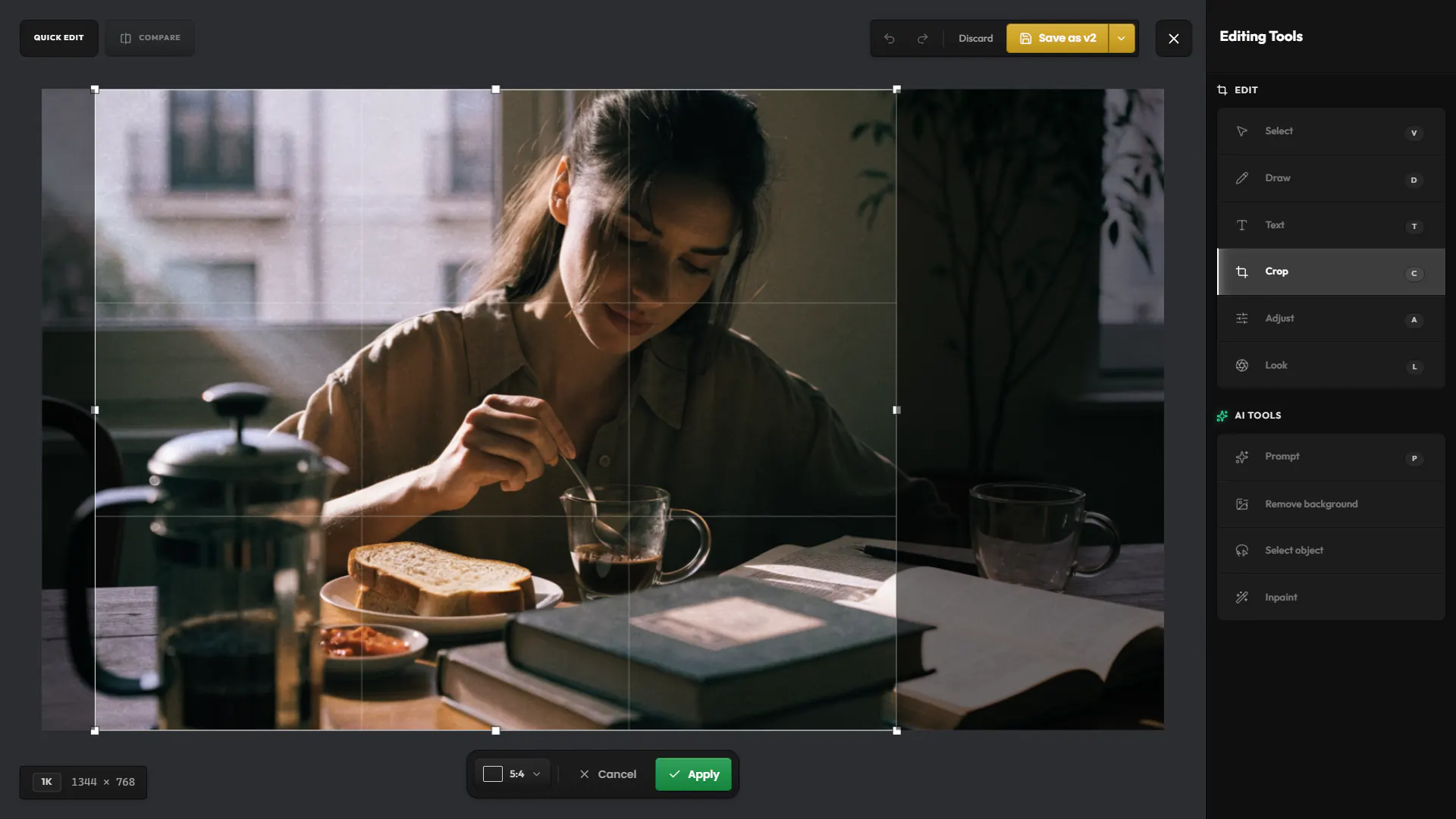
Quick Edit opens over an image or video from the lightbox, the Gallery or Create. Make a precise change and save it as the next version of the same asset.
Move or delete what you have drawn or written.
Draw freehand, in any colour, at three brush sizes.
Click the image to place text, in any colour.
Crop to the original ratio, a preset one, or freely.
Brightness, contrast, saturation and temperature.
Grade the image with a film look, then set its strength, halation and grain.
AI tools
Describe a change to the whole image and pick the model that makes it.
Cut out the subject, with a detailed mode for hair and soft edges.
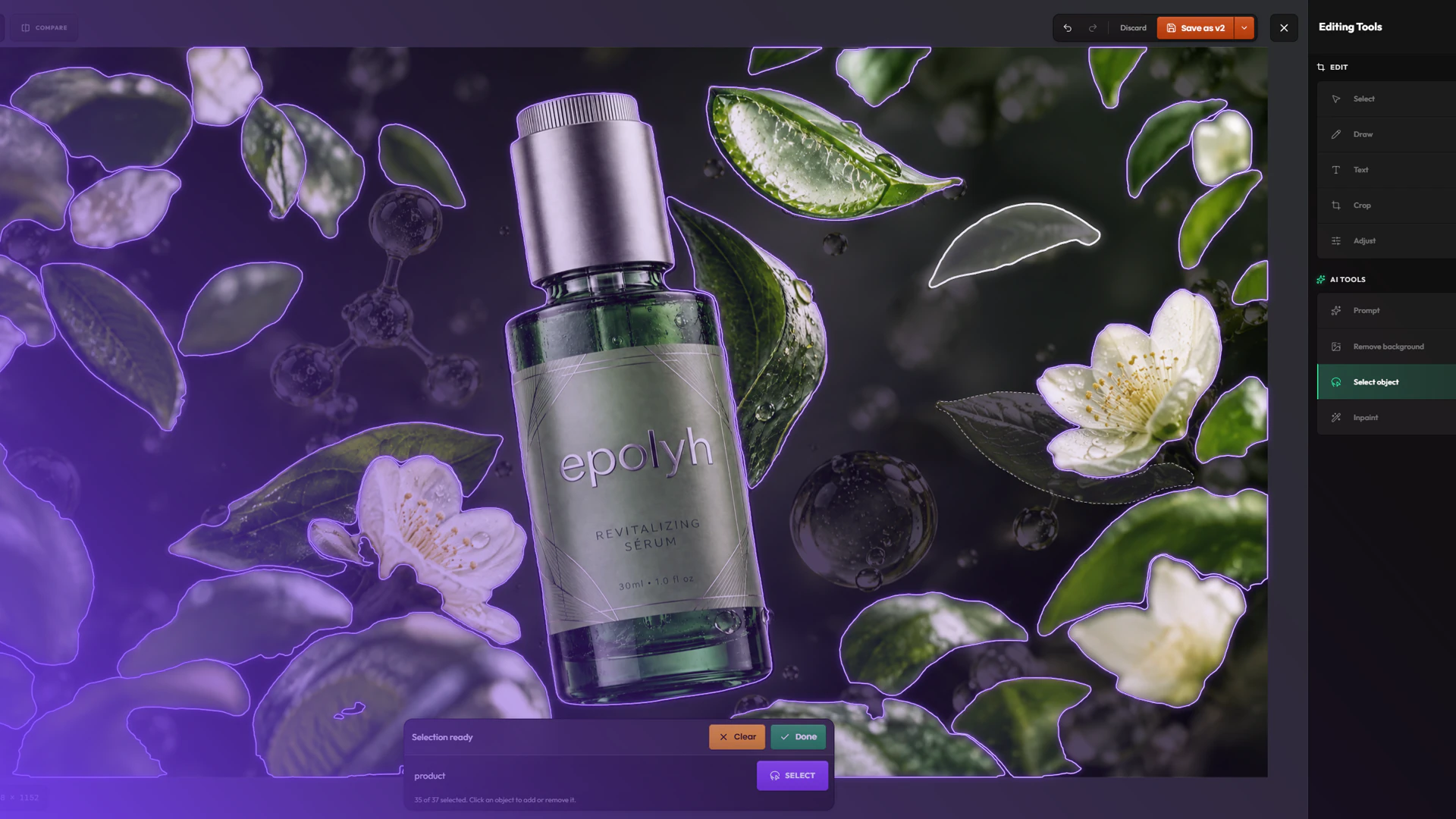
Describe an object to select it, then inpaint, remove or extract it.
Draw around an area and describe what should appear there.
TutorialCreative Workflow11 min
Edit an AI image without generating it again: change it with a prompt, inpaint inside a mask, remove or extract objects, and keep every edit as a version.
Describe what to select, such as "the tiger" or "the red car". Hylope finds the matching objects: click one to add it to the selection or take it out, or describe something else to add. Then choose what to do with it.
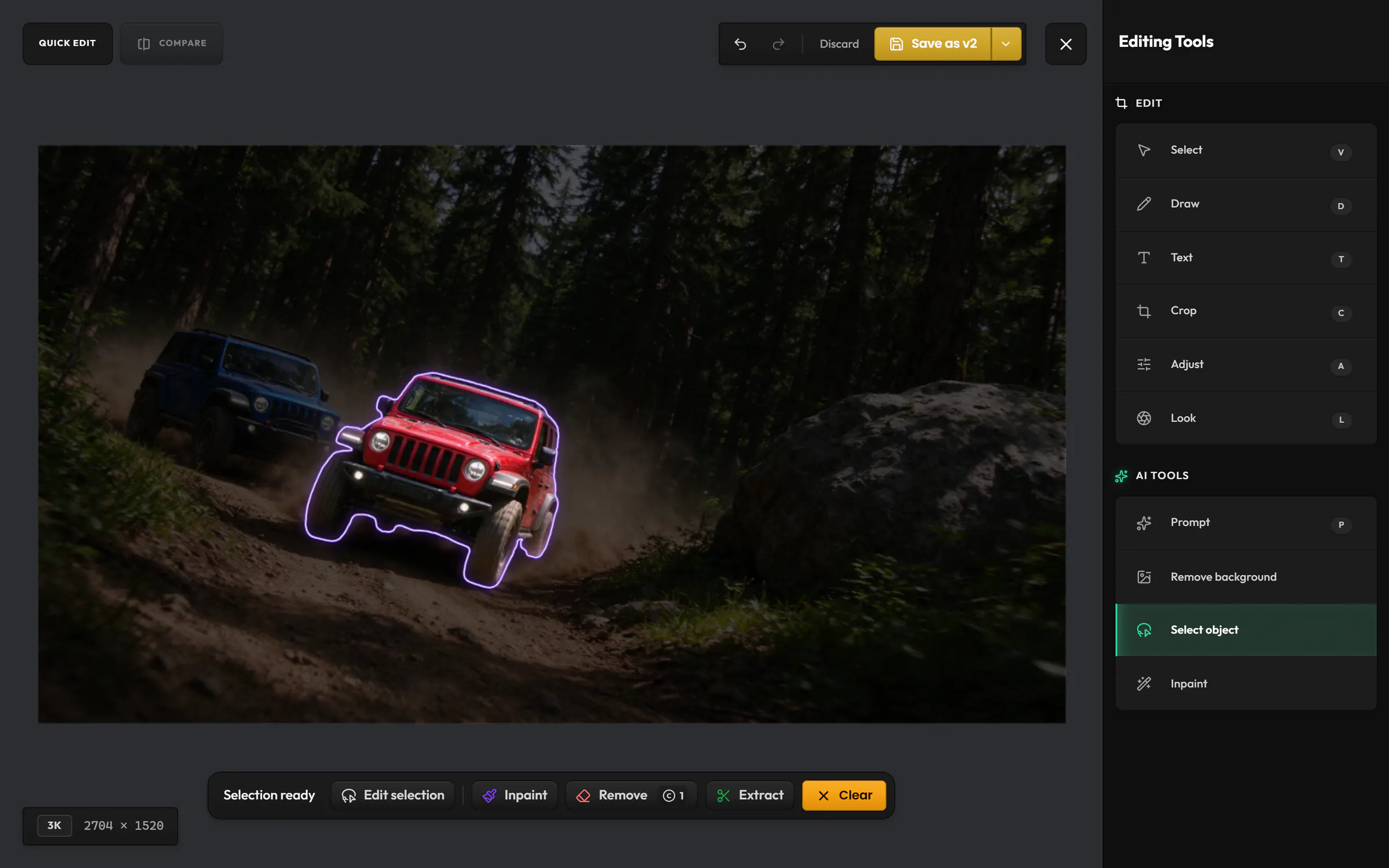
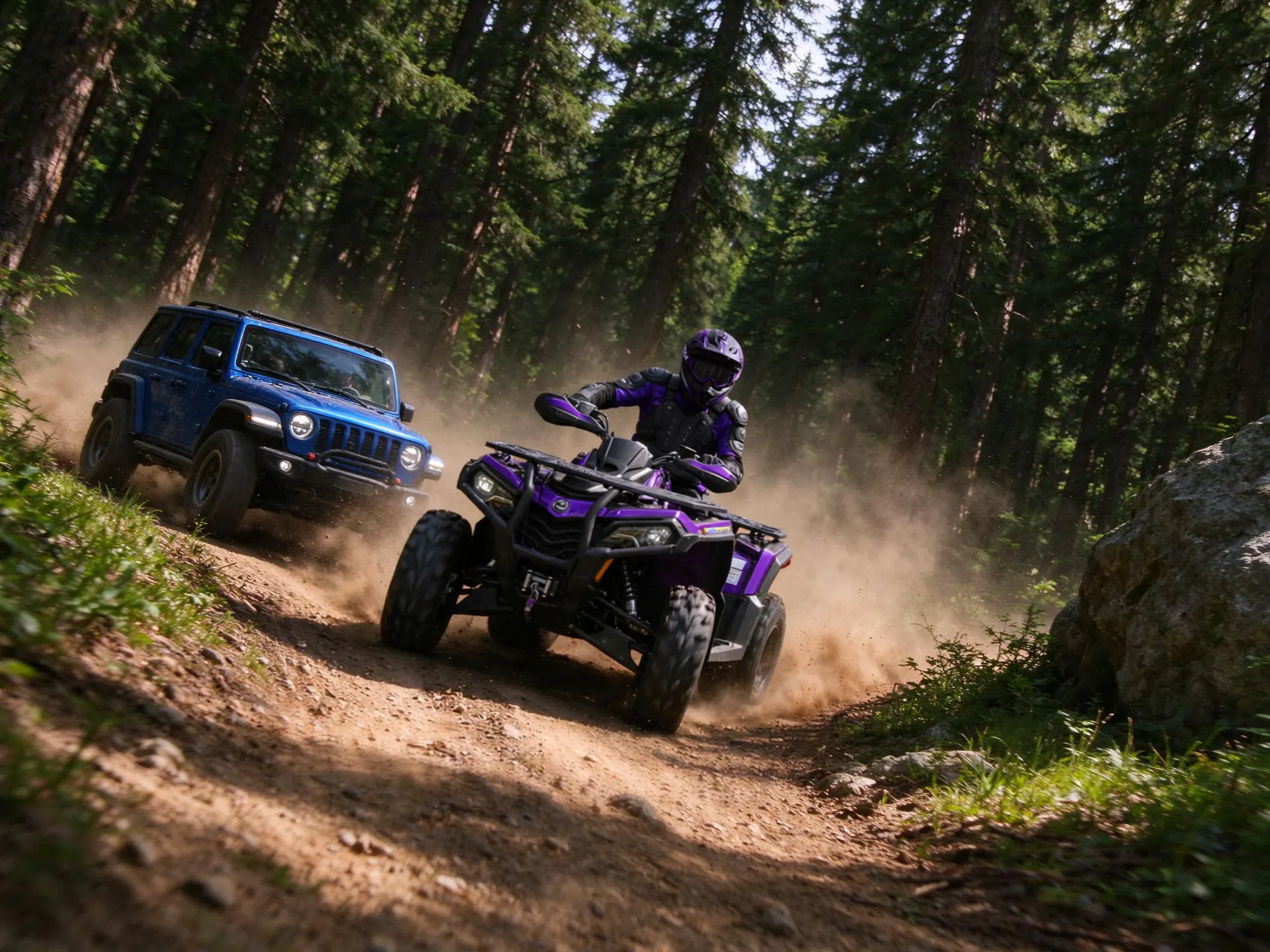
Replace the selected area with what you describe.
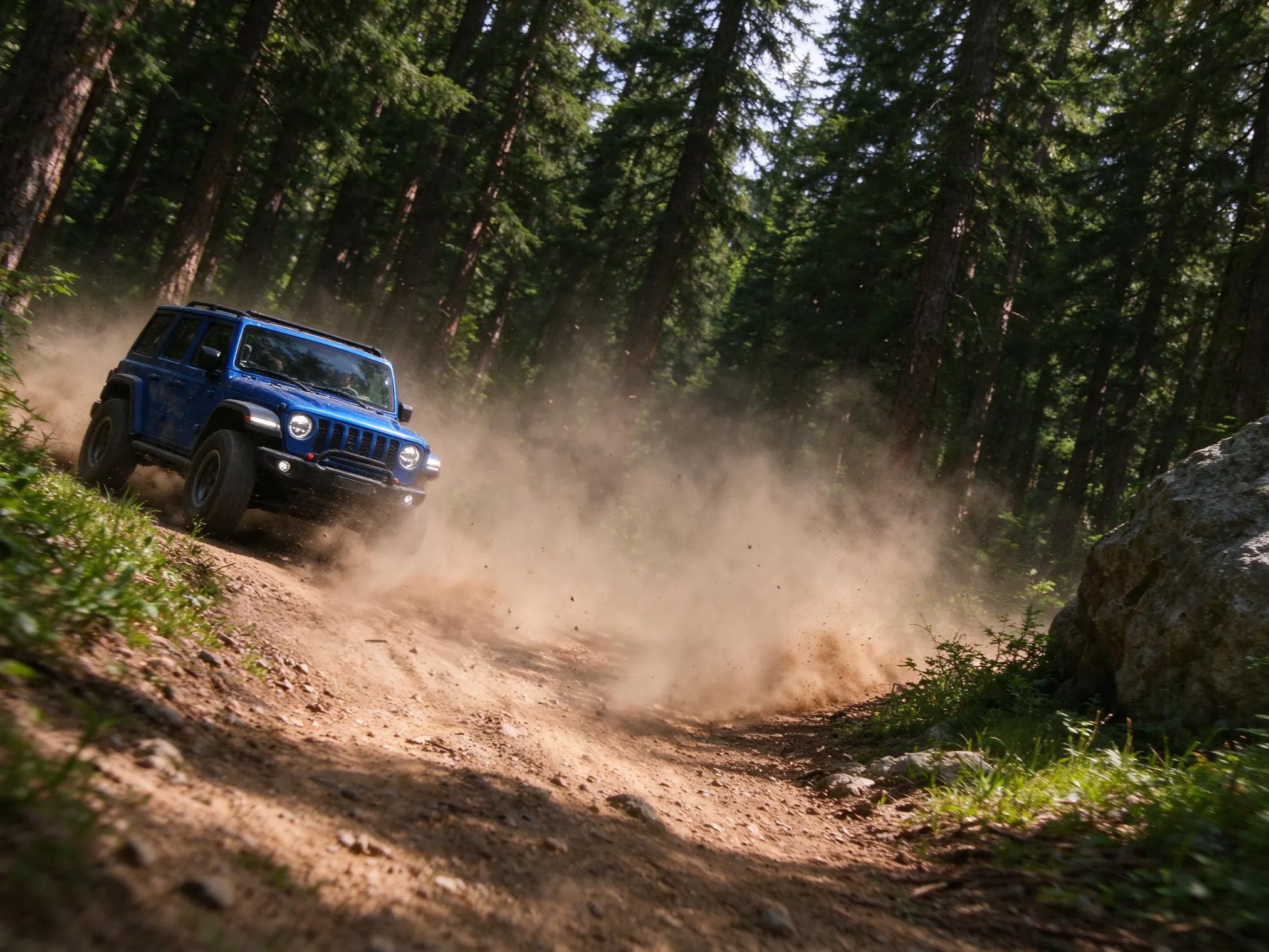
Erase the object and rebuild the area behind it.
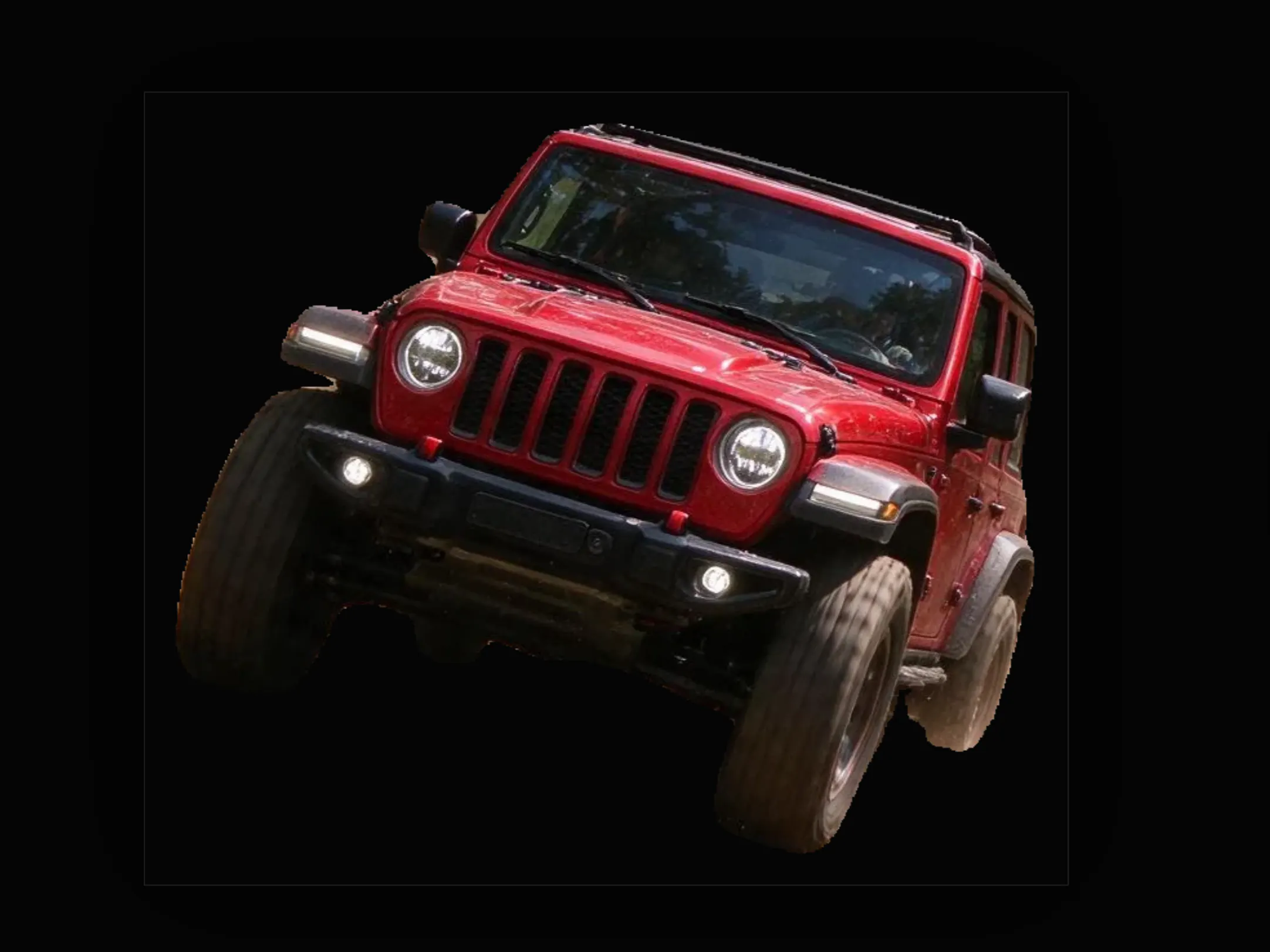
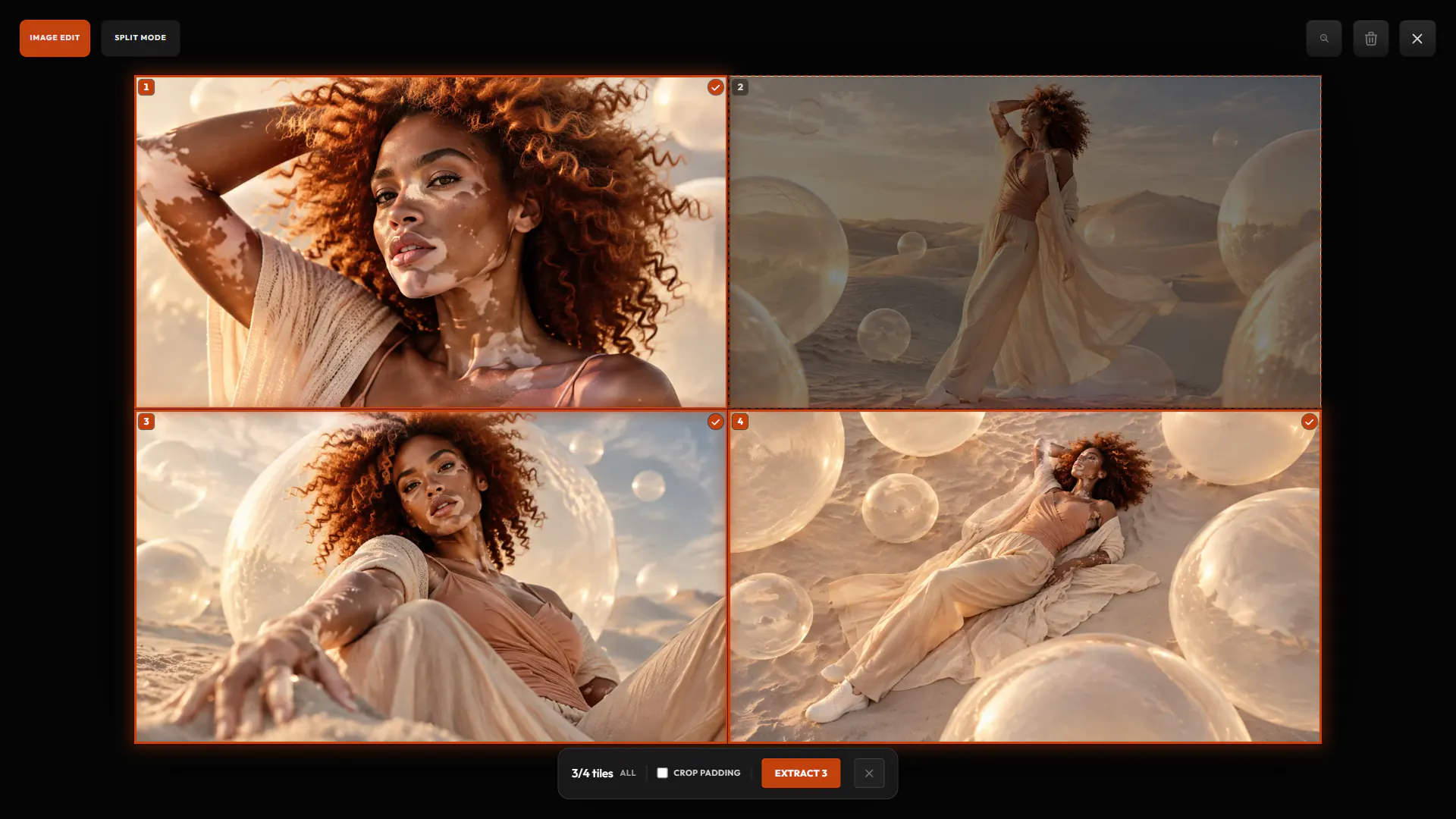
Save the object as a new cutout image, linked to this one.
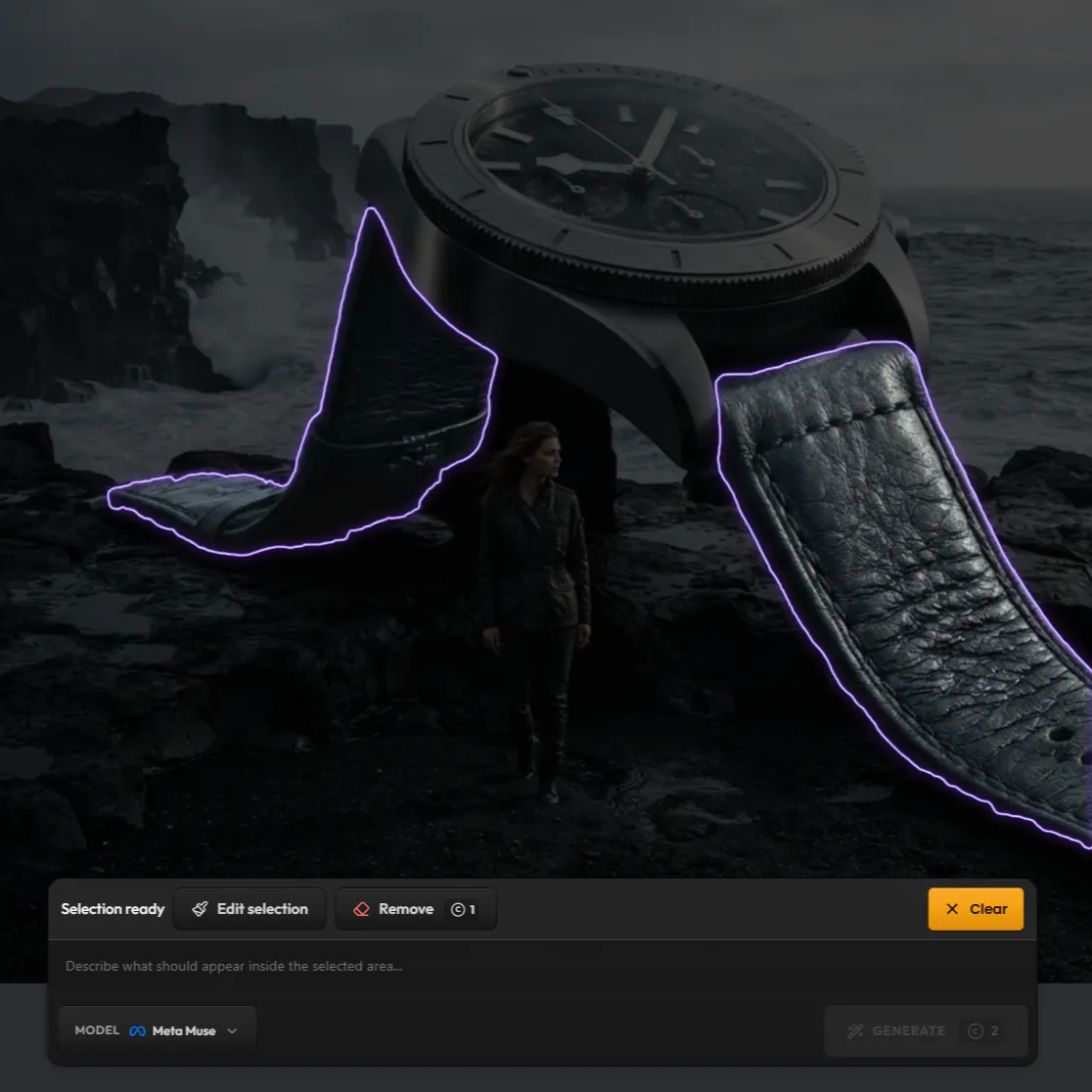
Select an area and describe what should appear there. Generate as many results as you like and keep the one you want. Everything outside the selection stays as it was.
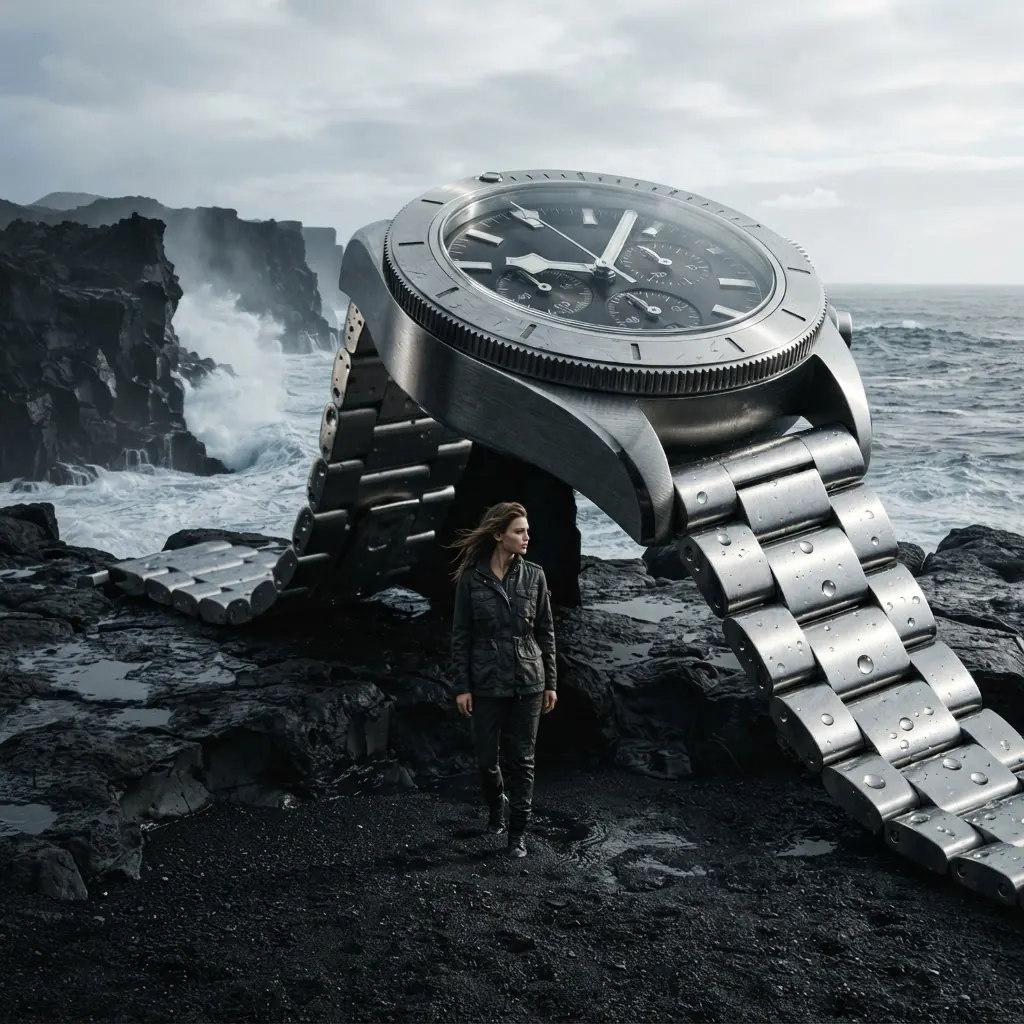
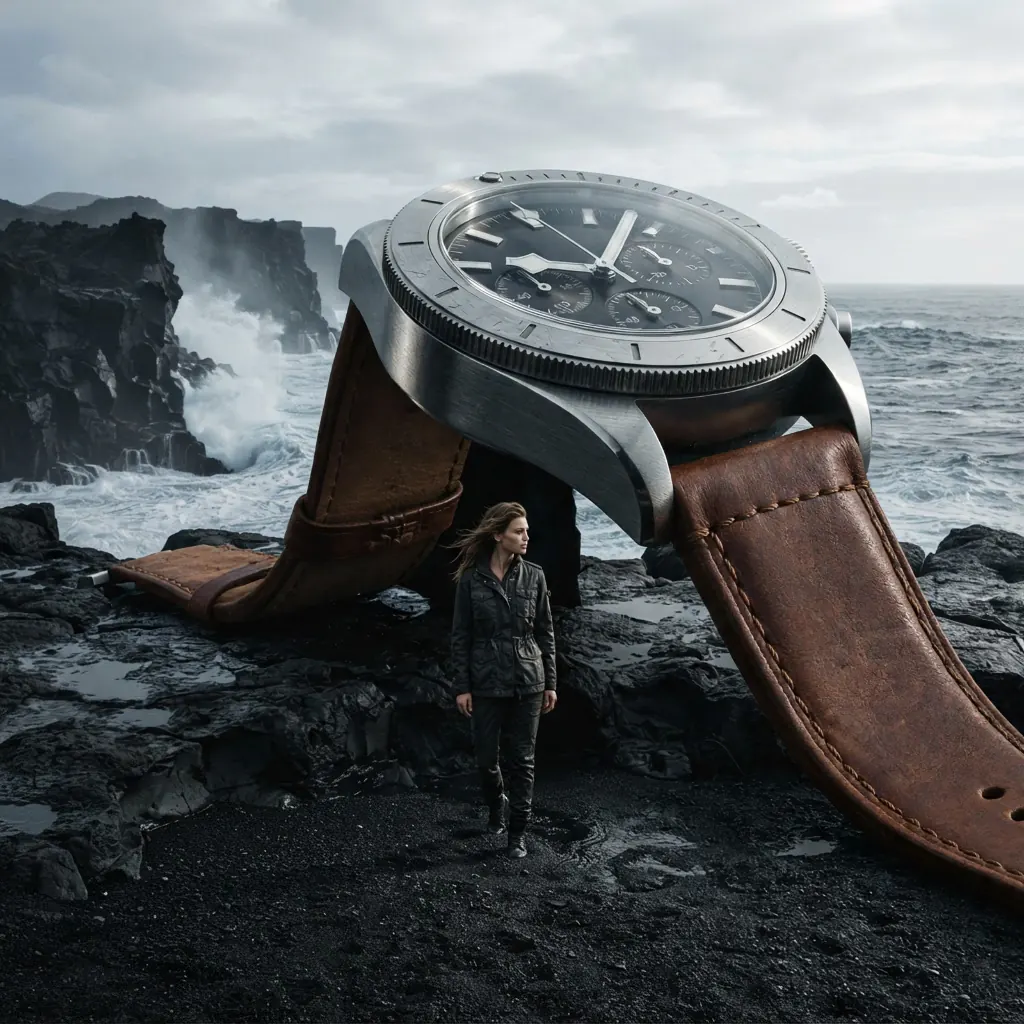
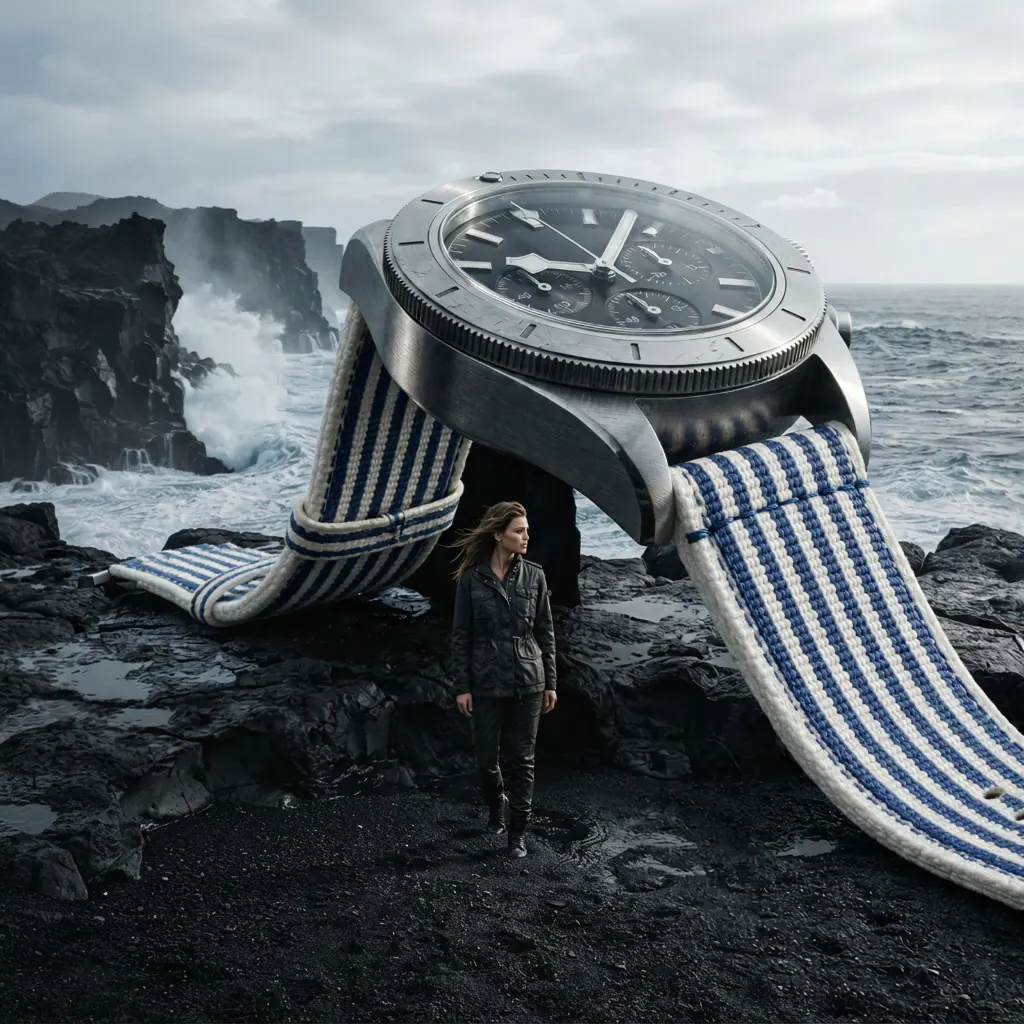
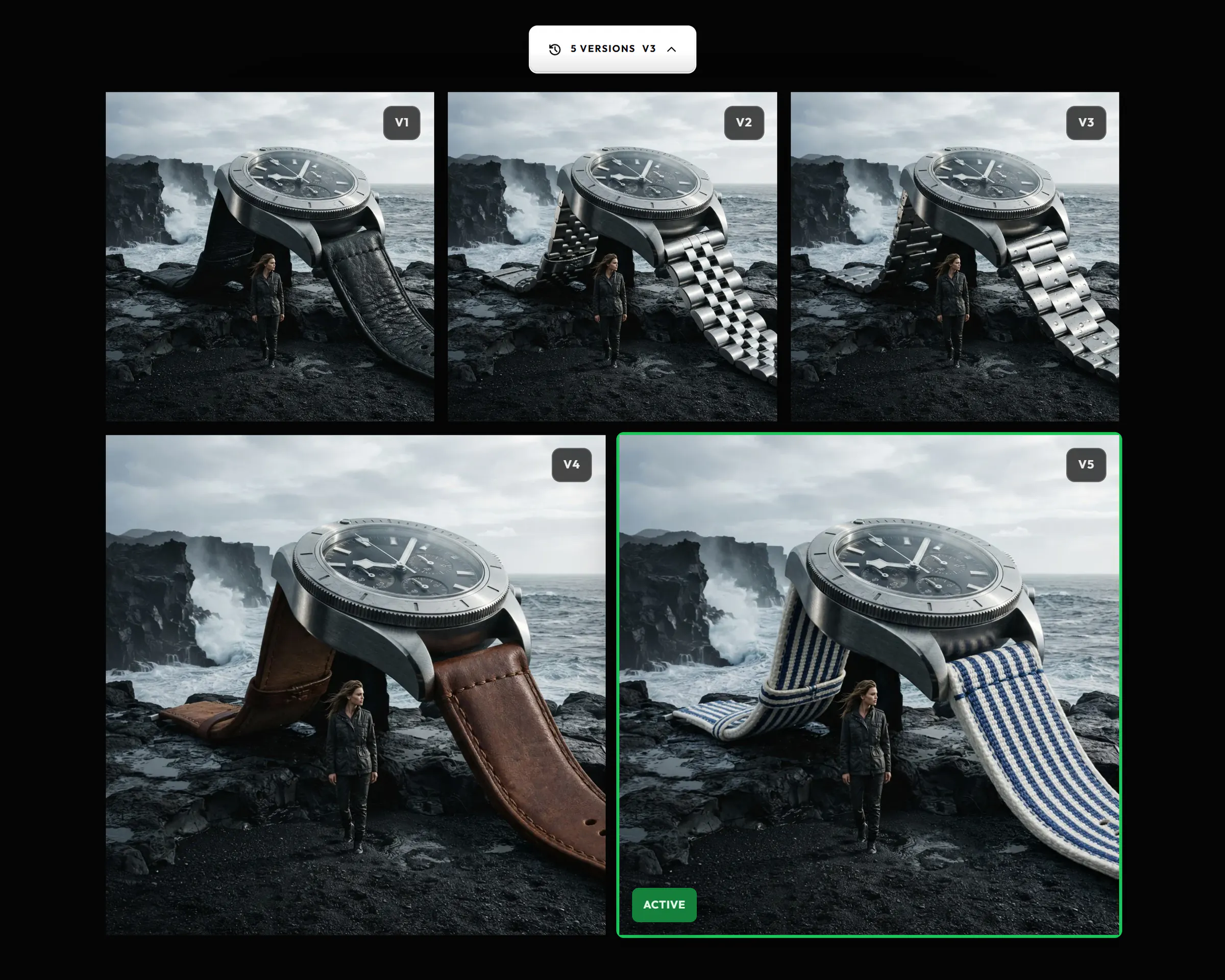
Save as v2 adds your edit as a new version of the asset, in the same gallery card. The original stays one click away, and Compare shows the two side by side. To keep an edit apart instead, save it as a separate copy linked to the original.
Give your image a film look in one click. Choose from 20 looks, from warm and cool tones to cinema, vintage, pastel and black and white, then set the strength, halation and grain.
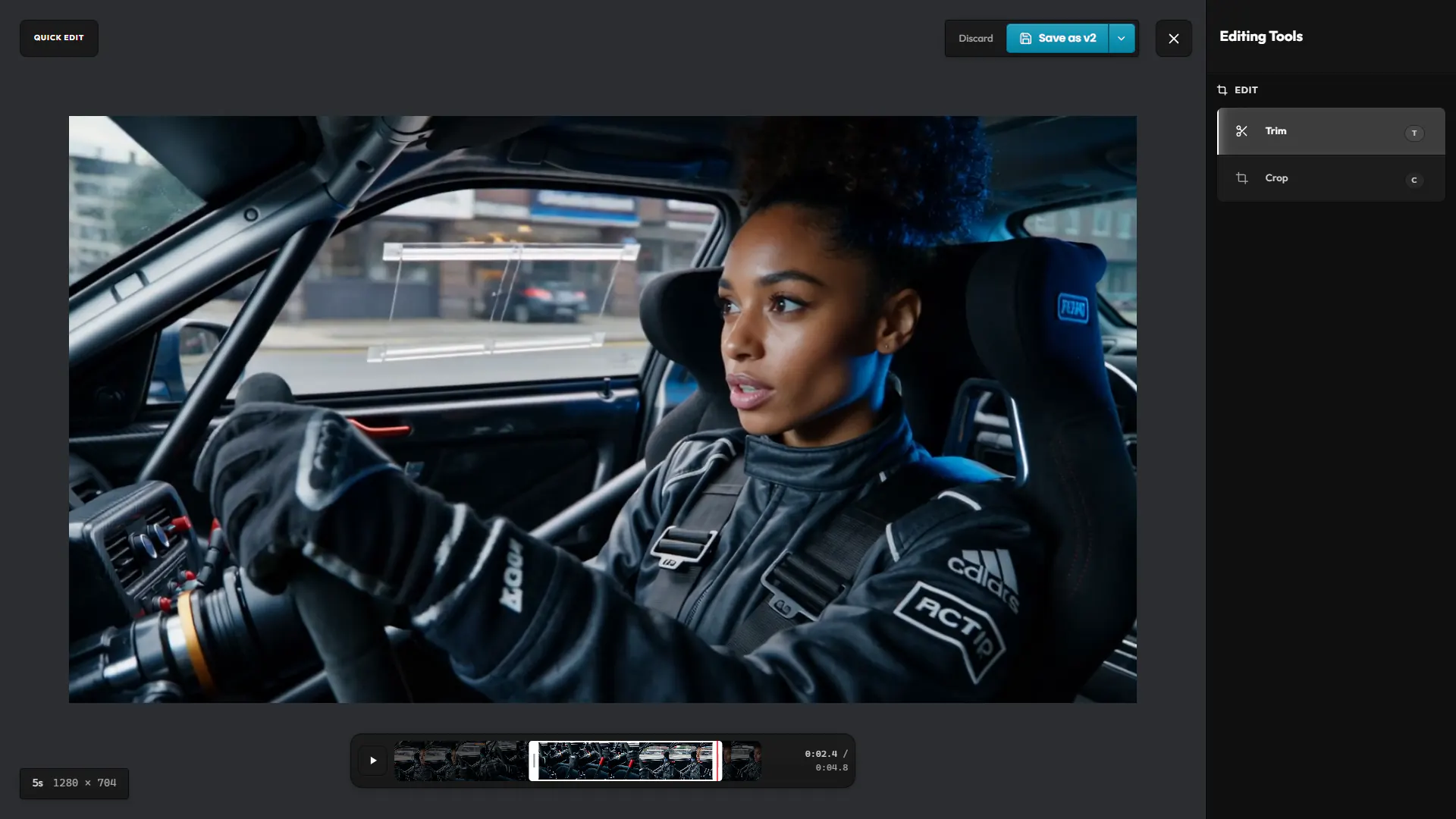
On a video, drag the start and end handles or set them with I and O at the playhead, and crop to a ratio or freely. The trimmed clip is rendered when you save, as a new version like any image edit.
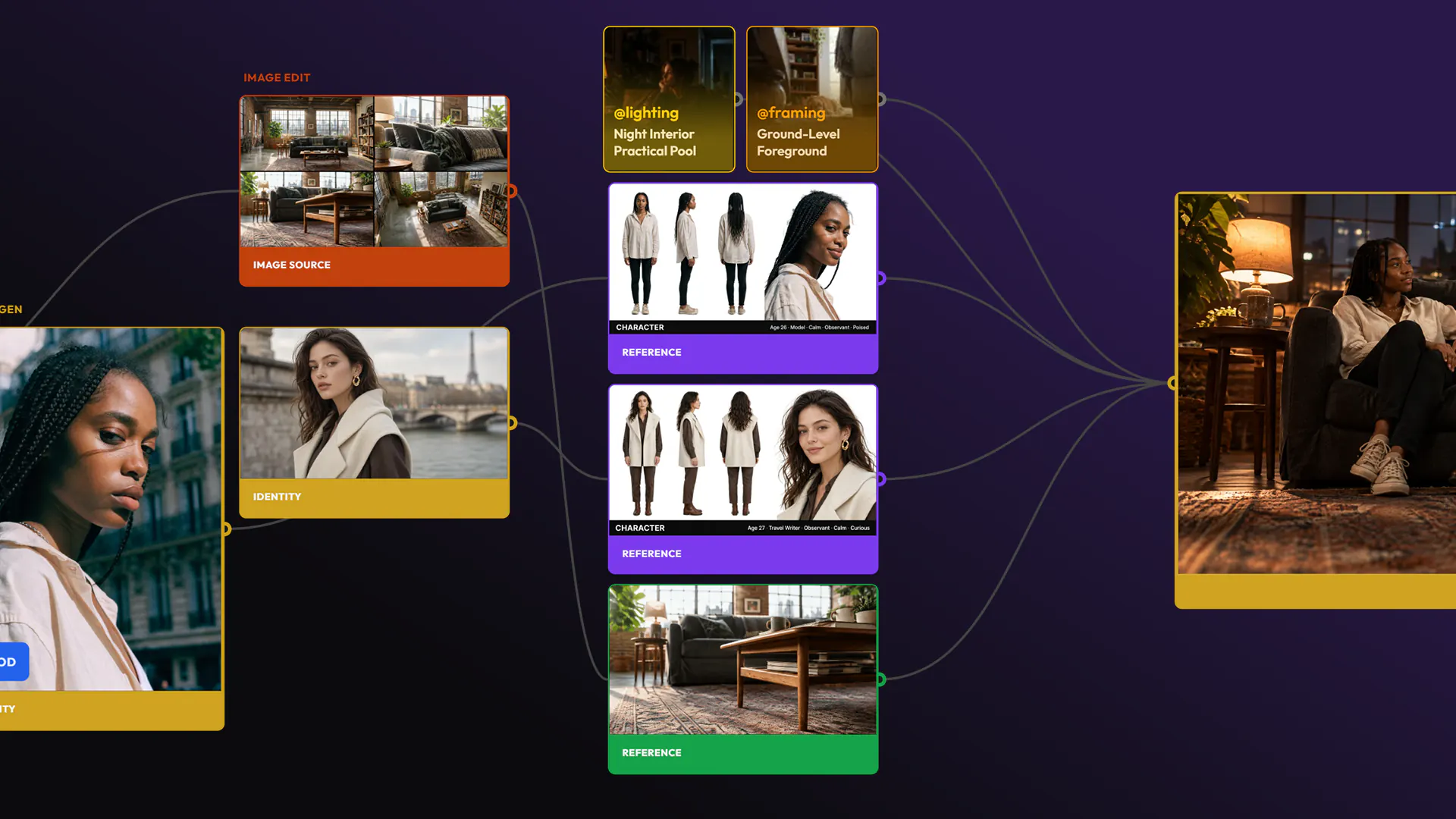
Every saved edit becomes a version, with a Reload Parent button back to the generation it came from.
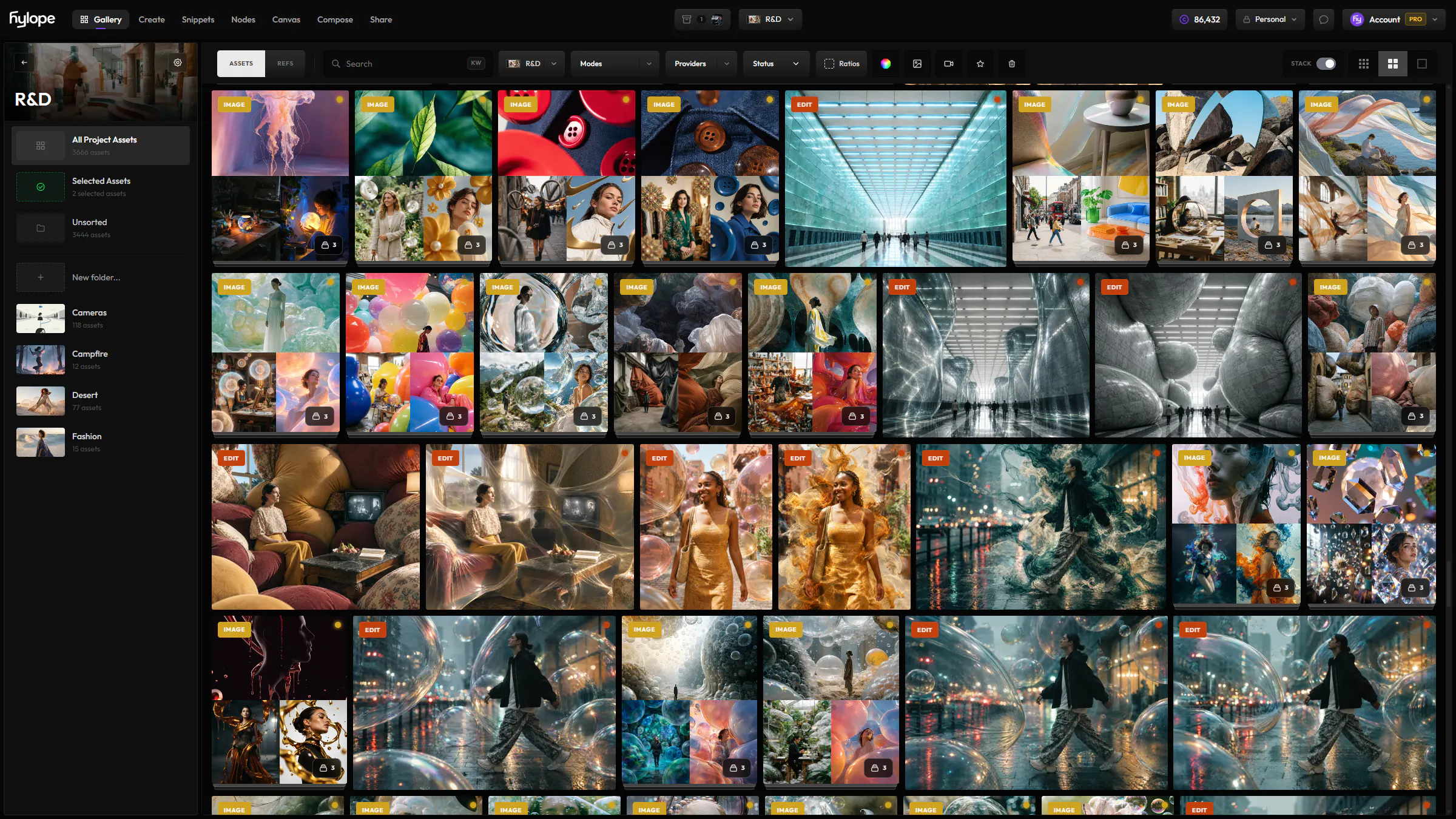
Open any image or video of the Gallery in Quick Edit. Your edit is saved in the same card.
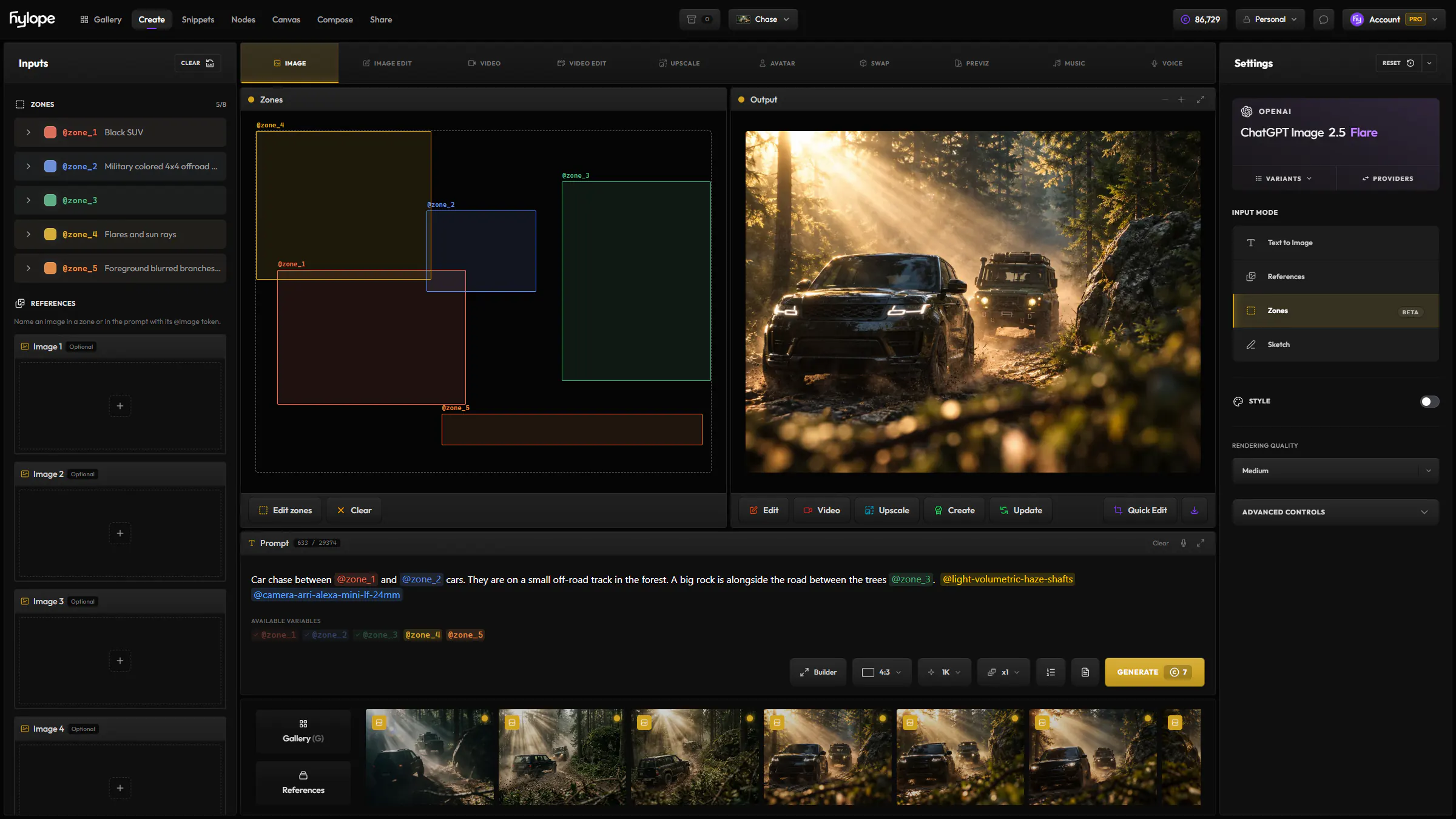
Open a result in Quick Edit right after you create it. Your edit is saved as its next version.
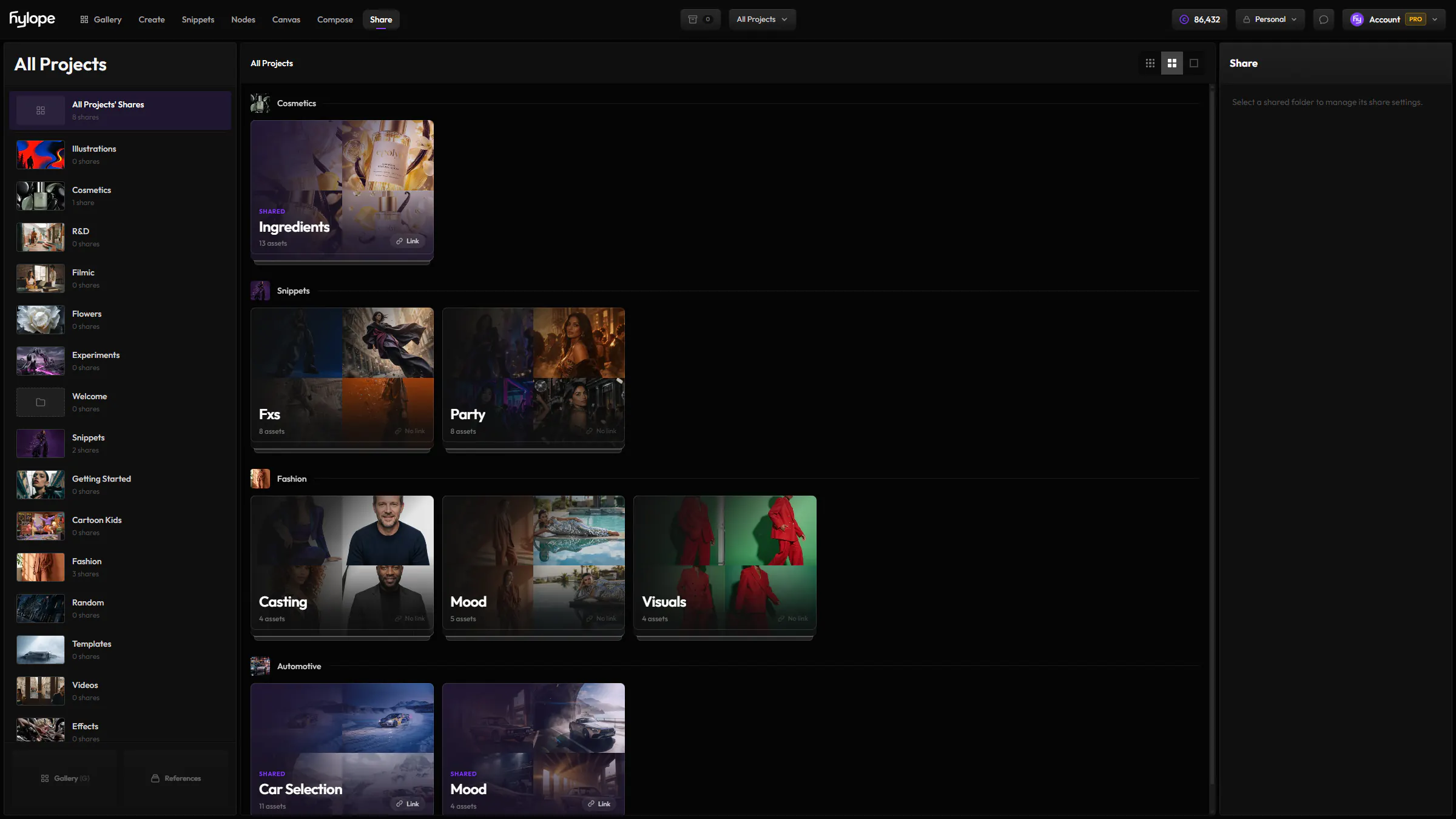
Share the version you settled on in a review folder.
No. It opens over an asset, wherever you are, and saves back to it. To change an image with a full prompt, inputs and model settings, use Image Edit.
No. Save as v2 adds a version and keeps the earlier ones, and any of them can be made active again. You can also save an edit as a separate copy.
Yes, for trimming and cropping. The edited clip is rendered when you save.
Inpaint and Remove blend the edited area into the full image, and the edit tools keep its full resolution. A prompt edit returns a new image, at up to 4K depending on the model.
Hylope 1.7 is open to everyone. New accounts start with 100 free credits.