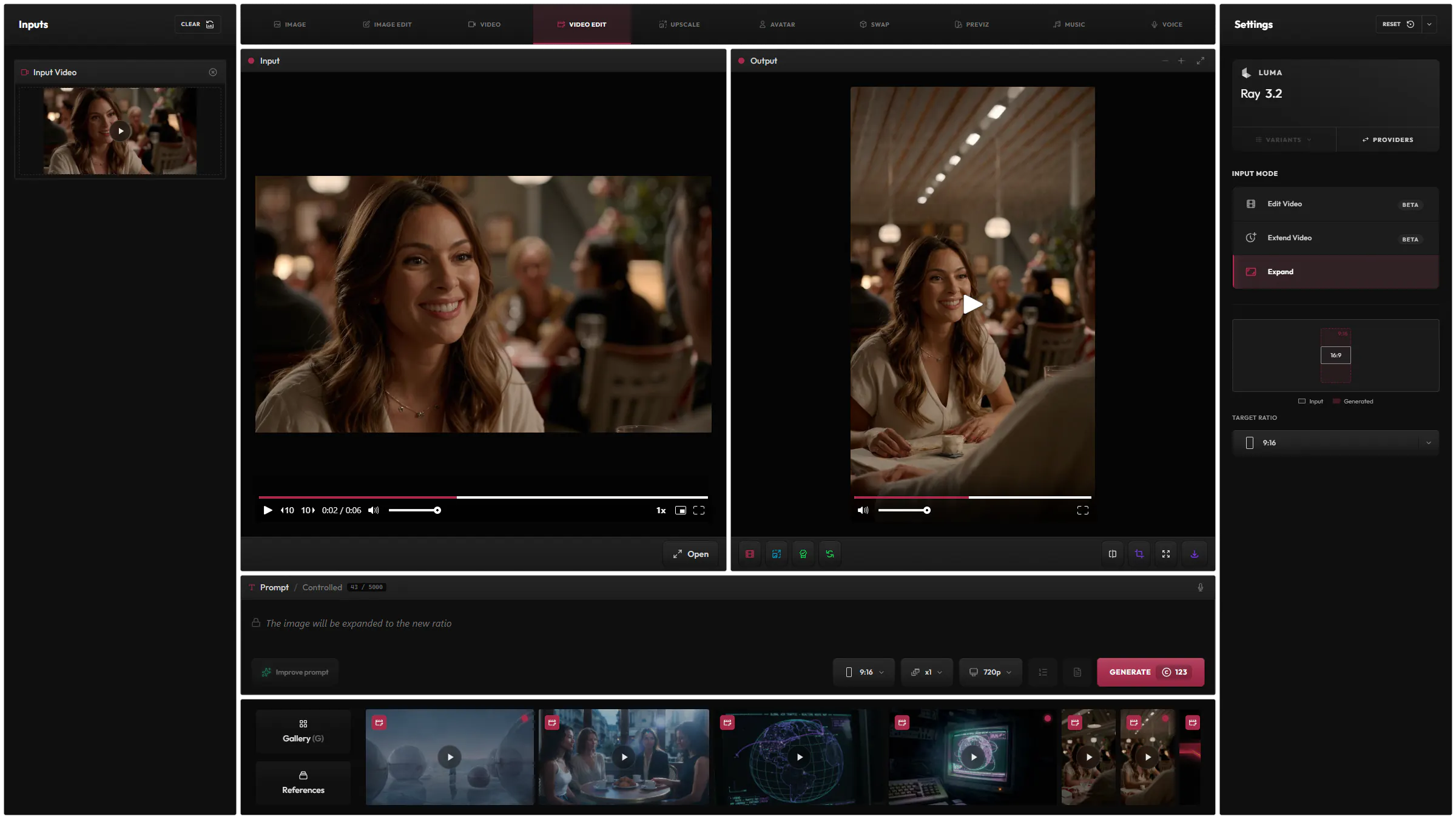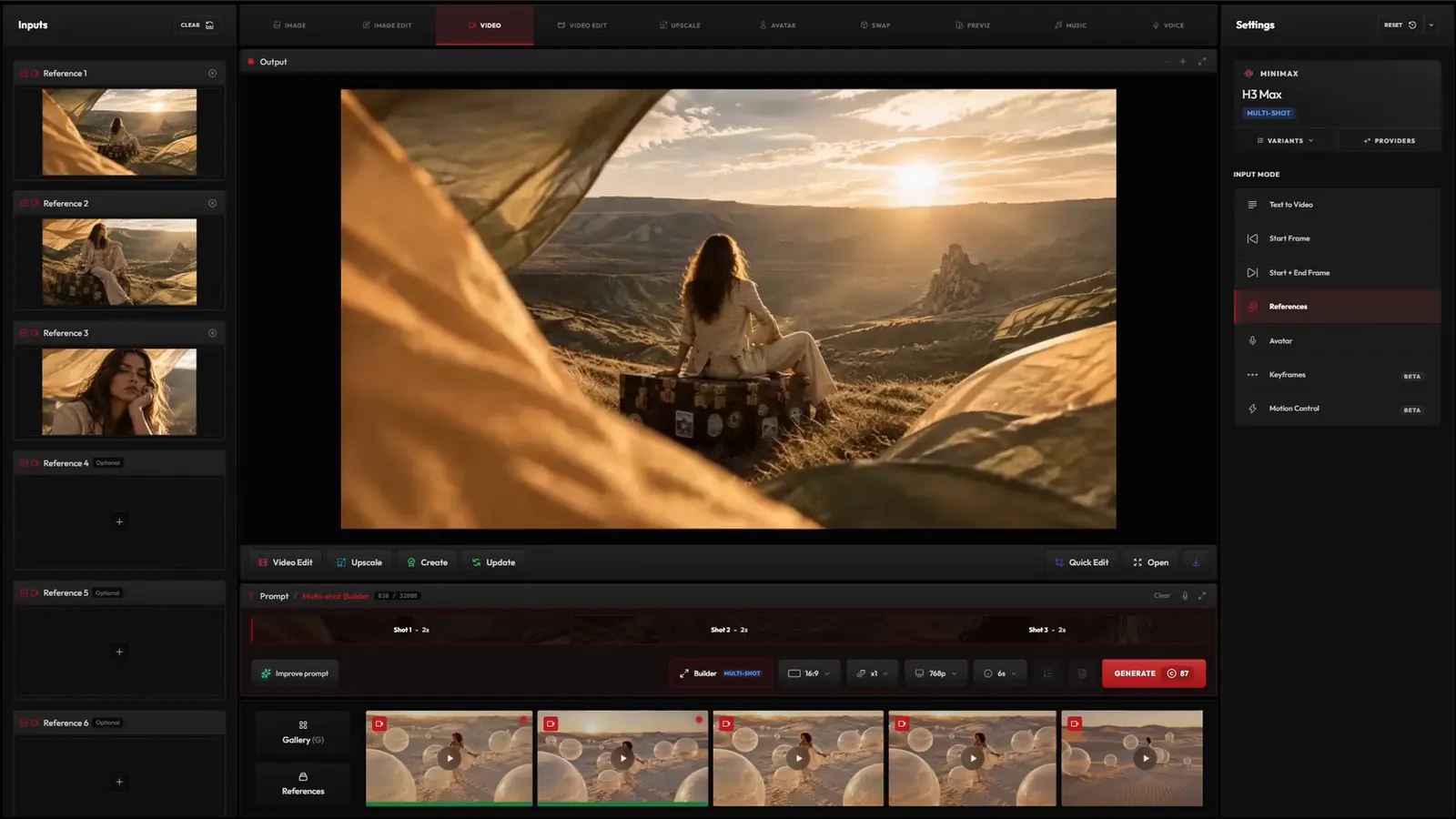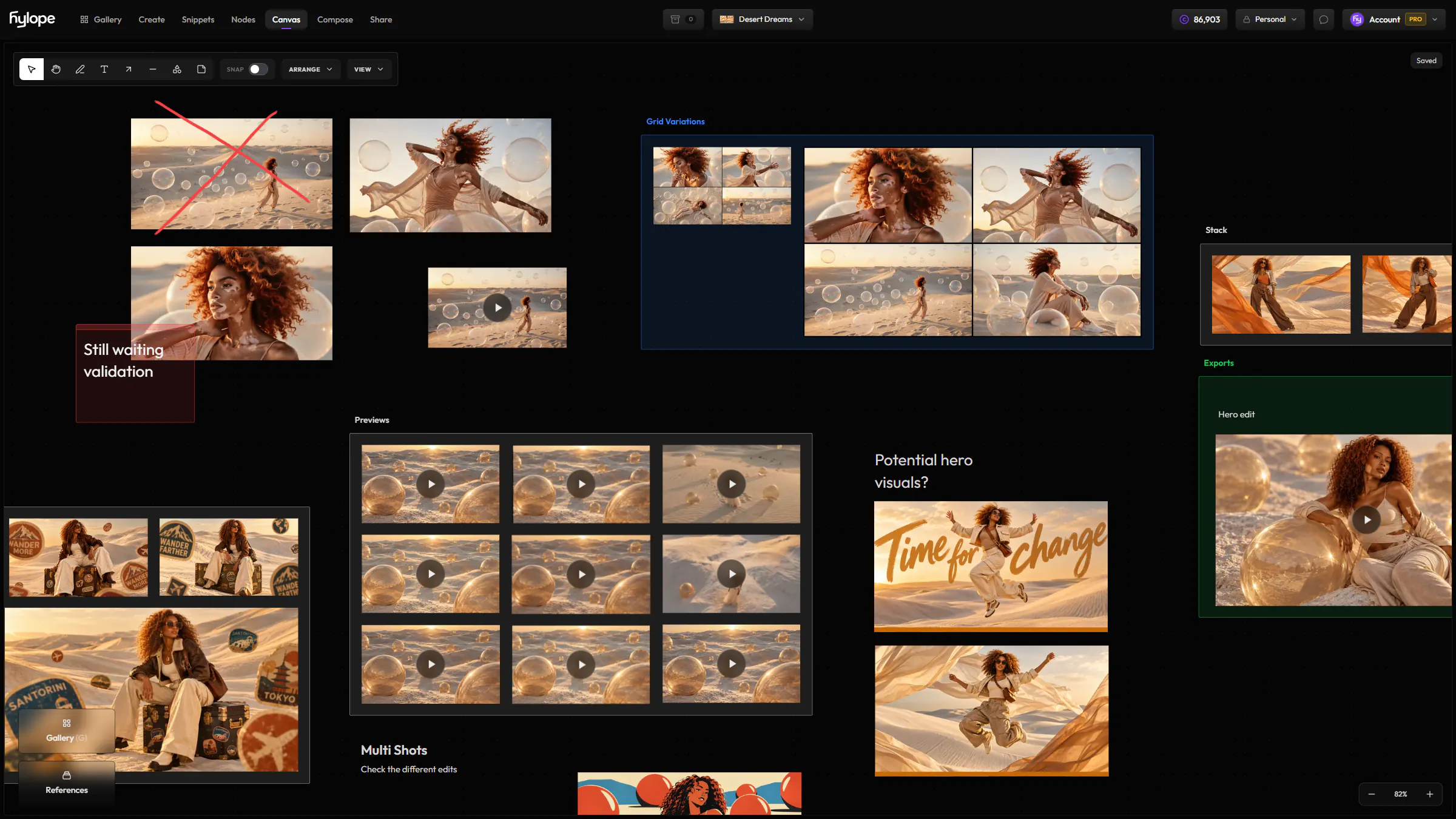
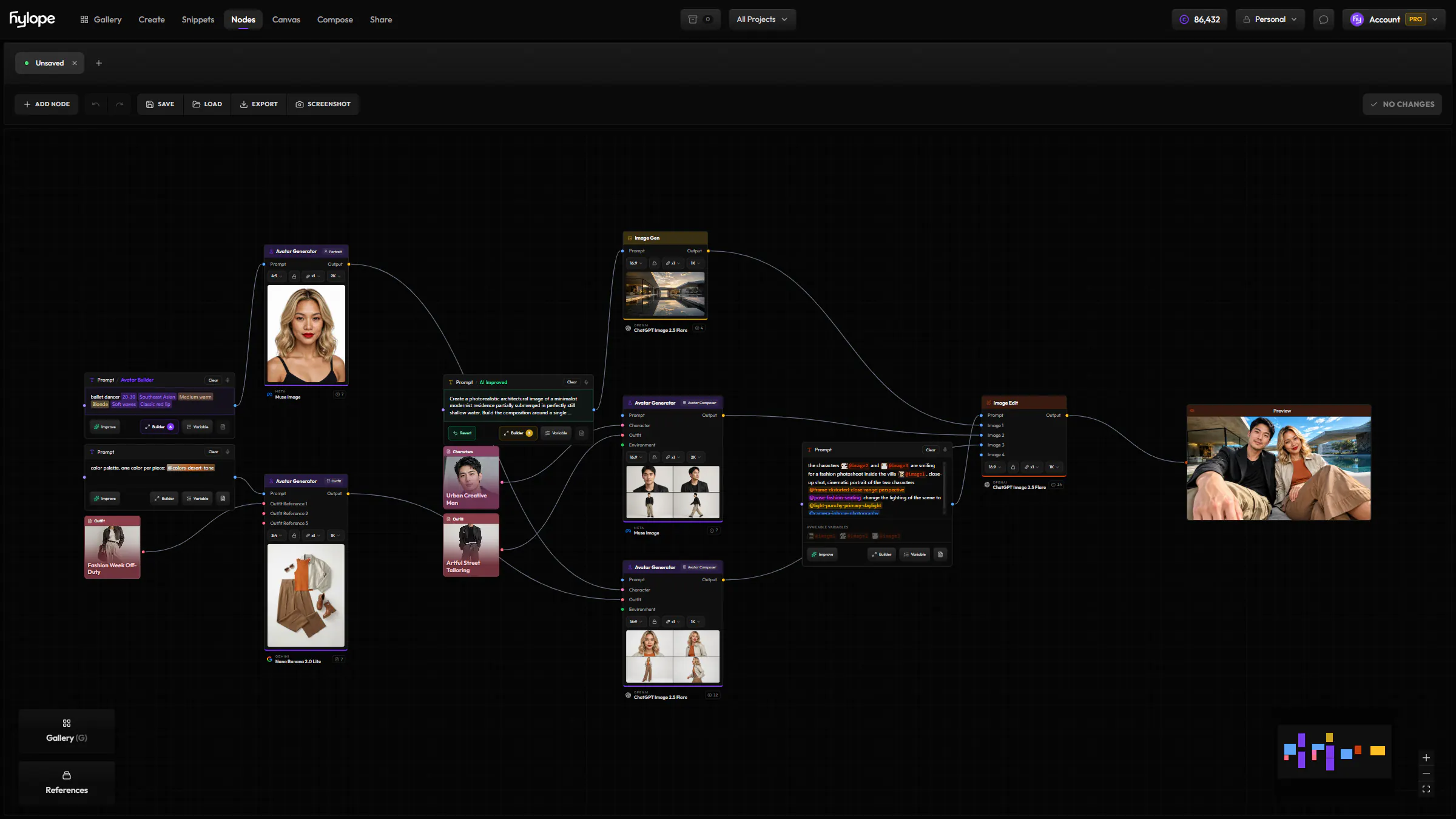
Any result, as its graph
Open anything made in Create in Nodes, and Hylope rebuilds the graph behind it from its history: inputs, prompts and settings.
AppsNodes
Connect the same generation, editing, and asset tools available across Hylope into repeatable multi-step workflows.
Open anything made in Create in Nodes, and Hylope rebuilds the graph behind it from its history: inputs, prompts and settings.
Turn a step into the asset it made, and the nodes that only fed it fold away. Expand a generated asset to bring back the steps behind it.
Save workflows to your workspace, or export one as a PNG of the graph. Dropped into Nodes, in any workspace, it rebuilds the graph, prompts and settings included.
Open up to ten graphs in tabs and run them at the same time, as far as your plan’s queue allows. A run keeps going while you work in another tab.
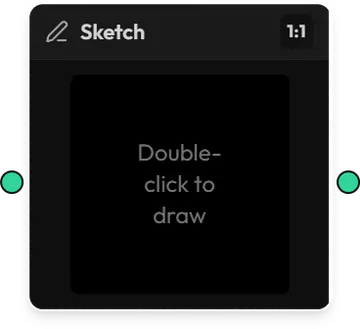
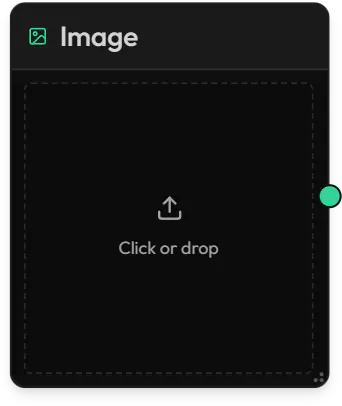
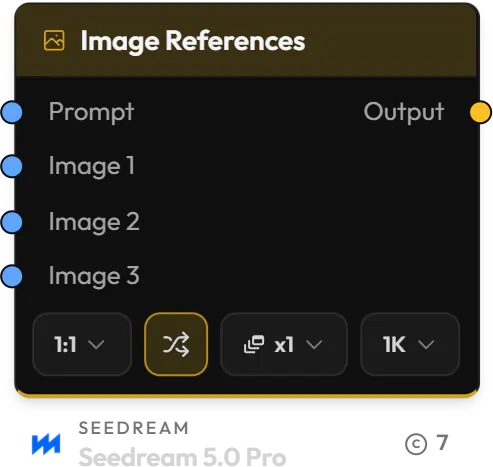
Inputs, steps and outputs, connected by wires. Only compatible ports connect, and dropping a wire on an empty spot offers the nodes that fit.
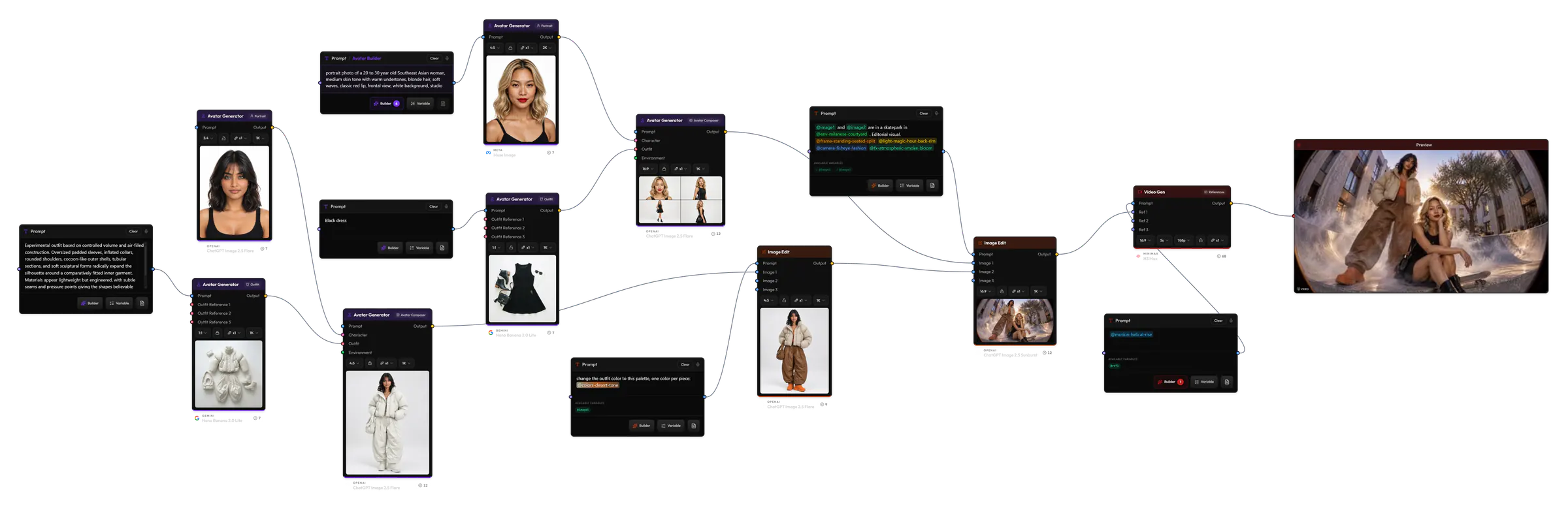
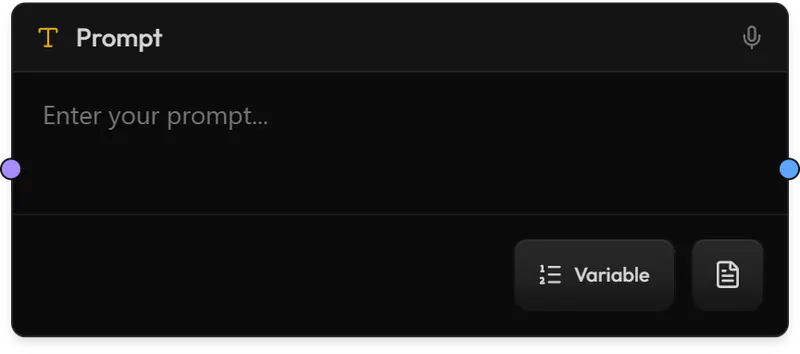
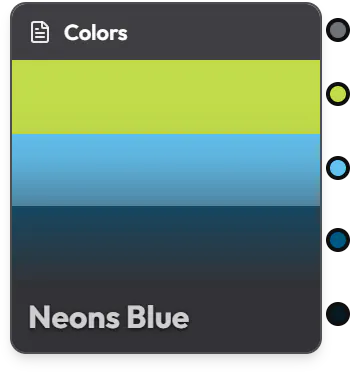
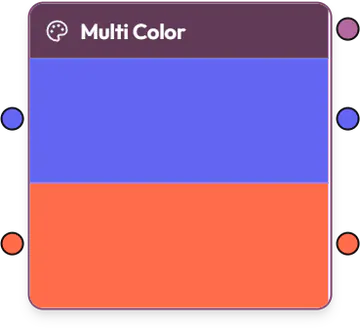
Prompts with @snippets, snippets, colors, and images, video or audio from the gallery or your computer.
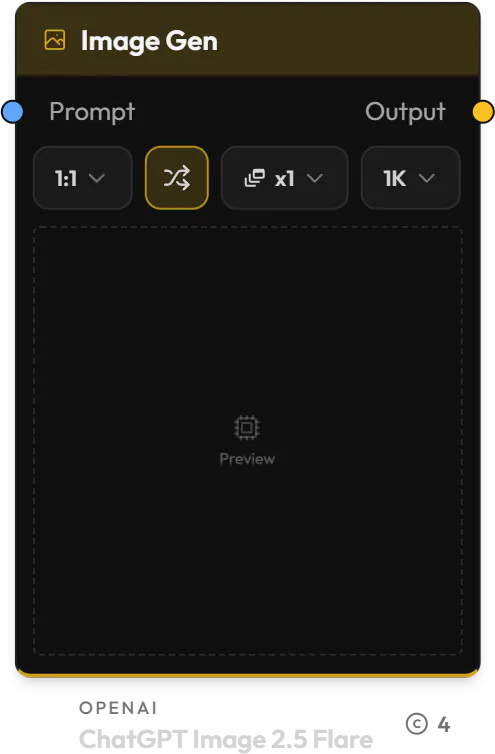
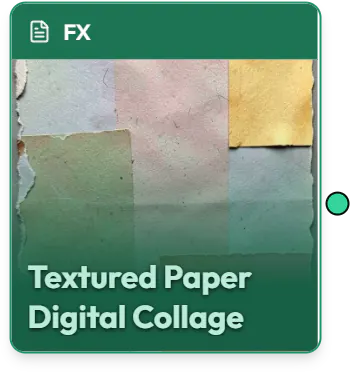
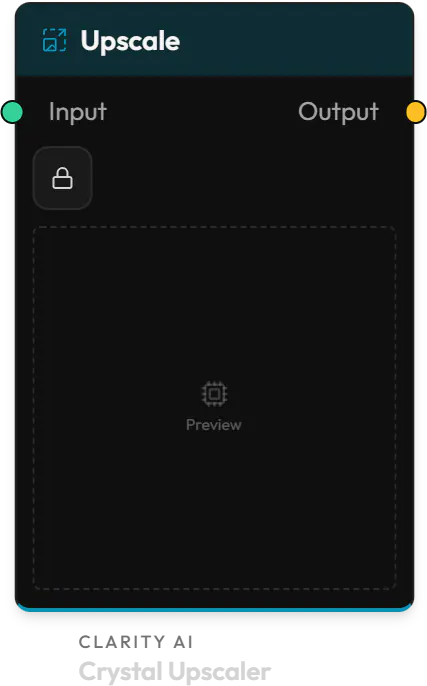
One node per Create mode, with the same models and settings as in Create. Templates run as a step too.
Preview nodes show results as they arrive, and every result also lands in your gallery.
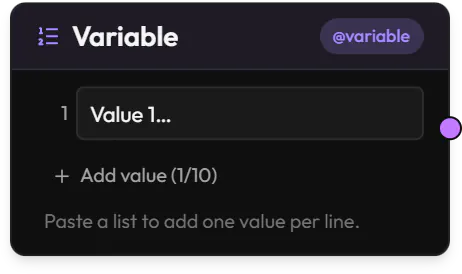
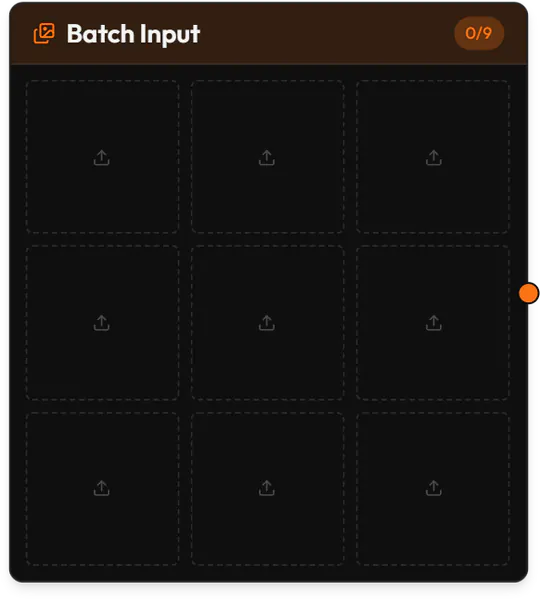
Change one input and run the graph again, or give it a list of values or a batch of images and get one result for each.
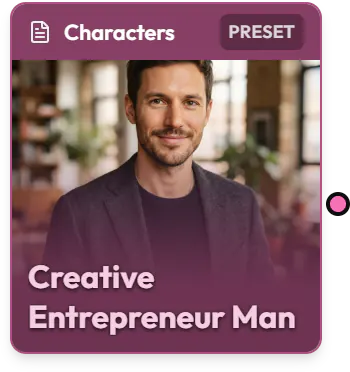
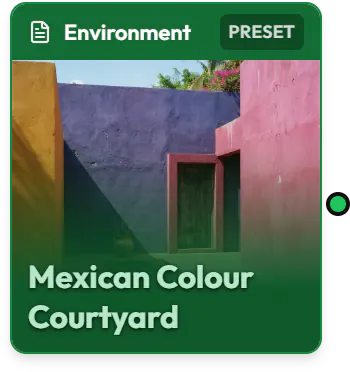
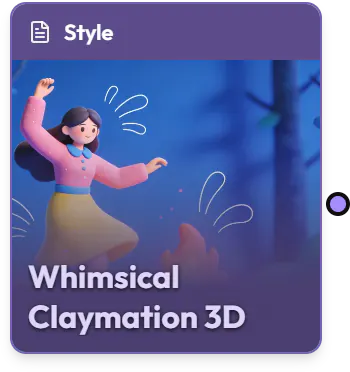
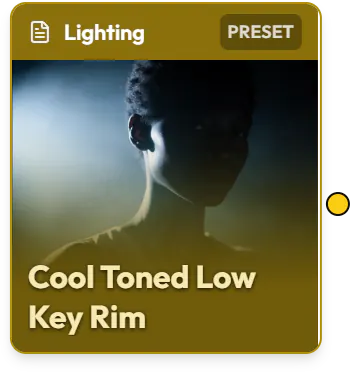
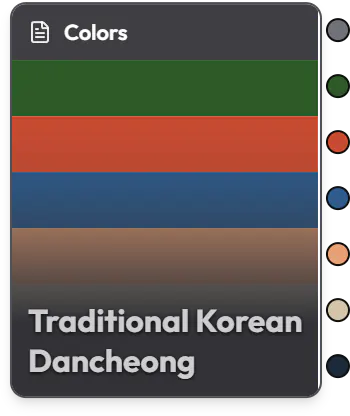
Load any snippet or preset as a node and wire it into the nodes that take it: a style, a character, an outfit or an environment into the input made for it, or any snippet as a whole prompt. Drag a wire out of an input, and Nodes offers the snippets that fit. Discover Snippets
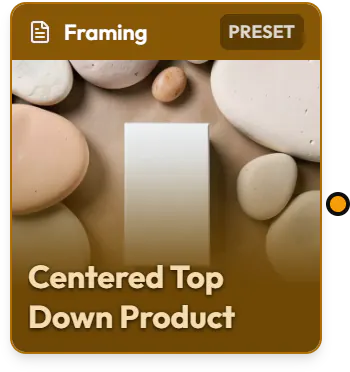
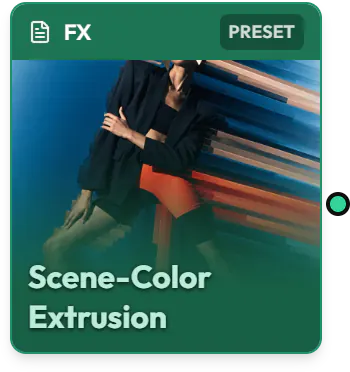
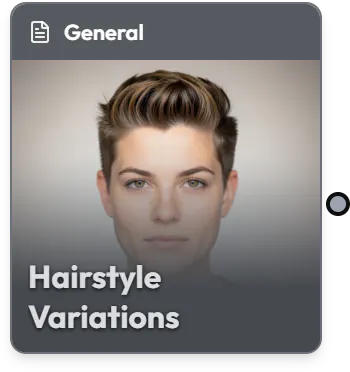
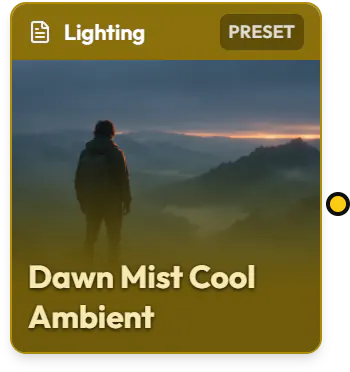
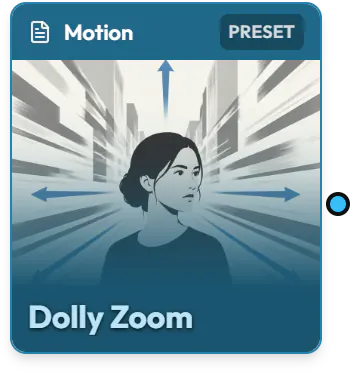
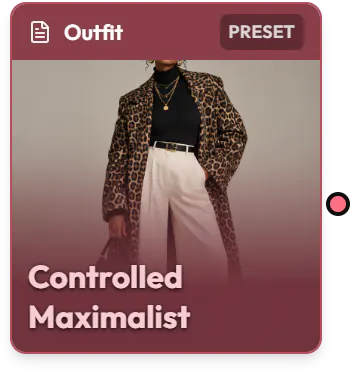
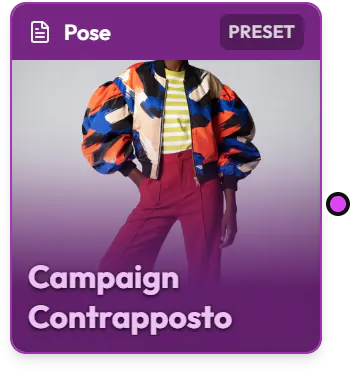
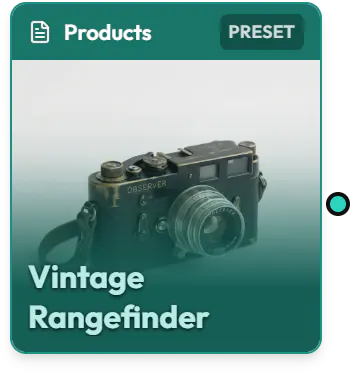
All of Create’s modes are here, with the same models and settings, beside the prompts, snippets, inputs and previews that connect them. Discover Create
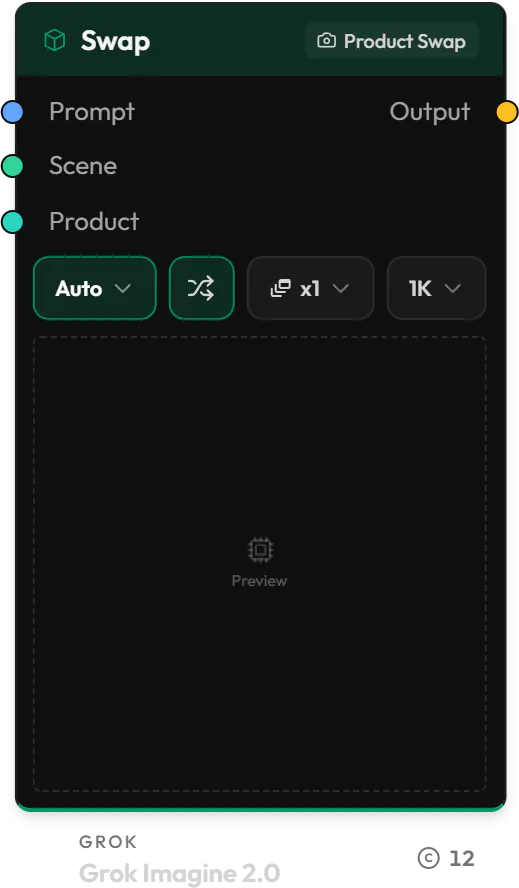
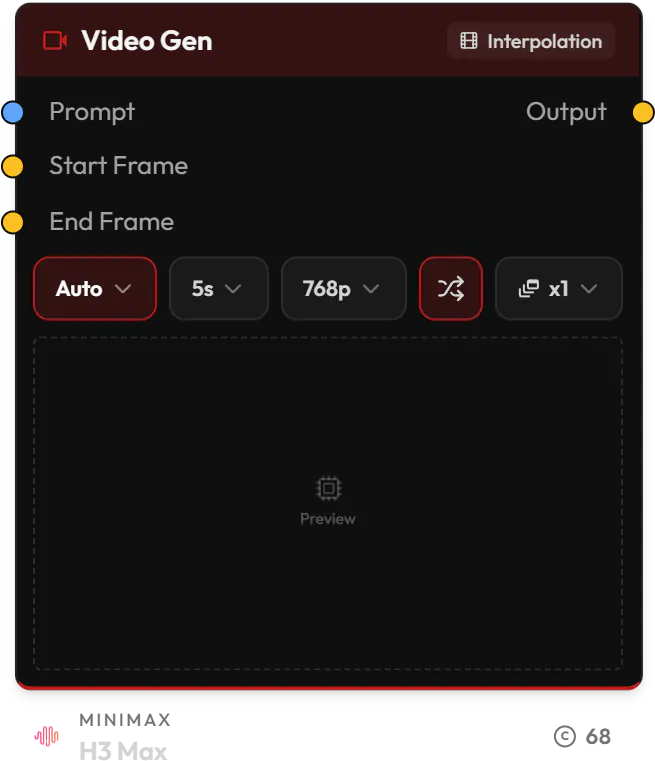
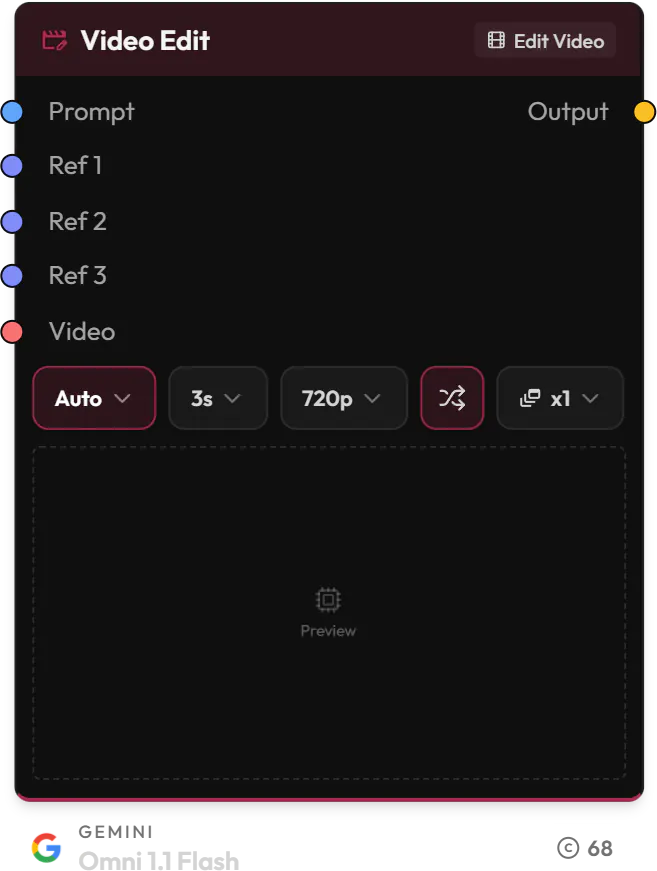

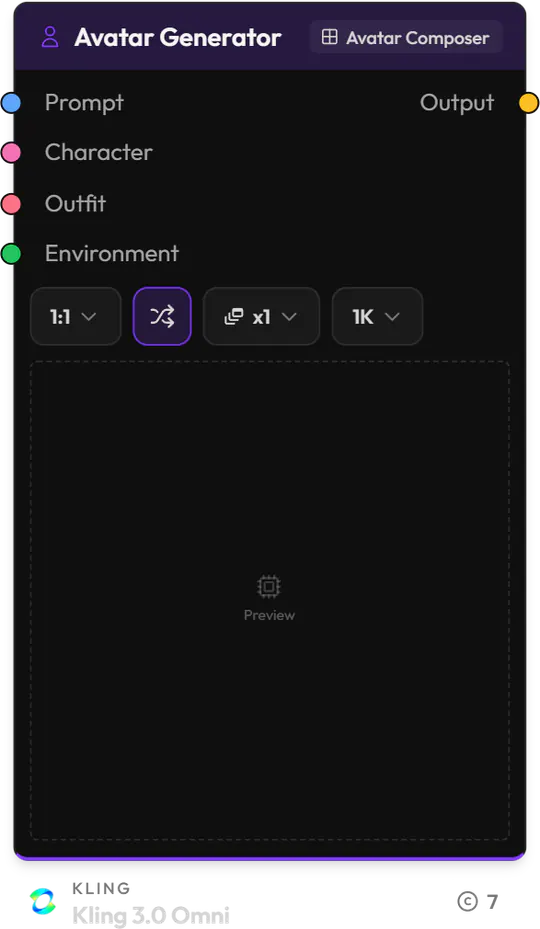
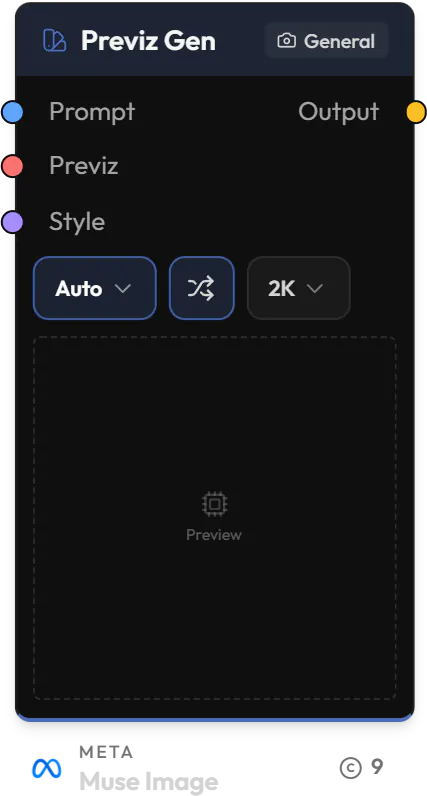
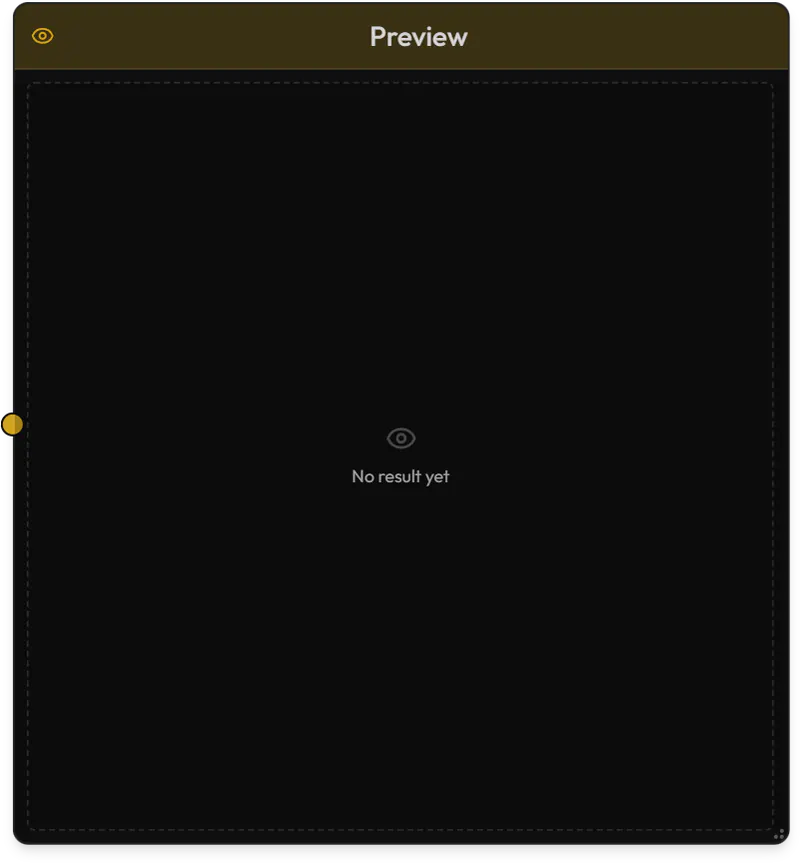
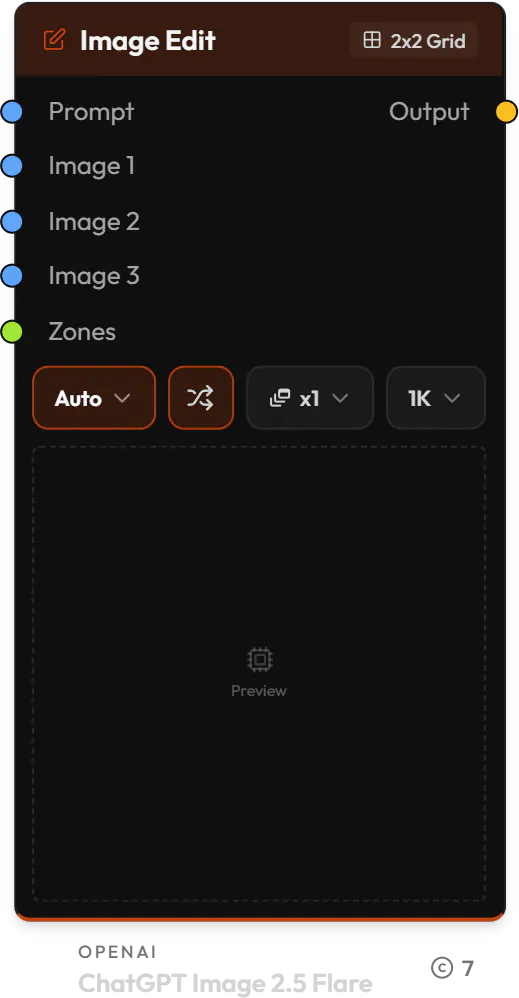
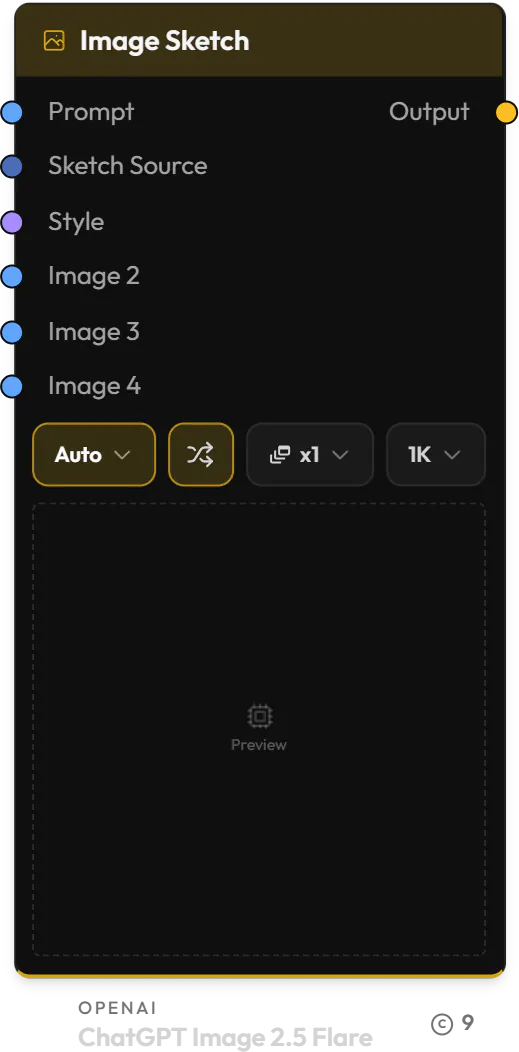
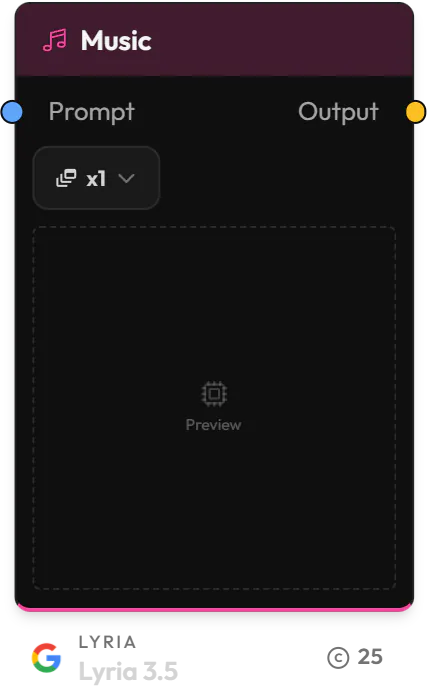
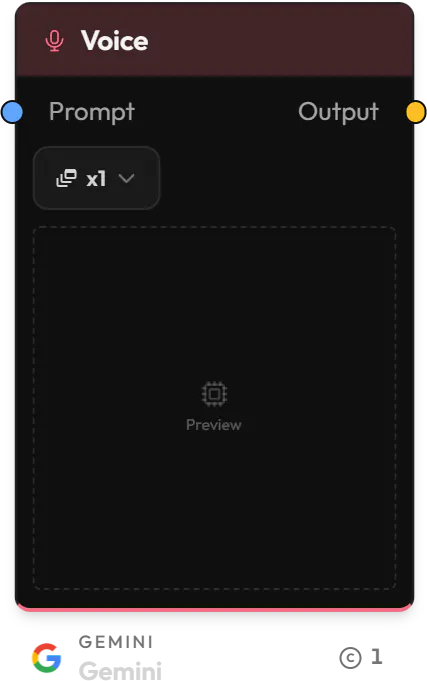
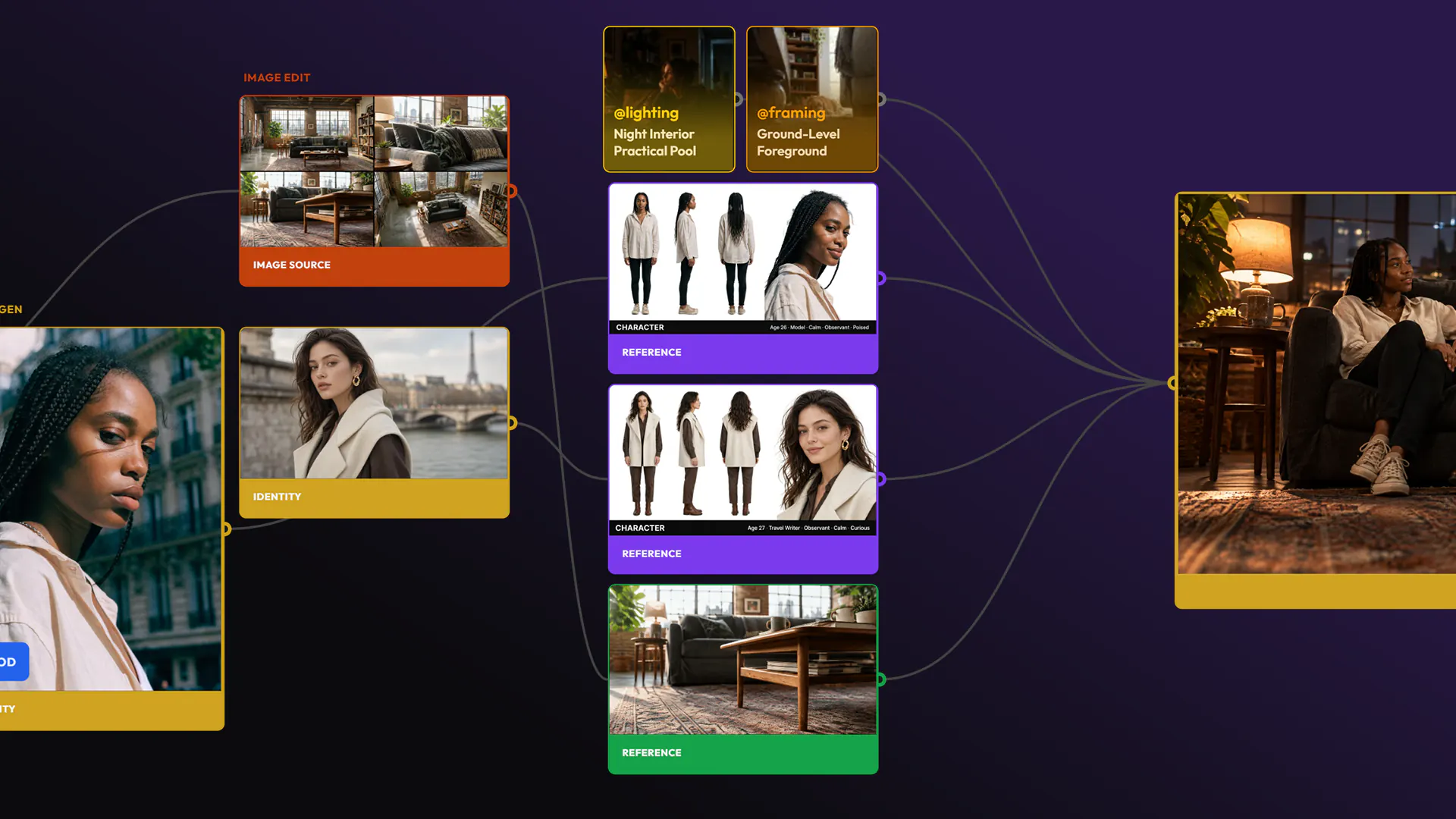
Open in Nodes turns a result’s lineage into the graph that made it: its steps, inputs, prompts and settings.
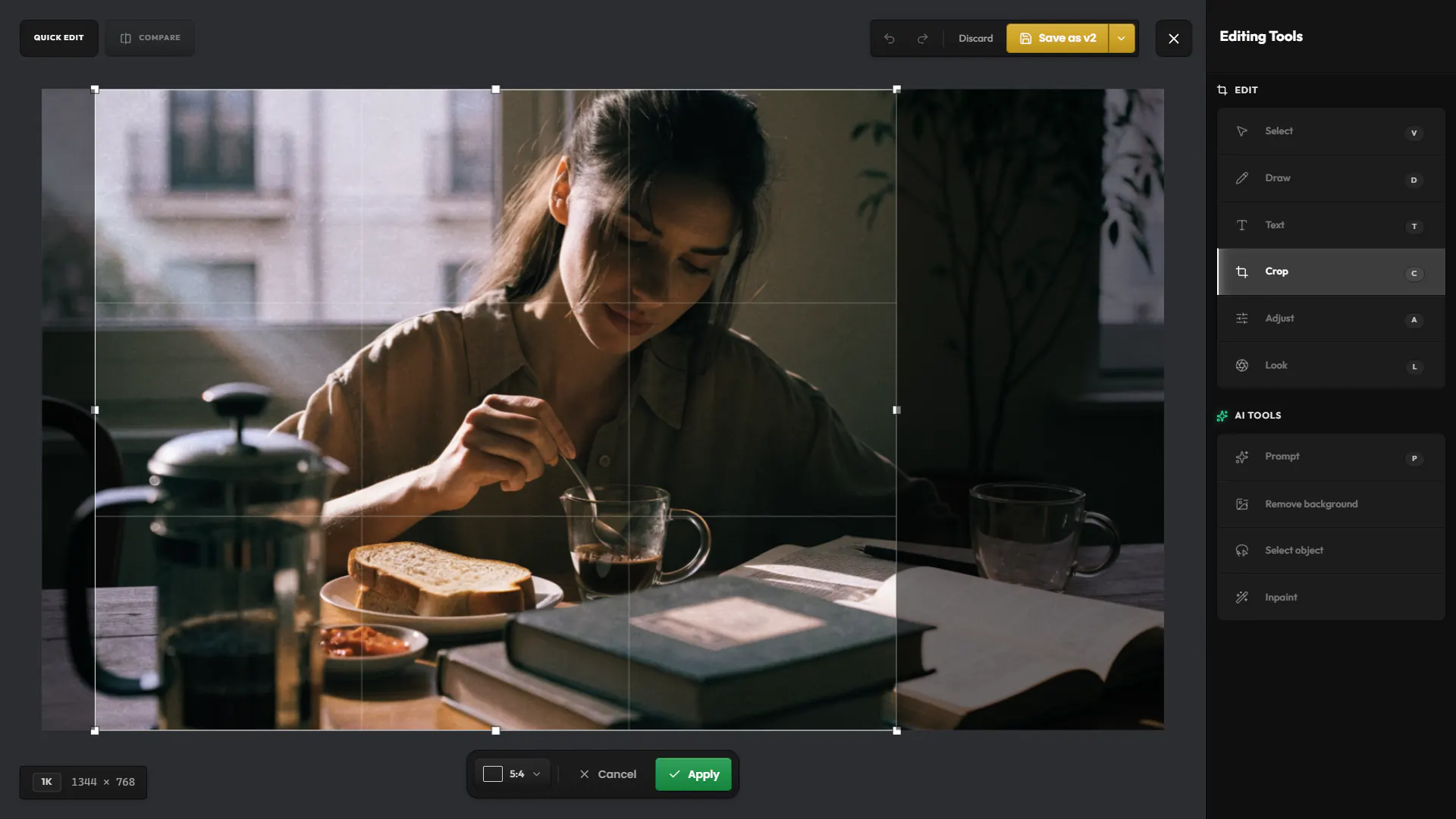
Fix an image in an input node with Quick Edit, and the node takes the new version.
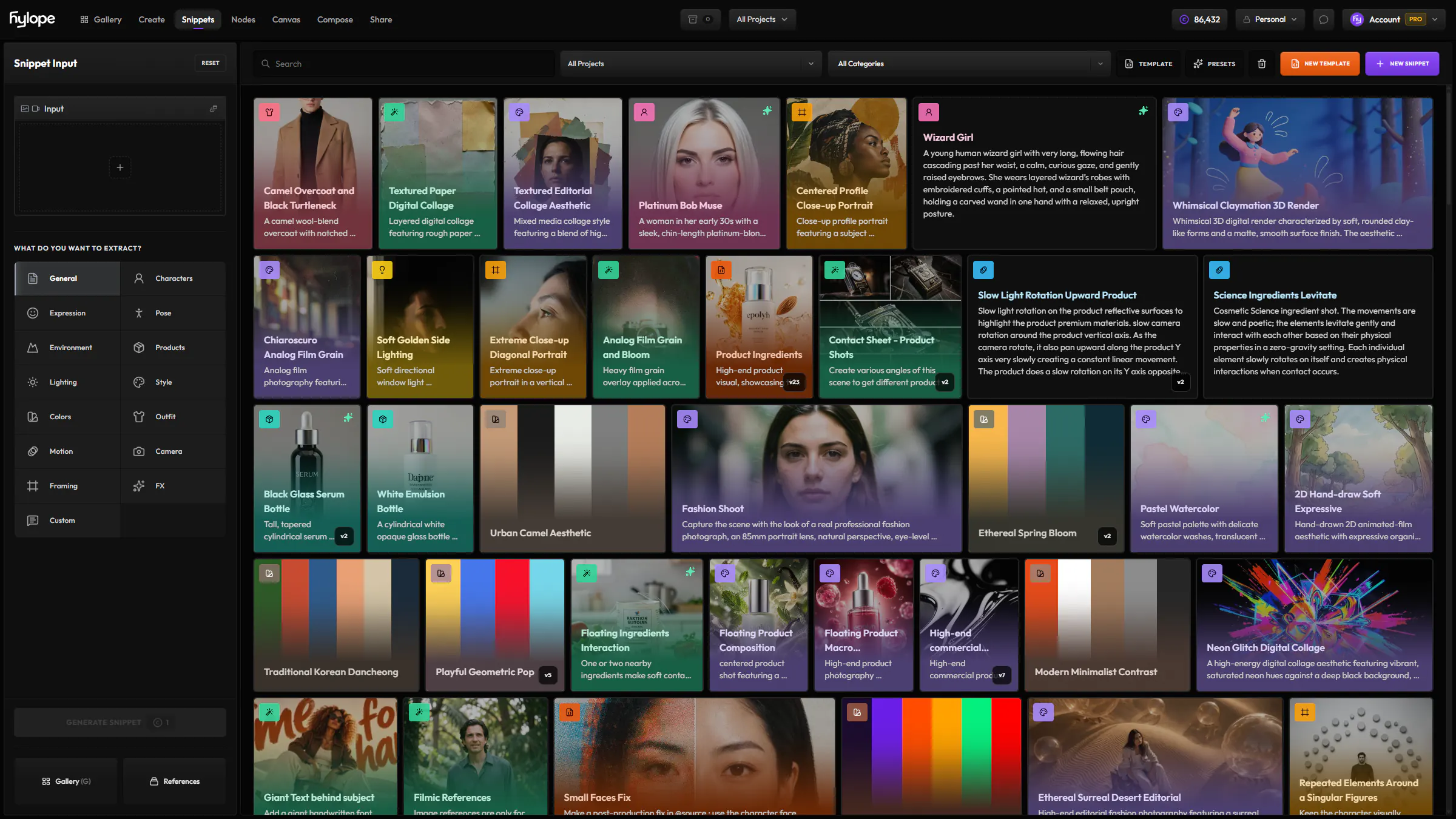
Add a snippet to a Prompt node’s text, or bring it in as a Snippet node of its own.
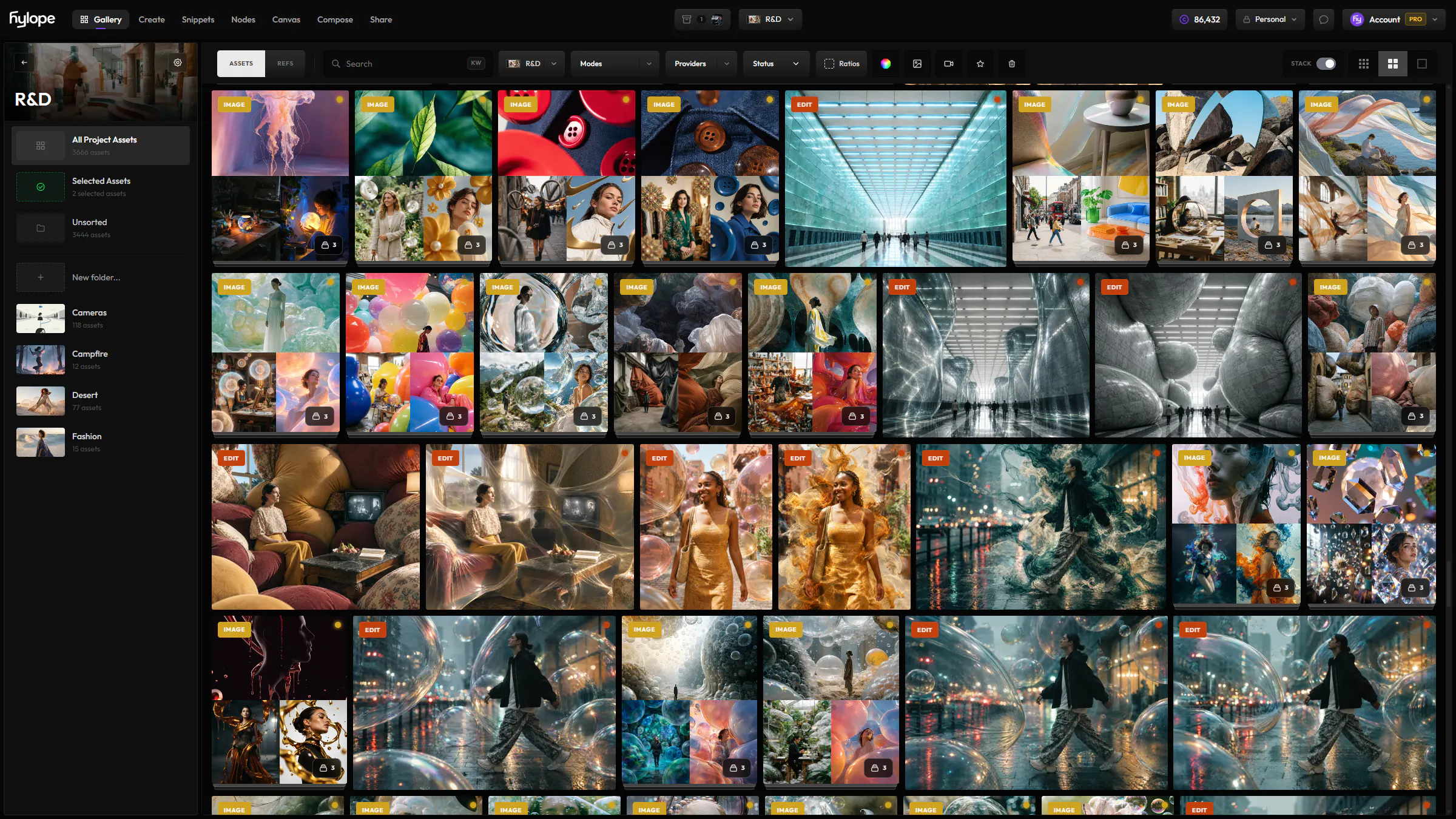
Results land in the gallery, in your current project. Right-click one and choose Open in Nodes.
No. Work in Create as usual, then open any result in Nodes to get the graph that made it, ready to change and run again.
Yes. Each mode node has the models and settings of that mode in Create.
Yes. A Batch Input runs each of its images as its own job, and a Variable node runs one job per value.
Save it to the workflow library of your workspace, or export it as a PNG with the workflow inside: dropping that PNG into Nodes loads it. In a team workspace, only the Owner can save workflows.
Hylope 1.7 is open to everyone. New accounts start with 100 free credits.