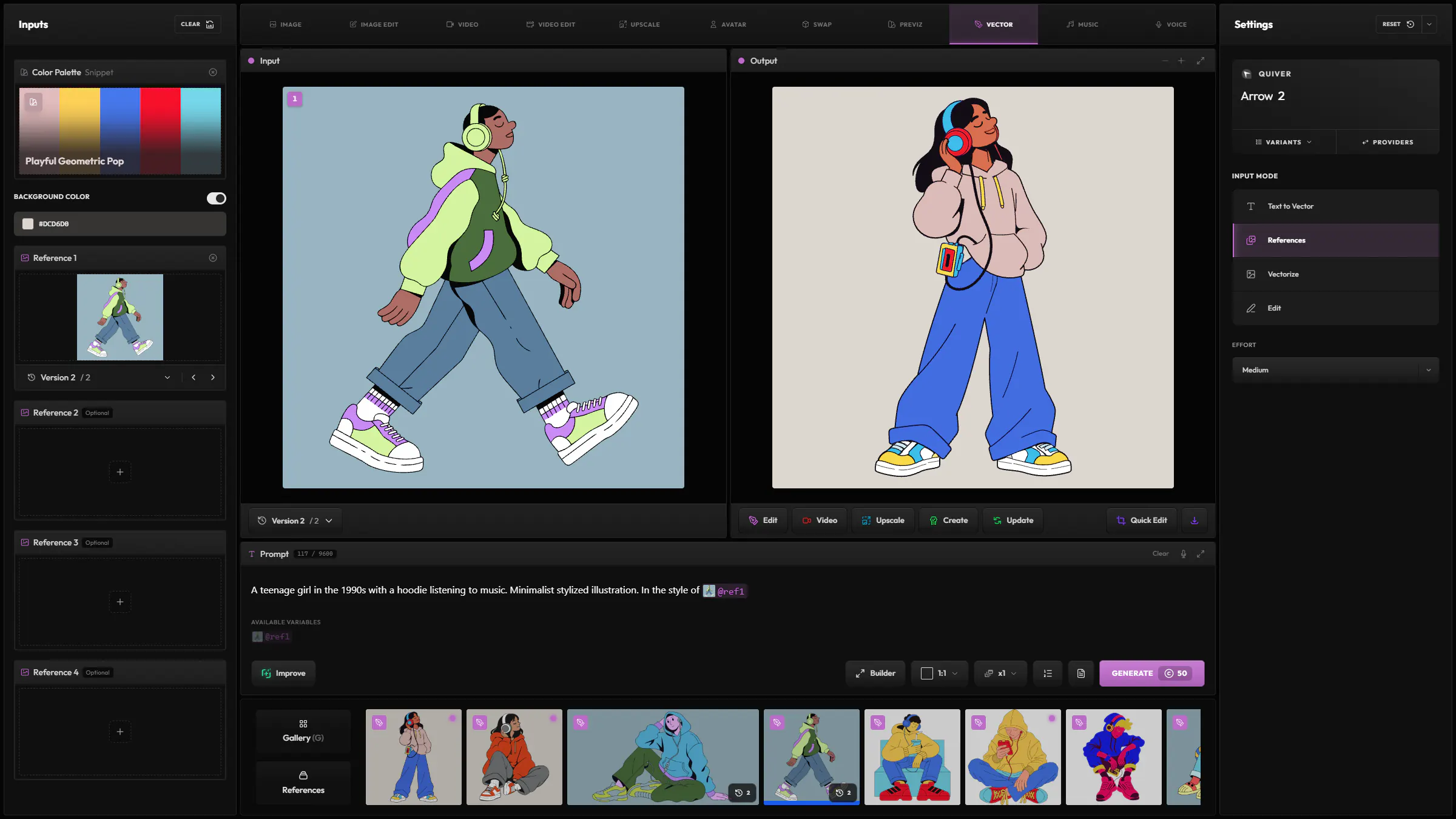
Start with your colours
In Text to Vector and References, load a colour snippet or an image as the palette. Set a background colour too. The palette guides the model; Quick Edit lets you refine the result. About colour snippets
Make logos, icons and illustrations from a prompt or references, turn an image into a vector, or change an existing SVG with words. Keep your artwork sharp at any scale.
Give a reference for the style and a colour snippet for the palette, and the model draws a new vector.
Describe a logo, an icon or an illustration. Set the ratio, choose a model, and generate an SVG you can keep editing.
 Recraft
 Quiver
 Ideogram
Bring reference images and say what each contributes with @ref1 and @ref2. A sketch can guide the layout; another image can set the look.
Load an image and trace it into vector shapes. No prompt needed. Start with a logo, a drawing or a flat illustration to give it a scalable version.
Load a vector and describe the change: a new detail, different lettering, another composition. Add reference images to guide the edit. The result is still an SVG.
In Text to Vector and References, load a colour snippet or an image as the palette. Set a background colour too. The palette guides the model; Quick Edit lets you refine the result. About colour snippets
Change a colour across the drawing, apply a palette, shuffle it or reduce the number of colours. Adjust the hue, saturation and brightness, change the background, and fit the frame around the artwork. Save it as a new version. Quick Edit for vectors
Download the SVG to carry on in your vector editor, or a PNG for a layout or presentation. Your original and its saved versions stay together in Hylope.
A full editor for long prompts, not a single line.
Add your saved snippets with @. They show as tags in the prompt.
Refer to each loaded image by its token, such as @image1.
Give a @variable up to ten values and get one generation for each.
Rewrite your prompt for the selected model, and undo it in one click.
Fix spelling and grammar without changing your tokens and variables.
Translate your prompt to English, keeping its tokens and variables.
6 models from 3 providers, the same list as the model picker in the app.
Recraft
QuiverQuiverAI
Ideogram
Yes. Vector makes static SVG artwork, with a PNG preview for the Gallery and other image inputs. Download the SVG to use the vector itself.
Recraft, Quiver and Ideogram offer vector models. The choices depend on the input mode: Text to Vector, References, Vectorize or Edit. The models section above lists them.
Yes. Open Quick Edit on a vector to change its colours, apply a palette, adjust the background or crop its frame. These tools do not run an AI generation.
Yes. Hylope uses its PNG preview where an input needs an image. The SVG stays with the asset for vector editing and download.
Each model and operation has its own credit price. Settings such as effort and review passes can change it. Generate shows the cost before you submit.
Hylope 1.8 is open to everyone. New accounts start with 100 free credits.