
In this tutorial, we’ll learn how to use snippets in Hylope, and how to build your own library.
A snippet holds one piece of direction: describe @characters, an @outfit, a @framing, a @lighting, an @fx. Each category has its own colour, so instead of writing a long paragraph, you build your prompt from a few tags, and you can change one without touching the others.
What you will build
- A scene composed only with snippets, typed with @
- Your own @pose and @fx snippets, improved with AI optimization
- A color palette with exact hex values
- Snippets extracted automatically from a reference image
- Versions of a snippet, so you can go back to an earlier one
Start with the presets
Hylope comes with hundreds of preset snippets, sorted by category. We start by browsing them, then take a simple prompt and swap the character, then the lighting, to see what changes in the image.
Type @ to compose a scene
In the prompt bar, type @ and start typing a name to add a snippet. We combine a character, an outfit, a pose, an environment, a framing, a light and an effect: seven snippets, and no sentence at all.
To make a variant, delete one tag and type another. In the video, we swap the outfit, the location and the lighting this way.
Model
- Image Gen

Prompt
@char-effortless-cool-woman @outfit-cinematic-pop-protagonist @pose-seated-fashion @env-black-volcanic-coast @frame-repeated-elements-around-subject @light-golden-hour-backlit-contrast @fx-floating-objects
Learn more about snippets
Worked examples of a full stack, and what changing a single tag does to a finished image:
Create your own snippets
Next, we write our own snippets in the Snippets app: a @pose and an @fx. AI optimization turns a short description into a more detailed prompt. When a snippet is close but not quite right, click Save new version: the earlier versions stay in its history, and Make active switches back to one.
We also create a color palette with exact hex values, so a brand colour stays the same in every image.
Extract snippets from an image
You can also start from a reference image. Hylope reads it and creates the snippets for you, sorted by category, ready to edit or reuse.
Compare and reuse
We then compare the results in the shelf and the comparison view, and run the same snippets with Gemini, Muse, ChatGPT and Grok to see how each model reads them.
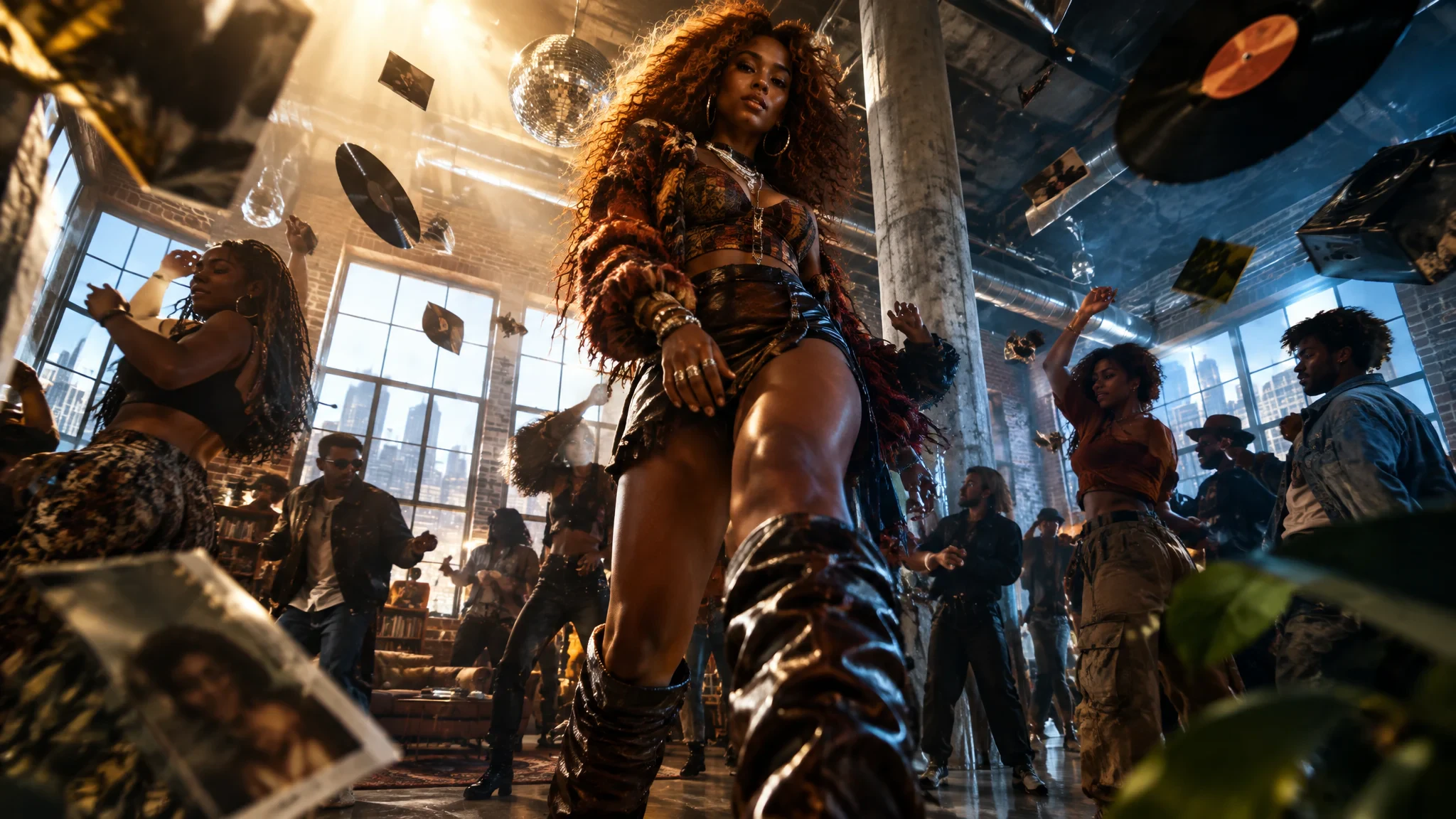
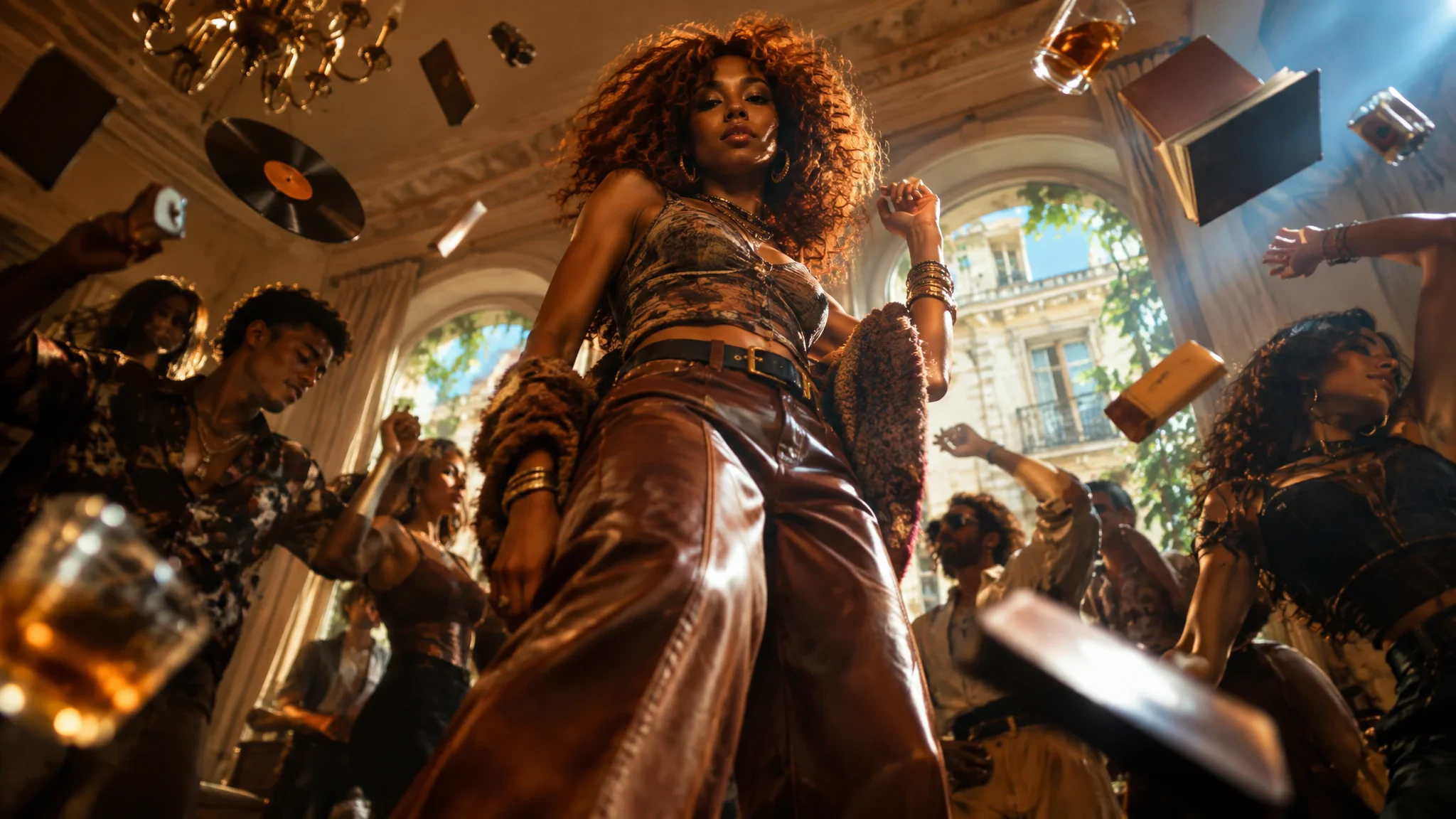
Here, only the environment snippet changes, from Parisian Apartment to Industrial Loft. Everything else in the prompt stays the same.
Your snippets aren’t limited to image generation. At the end of the video, we use them in Image Edit, Quick Edit and Style Transfer, and link them inside templates and nodes.