
TutorialVideo16 min
Prompt multi-shot videos with a visual editor
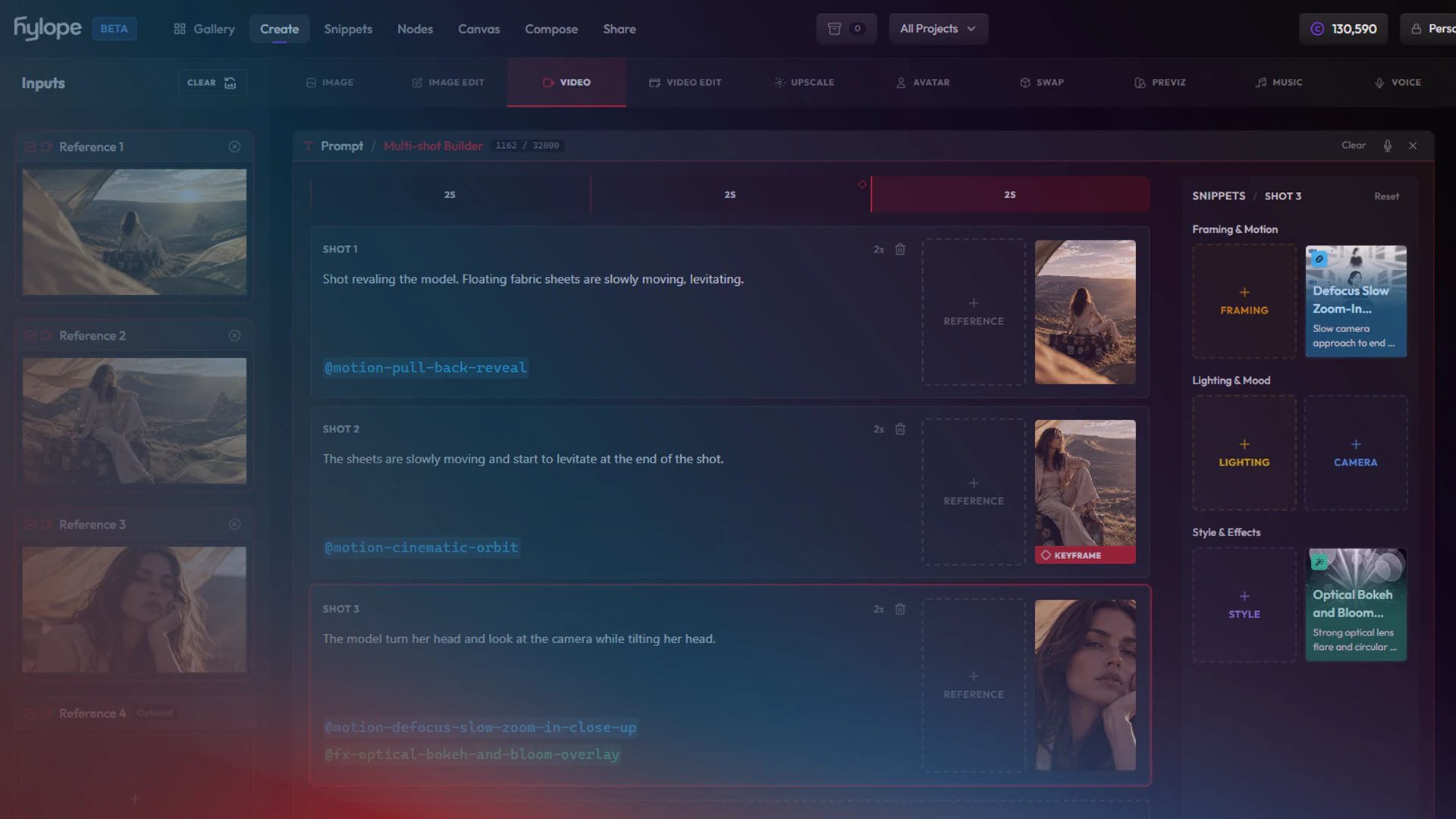
Plan a multi-shot video on a visual timeline: one card per shot, each with its own reference image and camera motion.
Generate a video clip from a prompt, from start and end frames, from keyframes or reference media, or from an audio performance or a motion clip.
TutorialVideo16 min
Prompt multi-shot videos with a visual editor
Plan a multi-shot video on a visual timeline: one card per shot, each with its own reference image and camera motion.
The Video tab makes new clips. Choose how you guide the clip under Input Mode in the settings panel. Each input mode has its own inputs, and the model picker only offers the models that support it.
To change a clip you already have (edit it, extend it or change its ratio), use Video Edit.
Video opens on Start Frame with MiniMax H3 Max. Choose Text to Video to work from the prompt alone, or another input mode from the list.
Click the model card at the top of the settings panel to open the picker. Changing the input mode can change the model, because not every model supports every mode. The models table shows which input modes each model covers.
The ratio, resolution and duration pills only offer what the model supports. Some inputs set the length for you, such as an audio track or a motion clip. Click Generate: the button shows the credit cost first.
Start Frame animates one image: load it in Starting Frame and describe what happens next. Start + End Frame adds an Ending Frame, and the clip moves from the first image to the second.
References drives the clip with media you load as Reference 1, Reference 2 and so on: images, and on some models video or audio. Name them in the prompt with @ref1, @ref2. Dropping several files on one slot fills the next ones.
Avatar animates a character image with a voice or a song. Load the image in Starting Frame and the performance in Audio. The clip’s length follows the audio. Two models offer it:
You can make the audio in Voice or Music.
Keyframes pins images to points in time and renders a clip that passes through them in order. Each slot (Keyframe 1, Keyframe 2 and so on) has a Timecode control. Add slots as you need them.
Motion Control copies the movement of a video clip onto your image. Load the image in Starting Frame and the clip in Motion Reference. It runs on Kling 3.0.
Many models can generate sound with the clip. When the selected model can, a Generate Audio switch appears in the settings panel. On a few models the sound is always on.
Some models also take audio as an input. LTX can drive a Start Frame clip from an Audio file, and Wan 3.0, Seedance and MiniMax H3 accept audio among their references.
Several models can render one clip as a sequence of shots, among them Kling 3.0, Seedance, MiniMax H3 and Wan 3.0. With one of them selected, click Builder in the prompt bar: the Prompt Builder shows a shot timeline, locked to the duration you picked.
Give each shot its own description and length, and link a reference or a camera snippet to it. The builder writes the prompt in the format the active model expects, so you can render the same shots on another model without rewriting them.
Flux 3.0 Video, MiniMax H3 and Seedance 2.5 can render a Draft: a cheaper preview, at 720p on Flux, 768p on H3 and 480p on Seedance 2.5. Turn on Draft in the settings panel, and the Generate button changes to Draft.
When a draft is worth keeping, open it and click Finalize to render it again at full quality: 1080p on Flux and Seedance 2.5, 1440p on H3. The result is usually close to the draft, but fine detail or motion can shift. H3 and Seedance 2.5 drafts can be finalized for up to a week after they were made. See Pricing for costs.
Some models add their own settings under the model card, most of them inside Advanced Controls. For example:
| Setting | Models | What it does |
|---|---|---|
| HDR Output | Ray 3.2 | Renders with a higher dynamic range, at 720p or 1080p. Limits the clip to 5 seconds. |
| Seamless Loop | Ray 3.2 | Renders a clip that loops. Text to Video and Start Frame only, 5 seconds, and not with HDR. |
| Camera Motion, Guidance Scale | LTX | A preset camera move, and how closely the clip follows the prompt. |
| Negative Prompt | Veo | What to keep out of the clip. |
Every model in the Video tab, with the input modes, resolutions and durations it supports. The longest clips, up to 30 seconds, come from Wan 3.0 and Seedance 2.5.
 MiniMax
Multimodal video up to 1440p from text, frames, mixed references, or prompt-based video edits; drafts at 768p
Text to Video, Start Frame, Start + End Frame, References768p, 1440p4 to 15s
H3 variant tuned for stronger prompt adherence; text, frame, or reference-driven video at 480p/768p, 5-15s
Text to Video, Start Frame, Start + End Frame, References480p, 768p, 1080p5 to 15s
H3 Max on a faster inference stack: same render, half the price, no reference support
Text to Video, Start Frame, Start + End Frame480p, 768p, 1080p5 to 15s
 VeoGoogle
Most affordable Veo 3.1 option
Text to Video, Start Frame, Start + End Frame720p, 1080p4, 6, 8s
Quick previews with good quality
Text to Video, Start Frame, Start + End Frame, References720p, 1080p, 4K4, 6, 8s
Full quality generation
Text to Video, Start Frame, Start + End Frame, References720p, 1080p, 4K4, 6, 8s
GeminiGoogleFast generation, interpolation, editing, and continuation at 360p, 720p, 1080p, or 4K.
Text to Video, Start Frame, Start + End Frame, References360p to 4K3 to 10s
 SeedanceBytePlus
Up to 30s in one shot, 50 references, timestamped editing
Text to Video, Start Frame, Start + End Frame, References480p, 720p, 1080p4 to 30s
Multimodal generation, edit, and extend
Text to Video, Start Frame, Start + End Frame, References480p, 720p, 1080p4 to 15s
Faster multimodal generation, edit, and extend model
Text to Video, Start Frame, Start + End Frame, References480p, 720p4 to 15s
Cheapest multimodal generation, edit, and extend model
Text to Video, Start Frame, Start + End Frame, References480p, 720p4 to 15s
 KlingKlingAI
Fast text/image video with multi-shot, 720p/1080p
Text to Video, Start Frame720p, 1080p3 to 15s
Core text/image video with multi-shot and motion control
Text to Video, Start Frame, Start + End Frame, Motion Control720p, 1080p, 4K3 to 15s
Omni mixed-media video with references
Text to Video, Start Frame, Start + End Frame, References720p, 1080p, 4K3 to 15s
Talking avatar from a start frame and audio
Avatar720p, 1080p
 Luma
LumaHDR-capable video with keyframes, edit and expand
Text to Video, Start Frame, Start + End Frame, Keyframes540p, 720p, 1080p5, 10s
 GrokxAI
Text, start frame, references, edit, and extend
Text to Video, Start Frame, References480p, 720p1 to 15s
Text, start and end frames with references, keyframes and preset voices; 1080p for text and start frames without references
Text to Video, Start Frame, Start + End Frame, Keyframes, References480p, 720p, 1080p1 to 15s
Text and start frame at a lower price, up to 1080p
Text to Video, Start Frame480p, 720p, 1080p1 to 15s
 FluxBlack Forest Labs
Draft-capable video with audio (720p/1080p, 5–20s)
Text to Video, Start Frame, Keyframes720p, 1080p5 to 20s
 HappyHorseAlibaba
Physically realistic text-to-video
Text to Video, Start Frame, References720p, 1080p3 to 15s
 LTX
LTXNative multi-shot, up to 4K and 20s
Text to Video, Start Frame, Start + End Frame720p to 4K6 to 20s
Native multi-shot at the highest fidelity, up to 4K
Text to Video, Start Frame, Start + End Frame720p to 4K6, 8, 10s
Quick iteration, longer durations up to 20s
Text to Video, Start Frame, Start + End Frame1080p, 1440p, 4K6 to 20s
Higher fidelity, audio-driven & interpolation
Text to Video, Start Frame, Start + End Frame1080p, 1440p, 4K6, 8, 10s
OmniHumanBytePlusImage + audio to talking portrait video
Avatar720p, 1080p
WanAlibabaAll-in-one: text, start/end frame, and mixed image/video/audio references up to 30s
Text to Video, Start Frame, Start + End Frame, References480p, 720p, 1080p2 to 30s
Same capabilities as Wan 3.0 with significantly faster generation, at a higher rate
Text to Video, Start Frame, Start + End Frame, References480p, 720p, 1080p2 to 30s