
The Image tab makes new images. Pick one of its four input modes at the top of the settings panel: write a prompt on its own, load reference images and describe what to make from them, draw zones that say where each element goes, or draw a sketch to render.
To change an existing image rather than make a new one, use Image Edit.
Text to Image
Choose a model
The model card sits at the top of the settings panel. Click it to open the picker, which shows every provider with a short description of each model. The models table below lists the same choices.
Write the prompt
Describe the image in the prompt bar. Type
@to insert a snippet: a saved piece of prompt for a character, an outfit, a light setup or a framing. Snippets keep long prompts readable and let you swap one idea without rewriting the rest.Set the output
The prompt bar holds the ratio, the size, how many images to make and the seed. Each control only offers what the selected model supports.
Generate
Press Enter or click Generate. The button shows the credit cost before you submit. Results appear in Create and in the Gallery.
This image was made with seven snippets and almost no free text. The card shows the recipe exactly as the app stored it: model, prompt and settings.
Model
- Image Gen
Prompt
Fashion photoshoot. is seated on . the background is . The details to be the stickers.
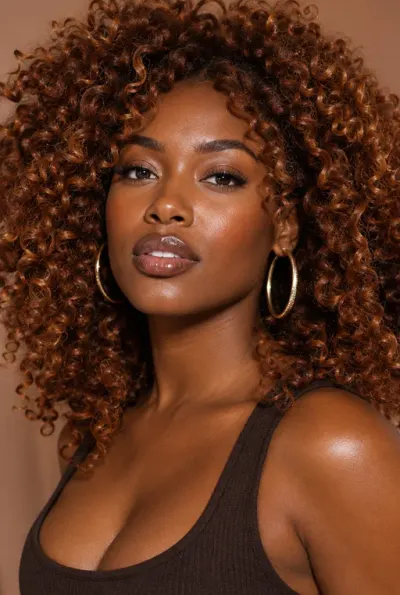 Bold Creative WomanYoung adult Black woman in her late 20s with a medium-deep warm skin tone, sculpted cheekbones, softly rounded jawline…
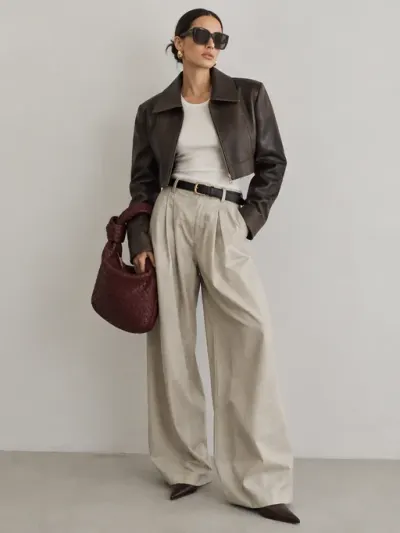 Fashion Week Off-DutyRelaxed but highly considered combination of exaggerated trousers, a fitted tank or fine knit, cropped outerwear, and…
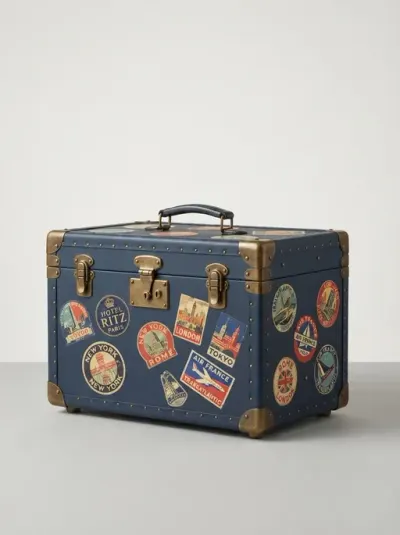 Hard Travel TrunkA rigid travel trunk with corners and latches, built to be…
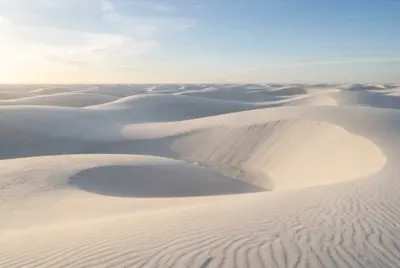 Sculptural White DunesSmooth mineral landscape formed from enormous soft-edged dunes with the appearance of chalk, salt, or finely powdered…
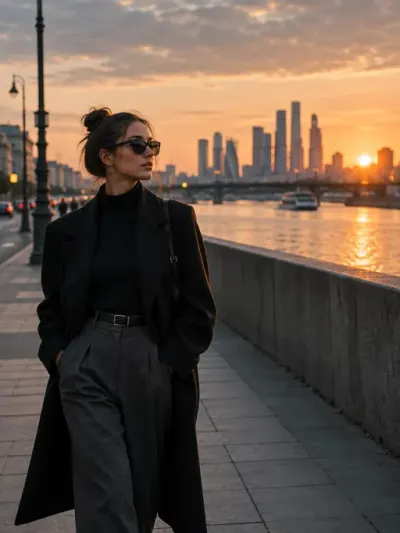 Rule of Thirds PlacementCompositon rule: Rule of Thirds placement. Rest the horizon on the upper or lower third rather than through the middle…
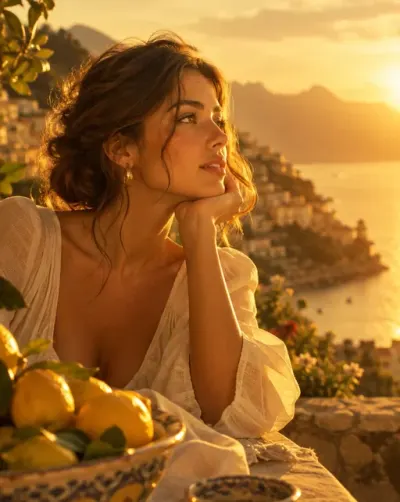 Golden Honey Roll-offLush, honey-gold illumination with a creamy highlight roll-off and warm, open shadows. Contrast is moderate, saturation…
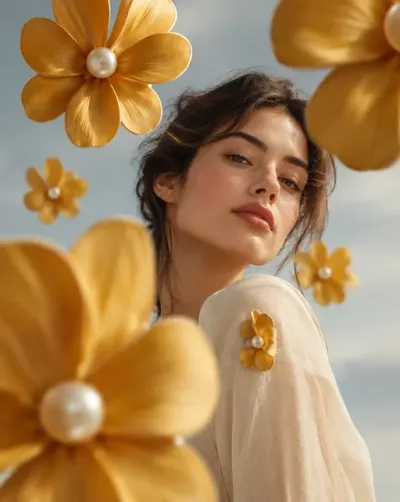 Detail Becomes Motif EchoSpecial effect on the image: Take one small existing detail on the subject, and grow a few large designed echoes of it…
References
References makes a new image from images you load into the input panel. Each slot has a name the prompt can use: @image1, @image2 and so on. Say what each image contributes, for example the jacket from @image2 on the person in @image1.
- The panel shows as many slots as the selected model accepts. The table below lists that limit for each model.
- With two or more references loaded, the prompt becomes optional.
- A style from the Style row can be sent as text or as an image. Sent as an image, it takes one of the model’s input slots.
- If you meant to edit one of the images instead, the input panel offers a shortcut to Image Edit.
Model
- Image Edit
Prompt
and are in a skatepark in venice beach. Editorial visual.
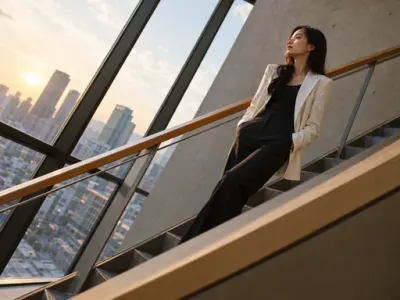 Diagonal CompositionArrange the subject and dominant environmental lines along a strong diagonal running through the frame. Body posture…
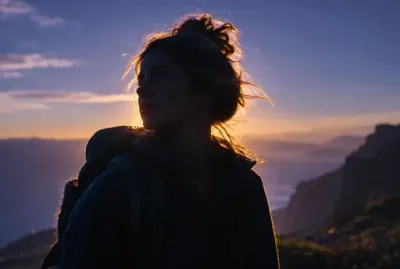 Magic Hour Back RimThe sun sits just below a hard backlight position, wrapping the subject in a warm, luminous rim against a cooling…
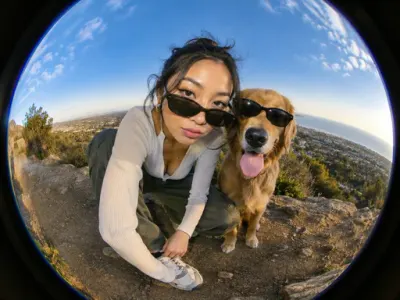 Fisheye FashionShot through a high-quality fisheye lens with pronounced barrel distortion and an extremely wide field of view…
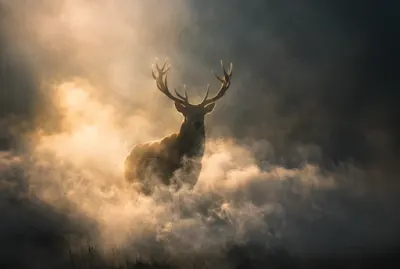 Atmospheric Smoke BloomDense low-lying smoke rolls through the scene and catches the light in visible volume, thinning into haze at the top of…
Zones
Zones makes a new image from a layout. You draw boxes on an empty frame, give each one a name, and use that name in the prompt to place an element there. Zones is in beta.
Draw the zones
The Zones card in the working area shows an empty frame at the ratio set in the prompt bar. Drag on it to draw a zone, drag a zone to move it, and drag its corners to resize it. You can draw up to eight zones. Edit zones, or a double click on a zone, opens a larger editor: click Apply zones to keep what you changed there.
Describe each zone
Each zone is listed in the input panel. Its name starts as
zone_1,zone_2and so on: rename it to something you will recognize in the prompt, such asbottle. Under What goes here, describe what the zone holds. Text is optional: words to render in the zone.Write the prompt
Describe the whole image and call each zone by its name where it belongs, for example a perfume ad, @bottle on a marble plinth, @headline across the top.
Generate
The image follows the layout you drew.
Flux 3.0 and Ideogram 4.5 read the zones directly and take no reference images. The other models in Zones can also take reference images: load them under References in the input panel, then name them with @image1, @image2 in the prompt or in a zone’s description.
Sketch
Sketch turns a drawing into a finished image and keeps its layout and framing. Draw right in Create, draw over an image, or load a sketch you made elsewhere.
Draw the sketch
The Sketch card in the working area is a white frame at the ratio set in the prompt bar. Draw on it with the pen. The tools sit under the frame: pen and eraser, three brush sizes, four ink colors, undo and redo. Full screen opens a larger editor: click Apply sketch to bring the drawing back to the card.
Or start from an image
Upload puts an image under the drawing, such as a rough previz frame to draw over. You can also drop an image from the gallery on the frame, or load it on Sketch Source in the input panel. A finished sketch with no ink on top is rendered as it is. While there is ink over the image, the image stays in place: clear the drawing to change it.
Set the look
Choose a style under Style, or load a style image on the Style card. The prompt is optional: the sketch already says what to make, and a prompt can add detail.
Generate
The result keeps the layout and framing of the sketch.
With the ratio on Auto, the frame takes the ratio of the image under the drawing. Changing the ratio fits the drawing into the new frame without cropping it.
Improve, under the frame, redraws the frame as a clean sketch before you render it. Add a short description of the drawing if it helps, choose a model and click Generate. The clean sketch becomes the image under the frame and the ink is cleared, so you can keep drawing on it. This uses credits.
Settings
These rows sit under the model card. Some only appear for models that support them.
| Setting | What it does |
|---|---|
| Contact Sheet Variations | Lays several variations out in one image: from the prompt, by camera angle, angle and pose, time of day, weather or lighting. |
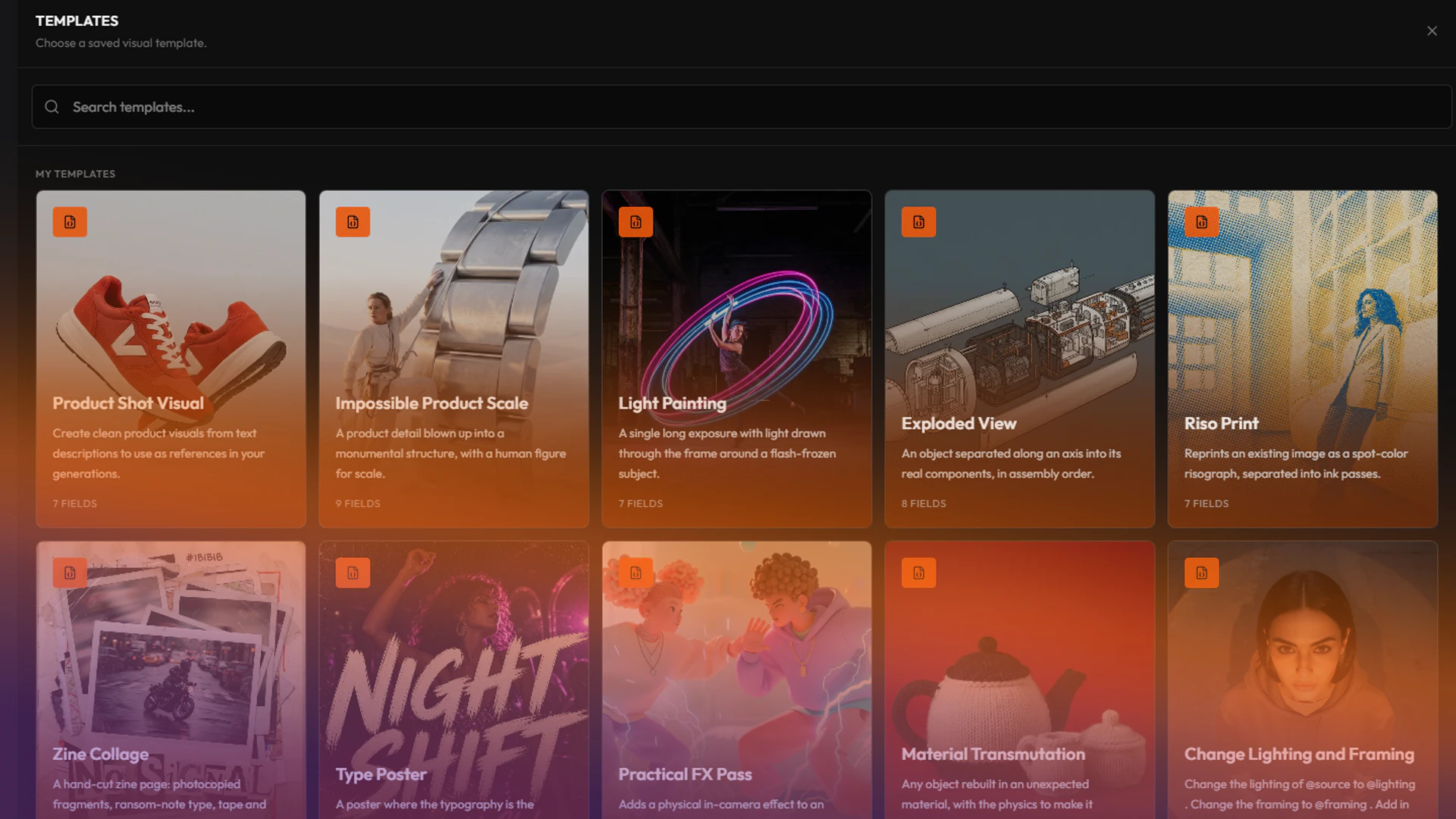
| Template | Fills the prompt from a template: the structure stays fixed and you only fill in its fields. |
| Style | Applies a style preset. Some models can receive the style as an image as well as text. |
| Quality and Advanced Controls | Model-specific options, such as ChatGPT Image’s quality level or Qwen’s negative prompt. |
Model Batch runs the same prompt on several models at once, one image per model. Open it from the model card. It is the quickest way to compare models on your own brief.
Zones and Sketch keep only the Style row and the model’s own options: they have no Contact Sheet Variations, Template or Model Batch.
Models
Every model offered in Text to Image, with the sizes it can render.
 OpenAI
- ChatGPT Image 2.5 FlareDefaultNew
Fast everyday generation and editing, with transparent-background support
1K, 2K, 3K, 4K
- ChatGPT Image 2.5 SunburstNew
Highest editing precision and subject preservation; slower than Flare
1K, 2K, 3K, 4K
- ChatGPT Image 2.0
GPT Image 2 with high-fidelity reference handling and prompt-based masking
1K, 2K, 3K, 4K
 GeminiGoogle
- Nano Banana 2.1
Update to Nano Banana 2 with better image quality, text rendering and character consistency. Supports up to 4 character likenesses and 10 objects per workflow.
1K, 2K, 4K
- Nano Banana 2.0
Best all-around balance of quality, speed and cost. Supports up to 4 character likenesses and 10 objects per workflow.
1K, 2K, 4K
- Nano Banana 2.0 Lite
Fastest and cheapest Nano Banana image model. 1K only; best for low-latency generations and simple edits.
1K
- Nano Banana Pro
Professional asset production with Thinking mode and Google Search grounding. Supports up to 14 input images.
1K, 2K, 4K
 SeedreamBytePlus
- Seedream 5.0 Pro
Precise image editing with full layer control and up to 10 reference images. Single-image 1K/2K output.
1K, 2K
- Seedream 5.0 Flash
Faster, lower-cost sibling of 5.0 Pro: precise editing and up to 10 reference images. Single-image 1K/2K output.
1K, 2K
- Seedream 5.0 Lite
Latest version with upgraded reasoning, web-connected retrieval, and stronger consistency
2K, 3K
- Seedream 4.5
Previous high-quality model for photorealism
2K, 4K
 KlingKlingAI
- Kling 3.0
Standard Kling image model for text-to-image at 1K or 2K
1K, 2K
- Kling 3.0 Omni
Omni-image model with prompt-addressable references, auto aspect ratio, and 4K support
1K, 2K, 4K
 GrokxAI
- Grok Imagine 2.0New
Latest generation and editing model with Low and Medium rendering quality
1K, 2K
- Grok Imagine
Fast image generation and editing
1K, 2K
 WanAlibaba
- Wan Image 2.7
Faster Wan 2.7 image model with 1K/2K output and up to 9 reference images
1K, 2K
- Wan Image 2.7 Pro
Professional Wan 2.7 image model with 4K text-to-image, 2K edit flows, and up to 9 references
1K, 2K, 4K
- Wan T2I 2.6
Legacy text-to-image model kept for backwards compatibility
1K
QwenAlibaba- Qwen 3.0 Pro
Dense layouts, 10px text, and photographic detail
1K, 2K, 3K
- Qwen 3.0
Crisp text across 12 languages, balanced for everyday output
1K, 2K, 3K
- Qwen 2.1 Pro
Edits with up to 10 references and renders transparent backgrounds on request
1K, 2K, 3K
- Qwen 2.0
Balances quality and response speed
1K, 2K
 Krea
Krea- Krea 2.0 Large
Flagship model tuned for photorealism, raw looks, and textured outputs
1K
- Krea 2.0 Medium
Faster, cost-efficient model tuned for illustration, anime, painting, and expressive styles
1K
- Krea 2.0 Medium Turbo
Fastest medium-quality Krea 2 model for low-latency drafts
1K
 Ideogram
- Ideogram 4.5New
2K text-to-image generation and precise edits that keep untouched pixels, with up to 4 reference images
2K
 Microsoft
- MAI Image 2.6 Flash
Fast 2K generation and edits with web grounding
2K
- MAI Image 2.6
Highest-fidelity 2K generation and edits with the strongest text rendering and portraits
2K
- MAI Image 2.5 Flash
Fast preview model for 1MP image generation and edits
1K
- MAI Image 2.5
Higher-quality 1MP image generation and edits with stronger prompt fidelity
1K
- MAI Image 2.5 Pro
Flagship 1MP generation and edits with the strongest object, character, and spatial consistency
1K
 FluxBlack Forest Labs
- Flux 3.0New
Reasoning image model for generation and precise edits, with up to 10 reference images
1K, 2K, 4K
- Flux 2.0 Pro
Professional quality with best prompt following
1K, 2K
- Flux 2.0 Flex
Flexible model with reference image support
1K, 2K
- Flux 2.0 Max
Maximum detail and quality output
1K, 2K
- Flux Klein 2.0 4B
Fast lightweight model, 4B parameters
1K, 2K
- Flux Klein 2.0 9B
Enhanced lightweight model, 9B parameters
1K, 2K
 Luma
Luma- Uni 1.1
Reasoning image model with fixed 2K output, strong direction-following and up to 9 input images
2K
- Uni 1.1 Max
Higher-quality Uni-1.1 tier with the same controls, at a higher price
2K
 Meta
Meta- Muse Image
Agentic image model with fixed 2K output and up to 10 reference images
2K
 PrunaPruna AI
- P-Image
Ultra-fast text-to-image, ~1.5s per render
1K
 Recraft
- Recraft 4.1
Latest 1MP raster model with sharper design taste and prompt following
1K
- Recraft 4.1 Pro
Latest 4MP raster model for polished, print-ready outputs
2K
- Recraft 4.1 Utility
Faster 1MP V4.1 variant for ideation, A/B exploration and high-volume workflows
1K
- Recraft 4.1 Utility Pro
Faster 4MP Utility variant for high-volume polished outputs
2K
- Recraft 4.1 FlashNew
Fastest and cheapest 1MP V4.1 model for rapid iteration and high-volume generation
1K
- Recraft 4.0
Fast 1MP raster generation for iteration and concepting
1K
- Recraft 4.0 Pro
Higher-resolution 4MP raster generation for polished final outputs
2K
Z-ImageAlibaba- Z-Image Turbo
Ultra-fast generation with good quality
1K, 2K
References uses the models that treat every loaded image as an equal reference. Each takes a different number of input images:
OpenAI- ChatGPT Image 2.5 FlareDefaultNew
1K, 2K, 3K, 4KUp to 16 input images
- ChatGPT Image 2.5 SunburstNew
1K, 2K, 3K, 4KUp to 16 input images
- ChatGPT Image 2.0
1K, 2K, 3K, 4KUp to 16 input images
GeminiGoogle- Nano Banana 2.1
1K, 2K, 4KUp to 10 input images
- Nano Banana 2.0
1K, 2K, 4KUp to 10 input images
- Nano Banana 2.0 Lite
1KUp to 14 input images
- Nano Banana Pro
1K, 2K, 4KUp to 14 input images
SeedreamBytePlus- Seedream 5.0 Pro
1K, 2KUp to 10 input images
- Seedream 5.0 Flash
1K, 2KUp to 10 input images
- Seedream 5.0 Lite
2K, 3KUp to 4 input images
- Seedream 4.5
2K, 4KUp to 4 input images
KlingKlingAI- Kling 3.0 Omni
1K, 2K, 4KUp to 10 input images
GrokxAI- Grok Imagine 2.0New
1K, 2KUp to 5 input images
- Grok Imagine
1K, 2KUp to 3 input images
WanAlibaba- Wan Image 2.7
1K, 2KUp to 9 input images
- Wan Image 2.7 Pro
1K, 2KUp to 9 input images
- Wan Image 2.6
1KUp to 4 input images
QwenAlibaba- Qwen 3.0 Pro
1K, 2K, 3KUp to 3 input images
- Qwen 3.0
1K, 2K, 3KUp to 3 input images
- Qwen 2.1 Pro
1K, 2K, 3KUp to 10 input images
- Qwen 2.0
1K, 2KUp to 3 input images
FluxBlack Forest Labs- Flux 3.0New
1K, 2K, 4KUp to 10 input images
- Flux 2.0 Pro
1K, 2KUp to 8 input images
- Flux 2.0 Flex
1K, 2KUp to 8 input images
- Flux 2.0 Max
1K, 2KUp to 8 input images
- Flux Klein 2.0 4B
1K, 2KUp to 4 input images
- Flux Klein 2.0 9B
1K, 2KUp to 4 input images
Luma- Uni 1.1
2KUp to 9 input images
- Uni 1.1 Max
2KUp to 9 input images
Meta- Muse Image
2KUp to 10 input images
PrunaPruna AI- P-Image Edit
1KUp to 5 input images
Zones and Sketch each offer the models that follow a layout or a drawing. Zones starts on Flux 3.0, and Sketch on ChatGPT Image 2.5 Flare.
Zones
FluxBlack Forest Labs- Flux 3.0Default
- Flux 2.0 Pro
- Flux 2.0 Flex
- Flux 2.0 Max
GeminiGoogle- Nano Banana 2.1
- Nano Banana 2.0
- Nano Banana 2.0 Lite
SeedreamBytePlus- Seedream 5.0 Pro
- Seedream 5.0 Flash
- Seedream 5.0 Lite
- Seedream 4.5
GrokxAI- Grok Imagine 2.0
Ideogram- Ideogram 4.5
Meta- Muse Image
OpenAI- ChatGPT Image 2.5 Flare
- ChatGPT Image 2.5 Sunburst
- ChatGPT Image 2.0
Sketch
OpenAI- ChatGPT Image 2.5 FlareDefault
- ChatGPT Image 2.5 Sunburst
- ChatGPT Image 2.0
GeminiGoogle- Nano Banana 2.1
- Nano Banana 2.0
- Nano Banana 2.0 Lite
- Nano Banana Pro
SeedreamBytePlus- Seedream 5.0 Pro
- Seedream 5.0 Flash
- Seedream 4.5
Ideogram- Ideogram 4.5
FluxBlack Forest Labs- Flux 3.0
- Flux 2.0 Pro
- Flux Klein 2.0 9B
Meta- Muse Image
Learn more
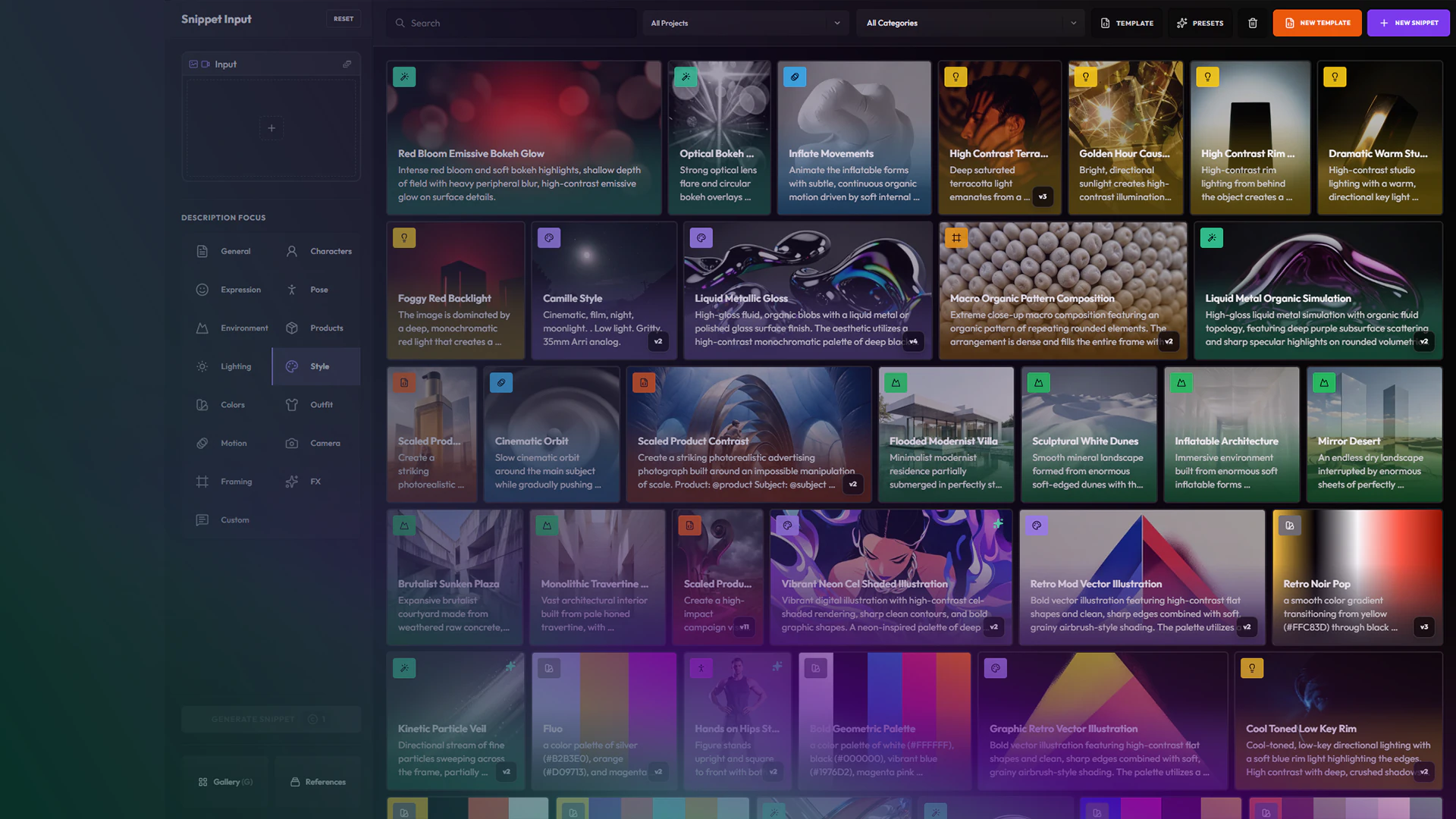
TutorialGetting Started26 min
Create your snippets library
Trade paragraph prompts for a color-coded library of character, wardrobe, framing, lighting, and FX snippets, then reuse it across Create, Image Edit, templates, and nodes.
TutorialCreative Workflow18 min
Create your own templates
Turn a prompt that works into a template: the art direction stays locked, and a few fields stay open for you or your team to change.
ArticleModels
Krea 2: what the creativity sliders do
Krea 2's creativity sliders turn one simple prompt into very different visual styles. Two prompts, one seed each, from calm to complex.