
Every asset keeps a record of how it was made: the model, the prompt, the settings, the inputs and the snippets it used. Hylope links each result to the assets it came from, so you can trace any piece back step by step and start again from any point.
Two ideas cover this:
- Lineage links different assets: an image, the edit made from it, the video made from the edit.
- Versions are successive states of one asset, such as a retouch saved back to it. They share one card in the gallery.
Lineage
Open an asset in the lightbox and press L, or click Lineage. The lineage view shows where the asset came from and what was made from it, generation after generation. The snippets used in a prompt appear as parents too.
- Click any node to move to that asset and see its own lineage.
- Each node can Reload state into Create or Open in lightbox.
- Press F to fit the whole graph in view.
Parents
To see where an asset came from without opening it, hover it and press P, or right-click it and choose Show direct parents. The parent tray opens with the asset’s direct parents, their own parents, and the snippets in its prompt.
Click a parent to open it, or drag it straight into an input slot. Snippet cards have a button to copy their token. Press P again or Esc to close the tray.
Reload
Reload puts everything an asset was made with back into Create: the mode, the model, the prompt, the inputs and the settings. Change one thing and generate again.
- In the lightbox, press R or click Reload. It is also in the right-click menu.
- On a result saved from Quick Edit, the button reads Reload Parent: it reloads the generation the edit was made from.
- References, extracted objects and Compose documents have no Reload: they were not made in Create.
Variations
Results made from the same inputs or prompt are grouped into stacks in the gallery. In the lightbox, press V to browse the other results of the stack, or ↑ ↓ to step through them.
Versions
A version is a new state of the same asset. You add one when you:
- save an edit from Quick Edit with Save as v2, Save as v3 and so on,
- click Save New Version in the Photoshop plugin.
The gallery shows one card per asset, with the number of versions on it. The version shown is the active one. To keep an edit apart instead, Quick Edit’s Save as separate copy makes a new asset linked to the original.
In the lightbox, press V to list the versions, or ↑ ↓ to step through them. Each version has:
| Action | What it does |
|---|---|
| Make Active | Makes this version the one the gallery shows. |
| Delete this version | Removes this version only. The first version and the active version cannot be deleted. |
Press C to Compare a version with the previous one, side by side or with a before and after slider. You can choose which version to compare against. For an edit, such as an upscale, Compare puts the result next to its source.
Inputs follow versions
An input slot in Create shows which version it holds, and you can pick another from its list. When the version it holds is no longer the active one, the slot shows Update: click it to switch the input to the active version.
Key assets
Key assets are the chosen assets a project builds on: a character, an outfit, a product, an environment, a start or end frame. Each one belongs to a project, or to one of its folders.
- Right-click an asset and choose Create Key Asset, or Update Key Asset to add it to an existing key asset of the active project.
- A key asset holds versions: one is active, and they are named Version 1, 2, 3. Switch it to Variants to keep several named options side by side, with none active.
- Every version and variant of a key asset is marked Approved automatically, active or not, and so are the other versions of those assets. One marked Rejected or Archive keeps that status.
- In Create, Choose Key Asset loads a key asset into an input slot. When its active version changes, the slot offers Update.
To see all the key assets of a project, open it in the Gallery and click Selected Assets in the sidebar.
Learn more
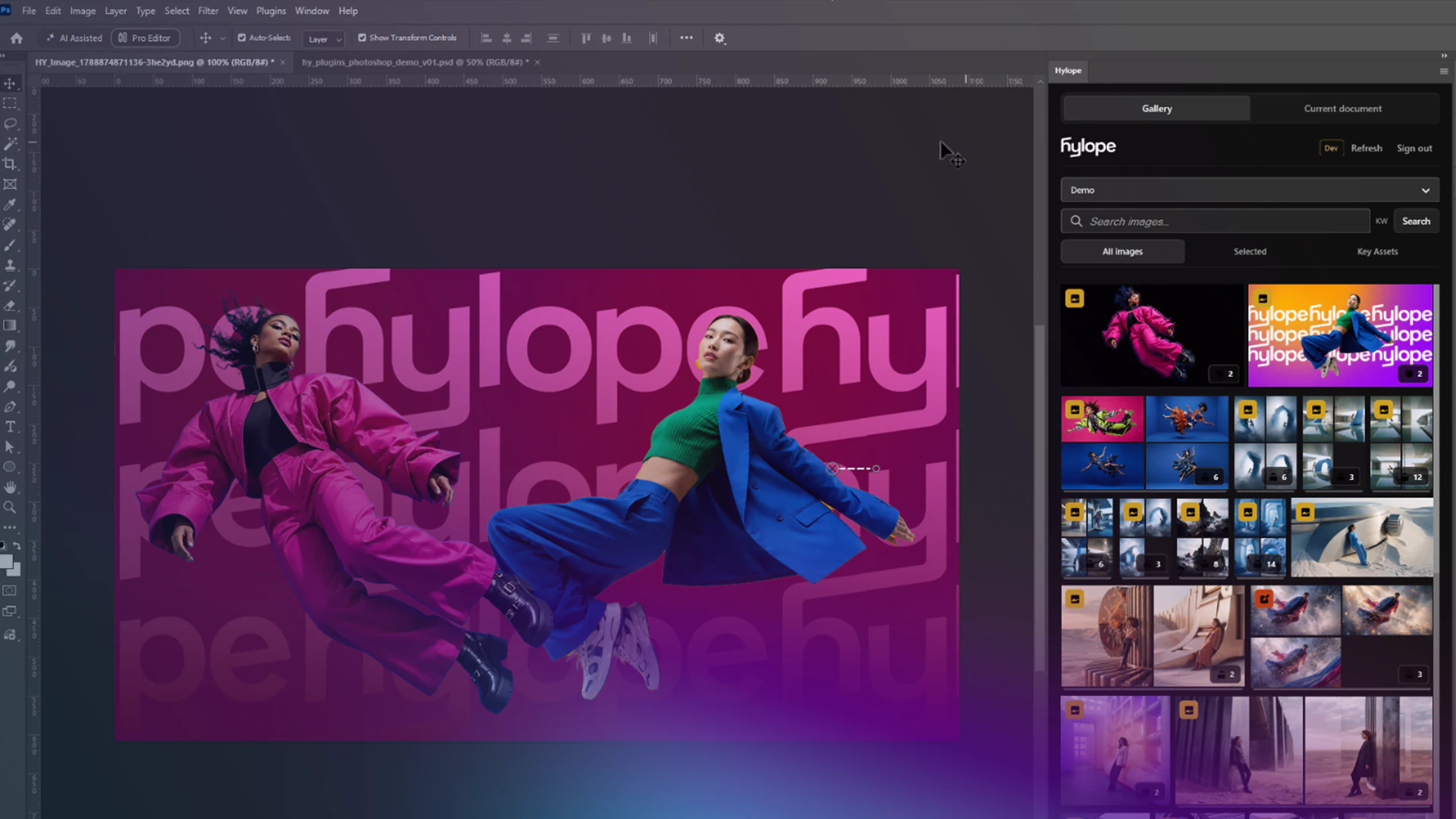
TutorialPlugins6 min
Sync your assets with Photoshop
Open Hylope assets in Photoshop, save your edits as new versions, and send local files as references, without downloading or uploading anything.
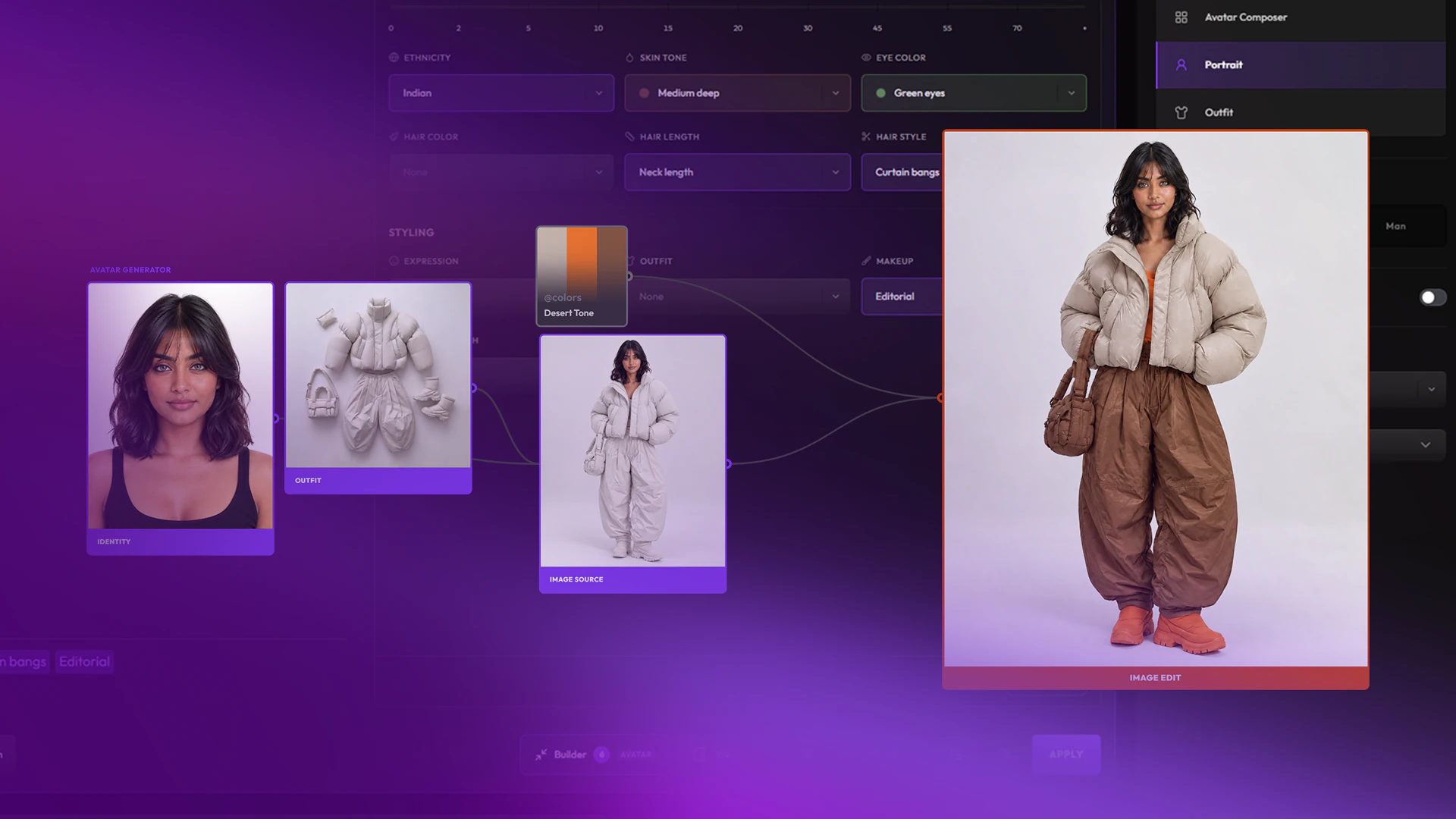
TutorialAvatar23 min
Build characters and outfits in Avatar mode
Create AI characters with precise art direction, in any style. A portrait sets the identity, outfits are built separately, then combined.
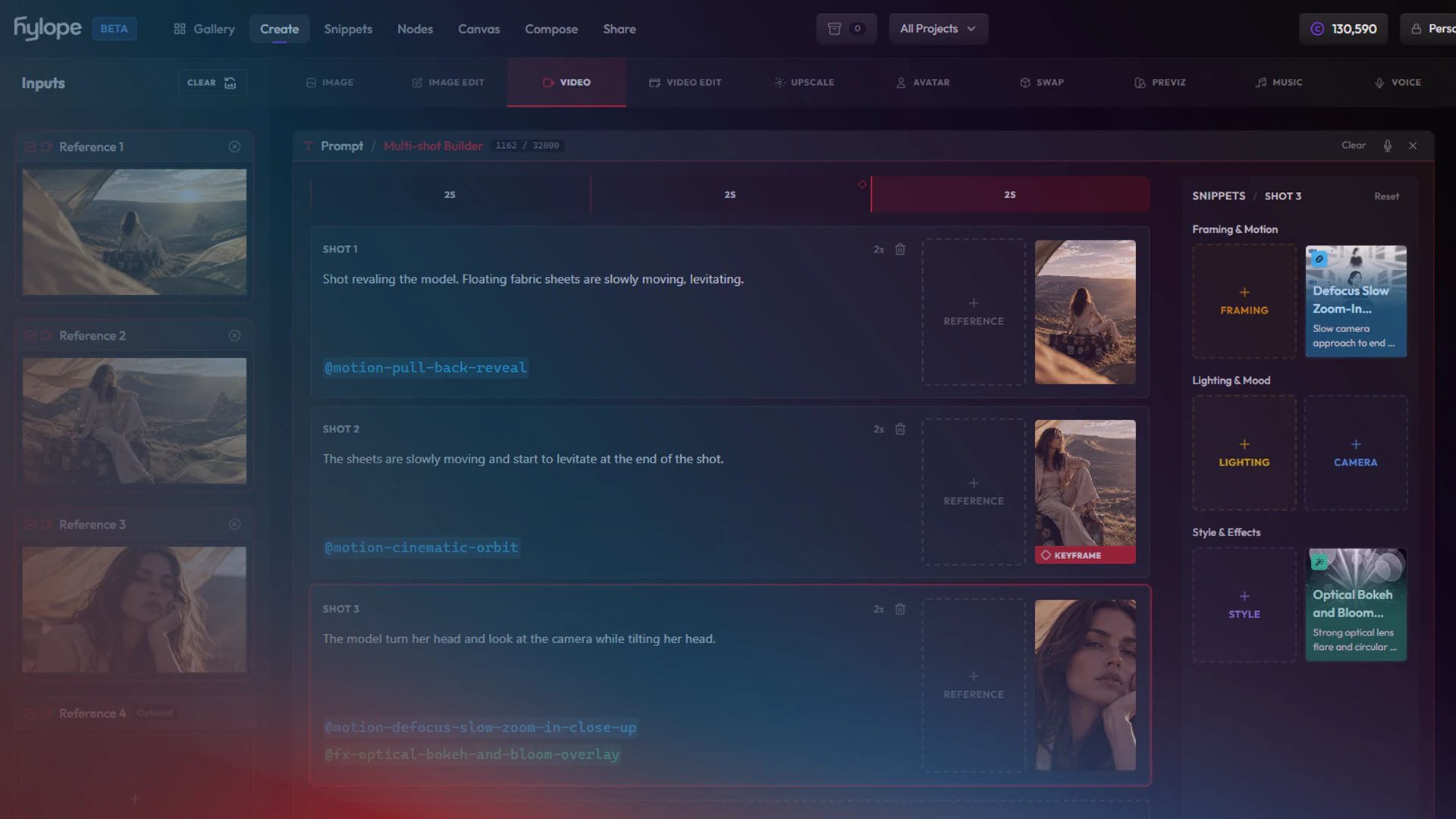
TutorialVideo16 min
Prompt multi-shot videos with a visual editor
Plan a multi-shot video on a visual timeline: one card per shot, each with its own reference image and camera motion.