
TutorialPlugins6 min
Sync your assets with Photoshop
Open Hylope assets in Photoshop, save your edits as new versions, and send local files as references, without downloading or uploading anything.
Open Hylope assets in Photoshop, save your edits back as new versions, and send Photoshop documents to Hylope as references.
TutorialPlugins6 min
Sync your assets with Photoshop
Open Hylope assets in Photoshop, save your edits as new versions, and send local files as references, without downloading or uploading anything.
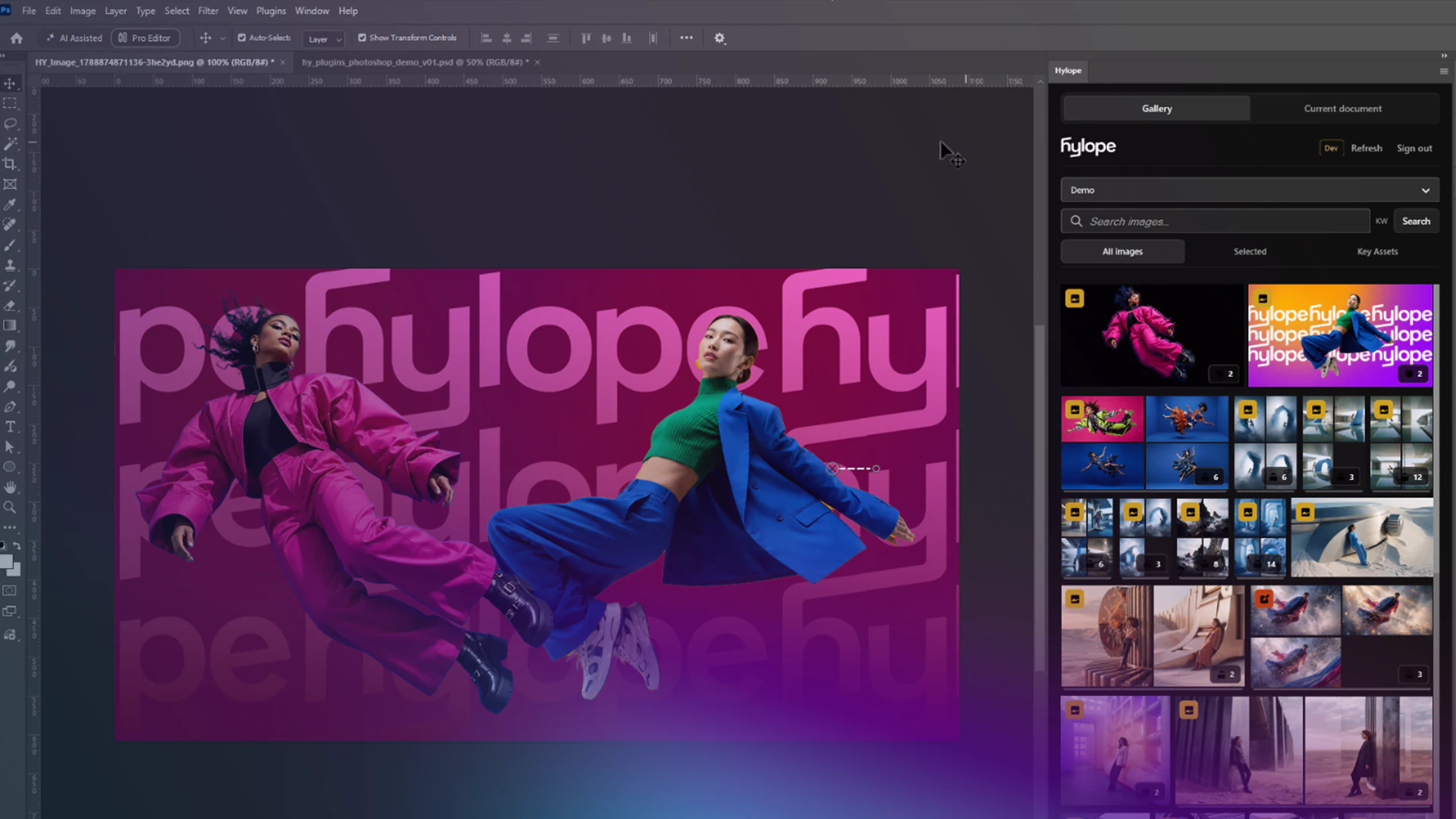
The Photoshop plugin docks your Hylope gallery in a Photoshop panel. You open an asset from it, edit it with your own layers, and save the result back to Hylope as a new version of the same asset. No downloading, renaming or uploading in between.
The plugin is in beta. Download it from the Photoshop plugin page.
Download the .ccx file and double-click it. Creative Cloud installs the plugin.
In Photoshop, open Hylope from the Plugins menu and dock the panel where it suits you.
Click Sign in with Hylope in the panel. A Connect Photoshop page opens in your browser. Choose the Workspace, check that the code on the page matches the one in the panel, tick The code matches my Photoshop panel. and click Connect Photoshop. Then go back to the panel. Your password never goes into Photoshop.
Only approve a request you started yourself in Photoshop. The connection can read images and save new versions, within your project permissions. It cannot delete assets or change workspace settings. The workspace owner can revoke it from API Tokens in the account settings.
The panel shows the workspace as you know it from Hylope: your projects, with their stacks and versions. Search it, or pick from the gallery, your selection or your key assets.
Choose the version you want before you open it, or the variant for a key asset. Browsing in the panel does not change which version is active in Hylope. Then click Open in Photoshop, or place the asset in the current document as a smart object.
Edit the document as usual, then click Save New Version in the panel. A PNG of the document goes back to Hylope as the next version of the same asset, in the same gallery card. Your layered document stays in Photoshop.
The new version appears in the asset’s version list in the lightbox. See Versions & lineage.
To bring a local file into Hylope, such as a logo or a layout, open it in Photoshop and click Send to Hylope in the Current Document tab of the panel. It is added to the references of a project, ready to use as an input. Later edits can go back to it with Save New Version.
When you save a new version of an asset that is loaded in an input slot in Create, the slot shows Update. Click it and your next generation uses the new version, without rebuilding the prompt.