
TutorialCreative Workflow11 min
Edit images in place with Quick Edit
Edit an AI image without generating it again: change it with a prompt, inpaint inside a mask, remove or extract objects, and keep every edit as a version.
Crop, draw, adjust and run AI edits on an image, or trim and crop a video, then save the result as a new version or a separate copy.
TutorialCreative Workflow11 min
Edit images in place with Quick Edit
Edit an AI image without generating it again: change it with a prompt, inpaint inside a mask, remove or extract objects, and keep every edit as a version.
Quick Edit is an editor that opens over an asset. It is not a Create mode: you change the asset where it is, then save the result as a new version of it or as a separate copy.
To change an image with a full prompt, inputs and model settings, use Image Edit instead.
The tools sit in a sidebar on the right, in two groups: Edit and AI tools. The options of the selected tool appear in a bar under the image.
| Tool | Key | What it does |
|---|---|---|
| Select | V | Selects and moves the lines and text you added. Delete selected removes them. |
| Draw | D | Draws freehand, with a Color and a Size (S, M or L). |
| Text | T | Click the image to place text, then type. |
| Crop | C | Crops to Original, Free or a named ratio. Apply (Enter) or Cancel (Esc). |
| Adjust | A | Sliders for brightness, contrast, saturation and temperature. Reset puts them back. |
Prefer Original or a named ratio over Free when you crop: a standard ratio keeps the image usable with the image and video models you may send it to later.
The AI tools use credits. Generate and Remove show the cost before you run them.
Press P, describe the change and click Generate. Pick the model in the bar: ChatGPT Image 2.5 Flare (the default), ChatGPT Image 2.5 Sunburst, Nano Banana 2.1, Nano Banana Pro, Meta Muse or Grok Imagine 2.0. The two ChatGPT models also have a Quality setting: Low, Medium or High.
Each Generate makes a new take from the same starting image. Step through the takes with the arrows at the top of the image, then click Done to keep the one shown, or Cancel to go back to the image as it was.
Choose Quick Cutout for a fast result, or BiRefNet Detail for cleaner edges on hair and soft details, then click Remove background.
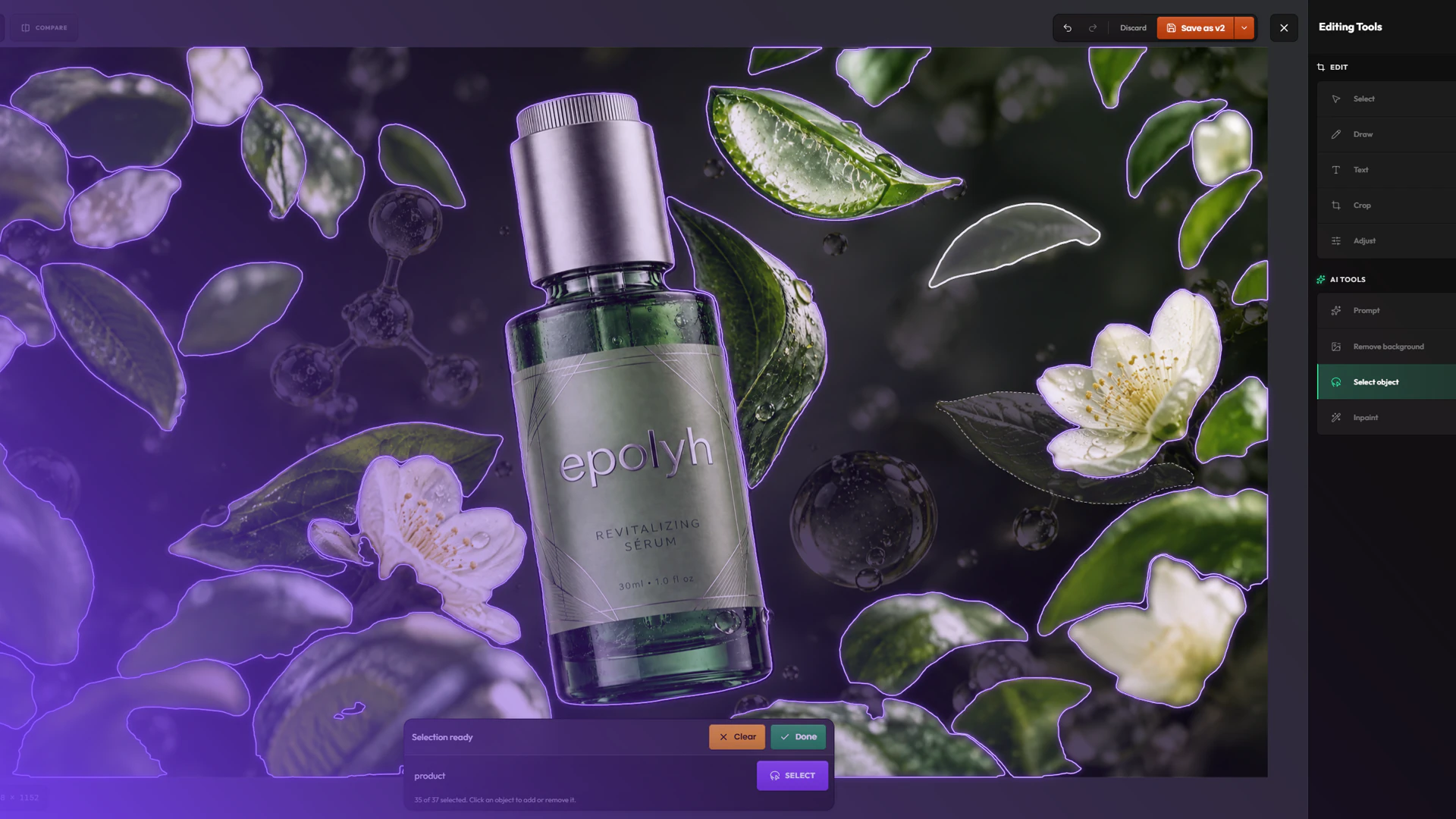
Describe what to select, such as “the tiger” or “the red car”. Hylope finds the matching objects: click an object to add it to the selection or take it out, or describe something else to add. Click Done when the selection is right, then choose what to do with it:
| Action | What it does |
|---|---|
| Inpaint | Replaces the selected area with what you describe. |
| Remove | Erases the object and rebuilds the area behind it. Runs on Meta Muse. |
| Extract | Saves the object as a new cutout image, linked to this one. |
Edit selection goes back to the selection, Clear starts over.
Draw around the area to edit. The Mask switch sets whether you add to the area or take away from it. Click Done, describe what should appear there and click Generate. Inpaint runs on Meta Muse by default, or on ChatGPT Image 2.5 Sunburst. Takes work as in Prompt: Done keeps one, Cancel discards them.
Save as v2 (the number follows the asset’s versions) adds your edit as a new version of the asset, in the same gallery card. Press Ctrl/Cmd+S to do the same.
The arrow next to it has Save as separate copy: a new asset, linked to the original, instead of a version.
If you close the editor with unsaved changes, it asks whether to Keep Editing or Discard Changes.
On a video, Quick Edit has two tools:
| Tool | Key | What it does |
|---|---|---|
| Trim | T | Drag the start and end handles. I sets the start and O the end at the playhead. |
| Crop | C | Crops to a ratio or freely. Esc resets a changed crop. |
Space plays and pauses. Saving works as for images: a new version, or a separate copy. The trimmed and cropped video is rendered when you save.
All Quick Edit keys are listed in Keyboard shortcuts.