TutorialGetting Started26 min
Trade paragraph prompts for a color-coded library of character, wardrobe, framing, lighting, and FX snippets, then reuse it across Create, Image Edit, templates, and nodes.
Save reusable pieces of prompt, insert them with @, generate them from images, and build templates with fields to fill.
TutorialGetting Started26 min
Trade paragraph prompts for a color-coded library of character, wardrobe, framing, lighting, and FX snippets, then reuse it across Create, Image Edit, templates, and nodes.
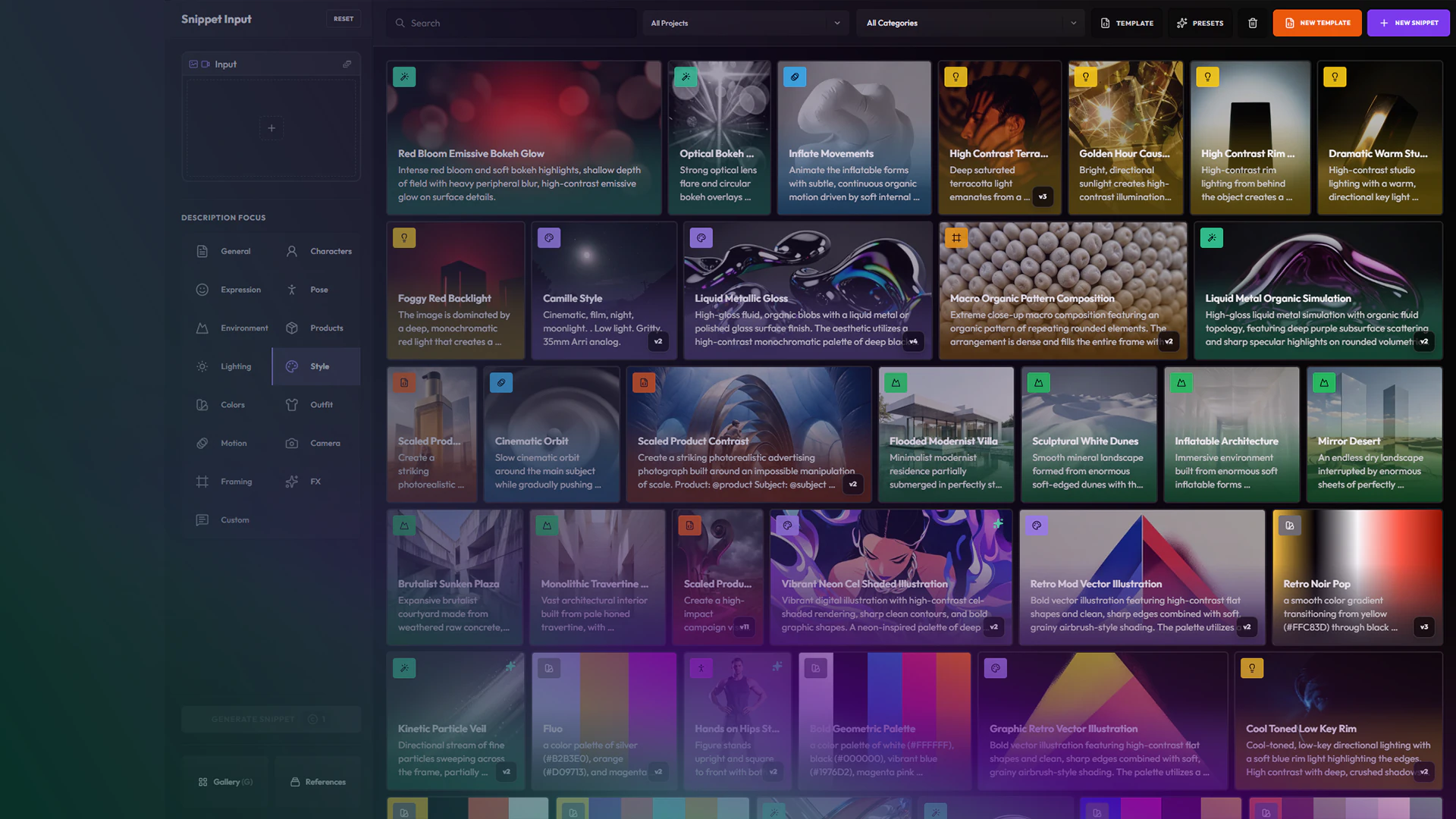
A snippet is a saved piece of prompt: a character, an outfit, a light setup, a camera, a color palette. You write it once and insert it into any prompt with @. The Snippets app is where you write, generate, version and organize them. It also holds templates.
Type @ in a prompt, in Create or in a Nodes Prompt node. The Insert Snippet picker lists your project snippets, your workspace snippets and the built-in presets, by category. The snippet shows in the prompt as a colored token, such as @light-golden-hour-backlit-contrast, and its full text is used when you generate. Snippets are not available in Upscale.
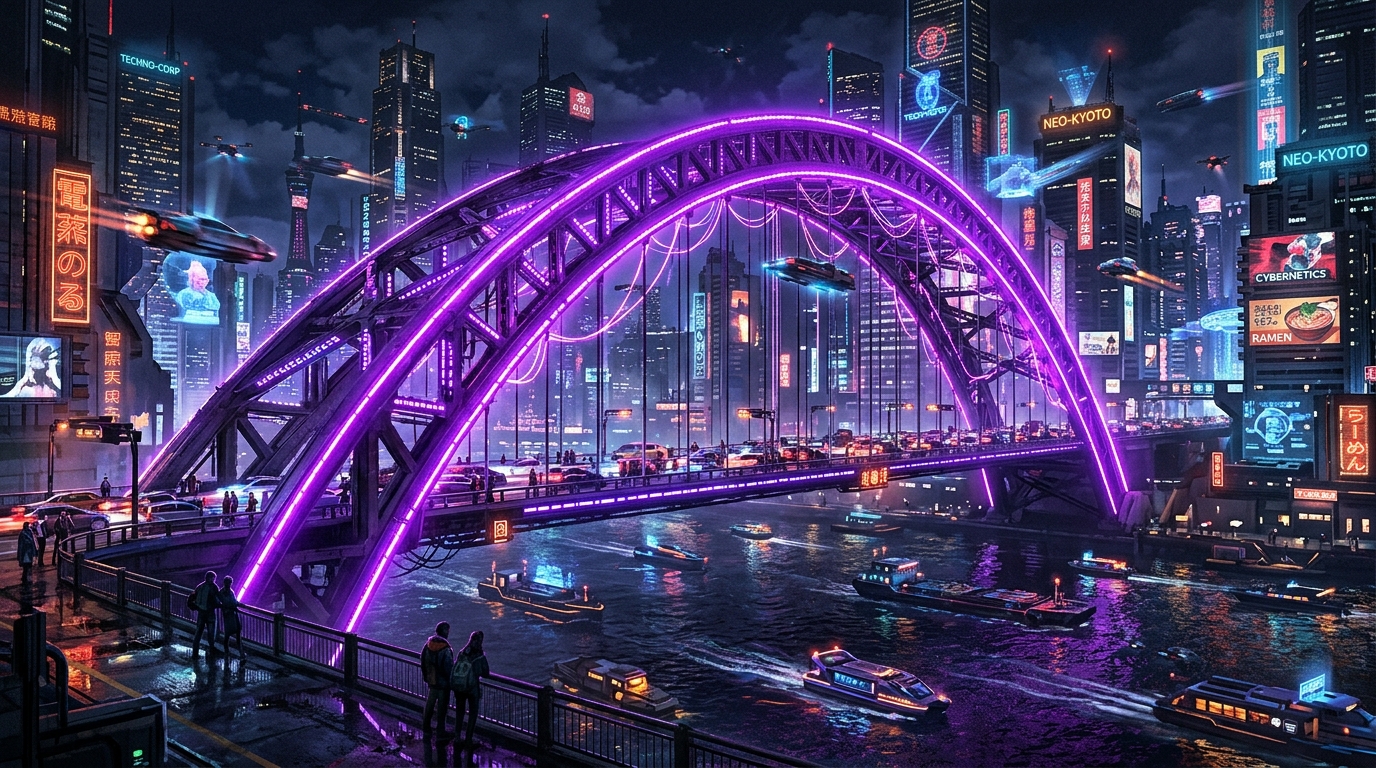
Snippets keep long prompts short and let you change one idea without rewriting the rest. This image was made with seven snippets and no other text:
@pose-seated-fashion
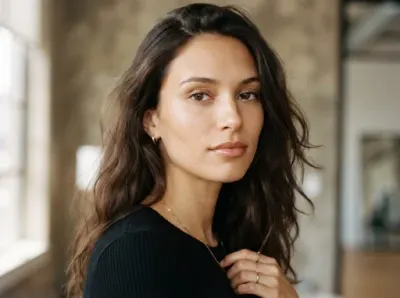 Effortless Cool WomanYoung adult woman in her mid-20s with a light olive skin tone, softly angular face, defined cheekbones, slightly hooded…
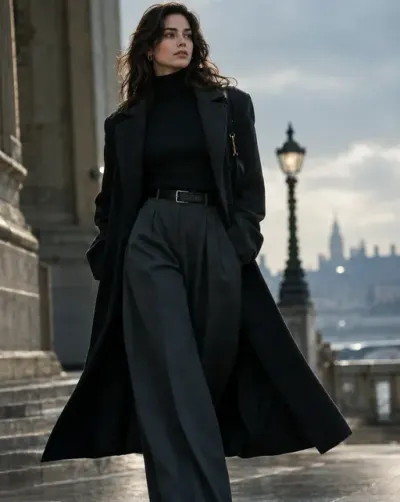 Cinematic Pop ProtagonistNarrative-driven lead-character wardrobe combining fashionable everyday clothing with one memorable signature piece: a…
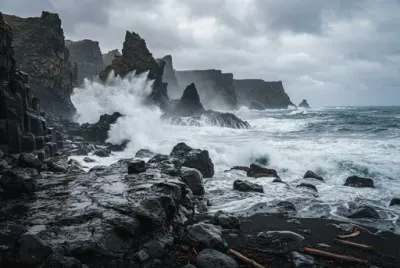 Black Volcanic CoastRemote shoreline composed entirely of dark volcanic rock, sharp cliffs, wet stone, and coarse mineral sand. Powerful…
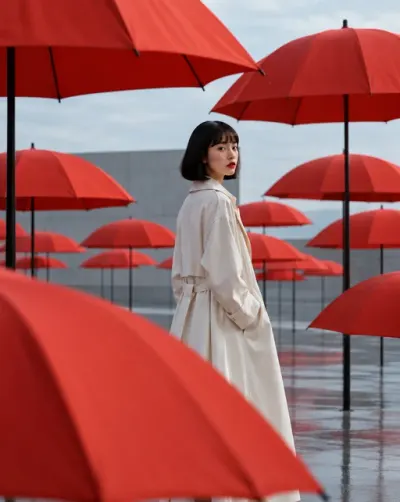 Repeated Elements Around SubjectKeep the subject visually distinct while repeating one scene element around them in a controlled rhythm. Arrange the…
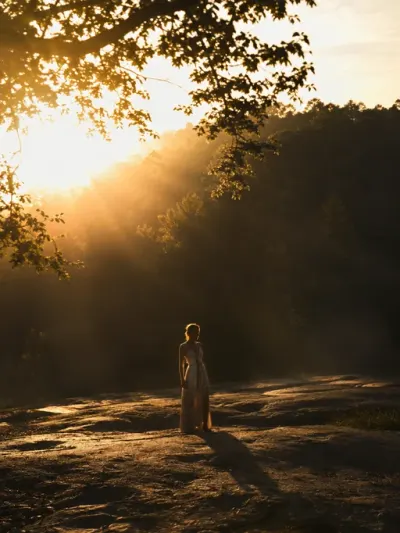 Golden Hour Backlit ContrastStrong golden hour backlighting creates a dramatic rim light effect on the subject. High-contrast atmosphere with soft…
 Floating ObjectsFloating objects related to the environment of various size and materials are floating around the subject. The floating…
Every snippet has a category, which sets its color and icon in the prompt: General, Characters, Expression, Pose, Environment, Lighting, Style, Colors, Products, Outfit, Motion, Camera, Framing and FX. Templates have their own category, Template.
A Colors snippet holds colors instead of text. Choose Solid for one color, Palette for several, or Gradient for a ramp.
Cool-toned, low-key directional lighting with a soft blue rim light highlighting the edges, and deep shadows.
A palette of vibrant magenta, deep black, neon green and cyan.
Hover a card to see its category, then click it to copy its token.
Click New Snippet. To start from an asset instead, right-click it in any gallery and choose Create snippet.
Give it a title, pick a category and write the text. Improve snippet rewrites the text for you; Revert brings back your version.
The poster is the image on the card. Generate poster makes one from the snippet, or Upload your own poster. Then click Save snippet.
The Snippet Input panel on the left turns media into a snippet.
Change the title or the text of a saved snippet and the button becomes Save new version. The Version Manager lists every version with its title and text; Make active makes an older version the one your prompts use. Versions track the text only: the poster stays the same.
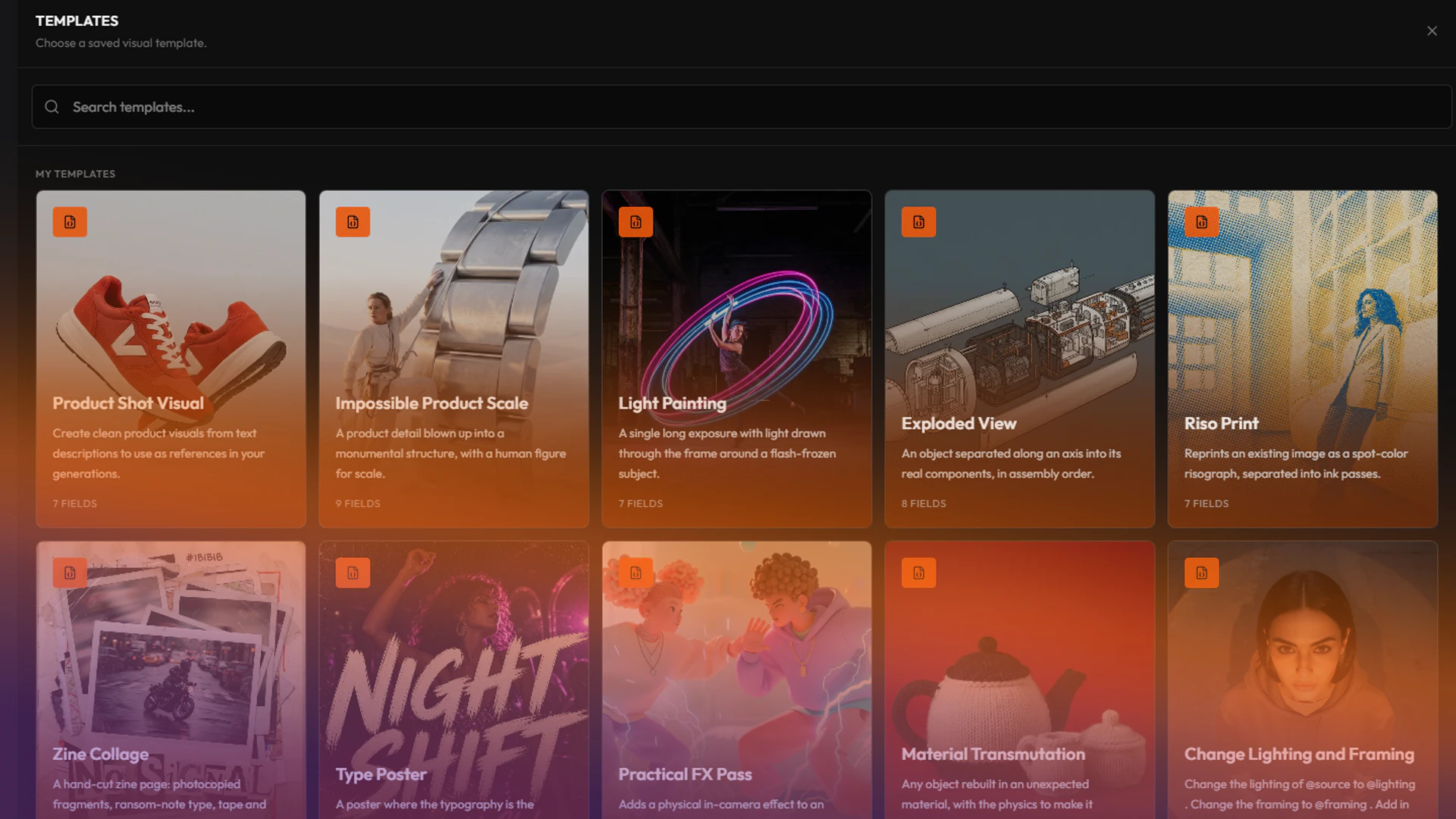
A template is a prompt with fields. The structure stays fixed and you only fill in the fields, so a team can reuse the same brief with new subjects, products or colors.
Click New Template. The builder has two parts:
@, to insert it, for example Create an image featuring @subject.| Field | What it holds |
|---|---|
| Prompt | A long block of text. |
| Text | A short line of text. |
| Image | An input image. Image fields take their @image slot from their order. |
| Snippet | A snippet, optionally from one category. |
| Options | A list of choices, each with a display name and the value sent in the prompt. |
| Color | One color. |
| Multi colors | Several colors. |
| Toggle | Text added to the prompt only when it is on. |
| Number | A number. |
A template also has a title, a short description, an author name and link, and a license. Templates are versioned like snippets.
The Builder and JSON switch shows the template as JSON. Copy it from there to share the template with another workspace, or paste JSON in to import one. If the JSON is not in Hylope’s format, Convert to Hylope converts it with AI. When the license requires attribution, a warning stays until the template has an author name and link.
TutorialCreative Workflow18 min
Turn a prompt that works into a template: the art direction stays locked, and a few fields stay open for you or your team to change.
ArticleSnippets
As models get better, prompts get longer and harder to edit. Snippets split them into colour-coded tags you can read, swap and change one at a time.