
The Image Edit tab changes images you already have. Load the image, say what should change, and generate. Pick one of its two input modes at the top of the settings panel. On a phone, the tab is called Edit.
To make a new image from reference images instead, use Image > References.
Image Edit
Load the image
Drop the image you want to change on Image 1 in the input panel, or pick it from the gallery. Drop several images on it to run the same edit on each one.
Add references
Under Optional References, add the images the edit should use: a person, a product, a place. The panel grows to the most images the selected model accepts. The models table lists that limit.
Describe the change
Name each image by its token:
@image1is the image you edit,@image2the first reference, and so on. For example: replace the jacket in @image1 with the one from @image2. Type@to add snippets as well.Generate
Press Enter or click Generate. The default model is ChatGPT Image 2.5 Flare. Results appear in Create and in the Gallery.
Model
- Image Edit
Prompt
the characters and are smiling for a fashion photoshoot in the couch, inside the loft . close-up shot, cinematic portrait of the two characters change the lighting of the scene to
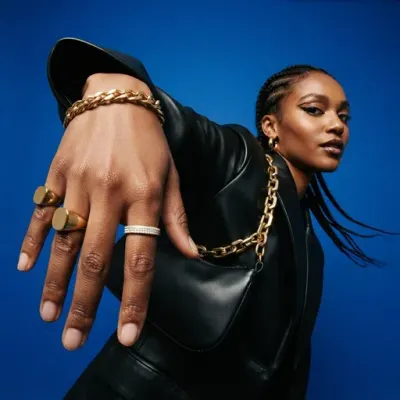 Distorted Close-Range PerspectivePhotograph the subject from extremely close range with a wide-angle lens, allowing the nearest features, limbs, or…
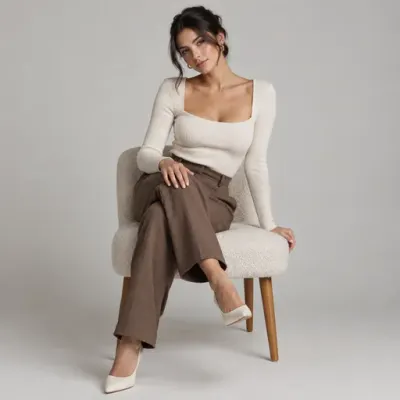 Fashion SeatingThe subject sits upright with the torso slightly angled, one leg crossed over the other and the uncrossed foot planted…
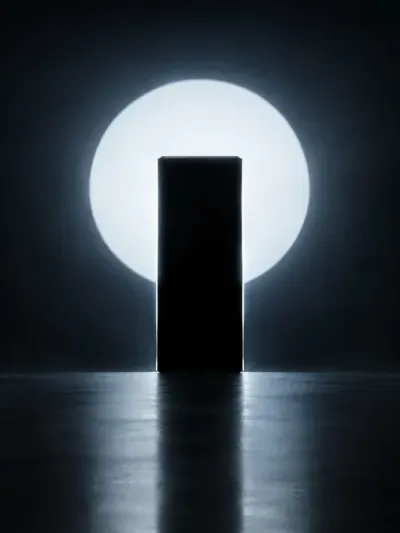 High Contrast Rim Lit SilhouetteHigh-contrast rim lighting from behind the object creates a sharp silhouette against a soft, cool-toned white circular…
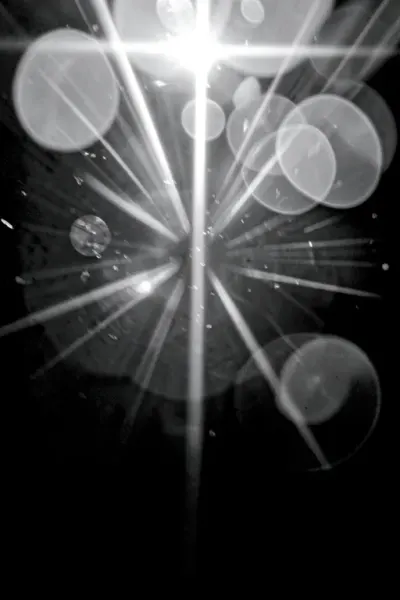 Optical Bokeh and Bloom OverlayStrong optical lens flare and circular bokeh overlays create soft, translucent light artifacts across the upper frame…
 iPhone PhotographyPhotograph the scene as if casually captured on a recent iPhone Pro. Use realistic smartphone optics, natural…
Nano Banana 2.1 also accepts a video as Image 1. The other models take images only.
The Quick Edit button under the image on the Input card opens it in Quick Edit, the in-place editor.
Edit guides
Some edits are easier to show than to describe. Under the image on the Input card, three tools mark up Image 1 before you generate:
| Tool | What it does |
|---|---|
| Annotate | Draw and write on the image: circle a detail, add an arrow, write a note. |
| Zones | Drag up to two rectangles to say where the edit happens. |
| Select object | Type what to select, keep the matches you want, and the selection becomes a mask of the area to edit. |
- An image carries one guide at a time. Remove it to use another tool.
- A tool only appears when the selected model can follow it. On most models the guide is sent as one extra image, so it takes one reference slot.
- Guides are not available in Expand, with a template, with a batch of source images, or with a video source.
- If you switch to a model or a source that cannot use a saved guide, the guide stays on the card, the card says why, and Generate waits until the guide can run.
- Quick Edit is hidden while a guide is saved, because changing the image would no longer match the guide drawn on it.
Expand
Expand extends an image to a new aspect ratio: the model paints the area outside the original frame.
Choose Expand
Select Expand under Input Mode. The input panel keeps a single slot, Source Image. If the current model cannot outpaint, Create switches to one that can.
Pick the target ratio
Use Target Ratio in the settings panel, under the preview, or the ratio control in the prompt bar. Both offer the same ratios: only those the model can reach from your source, and never Auto. The output area and the settings panel both preview the source inside the new frame.
Position the image
With Flux, Kling and Muse, drag the source in either preview to choose where the new area goes. It slides along the side that has room and snaps to the center and to each edge; the arrow keys move it too. Double-click it to center it again. Other models always keep the source centered.
Generate
The prompt is locked in Expand: Create writes the outpainting instruction for you.
- Flux expands with its own Flux Outpainting model. It builds the new frame around your source at the source’s own resolution, up to 4 MP, so there is no resolution to pick: the output panel’s header shows the size you will get. Its Rendering Quality offers High (the default) and Fast, which renders sooner and suits landscapes, backgrounds, textures and products, though the new area can hold less detail. Fast needs a source at least 64 px on each side and no longer than 8:1.
- Kling can extend an image to at most three times its original area, so ratios far from the source’s are left out.
- Muse has no outpainting model of its own. Create places your source on the new frame where you put it and marks the area to paint, and Muse paints it at its fixed ~2.4 MP size. Artwork with its own border, such as a watercolour’s paper edge, can come back slightly reframed when placed in the center.
- Contact Sheet Variations, Template and Style Transfer are off while Expand is on.
Settings
These rows sit under Input Mode when Image Edit is selected. Some only appear for models that support them.
| Setting | What it does |
|---|---|
| Contact Sheet Variations | Lays several variations out in one image: From Prompt, Angles, Angles + Poses, Time of Day, Weather or Lighting. Any choice other than From Prompt writes the prompt for you. |
| Template | Fills the prompt from a template. The template’s image fields become the input slots. A template with no image field opens in the Image tab. |
| Style Transfer | Turns the second slot into a Style Reference: load a style image or choose a style preset. The other references are hidden while it is on. Send style as sends the style as Text or as an Image, when the model accepts one. |
| Advanced Controls | Model-specific options, such as ChatGPT Image’s quality or Ideogram’s Image Weight. |
Template and Style Transfer exclude each other, and a template turns Contact Sheet Variations off.
Model Batch runs the same edit on several models, one result each. Open it from the model card. With an edit guide, every model in the batch must be able to follow it.
Models
Every model offered in Image Edit, with the sizes it renders and how many input images it takes.
 OpenAI
- ChatGPT Image 2.5 FlareDefaultNew
Fast everyday generation and editing, with transparent-background support
1K, 2K, 3K, 4KUp to 16 input images
- ChatGPT Image 2.5 SunburstNew
Highest editing precision and subject preservation; slower than Flare
1K, 2K, 3K, 4KUp to 16 input images
- ChatGPT Image 2.0
GPT Image 2 with high-fidelity reference handling and prompt-based masking
1K, 2K, 3K, 4KUp to 16 input images
 GeminiGoogle
- Nano Banana 2.1
Update to Nano Banana 2 with better image quality, text rendering and character consistency. Supports up to 4 character likenesses and 10 objects per workflow.
1K, 2K, 4KUp to 10 input images
- Nano Banana 2.0
Best all-around balance of quality, speed and cost. Supports up to 4 character likenesses and 10 objects per workflow.
1K, 2K, 4KUp to 10 input images
- Nano Banana 2.0 Lite
Fastest and cheapest Nano Banana image model. 1K only; best for low-latency generations and simple edits.
1KUp to 14 input images
- Nano Banana Pro
Professional asset production with Thinking mode and Google Search grounding. Supports up to 14 input images.
1K, 2K, 4KUp to 14 input images
 SeedreamBytePlus
- Seedream 5.0 Pro
Precise image editing with full layer control and up to 10 reference images. Single-image 1K/2K output.
1K, 2KUp to 10 input images
- Seedream 5.0 Flash
Faster, lower-cost sibling of 5.0 Pro: precise editing and up to 10 reference images. Single-image 1K/2K output.
1K, 2KUp to 10 input images
- Seedream 5.0 Lite
Latest version with upgraded reasoning, web-connected retrieval, and stronger consistency
2K, 3KUp to 4 input images
- Seedream 4.5
Previous high-quality model for photorealism
2K, 4KUp to 4 input images
 KlingKlingAI
- Kling 3.0 Omni
Omni-image model with prompt-addressable references, auto aspect ratio, and 4K support
1K, 2K, 4KUp to 10 input images
 GrokxAI
- Grok Imagine 2.0New
Latest generation and editing model with Low and Medium rendering quality
1K, 2KUp to 5 input images
- Grok Imagine
Fast image generation and editing
1K, 2KUp to 3 input images
 WanAlibaba
- Wan Image 2.7
Faster Wan 2.7 image model with 1K/2K output and up to 9 reference images
1K, 2KUp to 9 input images
- Wan Image 2.7 Pro
Professional Wan 2.7 image model with 4K text-to-image, 2K edit flows, and up to 9 references
1K, 2KUp to 9 input images
- Wan Image 2.6
Legacy image edit/fusion model kept for backwards compatibility
1KUp to 4 input images
QwenAlibaba- Qwen 3.0 Pro
Dense layouts, 10px text, and photographic detail
1K, 2K, 3KUp to 3 input images
- Qwen 3.0
Crisp text across 12 languages, balanced for everyday output
1K, 2K, 3KUp to 3 input images
- Qwen 2.1 Pro
Edits with up to 10 references and renders transparent backgrounds on request
1K, 2K, 3KUp to 10 input images
- Qwen 2.0
Balances quality and response speed
1K, 2KUp to 3 input images
 Ideogram
- Ideogram 4.5New
2K text-to-image generation and precise edits that keep untouched pixels, with up to 4 reference images
2KUp to 5 input images
 Microsoft
- MAI Image 2.6 Flash
Fast 2K generation and edits with web grounding
2K1 input image
- MAI Image 2.6
Highest-fidelity 2K generation and edits with the strongest text rendering and portraits
2K1 input image
- MAI Image 2.5 Flash
Fast preview model for 1MP image generation and edits
1K1 input image
- MAI Image 2.5
Higher-quality 1MP image generation and edits with stronger prompt fidelity
1K1 input image
- MAI Image 2.5 Pro
Flagship 1MP generation and edits with the strongest object, character, and spatial consistency
1K1 input image
 FluxBlack Forest Labs
- Flux 3.0New
Reasoning image model for generation and precise edits, with up to 10 reference images
1K, 2K, 4KUp to 10 input images
- Flux 2.0 Pro
Professional quality with best prompt following
1K, 2KUp to 8 input images
- Flux 2.0 Flex
Flexible model with reference image support
1K, 2KUp to 8 input images
- Flux 2.0 Max
Maximum detail and quality output
1K, 2KUp to 8 input images
- Flux Klein 2.0 4B
Fast lightweight model, 4B parameters
1K, 2KUp to 4 input images
- Flux Klein 2.0 9B
Enhanced lightweight model, 9B parameters
1K, 2KUp to 4 input images
 Luma
Luma- Uni 1.1
Reasoning image model with fixed 2K output, strong direction-following and up to 9 input images
2KUp to 9 input images
- Uni 1.1 Max
Higher-quality Uni-1.1 tier with the same controls, at a higher price
2KUp to 9 input images
 Meta
Meta- Muse Image
Agentic image model with fixed 2K output and up to 10 reference images
2KUp to 10 input images
 PrunaPruna AI
- P-Image Edit
Fast instruction editing and blending, up to 5 reference images
1KUp to 5 input images
Expand uses the models that can outpaint:
OpenAI- ChatGPT Image 2.5 FlareDefault
- ChatGPT Image 2.5 Sunburst
- ChatGPT Image 2.0
GeminiGoogle- Nano Banana 2.1
- Nano Banana 2.0
- Nano Banana 2.0 Lite
- Nano Banana Pro
SeedreamBytePlus- Seedream 5.0 Pro
- Seedream 5.0 Flash
- Seedream 5.0 Lite
- Seedream 4.5
KlingKlingAI- Kling 3.0 Omni
QwenAlibaba- Qwen 3.0 Pro
- Qwen 3.0
- Qwen 2.1 Pro
- Qwen 2.0
FluxBlack Forest Labs- Flux Outpainting
Meta- Muse Image
Learn more
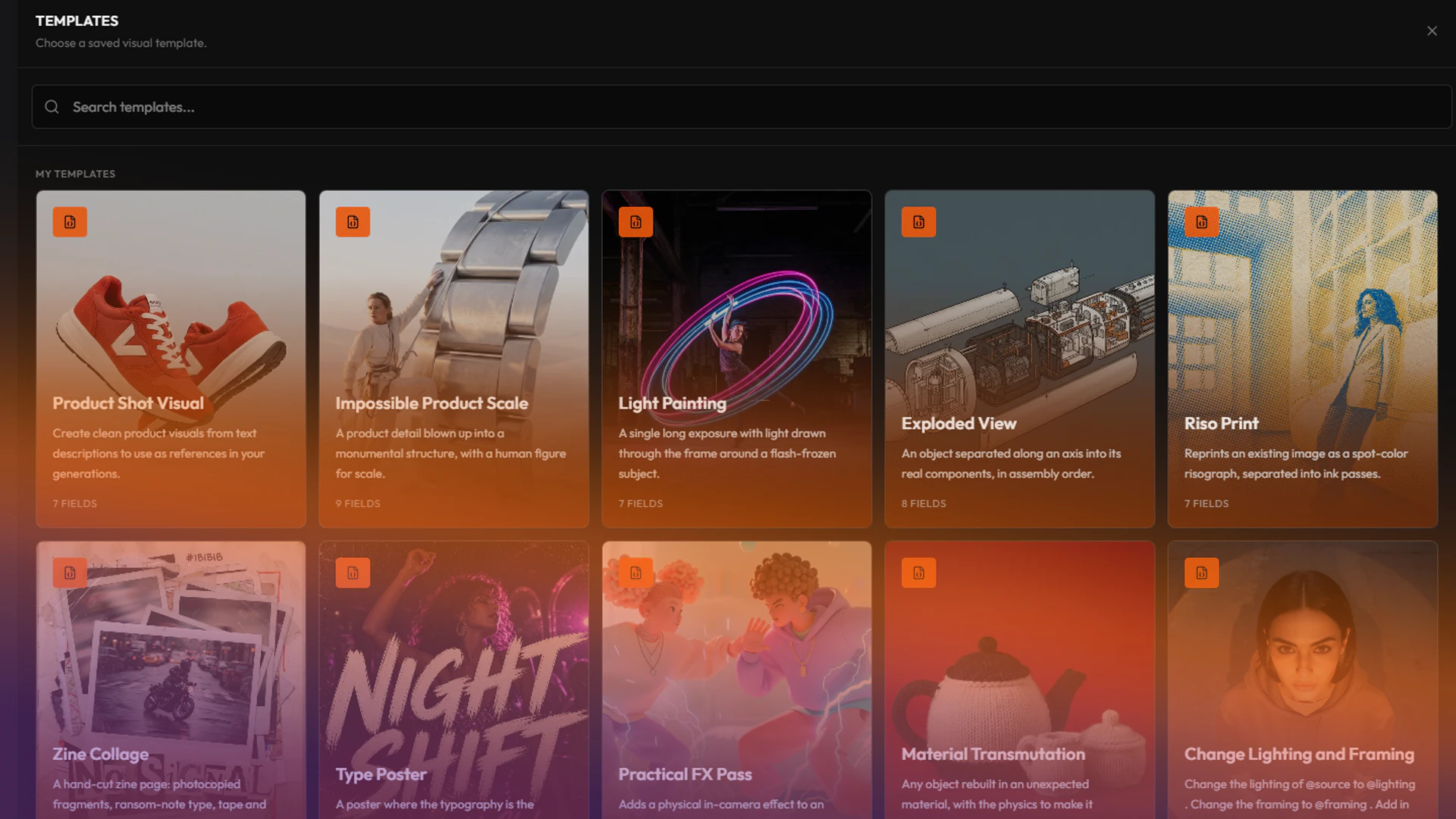
TutorialCreative Workflow18 min
Create your own templates
Turn a prompt that works into a template: the art direction stays locked, and a few fields stay open for you or your team to change.
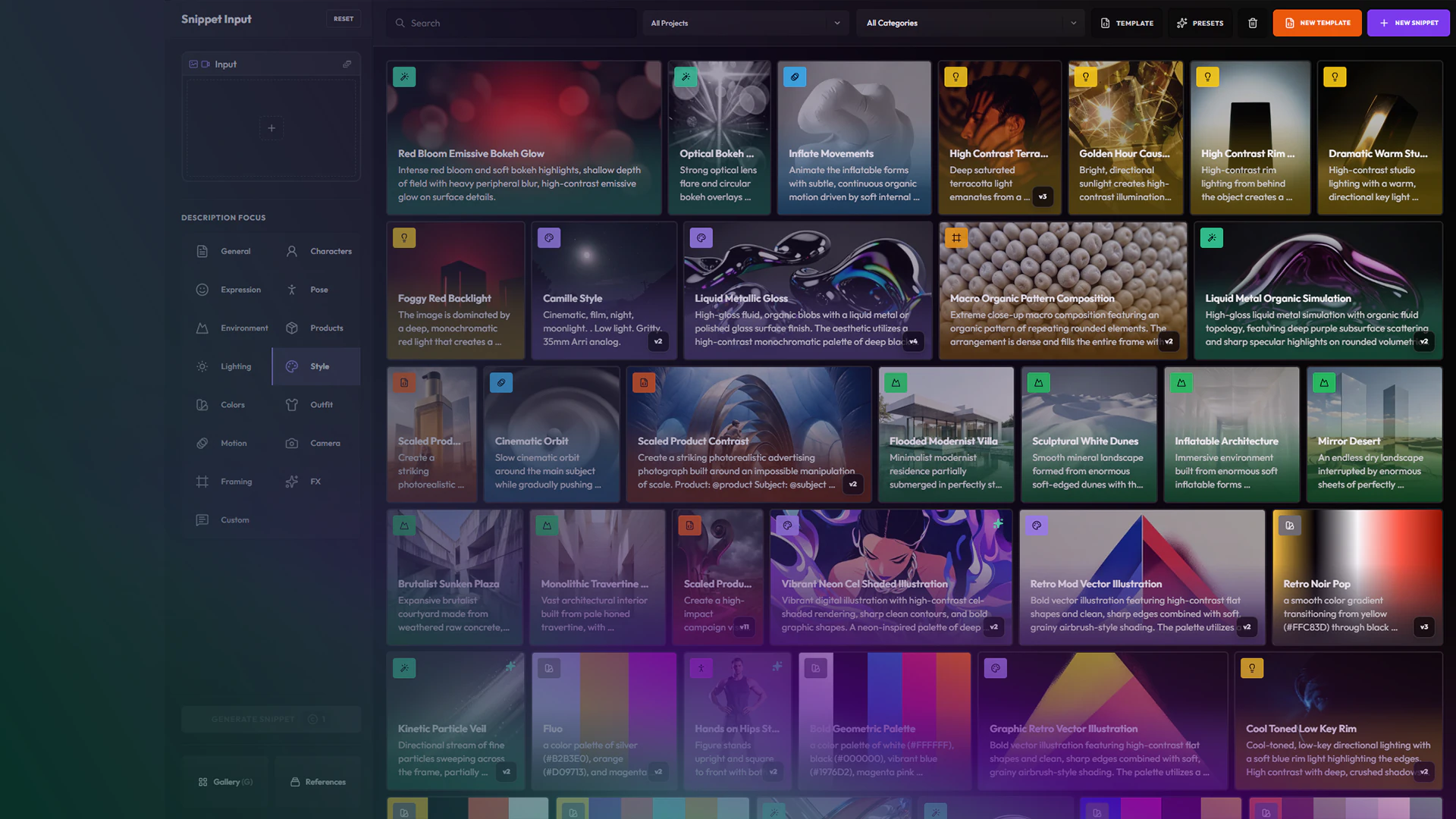
TutorialGetting Started26 min
Create your snippets library
Trade paragraph prompts for a color-coded library of character, wardrobe, framing, lighting, and FX snippets, then reuse it across Create, Image Edit, templates, and nodes.